Blendmemo | Work Notes, To-Do, Linked To Objects
 Hugu's Works



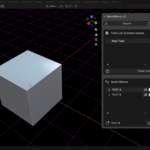
BlendMemo v2 Documentation
Thank you for choosing BlendMemo v2! This tool is designed to enhance your workflow by allowing you to take notes while preserving the "context" of your scene. Below is a guide on how to get the most out of your new add-on.
1. Installation
- Download the blendMemo_v2.zip file.
- In Blender, go to Edit > Preferences > Add-ons.
- Click Install... and select the zip file.
- Find System: BlendMemo v2 in the list and check the box to enable it.
- The panel will appear in the 3D View Sidebar (press N to open) under the "BlendMemo" tab.
2. Using Context Linking (ToDo List)
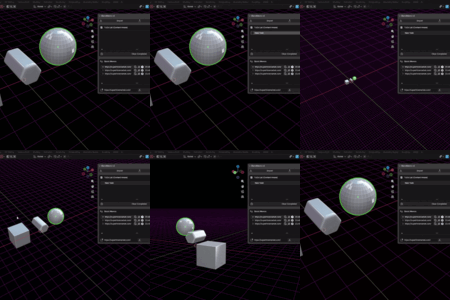
This is the core feature of BlendMemo v2. It allows you to save and restore the state of your scene associated with a specific task.
How to Link a Context:
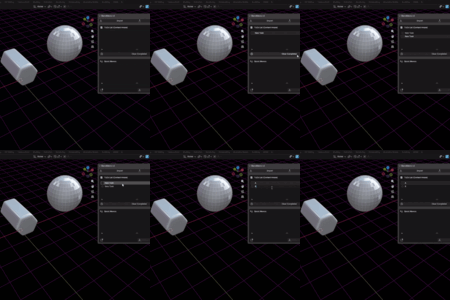
- Create a task by clicking the "+" button.
- Select an object, go to a specific frame, or adjust your camera view.
- Click the 🔗 (Link) icon on the right side of the task.
- Now, the Object selection, Active Bone, Current Frame, and Camera Perspective are saved to that task.
How to Restore a Context:
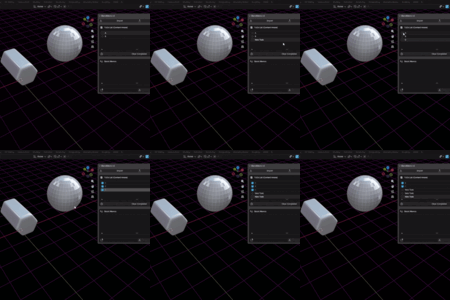
- Simply click the ▶ (Play) icon next to a task.
- Blender will instantly restore your selection, jump to the correct frame, and move your camera to the saved perspective.
3. Quick Memos (Smart Logs)
Use this section for rapid brainstorming and progress tracking.
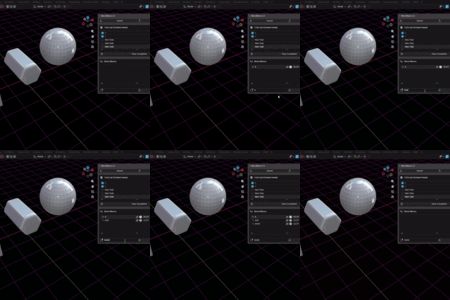
- Adding Memos: Type in the input field at the bottom and press Enter.
- Timestamps: Every memo automatically records the time of creation.
- URL Links: If a memo contains a URL (http/https), a 🌐 (Globe) button appears. Click it to open the link in your browser.
- Copy to Clipboard: Click the 📋 (Copy) icon to copy the memo text instantly for sharing on other platforms.
4. Import/Export (Markdown)
Keep your notes outside of Blender or transfer them to other projects.
-
Export: Click the "Export" button at the top to save your current ToDo list and Memos as a
.mdfile. - Import: Click "Import" to load an existing Markdown file. (Note: This will append to your current list).
5. Workflow Tip: The Popup UI
To keep your workspace clean, we highly recommend adding the BlendMemo popup to your Quick Favorites:
- Press F3 and search for "Open BlendMemo".
- Right-click the operator and select "Add to Quick Favorites".
- Now, you can press Q anywhere in the 3D viewport to open the memo pad exactly at your mouse cursor.
6. Support & Feedback
If you encounter any bugs or have feature requests, please contact the author via:
- BlenderMarket: Use the "Message" button on the product page.
- Twitter/X: @hinata_hugu
Have questions about this product?
Login to message
| Sales | 10+ |
| Published | 8 months ago |
| Blender Version | 3.6 - 5.0 |
| Extension Type | N/A |
| Render Engine Used | Cycles |
| License | GPL |
Discover more products like this
notes productivity documentation todo pipeline project-management memo Side Panel task manager utility Workflow context