BlendUnity Ultimate Toolkit — Blender to Unity Pipeline (Both Sides Included)
 Anvil Interactive Solutions


BlendUnity Ultimate Toolkit — User Guide
v0.19.1 | Anvil Interactive Solutions
Deterministic Blender → Unity export with UV-safe FBX, original/atlas materials, colliders, root-motion, events, optional scene reconstruction, and LiveTransmit.
Contents
- What you get
- Requirements
- Install
- First export (UV-safe)
- LiveTransmit (one-click push to Unity)
- Materials: originals vs atlases
- Colliders & proxies
- Animations, root-motion & events
- Rebuilding a Unity scene from Scene.json (optional)
- The Unity Dashboard
- Update / iterate safely
- Recipes
- Troubleshooting cheatsheet
- Known limits & expectations
- Quick reference
1) What you get
Blender add-on (N-panel → "BlendUnity")
Exports a SmartPackage folder containing:
Models/Export.fbxMaterials/MaterialSync.json-
Textures/Original/— original textures (when resolvable) -
Animations/*.json— clip list, root-motion, events -
ShaderGraph/— Unity.shadergraphfiles (optional) -
BlendUnity_Meta.json— package manifest -
Scene/Scene.json— optional scene reconstruction data
Unity editor tools (URP / HDRP)
- Import a SmartPackage from disk or via LiveTransmit
- Prefer original textures; fall back to atlases automatically
- Fix green-channel normal flips when flagged
- Add colliders for
*_COLmeshes and wizard-hinted objects - Create root-motion clips and apply timeline events
- Build a Unity scene from
Scene.json(if provided) - Bidirectional sync server (receive pull requests from Unity)
2) Requirements
- Blender 4.2+
- Unity 2022.3 LTS+ (URP or HDRP — Built-in RP is not a primary target)
- Write access to your project's
Assets/directory - Local network access if using LiveTransmit
3) Install
Blender add-on
- In Blender, go to Edit → Preferences → Get Extensions (upper-right dropdown) → Install from Disk.
- Select the
blendunity_toolkitZIP file. - Blender unpacks and enables the add-on automatically.
- You'll find the UI in 3D View → N-Panel → BlendUnity.
Optionally, open the add-on Preferences to set your output folder, LiveTransmit host/port, and pre-shared key (PSK).
Unity tools
- Double-click the
.unitypackagefile — Unity installs it automatically underAssets/AnvilInteractiveSolutions/. - Open the dashboard via Window → BlendUnity → Dashboard.
4) First export (UV-safe)
Goal: export exactly what you modelled, with UVs untouched.
- In Blender, select the meshes (and any armatures) you want to export.
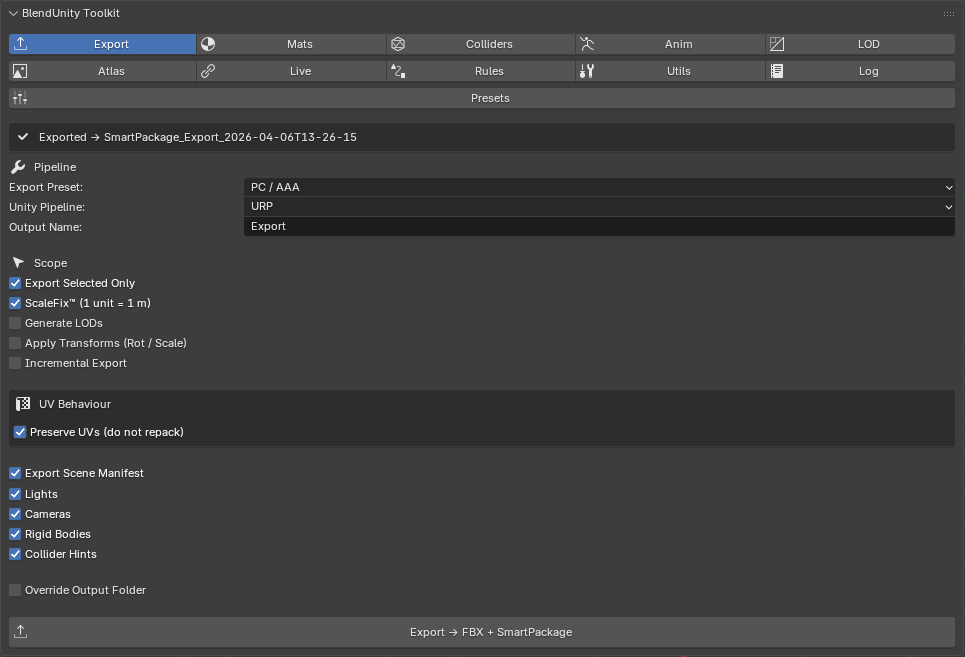
- Open N-Panel → BlendUnity → Export tab.
- Recommended settings for a UV-safe export:
| Setting | Value |
|---|---|
| Export Selected | ON |
| ScaleFix™ (1 unit = 1 m) | ON |
| Generate LODs | optional |
| Lightmap UV2 Gen | OFF |
| Apply Transforms (Rot/Scale) | OFF |
| Pack Textures → Atlas | OFF |
| Bake Lightmaps / AO / Normal | OFF |
| Export Scene Manifest | ON (optional) |
- Click Export → FBX + SmartPackage.
You'll get a timestamped folder like:
SmartPackage_Export_2026-04-06T11-32-27/
  Models/Export.fbx
  Materials/MaterialSync.json
  Textures/Original/...
  Animations/Animations.json
  BlendUnity_Meta.json
The Export tab status banner will confirm the result — Exported on success, or an error message if something went wrong.
Import in Unity (manual)
- Dashboard → Inbox → Import Folder… → select the SmartPackage folder.
- Unity copies it under
Assets/AnvilInteractiveSolutions/BlendUnityTool/Inbox/. - Back in the Inbox tab, find the package row and click Reimport.
- Make sure a scene is open in Unity before clicking Reimport — the prefab builder needs an active scene to instantiate into.
Assets land under:
Assets/AnvilInteractiveSolutions/BlendUnityTool/Imported//
  Prefabs/
  Materials/
  Textures/
  Animations/
  Scenes/
What to check
- The prefab appears under
Imported//Prefabs/. - UVs and shading in Scene view match Blender (no baking = no UV alteration).
- The Console shows a mapping summary (
mapped=N, fallback=N).
5) LiveTransmit (one-click push to Unity)
-
Unity: Dashboard → Live tab → Start. Note the port and PSK (defaults:
61501,blendunity-local). - Blender: Add-on Preferences → set the same Host / Port / PSK. In the Export tab, enable TCP Transmit on Export.
- Export from Blender → Unity receives the package automatically, extracts it to the Inbox, and logs
LiveReceiver: received → .... - The Export tab banner in Blender will show: "Package transmitted — click Reimport in the Unity BlendUnity panel to build the prefab."
- In Unity, Inbox → Reimport to build the prefab.
LiveTransmit uses a TCP pre-shared key (PSK). Keep it on
localhostor a trusted LAN — do not expose port61501to the internet.
If LiveTransmit fails with a permissions/socket error, try running Blender as administrator, or add a firewall exception for TCP port
61502(localhost only).
6) Materials: originals vs atlases
By default, Unity prefers original textures listed in Materials/MaterialSync.json. If a texture is missing it falls back to atlases (if you baked them).
URP texture slots
| Channel | Unity property |
|---|---|
| Albedo | _BaseMap |
| Normal |
_BumpMap + _NORMALMAP keyword |
| ORM (packed) |
_MetallicGlossMap (R=Metallic, G=AO, A=Smoothness) |
| Emission |
_EmissionMap + _EMISSION keyword |
HDRP texture slots
| Channel | Unity property |
|---|---|
| Albedo | _BaseColorMap |
| Normal | _NormalMap |
| ORM (packed) | _MaskMap |
| Emission | _EmissiveColorMap |
If your normal map looks inverted, the importer auto-inverts the green channel when normal_y_flip is true in MaterialSync.json.
ShaderGraph export (optional)
Enable Emit Unity ShaderGraph in the Mats tab before exporting. The add-on generates a .shadergraph file for each material that has at least one image texture connected to its Principled BSDF. Materials using only procedural or unlinked nodes are skipped — a log message explains why.
Requires Unity 2022.3 LTS with ShaderGraph package installed.
When to use atlases
Targeting mobile or WebGL and want fewer draw calls. Otherwise keep originals for fidelity.
7) Colliders & proxies
- Any mesh named
*_COLis treated as a collider proxy: Unity hides its renderer and adds aMeshCollider. - The Collider Wizard in Blender can auto-tag objects with hints (
_BOX,_SPHERE,_CAPSULE,_CONVEX). Unity reads these from the object name and adds the appropriate collider type. - Convex colliders require a closed, watertight mesh — non-manifold geometry will cause Unity to fall back to a non-convex
MeshCollider.
8) Animations, root-motion & events
- Export always includes
Animations/Animations.jsonwith the clip list. - Enable Root Motion capture in the Anim tab → exports
RootMotion.json→ Unity creates*_RM.animclips with position and yaw curves. - Enable Export Timeline Markers as Events → exports
Events.json→ Unity appliesAnimationEvents to clips atframe / 30seconds.
Events only fire if a method with the matching name exists on a component attached to the animated object.
9) Rebuilding a Unity scene from Scene.json (optional)
Enable Export Scene Manifest in the Blender Export tab before exporting. The add-on writes Scene/Scene.json inside the SmartPackage automatically — you do not place it manually.
Unity reads it during Reimport and generates a .unity scene under:
Assets/AnvilInteractiveSolutions/BlendUnityTool/Imported//Scenes/
What it reconstructs: hierarchy, mesh instances, lights (Point/Spot/Directional), cameras, rigidbodies, collider hints, world gravity and ambient colour.
Minimal Scene.json structure
{
  "version": "0.19.1",
  "name": "Demo",
  "world": { "ambient": [0.1, 0.1, 0.1], "gravity": [0, -9.81, 0] },
  "nodes": [
    { "name": "Sun",  "type": "LIGHT",  "t": [0,5,0], "r": [50,0,0], "s": [1,1,1],
      "light": { "kind": "SUN", "intensity": 1.1, "color": [1,1,1], "shadows": true } },
    { "name": "Cam",  "type": "CAMERA", "t": [0,2,-5], "r": [0,0,0], "s": [1,1,1],
      "camera": { "fov": 60, "near": 0.1, "far": 1000 } }
  ]
}
10) The Unity Dashboard
Open via Window → BlendUnity → Dashboard.
Inbox tab
-
Import Folder… — copy a SmartPackage folder from disk into the project. The folder must contain a
BlendUnity_Meta.jsonat its root. - Each row in the list is a SmartPackage root. Buttons:
- Open — reveals the folder in Finder / Explorer.
-
Reimport — runs the full import pipeline: builds materials, textures, and saves a prefab under
Imported/. Requires an open scene in Unity.
AutoMap tab
Maintain a curated list of targets (manifests, prefabs, or folders) and remap them in bulk. Useful when iterating on an existing import without going through the Inbox each time.
Rules tab
- Prefer original textures over atlases
- Auto-add colliders on import
- Use Collider Wizard hints (
BOX/SPHERE/CAPSULE/CONVEX) - Apply humanoid retarget map on import
Live tab
-
Start / Stop the TCP LiveReceiver (port
61501) - Shows current listener status
- The LiveReceiver starts automatically when Unity loads — you only need to click Start if you've manually stopped it
Diag tab
- Validate Selected Package — checks a selected package for common issues
- Log Pipeline Info — logs the detected render pipeline (URP / HDRP / Built-in) and version
11) Update / iterate safely
- Modify your Blender scene → export again (or use LiveTransmit).
- In Unity, Inbox → Reimport the package, or use AutoMap → Scan & Map.
- The importer writes new versioned prefabs (
_v1,_v2, …); existing scene references remain stable as long as you keep the prefab link.
Keep material names stable between exports. If material names change, the remapper may not match them consistently and will fall back to default materials.
12) Recipes
A) Static prop (no animation)
- Name materials with a stable convention (e.g.
MAT_Wood,MAT_Metal). - Export with all baking OFF.
- In Unity: Reimport, verify the prefab, check materials used original textures in the Console summary.
- If you want fewer draw calls: re-export with Pack Textures → Atlas ON, then Reimport again.
B) Character with animations & root-motion
- Ensure a clear root/hips bone (or set the Root / Hips Bone Override in the Anim tab).
- Add timeline markers for events (e.g.
FootstepL,FootstepR). - Enable Export Timeline Markers as Events and Root Motion capture in the Anim tab.
- Export and Reimport — Unity creates
*_RM.animclips and applies events. - Create an Animator Controller, drop in the clips, and wire event functions on a component.
C) Environment with colliders & scene reconstruction
- Create low-poly proxy colliders as separate meshes named
*_COL. - If you have UV2 already, keep Lightmap UV2 Gen OFF to preserve your layout.
- Enable Export Scene Manifest to get a
.unityscene built automatically. - Export and Reimport — Unity adds
MeshCollidersfor proxies and builds the scene underImported/.../Scenes/.
13) Troubleshooting cheatsheet
| Symptom | Fix |
|---|---|
| UVs look wrong after import | Re-export with all baking OFF. Check Unity Model Import settings: Normals/Tangents = Import. |
| Pink materials | Wrong render pipeline. Ensure your Unity project uses URP or HDRP; reimport after switching. |
| Normals inverted | Check Console for YFlip messages; confirm normal_y_flip in MaterialSync.json. |
| Colliders missing | Confirm package Rules have colliders enabled, or name proxy meshes *_COL. |
| No prefab after Reimport | Make sure a scene is open in Unity before clicking Reimport. Check the Console for red [BlendUnity] Import failed errors. |
| Inbox shows subfolders | Update to v0.19.1 — this was a known bug fixed in this release. |
| LiveTransmit socket denied | Run Blender as administrator, or add a firewall exception for TCP port 61502 (localhost only). |
| LiveTransmit: no ACK | Unity's Live receiver must be running. Check the Live tab — it starts automatically on load but can be manually stopped. |
| ShaderGraph empty / pink | The material has no image textures connected to the Principled BSDF. The exporter skips these — connect image textures or leave ShaderGraph export disabled. |
| No scene produced | Ensure Export Scene Manifest was enabled before exporting. The Scene/Scene.json is written automatically — do not place it manually. |
14) Known limits & expectations
- FBX only — Blender modifiers and constraints are not applied unless you apply/bake them before export.
- URP/HDRP targets — Built-in RP is not a first-class target. Material mapping can be adapted manually.
- Scene.json — authored automatically by the Blender add-on when Export Scene Manifest is enabled. Arbitrary Blender scene properties not included in the manifest will not appear in Unity.
- Large exports — expect longer import times for large atlases or lightmaps. For very large packages prefer manual Inbox import over LiveTransmit.
- ShaderGraph schema — generated files target Unity 2022.3 LTS ShaderGraph schema (version 10+). Earlier Unity versions may fail to import them.
15) Quick reference
Blender — Export tab settings
| Setting | UV-safe default |
|---|---|
| Export Selected | ON |
| ScaleFix™ | ON |
| Generate LODs | optional |
| Lightmap UV2 Gen | OFF |
| Apply Transforms | OFF |
| Pack Textures → Atlas | OFF |
| Bake Normal / AO / Lightmaps | OFF |
| Export Scene Manifest | ON (optional) |
| TCP Transmit on Export | ON (if using LiveTransmit) |
Unity — Where things land
Assets/AnvilInteractiveSolutions/BlendUnityTool/
  Inbox//          ← received packages
  Imported//
    Prefabs/                     ← your prefab is here
    Materials/
    Textures/
    Animations/
    Scenes/
    ShaderGraph/
Files that matter
| File | Purpose |
|---|---|
BlendUnity_Meta.json |
Package manifest — required for Reimport |
Materials/MaterialSync.json |
Original texture paths and flags |
Textures/Original/* |
Preferred texture inputs |
Animations/RootMotion.json |
Root-motion curve data |
Animations/Events.json |
Timeline marker events |
Scene/Scene.json |
Optional scene reconstruction data |