Blipbar - Blender Ai
 EdenWeby 3D
BlipBar: Getting Started
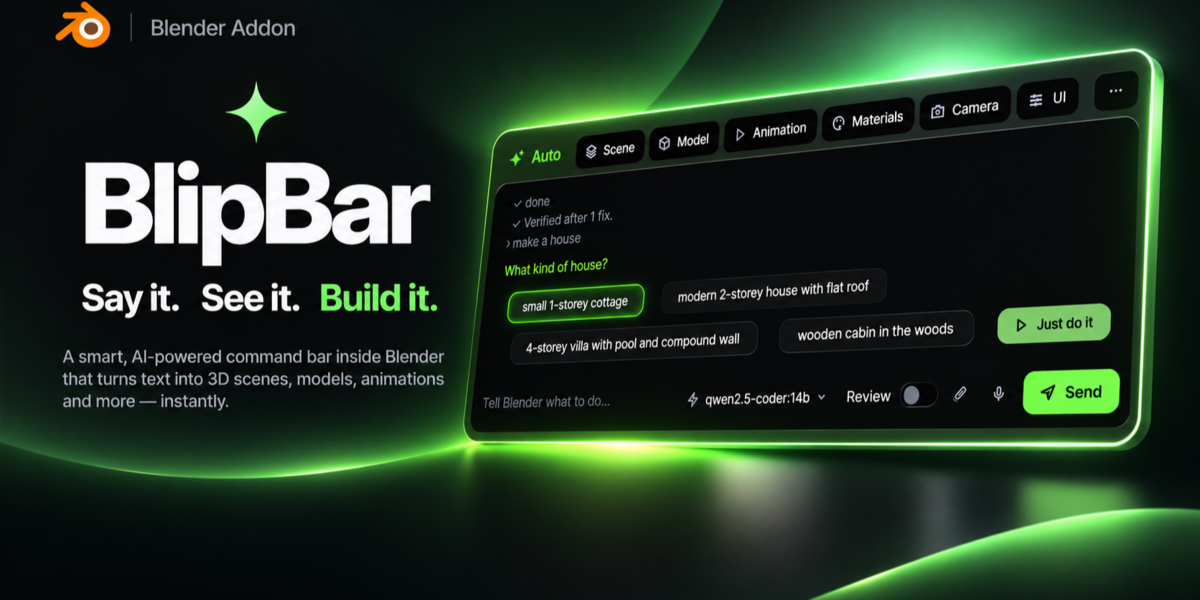
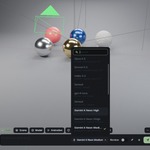
BlipBar is an AI command bar inside Blender: you type what you want in plain words, and it builds it in your scene, stage by stage, then checks the result. This guide gets you from install to your first build in about five minutes.
What you need
- Blender 4.2 or newer on Windows, macOS or Linux.
-
One AI model. Any one of these works:
- Free, on your computer: Ollama or LM Studio. No account, no internet once the model is downloaded.
- A subscription you already have: Claude (Pro/Max), ChatGPT (Plus/Pro) through Codex, or a Google account through the Gemini CLI.
- An API key: Claude, OpenAI or Gemini, billed by the provider for what you use.
-
The file
blipbar.zipfrom your purchase. Don't unzip it.
1. Install the add-on
- Open Blender and go to Edit › Preferences › Get Extensions.
- Click the ⌄ menu in the top-right corner and choose Install from Disk…
- Pick
blipbar.zipand click Install from Disk. - Make sure BlipBar is ticked in the list, then close Preferences.
A small dark pill now sits at the bottom of every 3D viewport. That's BlipBar, ready to open. It starts automatically every time Blender starts.
Updating later works the same way: install the new zip over the old one.
2. Connect a model
The first time BlipBar finds no model, the Get started wizard opens on its own. You can open it any time from the bar's ··· menu › Set up a model. Pick one of its three pages:
| Page | Best for | What you do |
|---|---|---|
| Free (local) | Free, private, works offline | Click Download Ollama and install it, then Start Ollama. Under Pick a model, click Download next to the suggested model. The suggestion is sized to your computer's memory. |
| API key | The strongest models, pay per use | Click Get a key, paste it into the box, click Save & test. A green Key works means you're connected. |
| Subscription | You already pay for Claude, ChatGPT or Google | Install the command-line tool shown (needs Node.js), run it once in a terminal to log in, then click Check again. |
The line at the top of the wizard shows how many models are connected. Click Finish when it says Ready.
Prefer LM Studio? Open LM Studio, load a model, and start its server (Developer tab › Start server). BlipBar finds it automatically.
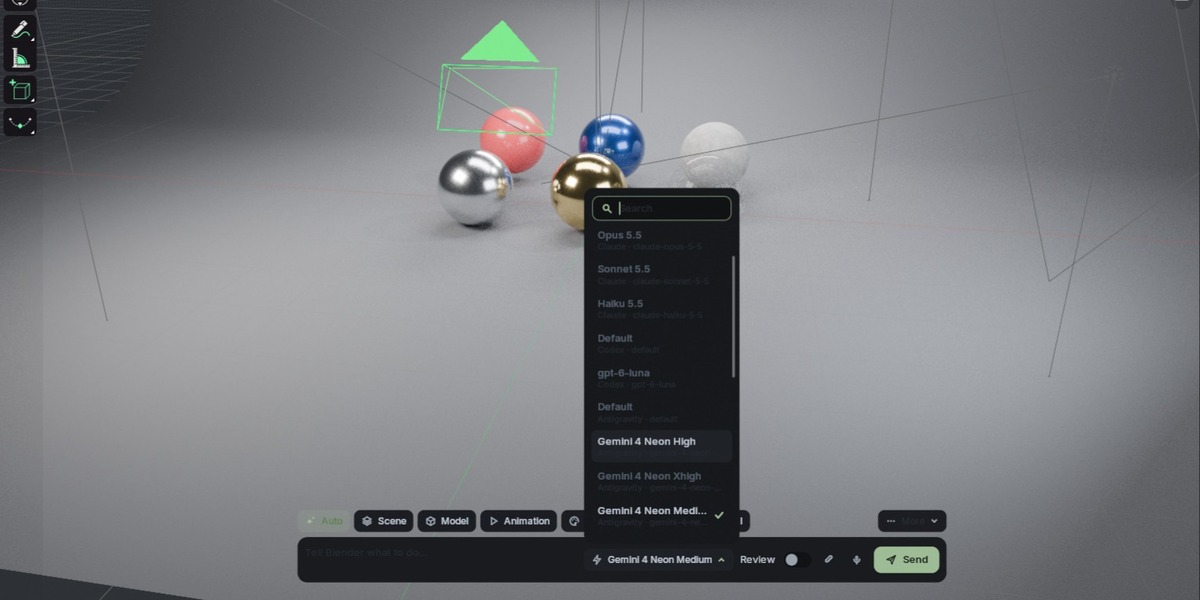
Which model? For big scenes, Claude or a 14B+ local coder model works best. A 7B model is fine for quick edits. To see how well yours really does, run the built-in model test (section 5).
3. Your first request
- Hover over the pill at the bottom of the viewport, or press Ctrl+Space anywhere in the 3D viewport. The bar opens with the cursor ready.
- Type a request, for example: Add a red sphere on a wooden table.
- Press Enter or click Send.
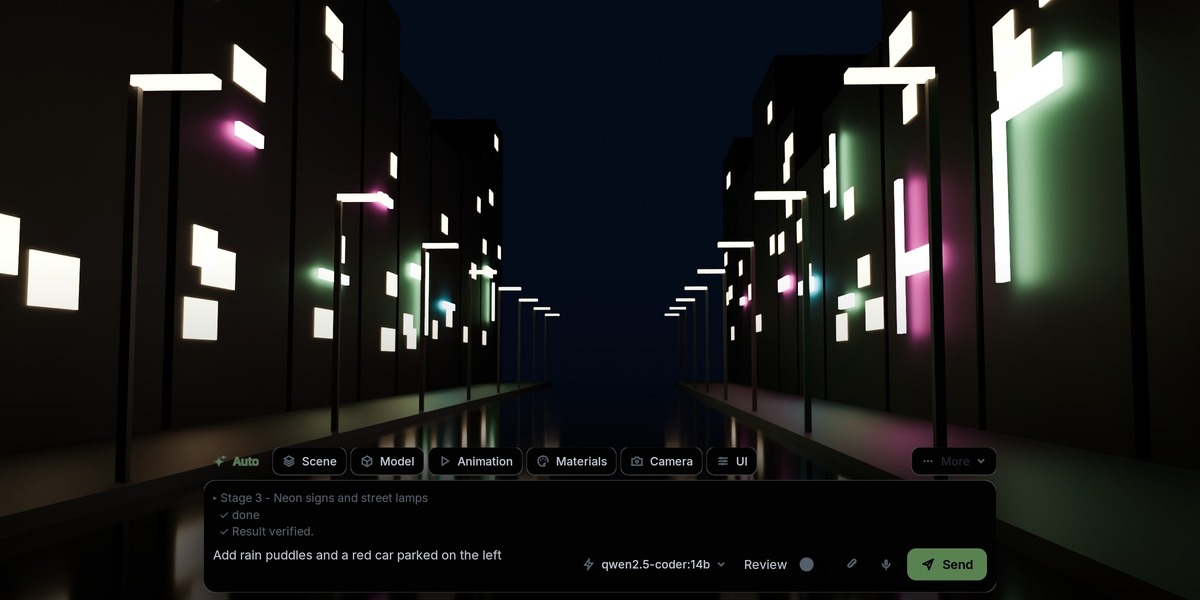
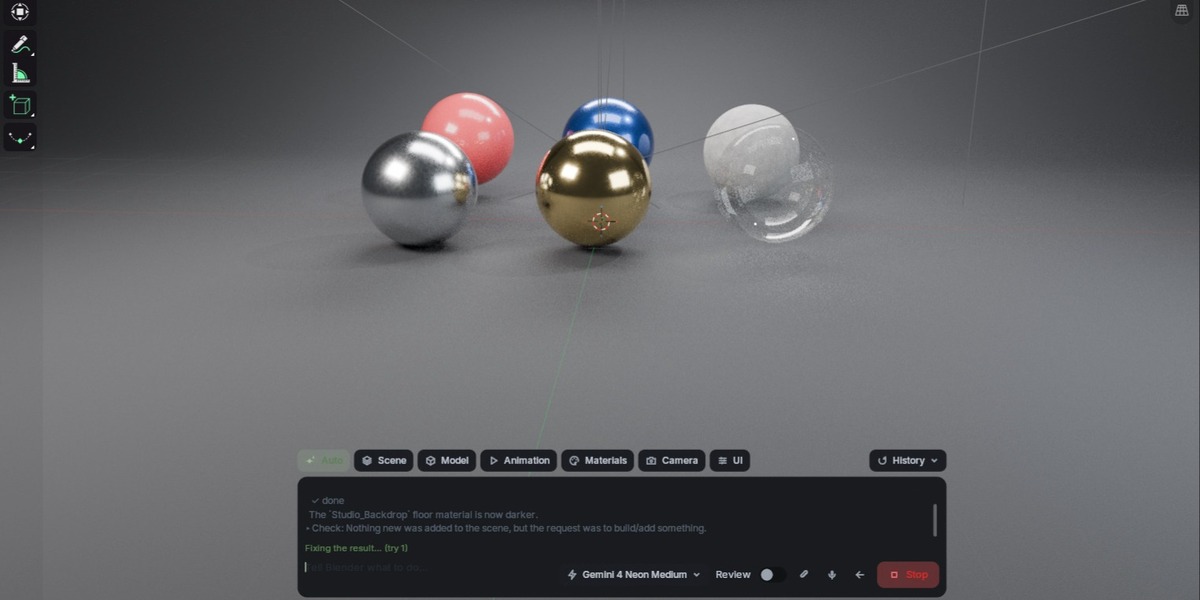
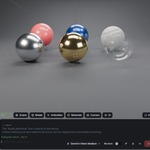
BlipBar writes the code and builds as it goes. Each stage appears in the bar with a ✓, and Result verified means it checked the scene against your words. Press Esc or click elsewhere to fold the bar back into the pill.
Modes. The chips above the text box focus the AI on one kind of job: Auto (decides for you), Scene, Model, Animation, Materials, Camera and UI (change Blender's own look). Auto is right most of the time.
Review before it runs. Turn on the Review switch in the bar and BlipBar shows each step and waits for Run or Skip.
Didn't like it? Click the ← undo button in the bar. It removes everything the last request did in one click.
4. Everyday features
| Feature | Where | How to use it |
|---|---|---|
| Attach files | Paperclip in the bar | Add up to 8 photos, floor plans, PDFs, Word or Excel files, then type your request. Images need a model that can see them. Documents work with every model. |
| Animation | Just type | Select your character and type make him walk, wave the right hand, jump. Works with Rigify, Mixamo and hand-named rigs. |
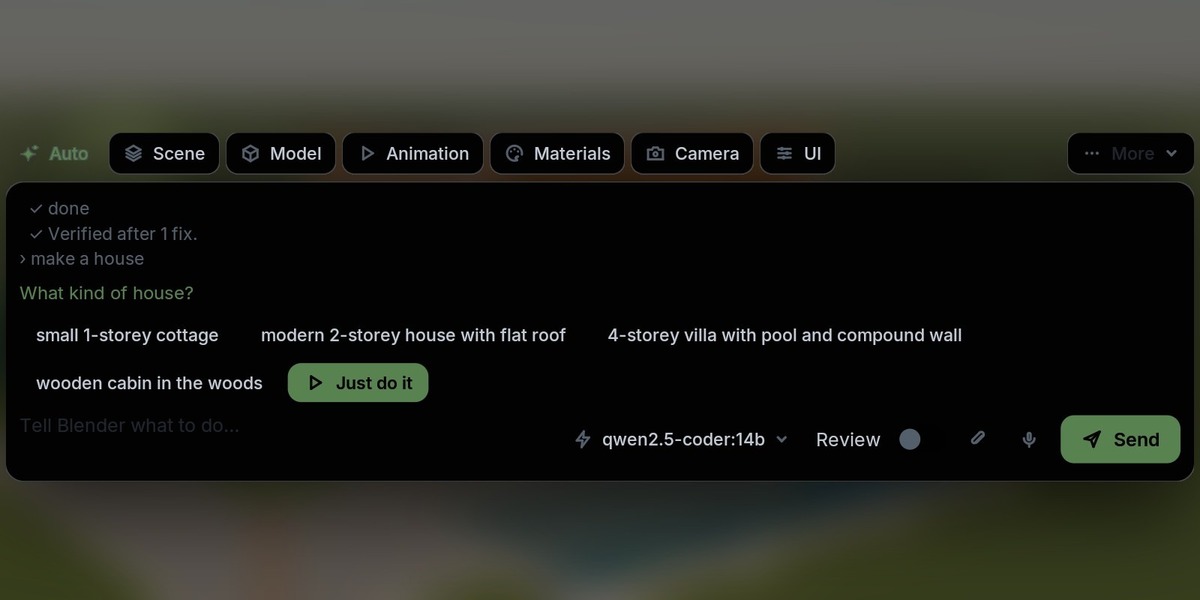
| Quick question | Appears by itself | A vague request like make a house shows tap-to-answer options. Pick one, or tap Just do it. |
| Voice | Mic in the bar | Click, speak, click again. Choose the speech service in Settings. |
| Recipes | ··· menu › Recipes | 12 one-click jobs: archviz house, product turntable, 3-point lighting, walk cycle, UV unwrap, scene cleanup and more. |
| History & favourites | ··· menu › History | Every request is saved. Click one to reuse it, star the ones you like. |
| Undo a request | ← in the bar | Removes everything the last AI request did, in one click. |
| Sidebar mode | Settings › Behaviour › Interface mode | Switch to a full chat panel docked to the left or right. Takes effect after you turn the add-on off and on again in Preferences. |
5. Settings worth knowing
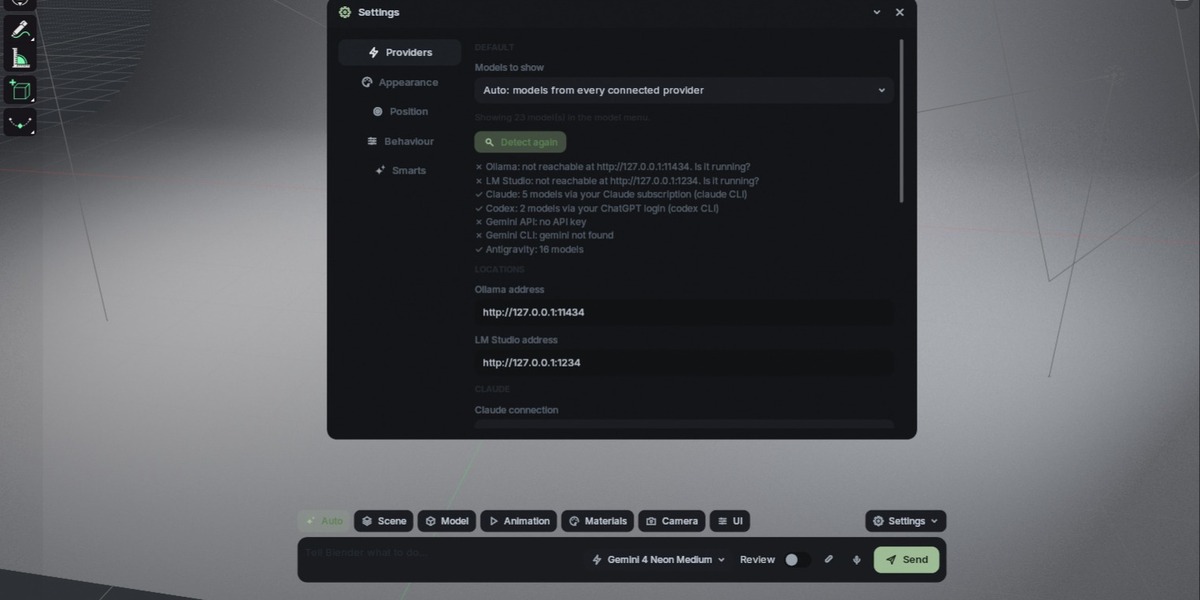
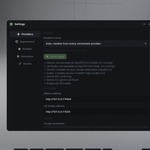
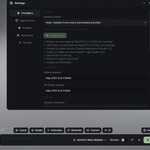
Open Settings from the bar's ··· menu › Settings. Changes apply straight away and are remembered.
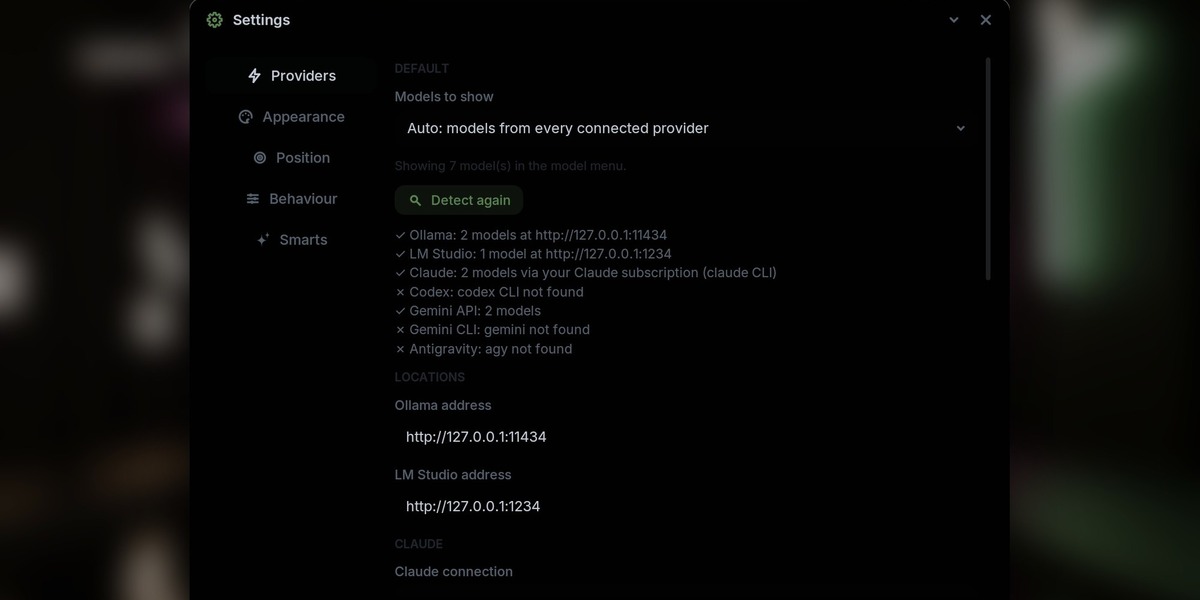
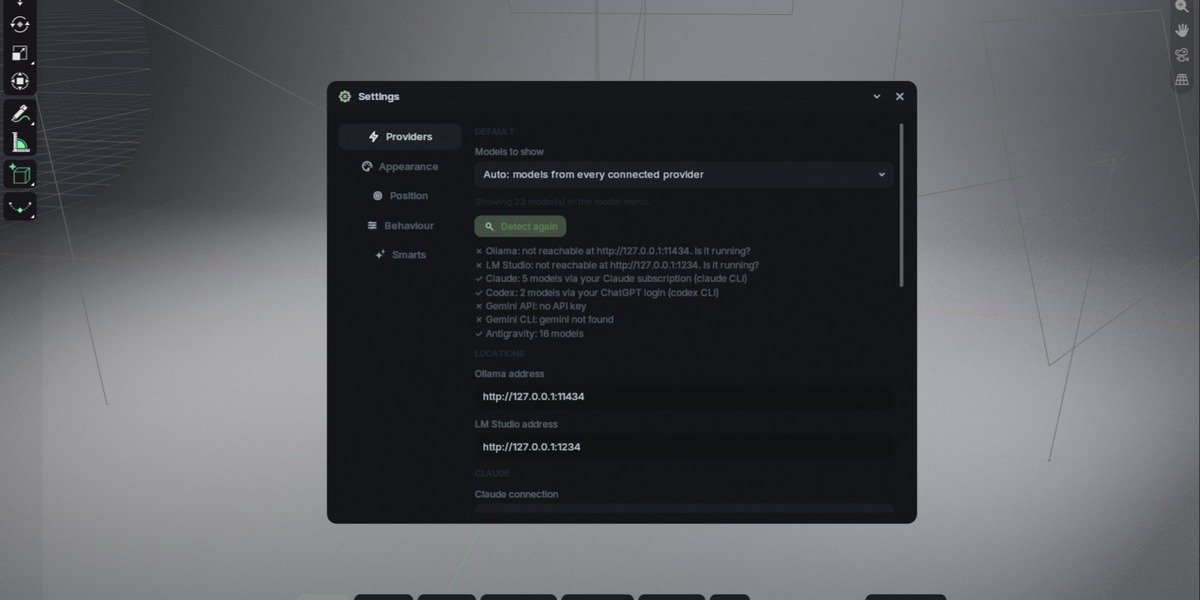
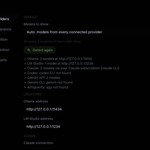
- Providers › Models to show. Auto lists every model from every connected provider. Pick one provider (for example Ollama only) to see just its models. The list under it says what's connected and, if something isn't, why.
- Providers › API keys. Keys are tested as you type: you'll see Key works or Key rejected. Keys stay on your computer.
- Appearance. Theme, accent colour, corner roundness and where the bar sits.
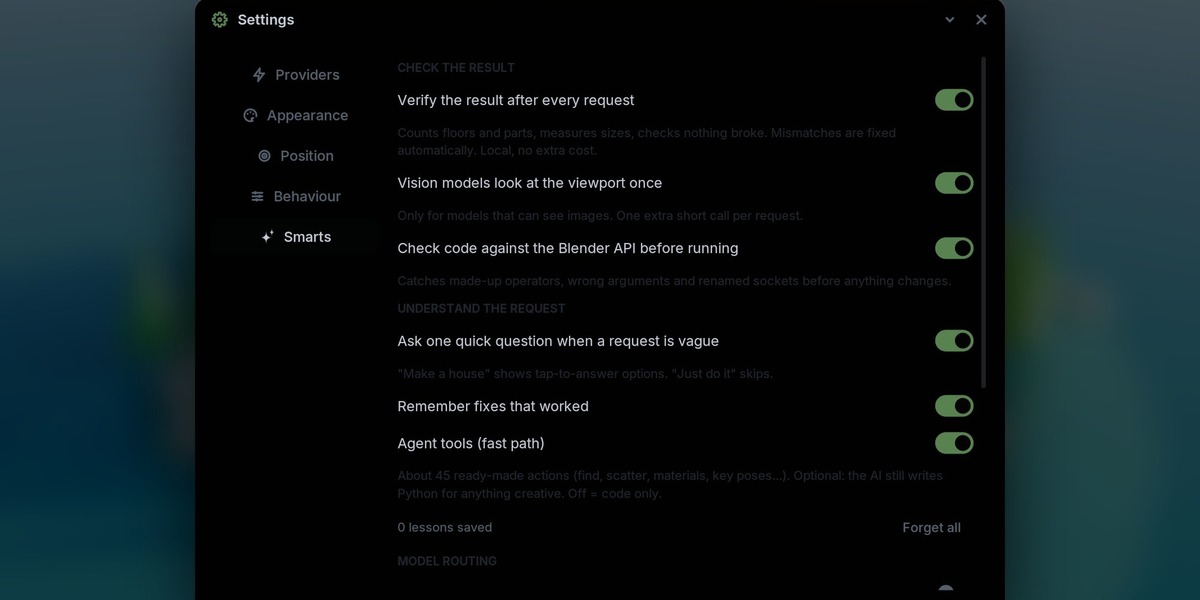
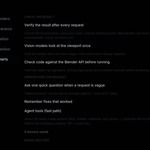
- Smarts. One switch per helper: verify the result, let vision models look at the viewport, check code before running it, ask when a request is vague, remember fixes, agent tools, and fast/strong model routing. All are on by default except routing.
- Smarts › Run model test. Runs 20 standard prompts with your model in a temporary scene and gives a score and a verdict (great, good, weak or not recommended). Your own scene isn't touched. Run it once for each model you're thinking of using.
6. Tips and troubleshooting
For better results
- Start small: one object or one colour change shows you how your model behaves before you ask for a whole scene.
- Give sizes and counts: a 4-storey house, 12 × 8 m, with an 8 × 4 m pool beats a big house. BlipBar checks numbers it can measure.
- Build in steps: ask for the building, then the garden, then the lighting.
- Save your .blend file before big requests. Undo works, but a saved copy is safer.
If something goes wrong
| Problem | Fix |
|---|---|
| Bar says No model found | Open ··· › Set up a model, or Settings › Providers › Detect again. The list shows why each provider wasn't found. |
| Ollama is running but not found | Check the address in Settings › Providers is http://127.0.0.1:11434, then Detect again. |
| LM Studio not found | In LM Studio, load a model and start the server (Developer tab). |
| Claude, Codex or Gemini CLI not found | Install it, run it once in a terminal to log in, then Check again in the wizard. |
| Key rejected | The key was copied incompletely or has expired. Paste it again or create a new one. |
| Images attached but ignored | Your model can't see images. Use a vision model such as Gemma 3, Claude or Gemini. |
| Results are rough | Try a stronger model, or run the model test to compare the ones you have. |
| Bar doesn't appear | Check BlipBar is ticked in Edit › Preferences › Add-ons, and that you're in a 3D viewport. |
Still stuck? Message me through the store with a screenshot of the bar and of Settings › Providers.
Have questions about this product?
Login to message
| Blender Extension Compatible | Yes |
| Published | about 2 hours ago |
| Blender Version | 4.4 - 5.3 |
| Extension Type | Add-on |
| Render Engine Used | Cycles, Eevee |
| License | GPL |

Discover more products like this
blenderai ai blender addon chatgpt blender-mcp Text-to-3D ai blender ai blender claude code claude-code blenderai chatgpt