Board Ref
 Mohamed Targam


BoardRef Documentation
Everything needed to install BoardRef, create and organize reference boards, manage images and notes, and preserve the complete setup with your Blender project.
Installation • Quick Start • Actions • Boards
Board Appearance • Arrange • Notes • Saving & Image Files
Viewport Display • Controls
Install BoardRef
Open Edit → Preferences → Add-ons.
Open the add-on menu and choose Install from Disk.
Select the downloaded BoardRef ZIP file and complete the installation.
Open a 3D Viewport, press N, then open Targam-Tools → BoardRef.
Create Your First Board
Choose the Viewport
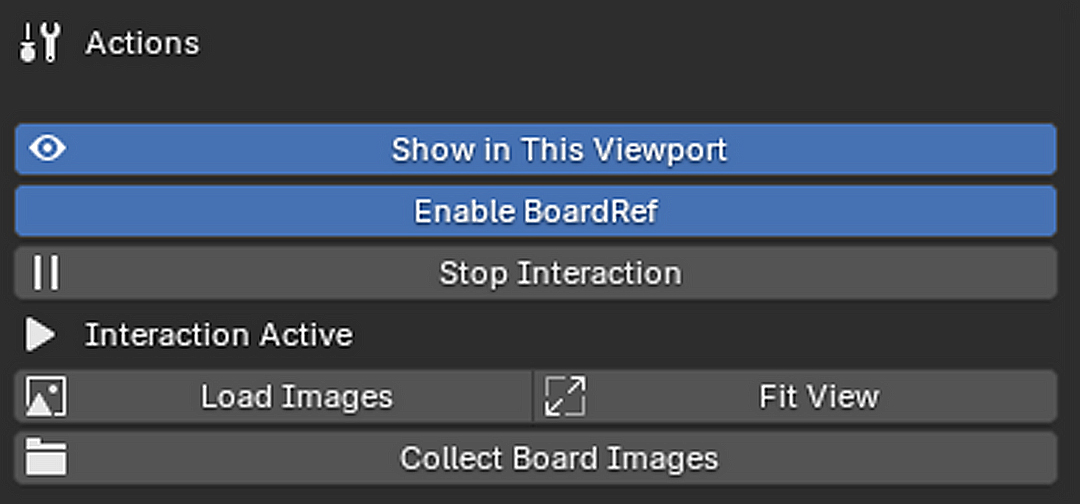
Press Show in This Viewport inside the 3D Viewport where BoardRef should appear.
Enable and Interact
Enable BoardRef, then press Start Interaction.
Load Images
Create or select a board, press Load Images, then select one or more image files.
Arrange the Layout
Move and scale images freely, use Arrange when needed, and add notes beside the references.
Lock the Board
Press Stop Interaction when the layout is ready. The board remains visible without intercepting viewport controls.
The BoardRef N-Panel
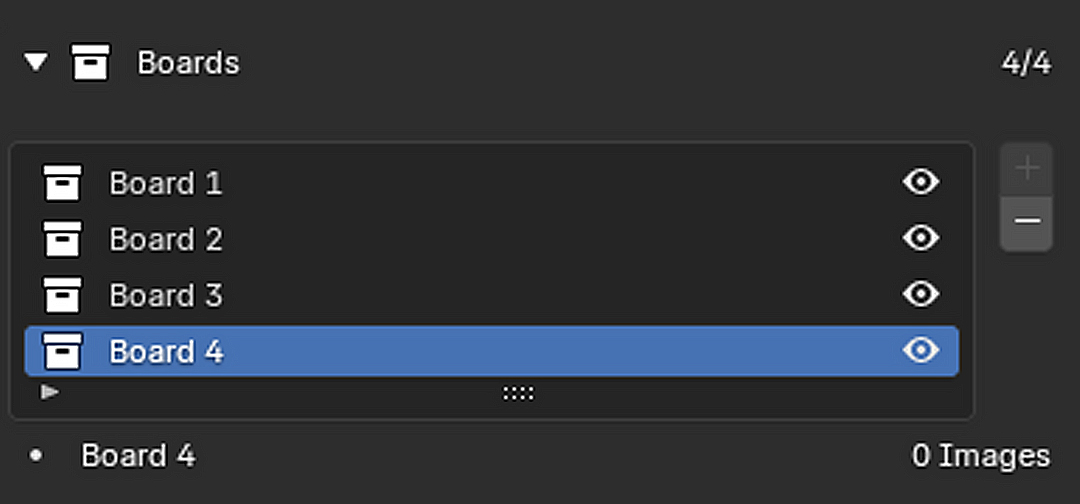
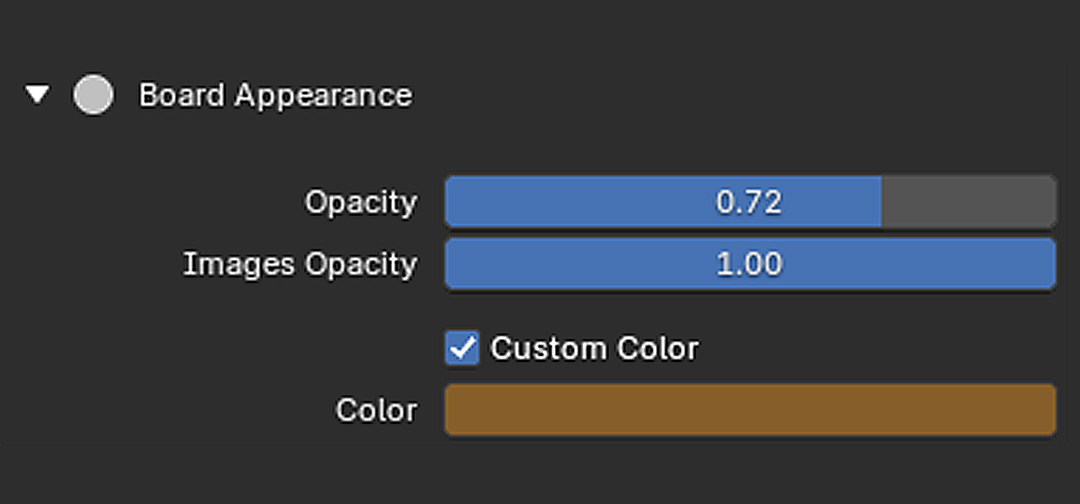
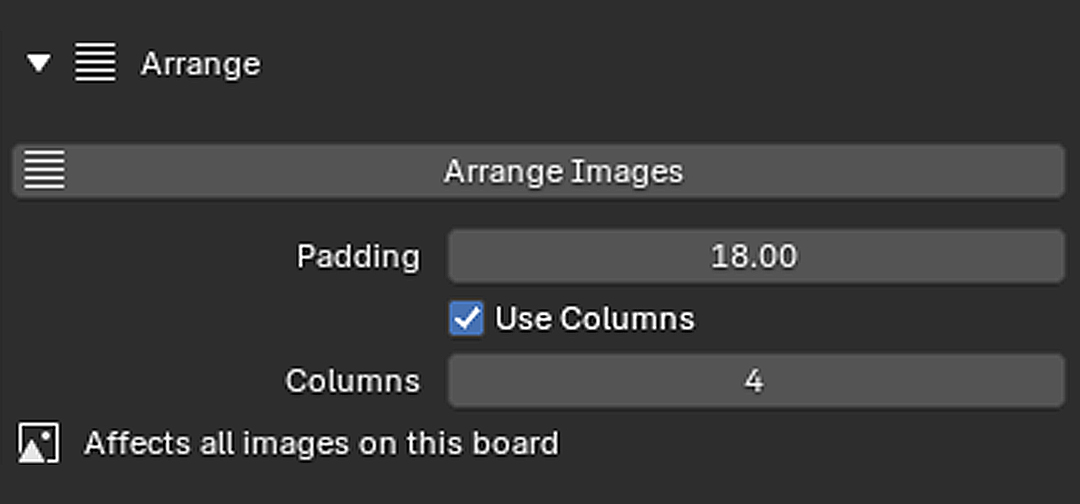
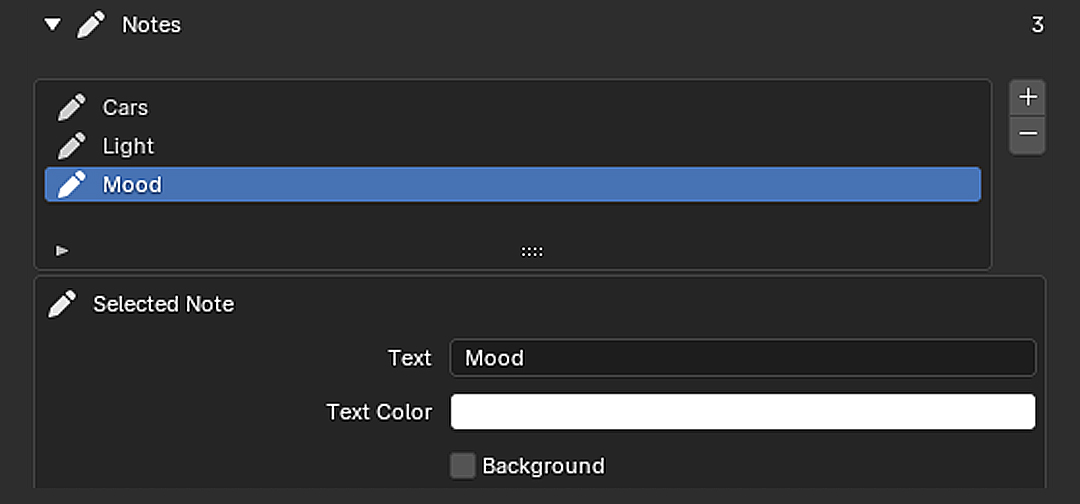
Keep the Complete Setup with the Project
Project Persistence
BoardRef stores the board layout inside the Blend project. When the project is reopened, BoardRef restores the boards, image positions and sizes, notes, appearance, arrangement settings, active board, and visibility states. Interaction starts locked after loading for safety.
External Image Files
Images are not packed into the Blend file. BoardRef keeps links to the original image files, so avoid moving or deleting those files after adding them.
Collect Board Images
Save the Blender project first, then use Collect Board Images. BoardRef copies all used images into a BoardRef_Images folder beside the Blend file and updates the project to use portable relative paths. Original image files are not removed.
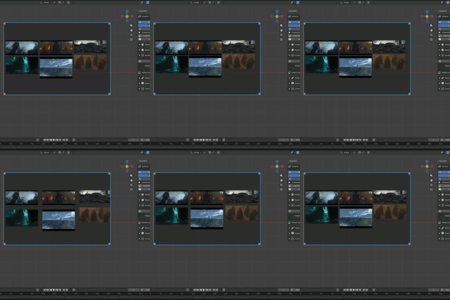
Display BoardRef in One Viewport
BoardRef is displayed in one 3D Viewport at a time to prevent duplicate boards when the Blender workspace contains multiple Viewports. Move the mouse into the desired Viewport and press Show in This Viewport. Pressing it in another Viewport transfers the BoardRef display there.
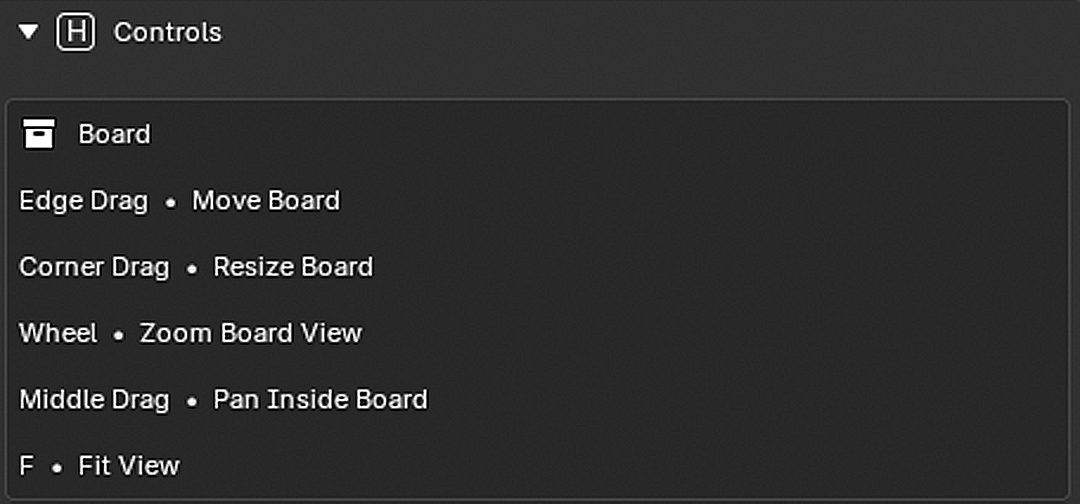
Mouse & Keyboard Controls
Edge Drag = Move Board
Corner Drag = Resize Board
Mouse Wheel = Zoom Board View
Middle Mouse Drag = Pan Inside Board
F = Fit View
Click = Select Image
Shift + Click = Multi Select
Drag Empty Board Area = Box Select
Drag Selected Images = Move Selection
Ctrl + Mouse Wheel = Scale Selection
Drag Note = Move Note
Ctrl + Mouse Wheel = Scale Note
Delete = Delete Selected
Right Click = Stop Interaction
A simple workflow, directly inside the Viewport.
Choose the Viewport, organize the references, lock interaction, and continue working. BoardRef keeps every board close without interrupting the Blender workflow.
Have questions about this product?
Login to message
| Blender Extension Compatible | Yes |
| Published | 3 months ago |
| Blender Version | 5.0 - 5.2 |
| Extension Type | Add-on |
| Render Engine Used | Blender-Internal |
| License | GPL |