Bookmark Jumper 2.0
 CreateVisions



Bookmark Jumper 2.0: Documentation
What's New in Version 2.0
Bookmark Jumper 2.0 introduces features that transform viewport navigation into professional scene management:
- Multiple Bookmark Sets: Organize up to 5 sets with 9 positions each (45 total bookmarks)
- Automatic Screenshot Thumbnails: High-quality previews (960x540) with popup zoom functionality
- Smart Camera Bookmarks: Complete camera setups with all parameters automatically saved
- Camera Reconstruction: Recreate deleted cameras from bookmark data
- Enhanced Interface: Tab-based set management with direct name editing
- Professional File Management: Screenshots saved as PNG files with organized folder structure
Overview
Bookmark Jumper 2.0 is a comprehensive viewport navigation and scene management addon for . It allows you to save, organize, and instantly access multiple viewpoints and camera positions across different bookmark sets.
Installation
- Download Bookmark Jumper 2.0 from Market
- In , go to Edit > Preferences > Add-ons
- Click "Install" and select the downloaded .zip file
- Enable "Bookmark Jumper 2" in the addon list
- The addon panel will appear in the 3D Viewport sidebar under "Bookmark Jumper 2"
Getting Started
First Launch
- Open the "Bookmark Jumper 2" panel in the 3D Viewport sidebar (N-key)
- Click "Enable Jumper" to activate the addon
- A default bookmark set "BM" will be created automatically
- Position your viewport to a desired view
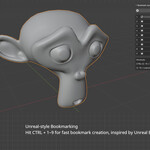
- Use Ctrl+1 (or your configured shortcut) to save your first bookmark
Interface Overview
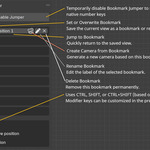
- Enable/Disable Button: Activates or deactivates the addon functionality
- Bookmark Set Tabs: Switch between different bookmark sets
- Set Management Buttons: Add, rename, and delete bookmark sets
- Position Grid: 9 rows showing bookmark positions 1-9
- Shortcuts Info: Current keyboard shortcut configuration
Bookmark Sets Management
Creating and Managing Sets
- Add New Set: Click the "+" button in the set tab row (maximum 5 sets)
- Switch Sets: Click on any set tab to make it active
- Rename Set: Click the pencil icon next to the set tabs
- Delete Set: Click the trash icon (requires confirmation, minimum 1 set must remain)
Set Naming Convention
- Default names: "BM", "BM1", "BM2", etc.
- Use descriptive names like "Interior", "Exterior", "Characters", "Details"
- Names appear in screenshot filenames for easy identification
Saving Bookmarks
Viewport Bookmarks vs Camera Bookmarks
Bookmark Jumper 2.0 automatically detects whether you're saving a viewport position or a camera position:
-
Viewport Bookmarks: Saved when in regular viewport navigation mode
- Saves view location, rotation, and zoom distance
- Name format: "Pos X [VIEW]"
-
Camera Bookmarks: Saved when viewing through a camera (Numpad 0)
- Saves complete camera setup including focal length, DOF, sensor settings
- Name format: "Pos X [CAM]"
How to Save Bookmarks
- Position your view: Navigate to the desired viewpoint or camera position
-
Save using keyboard shortcut: Press your configured modifier + number (1-9)
- Default: Ctrl + 1-9
- Configurable in addon preferences
- Automatic screenshot: A high-quality thumbnail is automatically generated
- File storage: Screenshot saved as PNG file in "bookmark_screenshots" folder
Loading Bookmarks
Loading Methods
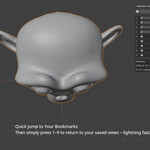
- Keyboard Shortcuts: Press number keys 1-9 to load corresponding bookmarks
- Interface Clicking: Click on bookmark names in the interface
- Number Buttons: Click the position number (1-9) for quick access
Loading Behavior
- Viewport Bookmarks: Smoothly transitions to saved viewport position
-
Camera Bookmarks:
- Activates the saved camera and switches to camera view
- Restores all camera settings (focal length, DOF, etc.)
- If camera was deleted, offers to recreate it from bookmark data
Screenshot System
Automatic Screenshot Generation
- High Quality: 960x540 resolution (16:9 aspect ratio)
- Clean Capture: Automatically hides overlays, gizmos, and camera objects
- File Format: PNG files with organized naming
- Storage Location: "bookmark_screenshots" folder next to your .blend file
Screenshot File Management
- Naming Convention: "SetName_position_X_BookmarkName_full.png"
- Automatic Organization: Files grouped by bookmark set name
- Easy Access: Open screenshot folder directly from addon preferences
- Cleanup: Files automatically deleted when bookmarks are removed
Thumbnail Preview
- Zoom Icon: Click the magnifying glass icon to view enlarged thumbnail
- Quick Identification: Instantly recognize saved viewpoints
Camera Integration
Creating Cameras from Bookmarks
- Camera Icon: Click camera icon for viewport bookmarks to create camera object
- Perfect Positioning: Camera placed at exact bookmark viewpoint
- Auto-Activation: "Camera to View" automatically enabled
- Smart Naming: Camera named with set and bookmark names
Camera Bookmark Features
- Complete Settings: Focal length, depth of field, sensor settings, clipping planes
- Camera Selection: Click select icon to quickly find and select the bookmarked camera
- Camera Recovery: Recreate accidentally deleted cameras from saved data
Camera Reconstruction
When loading a camera bookmark whose camera object has been deleted:
- System detects missing camera
- Confirmation dialog appears asking to recreate camera
- New camera created with all original settings restored
- Camera automatically activated and set as scene camera
Interface Reference
Position Row Elements
Each bookmark position (1-9) shows the following elements:
- Position Number: Click to load bookmark (grayed out if empty)
- Thumbnail Preview: Magnifying glass icon to view enlarged screenshot
- Bookmark Name: Editable text field for renaming (click and type)
-
Action Button:
- Camera icon: Create camera (for viewport bookmarks)
- Select icon: Select camera (for camera bookmarks)
- Delete Button: X icon to remove bookmark
Visual Indicators
- Active Set: Highlighted bookmark set tab
- Saved Bookmarks: Show name, thumbnail, and action buttons
- Empty Slots: Grayed out number with no additional elements
- Bookmark Type: Names include [VIEW] or [CAM] indicators
Preferences Configuration
Accessing Preferences
- Go to Edit > Preferences > Add-ons
- Search for "Bookmark Jumper 2" or find in 3D View category
- Expand the addon entry to show preferences
Available Settings
-
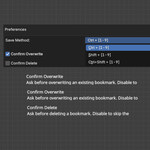
Save Method: Choose keyboard modifier for saving bookmarks
- Ctrl + [1-9] (default)
- Shift + [1-9]
- Ctrl+Shift + [1-9]
- Confirm Overwrite: Show confirmation when overwriting existing bookmarks
- Confirm Delete: Show confirmation when deleting bookmarks
- Open Screenshot Folder: Direct access to screenshot storage location
Keyboard Shortcuts
Default Shortcuts
- Save Bookmark: Ctrl + [1-9] (configurable in preferences)
- Load Bookmark: [1-9] (always the same regardless of save modifier)
- Enable/Disable: No keyboard shortcut (use interface button)
Shortcut Requirements
- Addon must be enabled ("Enable Jumper" clicked)
- Must be in 3D Viewport when using shortcuts
- Shortcuts only work with active bookmark set
Data Management
Automatic Persistence
- Scene Storage: All bookmark data automatically saved in .blend file
- Screenshot Files: PNG files stored separately in organized folders
- Auto-Loading: Bookmarks automatically restored when reopening files
- Cross-Session: Works seamlessly across multiple sessions
File Organization
- Saved .blend files: Screenshots stored in "bookmark_screenshots" folder next to file
- Unsaved projects: Screenshots stored in system temp directory
- Automatic cleanup: Orphaned screenshots removed when bookmarks deleted
Workflow Examples
Architectural Visualization
- Create sets: "Exterior", "Interior", "Details"
- Save different camera angles in each set
- Use thumbnails to quickly identify views
- Create cameras from bookmarks for final rendering
Character Animation
- Create sets: "Wide", "Medium", "Close-up"
- Save camera positions for different shot types
- Quickly switch between angles during animation
- Use camera bookmarks to preserve render settings
Product Showcase
- Create sets for different products or configurations
- Save standard viewing angles (front, side, detail)
- Use consistent camera settings across products
- Quickly generate multiple product shots
Best Practices
Organization Tips
- Use descriptive set names that match your project workflow
- Name bookmarks clearly (e.g., "Hero Shot", "Overview", "Detail A")
- Reserve position 1 for your main/hero view in each set
- Group related views in the same set
Performance Tips
- Disable addon when not needed to avoid accidental triggers
- Screenshot generation may pause briefly on complex scenes
- Keep bookmark sets focused on specific project areas
Collaboration Tips
- Include screenshot folder when sharing project files
- Use consistent naming conventions across team
- Document important camera bookmarks in project notes
Troubleshooting
Common Issues
Bookmarks not loading after file open:
- Ensure addon is enabled in preferences
- Click "Enable Jumper" to activate and load bookmarks
- Check if file was saved with bookmarks previously
Reset and Recovery
- Reset addon: Disable and re-enable in preferences
- Clear bookmarks: Delete all bookmark sets and start fresh
- Recover screenshots: Check "bookmark_screenshots" folder in project directory
Technical Requirements
Compatibility
- Version: 4.3.0 and above
Bookmark Jumper 2.0 - Professional viewport navigation and scene management for
Documentation Version 1.5.0
Enhanced User Experience & Automatic Persistence:
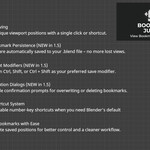
- Automatic Bookmark Saving: All bookmarks are automatically saved to your Blender file - no more lost positions when reopening projects
- Flexible Save Modifiers: Choose between Ctrl, Shift, or Ctrl+Shift for saving positions in addon preferences
- Smart Confirmation Dialogs: Configurable confirmation prompts for overwriting and deleting positions
- Streamlined Interface: Cleaner, more compact UI with better visual hierarchy
Overview
Bookmark Jumper is a powerful Blender addon that revolutionizes your 3D viewport navigation by allowing you to save, load, and manage multiple camera positions with ease. Whether you're working on complex 3D scenes, architectural visualizations, or game asset creation, this tool will dramatically improve your workflow efficiency.
Key Features
Instant Camera Position Management
- Save up to 9 unique camera positions per Blender scene
- Positions automatically saved to your .blend file
- Capture exact viewport locations, rotations, and view distances
- One-click saving and loading of view positions
- Customizable save key combinations via preferences
Flexible Shortcut Management
- Choose your preferred save modifier in addon preferences:
- Ctrl (default)
- Shift
- Ctrl+Shift
- Keyboard shortcuts for quick viewport position management
Advanced Camera Management
- Rename saved positions for easy identification
- Create actual camera objects from saved positions with precise eye positioning
- Delete saved positions with optional confirmation
User-Friendly Interface
- Intuitive sidebar panel in the 3D Viewport
- Compact, streamlined layout with clear visual organization
- Toggle shortcuts on and off with a single button
- Real-time display of your chosen save modifier in the shortcuts info
Smart Persistence & Safety
- Automatic bookmark persistence - positions survive file saves/loads
- Smart addon state management - always starts disabled for safety
Installation
- Download the addon from Blender Market
- In Blender, go to Edit > Preferences > Add-ons
- Click "Install" and select the downloaded .zip file
- Enable the "Bookmark Jumper" addon
How to Use
Getting Started
- Open the Bookmark Jumper panel in the 3D Viewport sidebar
- Click the "Enable Jumper" button to activate the tool
- Your viewport will now be ready for bookmark management
- Any previously saved bookmarks will be automatically loaded
Configuring Preferences
- Go to Edit > Preferences > Add-ons
- Find "Bookmark Jumper" and expand its preferences
- Choose your preferred save method:
- Ctrl (default)
- Shift
- Ctrl+Shift
- Enable/disable confirmation dialogs for overwriting and deleting positions
Saving Positions
Save positions using either method:
- Sidebar panel: Click the record icon next to a position number
- Keyboard shortcuts: Use your configured modifier + (1-9) to save the current view
Loading Positions
Load saved positions using either method:
- Sidebar panel: Click on the saved position name
- Keyboard shortcuts: Press (1-9) to load the corresponding saved position
Managing Positions
- Rename: Click the pencil icon to give positions descriptive names
- Create Camera: Click the camera icon to create a camera object at the saved position
- Delete: Click the X icon to remove a saved position
Workflow Benefits
- Dramatically reduce viewport navigation time
- Maintain consistent view angles across complex projects
- Easily switch between different scene perspectives
- Create camera objects without manual positioning
- Never lose your carefully positioned viewpoints
- Seamlessly work across multiple Blender sessions with persistent bookmarks
Compatibility
- Blender 4.3.0 and above
- Works with all 3D Viewport modes
- Lightweight and performance-optimized
- Enhanced compatibility with Blender's file system
Version History
Version 1.5.0 (Latest)
- Automatic bookmark persistence in .blend files
- Configurable save key modifiers (Ctrl, Shift, or Ctrl+Shift)
- Optional confirmation dialogs for overwrite/delete operations
- Improved UI layout and visual hierarchy
- Smart addon state management and startup behavior
Best Practices
- Use position names that describe the view (e.g., "Top View", "Character Close-up", "Detail Shot")
- Take advantage of the camera creation feature for easy scene setup and rendering
- Configure your preferred save modifier in preferences to match your workflow
- Toggle shortcuts on/off when you don't need them to prevent accidental changes
- Enable confirmation dialogs if you're prone to accidental overwrites
Troubleshooting
Common Issues & Solutions
Bookmarks not loading after file open:
- Ensure the addon is enabled in preferences
- Click "Enable Jumper" to activate and load saved bookmarks
Shortcuts not working:
- Check that "Enable Jumper" is activated
- Verify your save modifier setting in addon preferences
- Make sure you're in the 3D Viewport when using shortcuts
Want to change save keys:
- Go to Edit > Preferences > Add-ons > Bookmark Jumper
- Select your preferred save method from the dropdown
Have questions about this product?
Login to message
| Blender Extension Compatible | Yes |
| Dev Fund Contributor | |
| Published | over 1 year ago |
| Blender Version | 4.3 - 5.2 |
| Extension Type | Add-on |
| Render Engine Used | Cycles, Eevee |
| License | GPL |
Discover more products like this
bookmark jumper jumper viewport blender addon bookmark Workflow viewport navigation navigation camera bookmarks Camera Management camera bookmarks