Brickitect – Procedural Brick-Style Building Generator
 TiNKLe



Installation Instructions
Download and install the .zip file from your purchase
In Blender, go to Edit → Preferences → Add-ons → Install
Select the .zip and enable the "BRiCKiTECT" add-on
Use the "Add" panel in the 3D Viewport to insert a generator and start building
The product also includes an "Example Project" blend file. Inside of it you can find several (non LEGO) buildings, that are already set up with all the building generator variants included with the add-on. So you can play around with the different settings right away.
BRiCKiTECT
Documentation
(Version 1.0.1)
Supported Blender Versions: 4.0 - 5.0

>> WATCH THIS VIDEO FIRST ON HOW TO ADD NEW BUILDING ASSETS <<
1. Download Building Assets
Opens a website in your browser where you can download new building assets
2. Add Panel
Template Collection
Adds a collection to your scene named Building Template, which includes further collections to set up your brick building
Building Generator
Adds an object to your scene named Building Generator
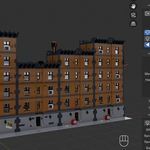
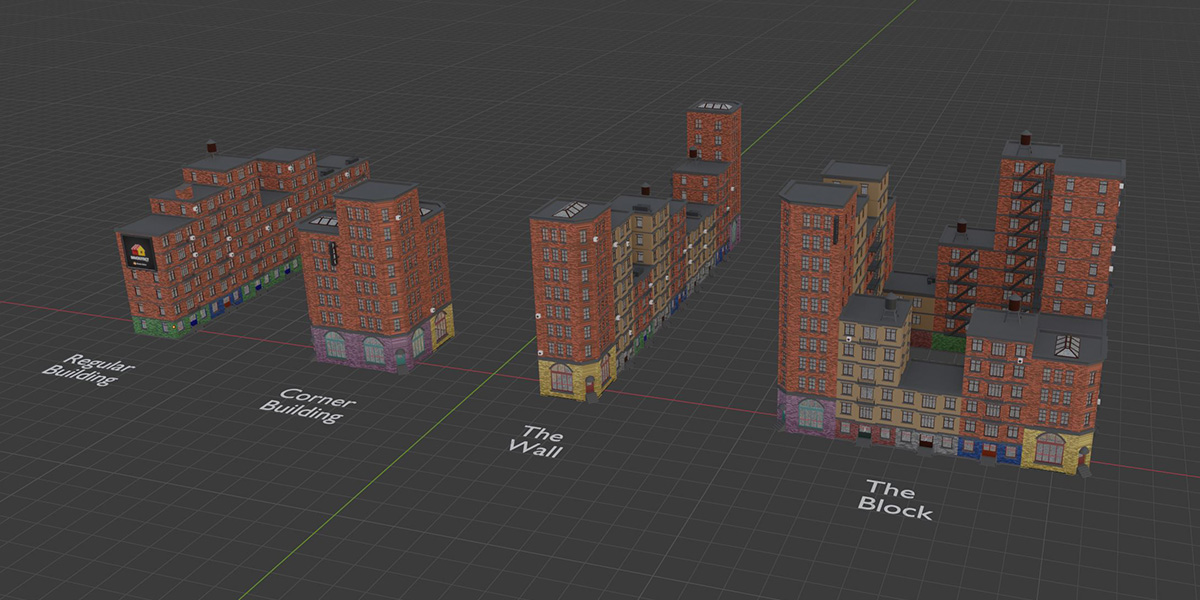
This object controls regular modular buildings that can extend to their left and their right side
Corner Building Generator
Adds an object to your scene named Corner Building Generator
This object controls modular buildings that go around the corner of a street
Building Wall Generator
Adds an object to your scene named The Wall
This object controls multiple modular buildings (regular and corner ones) and aligns them randomly in a row, like a wall
Building Block Generator
Adds an object to your scene named The Block
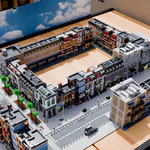
This object controls multiple modular buildings (regular and corner ones) and aligns them randomly in a rectangular shape, like a city block
Light White
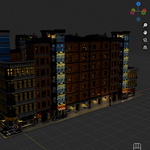
Adds an object to your scene named Light White, which can be used to light up your building generator buildings with a constant white light source
Light Orange
Adds an object to your scene named Light Orange, which can be used to light up your building generator buildings with a constant warm orange light source
Light Random
Adds an object to your scene named Light Random, which can be used to light up your building generator buildings with a light source in a random color (default: white, orange, purple, green, blue)
3. Setup Panel (if Building Generator or Corner Building Generator object is selected)
This panel is for setting up each building generator and changes appearance and available settings depending on which kind of building generator is selected
Building Collection
Pick the Building Template collection of the building you want to set up
X Size
The size along the x axis of the ground floor in Blender units
The default size is 255.95 which is equal to a baseplate imported from Mecabricks at a scale of 1
Z Size
The size along the z axis of the middle floor in Blender units
The default size is 100.00, but this number will be different for each building depending on how high it is. Simply adjust it until the floors stack on top of each other perfectly
4. Setup Panel (if Building Wall Generator or Building Block Generator object is selected)
This panel is for setting up each building generator and changes appearance and available settings depending on which kind of building generator is selected
X Size
The size along the x axis of the ground floor in Blender units
The default size is 255.95 which is equal to a baseplate imported from Mecabricks at a scale of 1
No. of Buildings (B)
Specifies the number of different regular modular buildings you will be using with this building generator
The maximum number is 10
No. of Corner Buildings (CB)
Specifies the number of different modular corner buildings you will be using with this building generator
The maximum number is 10
Building Setup
Includes settings for the individual regular buildings (B) and corner buildings (CB)
Z Size
The size along the z axis of the middle floor in Blender units of that building
The default size is 100.00, but this number will be different for each building depending on how high it is. Simply adjust it until the floors stack on top of each other perfectly
Height Factor
Multiplies this value to the Height value to add or remove floors of this building type
Use this to match the height of the individual building models to each other
5. Building Main
Unlink (only if selected object is a linked asset)
Turns the linked asset into a local object so it can be edited
Join Parts
Merges all the individual objects in each building collection into one object (e.g. one object per Ground Floor, one object per Roof, etc.)
This will increase performance and responsiveness while working in the 3D Viewport and give higher fps for playback
But it will decrease performance and responsiveness of the add-on interface when changing input values
Won’t influence render times
TIP: Activate this setting once you’re finished adjusting the building
Preview
Changes the geometry of each object into simple cubes for a better performance
will give even better performance boost when Join Parts is also activated
Hide
Hides the whole building
Height
Sets the number of floors in height
Width
Sets the number of buildings in width
Corners (only if Corner Building Generator object is selected)
Sets the number of corner buildings next to each other
Depth (only if Building Block Generator object is selected)
Sets the number of buildings in depth
Left/Right Billboard (only if regular Building Generator object is selected)
Sets if the first/last building has a billboard on the outside
Start/End with CB ( only if Building Wall Generator object is selected)
Sets if the first/last building of the wall is a corner building
Extras On/Off
Toggles Extras collection on/off
Lights On/Off
Toggles light sources on/off
6. Building Advanced
Building Variant
Value of 0.5 shows both building collections. Value of 0 only shows building "A" collections. Value of 1 only shows building "B" collections.
Building Seed
Shuffles building collections
Max Height Difference
Sets the maximum height differences between buildings
For Corner Buildings: Adds additional floors to the second corner building
Height Randomness
Sets how many percent of buildings have varying height
Height Seed
Shuffles the random building heights
Delete Bottom/Roof
Bottom: Deletes floors from the bottom
Roof: Deletes the roof
7. Extras Advanced
Overall Extras Amount
Sets how many percent of floors have extras on them
Extras Variant
Value of 0.5 shows all extras collections.
Value of 0 only shows extras "A" collections.
Value of 1 only shows extras "C" collections.
Extras Seed
Shuffles extras collections
Ground Extras Amount
Sets how many percent of ground floors have extras on them
Floor Extras Amount
Sets how many percent of middle floors have extras on them
Roof Extras Amount
Sets how many percent of roofs have extras on them
8. Billboard Advanced (only if regular Building Generator object is selected)
Left/Right Billboard
Sets if the first/last building has a billboard on the outside
Billboard Variant
Value of 0.5 shows both billboard collections. Value of 0 only shows billboard "A" collections. Value of 1 only shows billboard "B" collections.
Billboard Seed
Shuffles billboard collections
Billboard R Offset
Aligns the right billboard
9. Light Settings
These are global setting and affect all the light sources of every building generator object in your scene
Lights On/Off
Toggles light sources on/off
White & Orange Light Power
Sets the power of all white & orange light sources
Random Light Power
Sets the power of all randomly colored light sources
Random Light Amount
Sets how many percent of randomly colored lights are on
Random Light Seed
Shuffles which randomly colored lights are on
Random Light Color Seed
Shuffles color of randomly colored light sources
Random Light Colors
Sets the colors and frequency for each color of the random light sources
Feel free to contact me and leave feedback on my social media accounts:
https://www.youtube.com/@TinkleFilms
https://www.instagram.com/kleinertino

© 2025
Have questions about this product?
Login to message
| Sales | 80+ |
| Dev Fund Contributor | |
| Published | over 1 year ago |
| Blender Version | 4.0 - 5.0 |
| Render Engine Used | Cycles, Eevee |
| License | Royalty Free |
Discover more products like this
addons city lego geometry nodes achitecture urban modular Generator lego style procedural building generator mecabricks