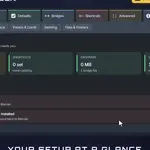
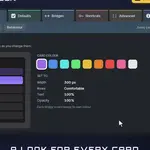
The Bridge Manager brings the Universal Bridge add-ons you own together: one card in the 3D View for every bridge, and one preferences page that finds your apps, checks your setup and helps when something goes wrong.
-
Version: 1.0.0
-
Blender: 3.3 – 5.2 (an Extension on 4.2+, a classic add-on on 3.3–4.1)
-
Platform: Windows
-
Where: 3D View → Sidebar (press N) → Bridge Manager tab
-
Support: Discord
The Manager contains no bridge of its own. Install at least one Universal Bridge add-on (RizomUV, ZBrush, Painter, Unity, ...) and it appears here.
Table of contents
- Install
- Quick start
- The Bridge Manager card
- The preferences, page by page
- Shortcuts
- Looks
- Profiles and undo
- When something goes wrong
- Compatibility notes
- Button icons
1. Install
Blender 4.2 and later
- Edit ▸ Preferences ▸ Get Extensions ▸ ⌄ ▸ Install from Disk...
- Choose the Manager zip (
universal_bridge_manager-...-blender3.3-5.2.zip).
- Install each bridge you own the same way.
Blender 3.3 – 4.1
-
Edit ▸ Preferences ▸ Add-ons ▸ Install... and choose the zip.
- Tick Universal Bridge Manager in the list.
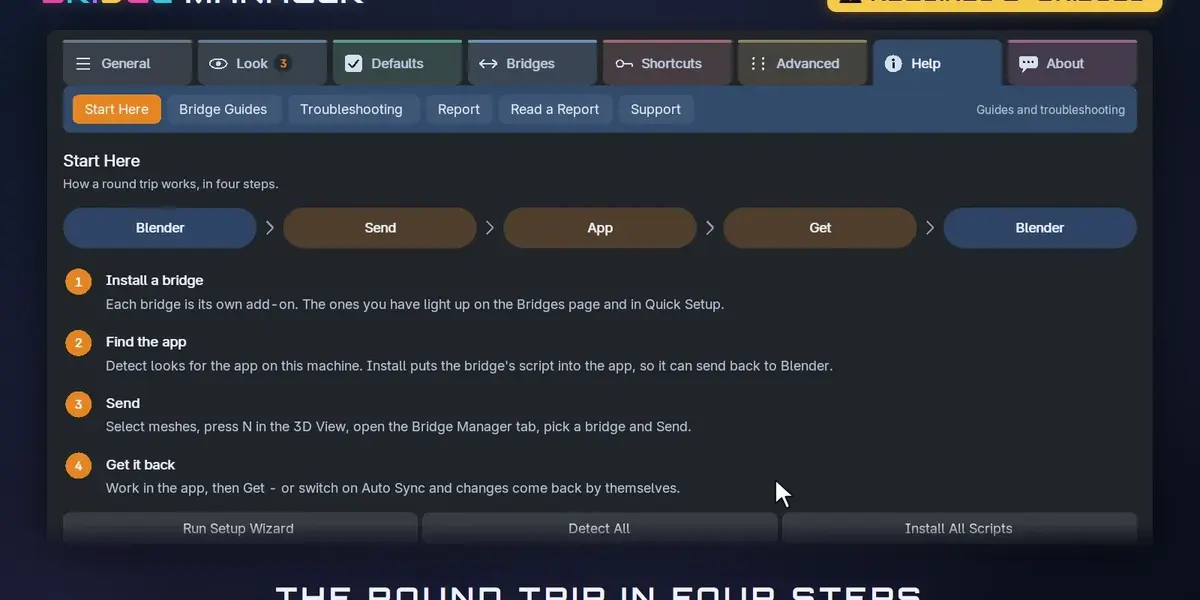
The order does not matter: a bridge installed before or after the Manager moves onto the Bridge Manager tab by itself.
2. Quick start
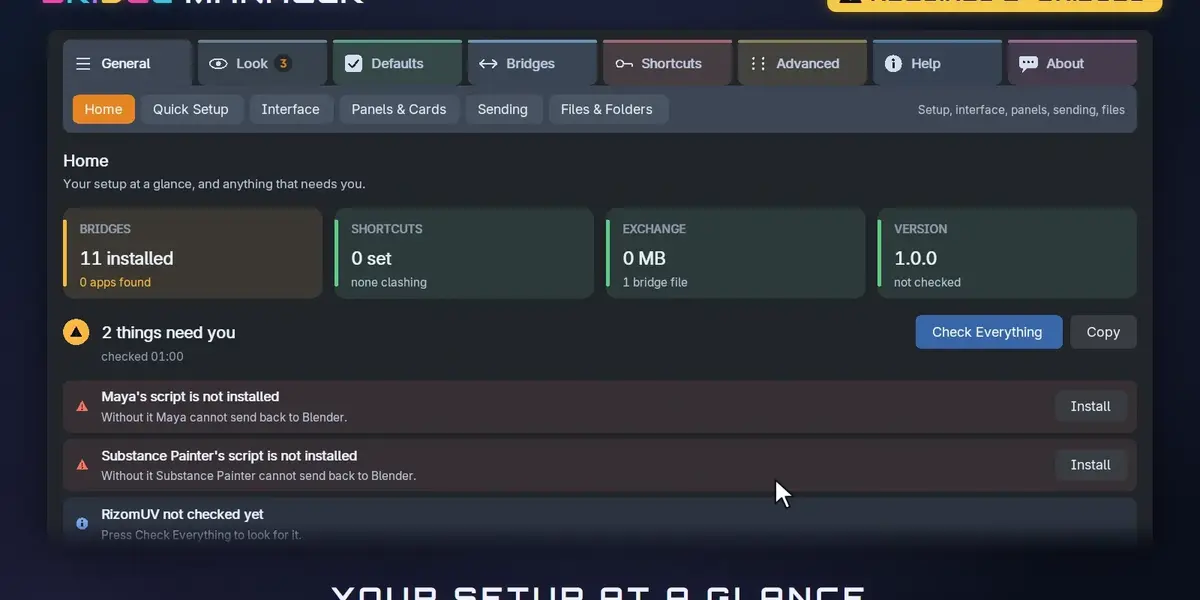
- Open Edit ▸ Preferences ▸ Add-ons ▸ Universal Bridge Manager. It opens on Home.
- Press Check Everything. The Manager looks for each of your apps, checks the companion scripts, the exchange folder and your keys, and lists anything that needs you - each with its fix.
- If an app needs a script, General ▸ Quick Setup has an Install button beside it. Restart that app once afterwards.
- In the 3D View press N and open the Bridge Manager tab.
- Pick a bridge on the card, select your meshes and press Send. Work in the app, then Get to bring the result back.
3. The Bridge Manager card
The card stands in the 3D View beside the sidebar.
-
The bridge tabs at the top list the bridges you own, each in its own colour. Pick one and its own controls - Send, Get, its folders, its explanations - appear inside the card.
-
All Bridges, at the foot: Send to Multiple (tick several apps and send to all of them at once), Automation, Presets and the Dashboard (each app found, and whether it is running).
-
The Tools card under it carries the tools every bridge shares: History, Preflight, Selection Sets and Versioned Files.
-
Hover a control and rest for a moment: an animated explanation shows what it does. F1 opens the documentation for it; right-click adds it to Favorites.
-
The button at the top right switches between the card and Blender's own sidebar panels.
One Card (Preferences ▸ General ▸ Panels & Cards) is on by default. Turn it off and each bridge shows its own card under the Bridge Manager card instead.
The tab name is yours to change in General ▸ Interface.
4. The preferences, page by page
The preferences are a drawn page with eight tabs. Find a setting at the top searches every page; Changed lists what differs from how it ships, with an Undo for each recent change.
| Page |
Cards |
| General |
Home · Quick Setup · Interface · Panels & Cards · Sending · Files & Folders |
| Look |
Looks (with each bridge's card) · Style · Explanations · Behaviour |
| Defaults |
New Scenes · Export · Naming · Checks & Copies |
| Bridges |
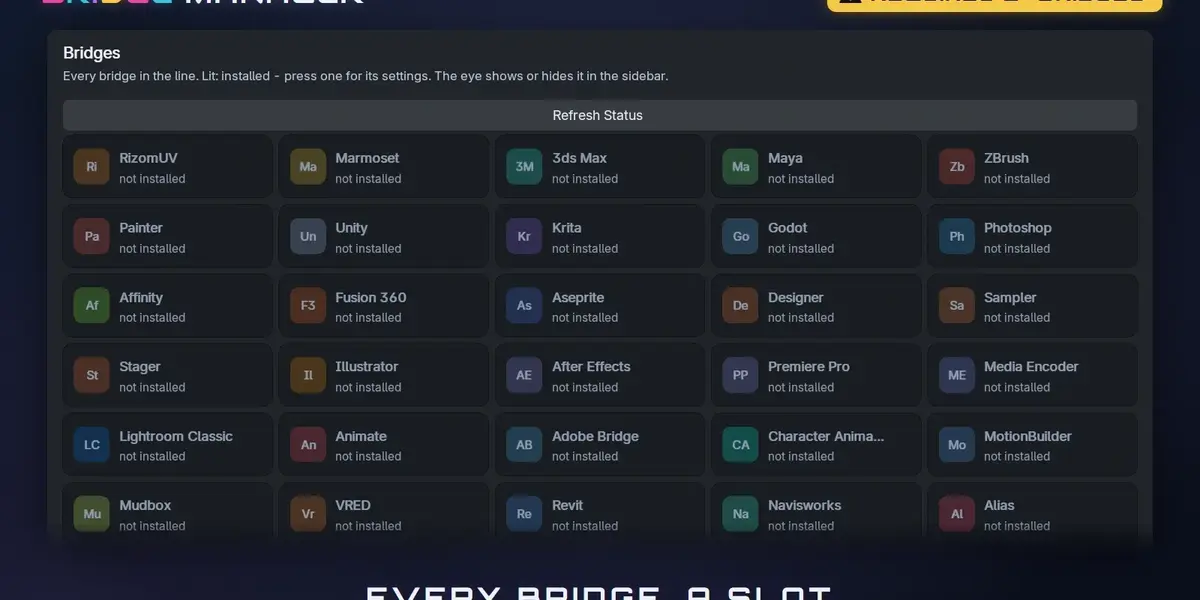
Bridges (every bridge as a slot) · Settings |
| Shortcuts |
Quick Keys · Pie Menus · Menus · Keyboard |
| Advanced |
Profiles · Exchange & Sync · Logging · Backup & Updates |
| Help |
Start Here · Bridge Guides · Troubleshooting · Report · Read a Report · Support |
| About |
the version, Blender, your bridges · What's new · Reset All Settings |
Home shows your bridges and the apps found, your shortcuts, the exchange folder's size and your version - and, underneath, anything that needs you.
Bridges shows all 34 bridges in the line. The ones you own are lit with the app version found and whether it is running; press a slot for that bridge's settings, or its eye to hide it from the card. Refresh Status looks for the apps again.
Defaults ▸ Naming shows what a mesh called "Chair" comes out as with your suffixes, live as you type. Checks & Copies sets what Preflight checks before a send, and shows the names the next versioned copies get.
Advanced ▸ Exchange & Sync shows the exchange folder's path, how many bridge files are in it and their size, with Open, Verify and Clean.
The page reopens where you left it. Tab and the arrow keys move between controls and Enter presses one, while the pointer is on the page.
On Blender before 4.2, and whenever Classic Preferences Page is on, the same settings are drawn in Blender's own layout instead.
5. Shortcuts
Shortcuts ▸ Quick Keys - one key, one action: Repeat Last Send, Get From Last App, Next / Previous Bridge, Floating Bridge Panel.
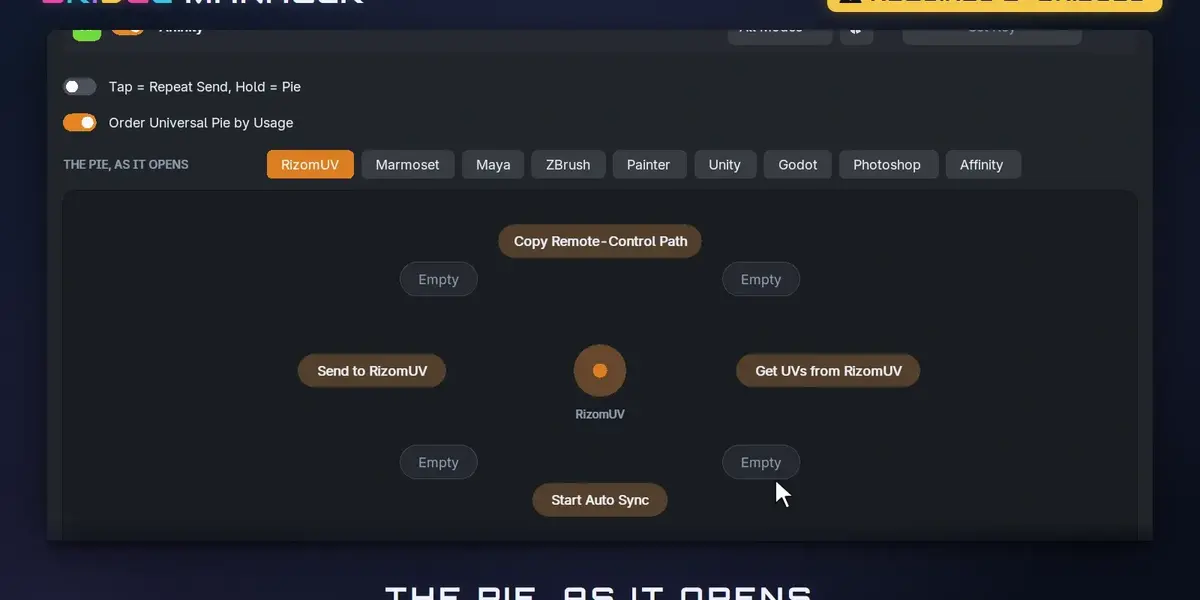
Shortcuts ▸ Pie Menus - a pie of a bridge's commands on a key. Each bridge you own has a row: its switch, where the pie opens (which modes), its slots, and its key. F-Keys, Ctrl+Shift Letters and Ctrl+Numpad give every switched-on pie a key at once; Suggest Free Keys gives each pie without one a key nothing else uses. The pie, as it opens draws the picked bridge's pie with its eight slots - press a slot to change what is in it.
Shortcuts ▸ Menus - the same commands as a list on a key, and in the right-click menu.
Shortcuts ▸ Keyboard - every key of yours on a keyboard, in its bridge's colour. Point at a key for what it does.
To set a key, press its key-cap, then press the keys to use (Esc cancels, Backspace clears). A key two of your commands share turns red, with Use beside it; a key Blender already uses carries an amber sign and says what Blender uses it for.
6. Looks
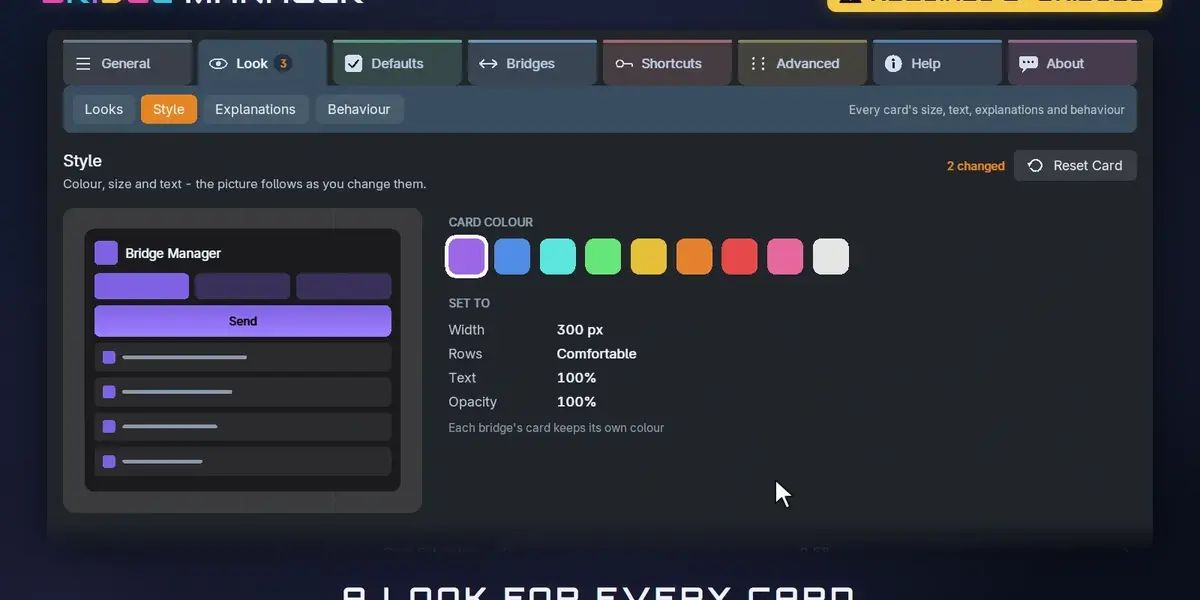
Look ▸ Looks gives every card a whole look at once - Default, Compact, Large, High Contrast, Minimal - each shown as a picture of a card; the one in use is marked. Save Look... and Load Look... keep a look in a file.
Your Bridges, under the looks, shows a tile for each bridge you own with its card as it is now. Pick one to style that card on its own: its look, its colour (or Brand for its own), width, text size, opacity, rows, and what it shows. Copy Bridge Manager Card gives it the Manager card's style; Reset This Card puts it back as it ships.
Look ▸ Style - a live picture of the Bridge Manager card, colour swatches, and its size and text. Each card ends in one bar, Apply to N other cards, which shows how your other cards will look first, and can be undone for a while after.
7. Profiles and undo
Advanced ▸ Profiles saves every setting under a name - "Sculpting", "Texturing", "Laptop" - and switches between them in one click. Use applies a profile; the profile in use is marked.
Changed, at the top of the page, lists the recent changes with an Undo for each, and Undo Last.
Backup & Updates saves all settings to a file and loads them again - for another computer, or another Blender.
8. When something goes wrong
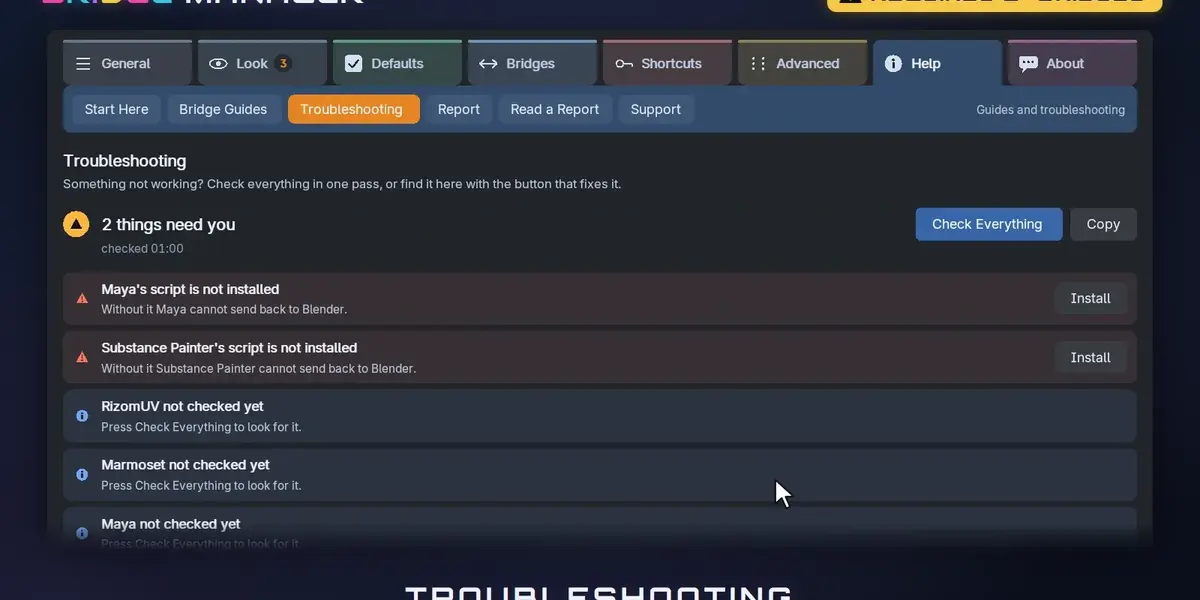
Check Everything (General ▸ Home, or Help ▸ Troubleshooting) runs every check in one pass and lists what it found worst-first, each with its fix.
Help ▸ Troubleshooting lists the common problems - an app not found, nothing coming back, Send greyed out, missing textures, the panel missing - each with the button that fixes it.
Help ▸ Report is what to send when you ask for help. It holds, as you choose:
-
System - Blender's build, Windows, Python, your graphics card
-
Bridges & Apps - each bridge and its version, the apps found
-
Health Check - the result of Check Everything
-
Errors - every Python error since Blender started, with its full traceback; the Universal Bridge ones are marked
-
Crashes - Blender's own crash logs from the temp folder
-
Logs - the bridge log file and the apps' companion logs
-
Settings Changed and Recent Sends
Hide My User Name (on by default) replaces your Windows user name in paths with
Help ▸ Read a Report is the other way round: copy a report someone sent you, press Paste Report, and read it in sections with what went wrong in red. Nothing is sent anywhere.
9. Compatibility notes
-
Windows only. The bridges detect and launch your other apps through Windows paths and processes.
-
Blender 3.3 – 5.2. The drawn preferences page needs Blender 4.2 or later; on 3.3–4.1 the same settings are drawn in Blender's own layout.
-
The Manager reads nothing of Blender's when Blender closes; on Blender 5.3 it tidies the exchange folder before Blender closes.
-
Each bridge also works on its own, without the Manager.
10. Button icons
The buttons in the bridge panels use a drawn icon set rather than Blender glyphs borrowed from elsewhere. Preferences ▸ General ▸ Interface ▸ Button Icons controls it:
-
Brand Colours (default) — each bridge in its own colour.
-
Mono — every icon in one accent colour you pick.
-
Blender Built-ins — no custom icons at all.
Colour-code Status keeps the link and modifier icons green / amber / red, where the colour is the message; turn it off and they take your accent too.
*Universal Bridge: Manager — by Tachyon Studio. For support, see Help ▸ Report in the add-on, or join the Discord.*
 Tachyon Studio