Bridge Manager
 Tachyon Studio

What does the Manager do?
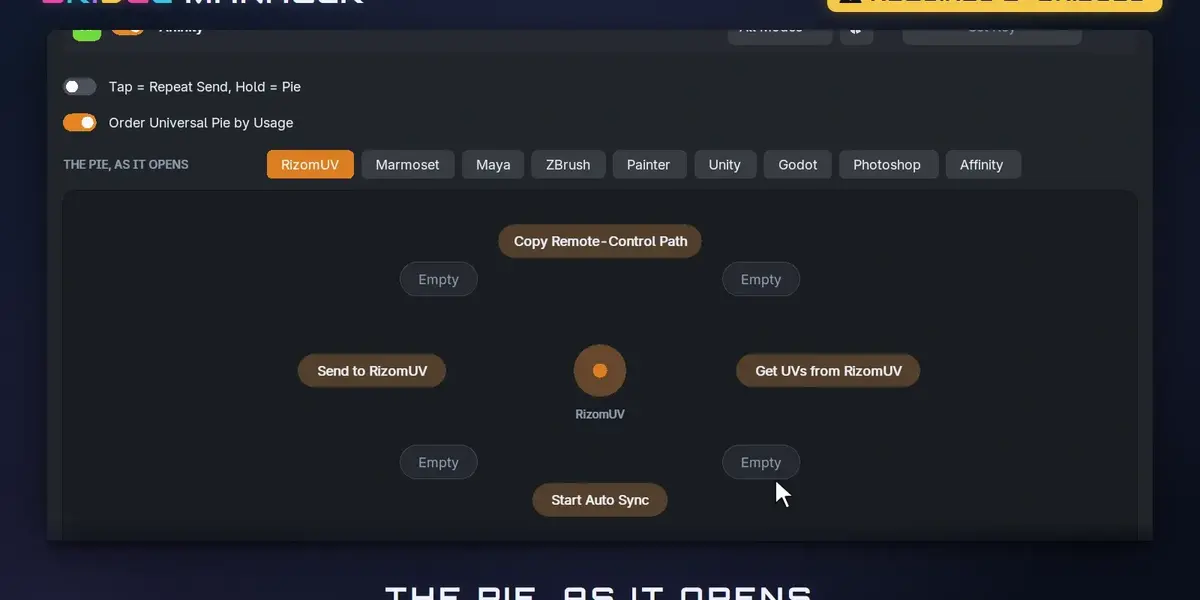
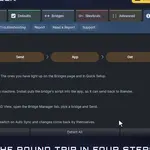
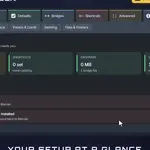
It brings the Universal Bridge add-ons you own together on one Bridge Manager card in the 3D View: pick a bridge from the tabs at the top and its own controls appear inside the card. Its preferences find your apps, check your setup, keep your shortcuts, looks and profiles in one place, and write the report support needs when something goes wrong.
Does the Manager include any bridges?
No. It contains no bridge of its own; it brings together the individual bridge add-ons you have installed. Buy the bridges you need - RizomUV, ZBrush, Substance Painter, Unity and so on - and each one appears on the card once it is installed. If you want everything in one purchase instead, get the all-in-one "Universal Bridge" add-on.
Do my bridges still work without the Manager?
Yes. Each bridge works on its own, in its own sidebar panel. The Manager puts them on one card and adds the shared preferences, shortcuts, looks, profiles and the health check.
How do bridges show up?
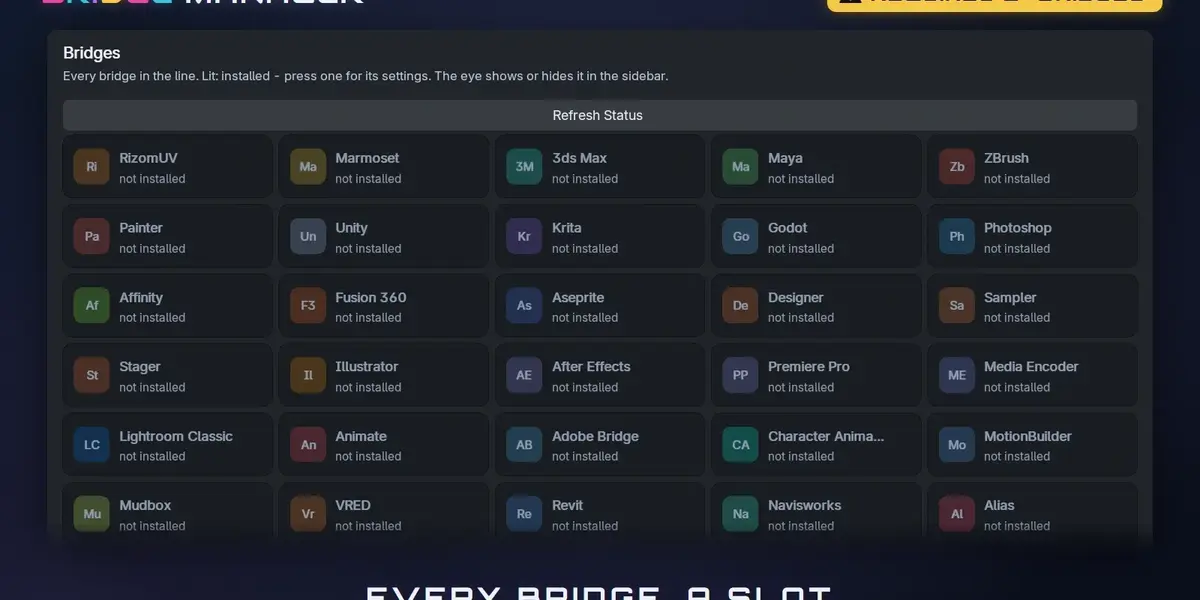
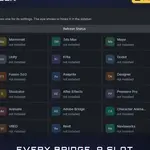
Install a bridge the usual way and it appears on the Bridge Manager card and lights up on the Bridges page - in any order, before or after the Manager. Bridges you do not own are shown as empty slots on the Bridges page, never on the card.
Something is not working. What do I send you?
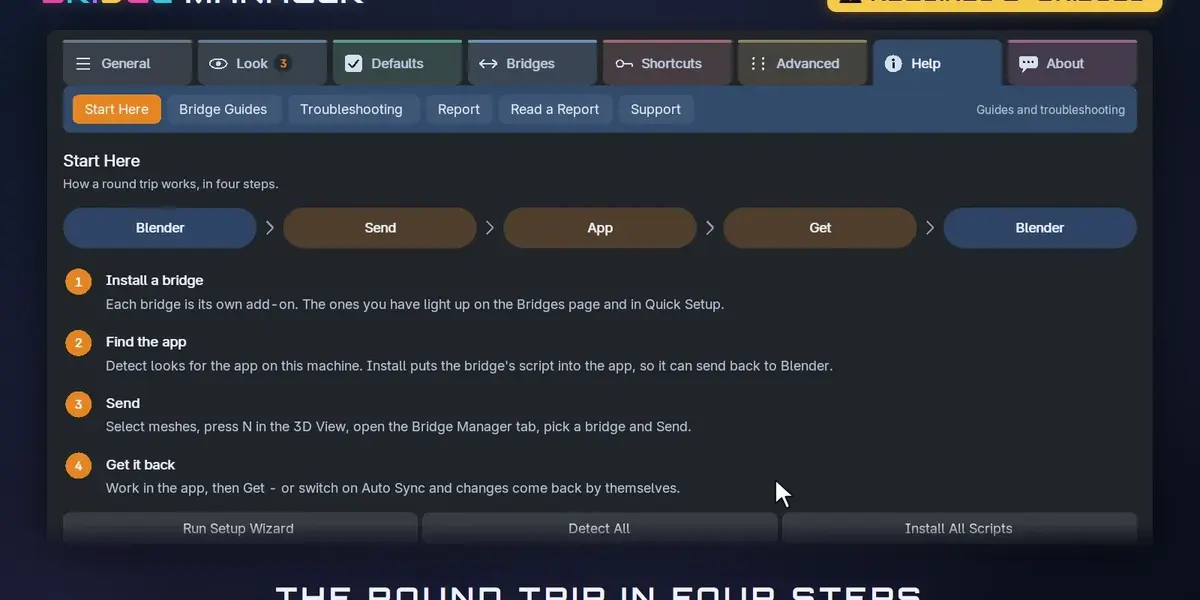
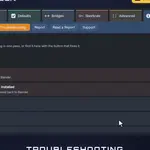
Open Help ▸ Report in the Manager's preferences and press Copy Report (or Save As File... for a long one) and send it on Discord. It holds your system, each bridge and its version, the apps found, a health check, every Python error since Blender started and Blender's crash logs - everything needed to help, without back-and-forth. Your Windows user name is hidden from paths by default.
Can I check my setup myself?
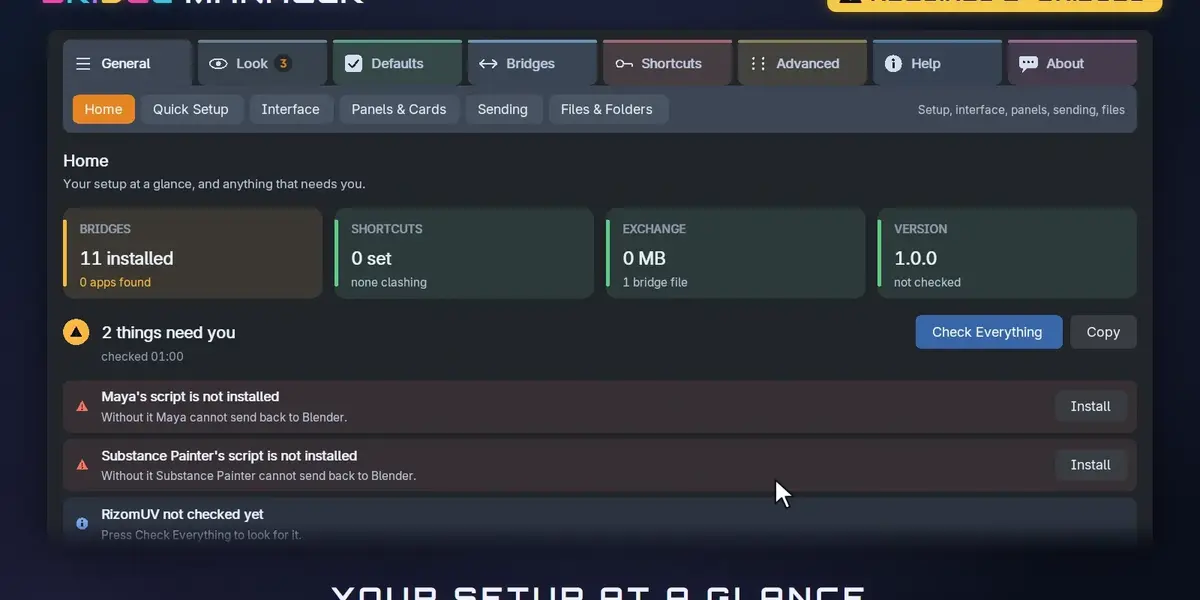
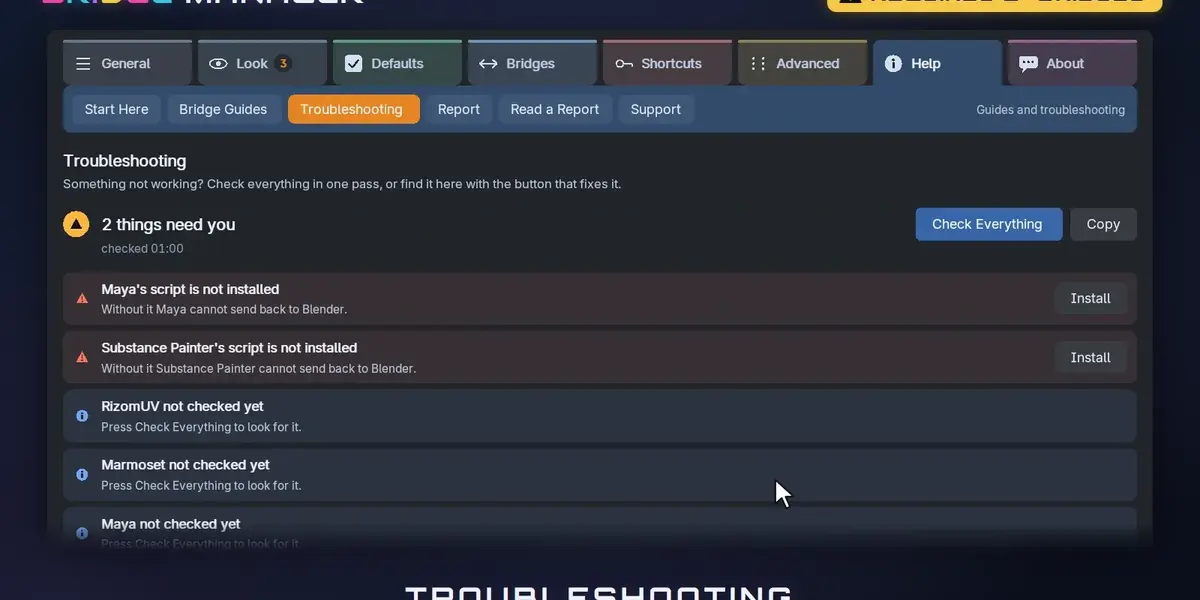
Yes. Check Everything (on Home, or Help ▸ Troubleshooting) looks for every app, checks every companion script, tests the exchange folder and your keys, and lists anything that needs you with the button that fixes it.
Can I change how the cards look?
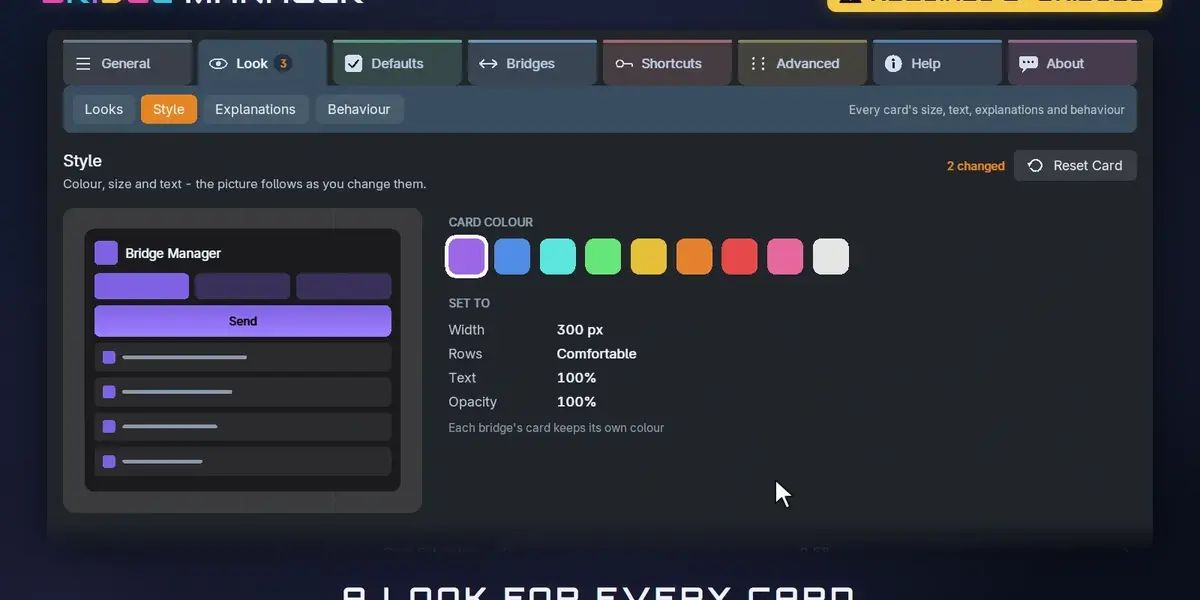
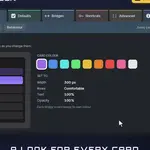
Yes. Look offers five whole looks (Default, Compact, Large, High Contrast, Minimal), colour swatches and size and text settings - and every bridge's card can be styled on its own, or put back to its own brand colour in one click.
Can I keep different setups?
Yes. Advanced ▸ Profiles saves every setting under a name and switches between them in one click. Every change can also be undone from the Changed list.
Can I use it for commercial work?
Yes. Like all Blender add-ons it's licensed under the GPL, so you can use it in any commercial project.
Do I need each application the bridges talk to, and is a licence included?
You need your own copy of each application the bridges talk to - each is sold or licensed separately by its own vendor and is not included with this product. This add-on is the Blender side only, and is not affiliated with, endorsed by, or a reseller of those vendors. It is also Windows only: macOS and Linux are not supported.
Can I change the icons, or turn them off?
Yes. General ▸ Interface ▸ Button Icons offers Brand Colours (the default, each bridge in its own colour), Mono with a colour you pick, and Blender Built-ins if you would rather have no custom icons at all. Colour-code Status decides whether link and modifier icons keep their green / amber / red.
Have questions about this product?
Login to message
| Blender Extension Compatible | Yes |
| Downloads | 10+ |
| Published | 1 day ago |
| Blender Version | 3.3 - 5.3 |
| Extension Type | Add-on |
| License | GPL |