Brush Shelf - Sculpting Brush Manager for Blender
 VK Gamedev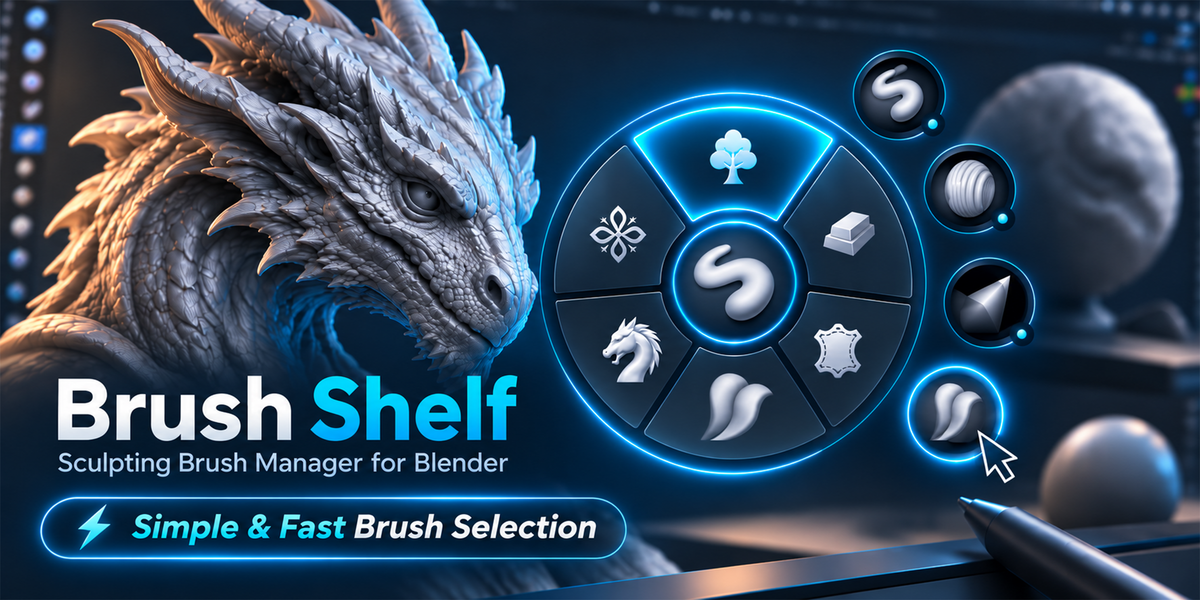
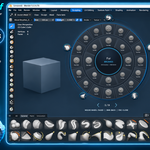
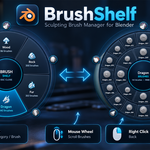
Brush Shelf — Quick Guide
By VKGamedev · Blender 4.5+
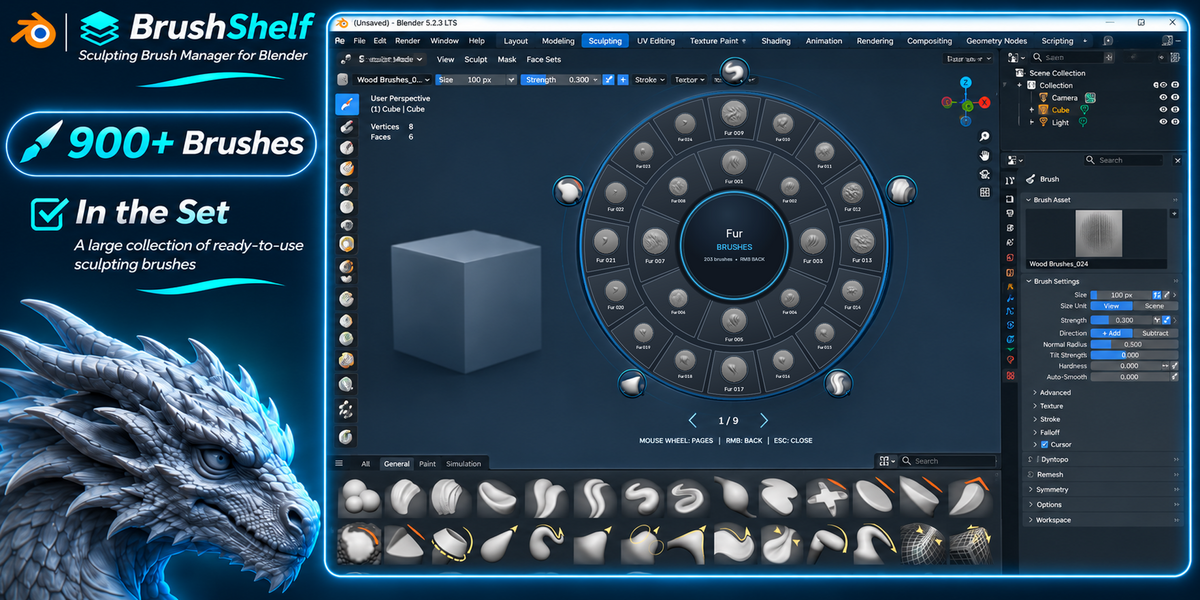
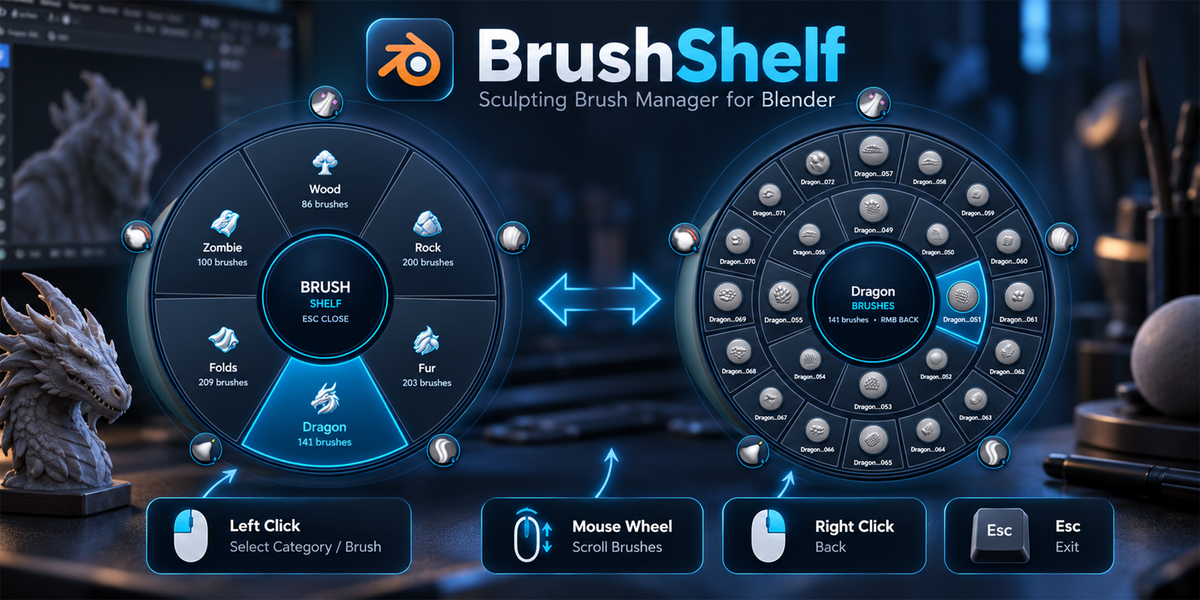
Brush Shelf includes 939 sculpting brushes across six categories: Wood, Dragon / Scales, Fabric / Folds, Fur / Hair, Rocks / Stone, and Zombie / Creatures.
Installation
- Download Brush_Shelf_1.0.2.zip. Do not extract it.
- Open Edit → Preferences → Add-ons.
- Select Install from Disk from the upper-right menu.
- Choose the ZIP and enable Brush Shelf.
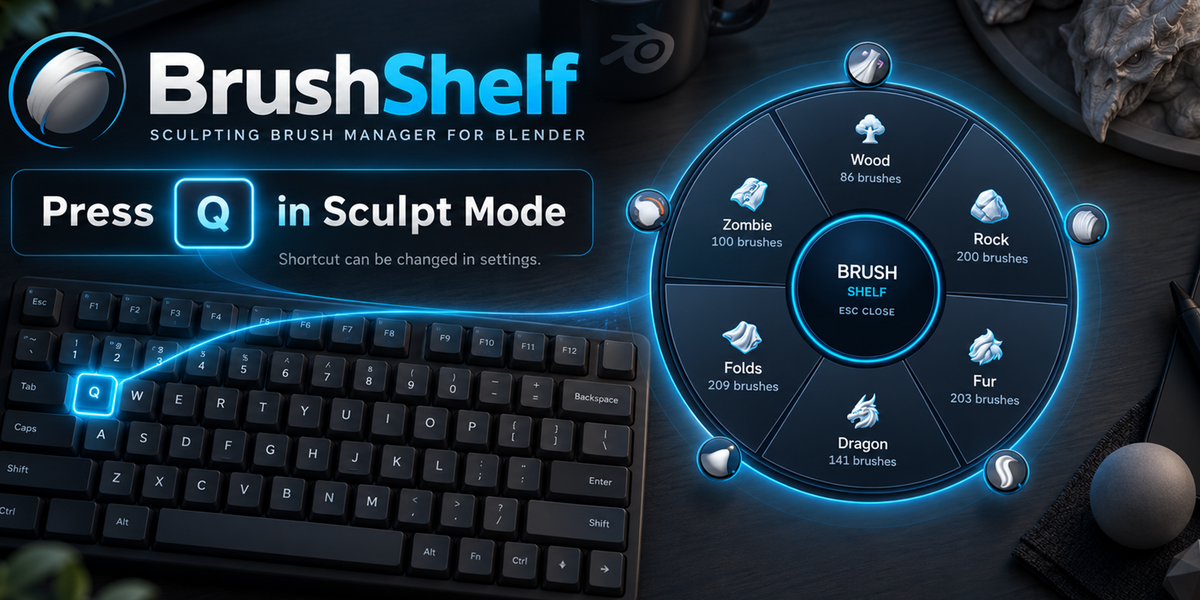
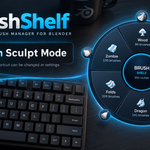
- Select a mesh, enter Sculpt Mode, hover over the 3D Viewport, and press Q.
The included categories are configured automatically.
Controls
| Action | Control |
|---|---|
| Open Brush Shelf | Q |
| Select a category or brush | Left Click |
| Change brush pages | Mouse Wheel |
| Return to categories | Right Click or center button |
| Close | Esc |
| Activate a favorite | Click its outer-circle icon |
Customization
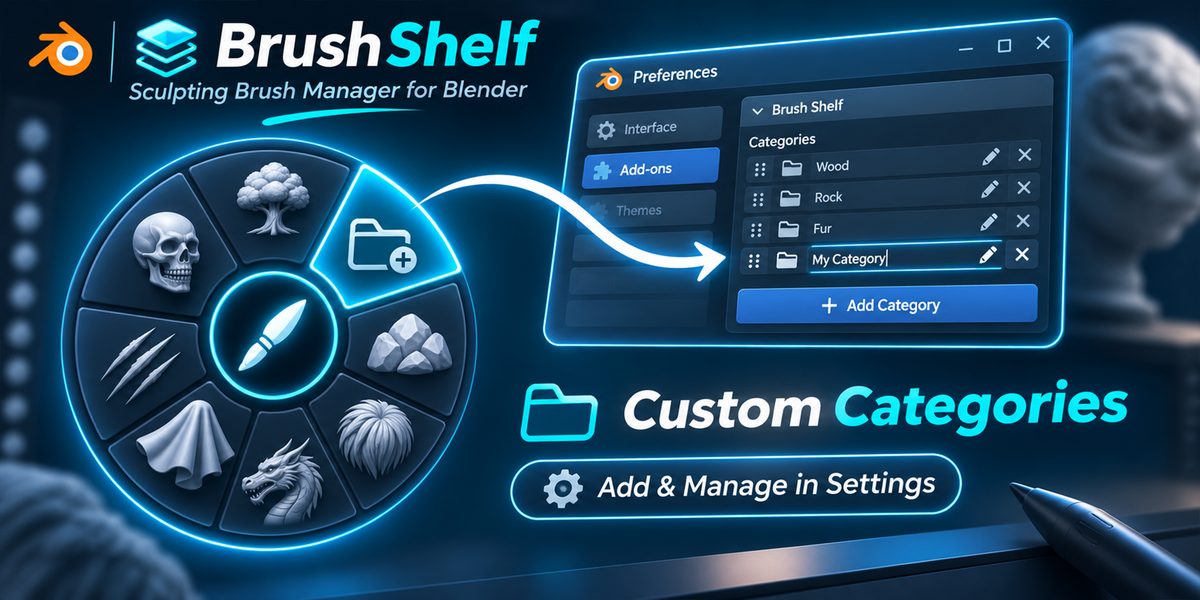
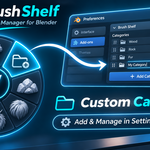
Open Preferences → Add-ons → Brush Shelf.
- Categories: configure up to 10 slots with names, folders, and included icons.
- Custom brushes: choose their folder and click Refresh Brushes from Folders. Brushes must be marked as Assets. Subfolders are included.
- Favorites: configure 5–15 slots. Choose searches available brushes; Use Active assigns the current brush; X clears a slot.
- Appearance: adjust Wheel Scale, Brushes in Inner Ring, and shortcuts.
Reopen the menu after making changes. Settings save automatically between Blender sessions.
Important Notes
- Fine brush detail requires a sufficiently dense mesh.
- Included brushes are installed in Blender’s user data folder. No project folder is required.
- To update, install the new ZIP over the existing extension and restart Blender.
- If Q does not work, check Sculpt Mode, cursor position, and the assigned shortcut.
 Included
Includes 12 months of
- Support from VK Gamedev
- Product updates
Extend this product’s Support Period +12 months: 25% of product price
Have questions before purchasing?
Login to message
| Blender Extension Compatible | Yes |
| Published | about 13 hours ago |
| Blender Version | 4.5 - 5.2 |
| Extension Type | Add-on |
| License | GPL |

Discover more products like this
sculpt-tools Brush Library brush organizer sculpting brush assets Sculpt mode asset management radial-menu sculpting brushes brush manager