 VK Gamedev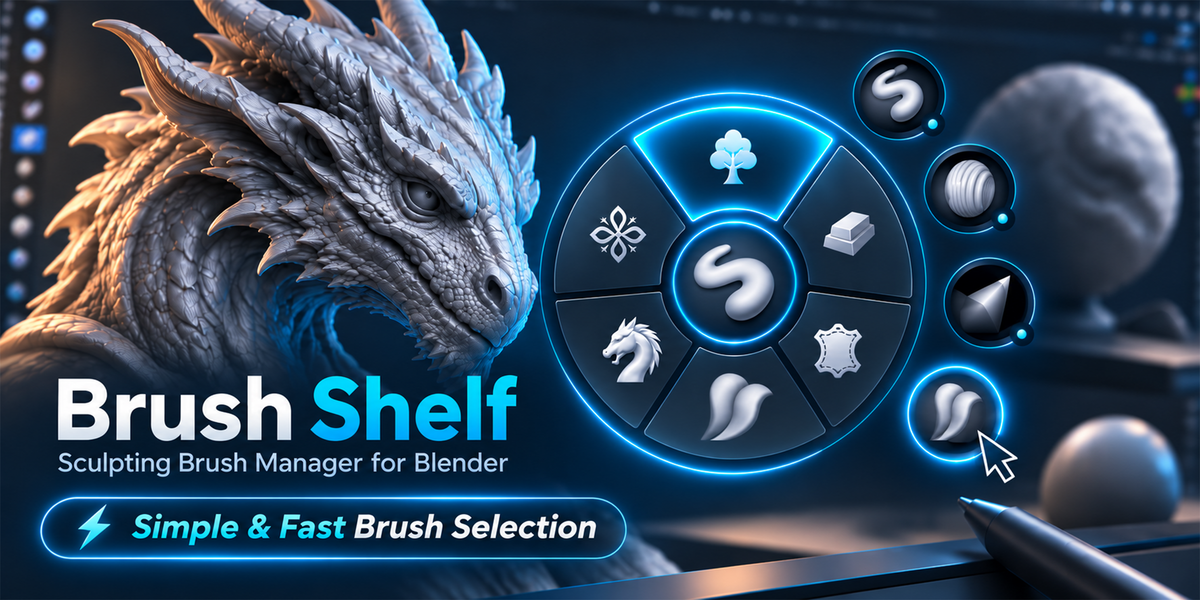
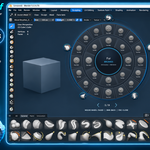
Brush Shelf
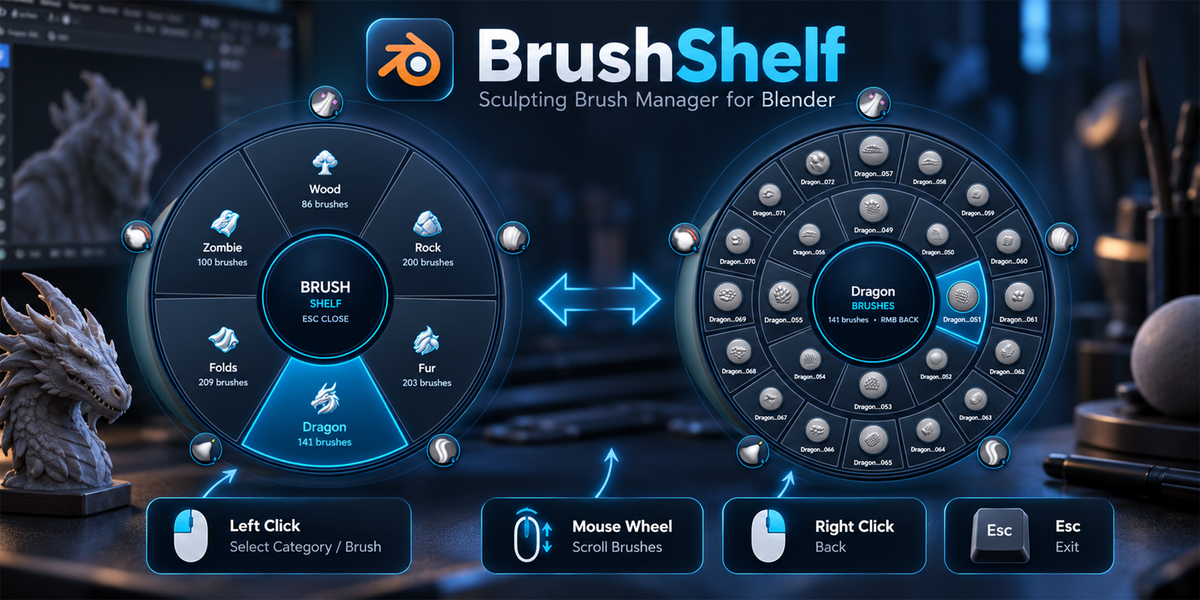
Your sculpting brushes, organized around one shortcut. Browse categories, recognize brushes by their previews, and reach your favorites directly in the 3D Viewport.
Brush Shelf in Action
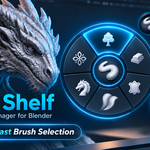
Explore the radial menu, included brush packs, customizable categories, and favorites in Blender.
Find the Right Brush. Keep Creating.
Bring your included packs and personal brush libraries into a visual radial menu. Switch between surface details, keep frequently used brushes close, and spend less time searching through your collection.
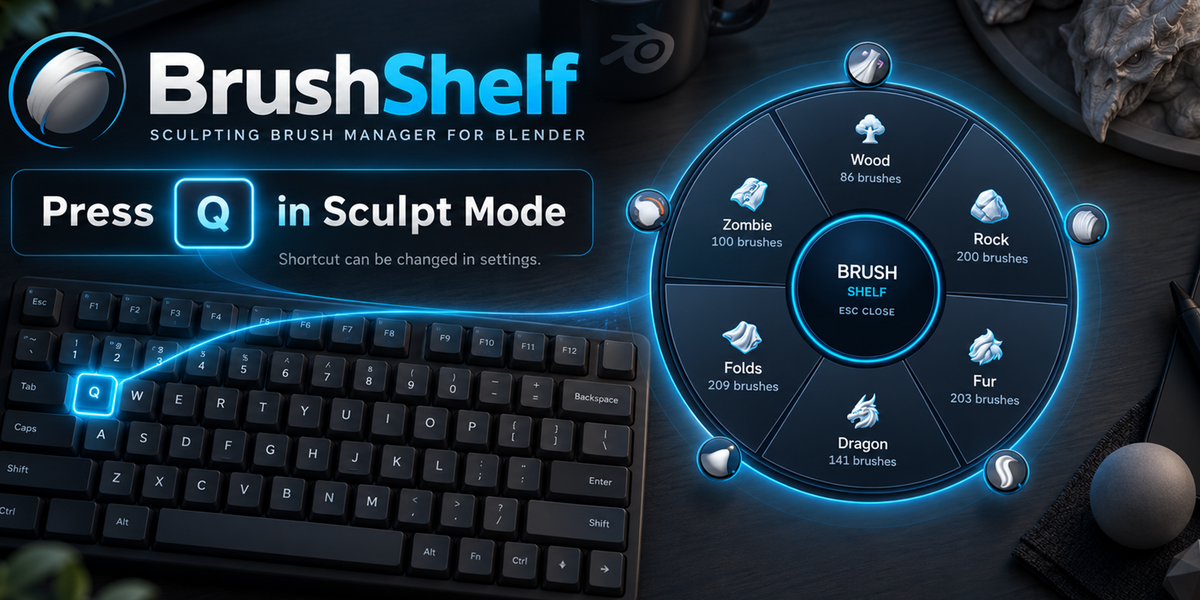
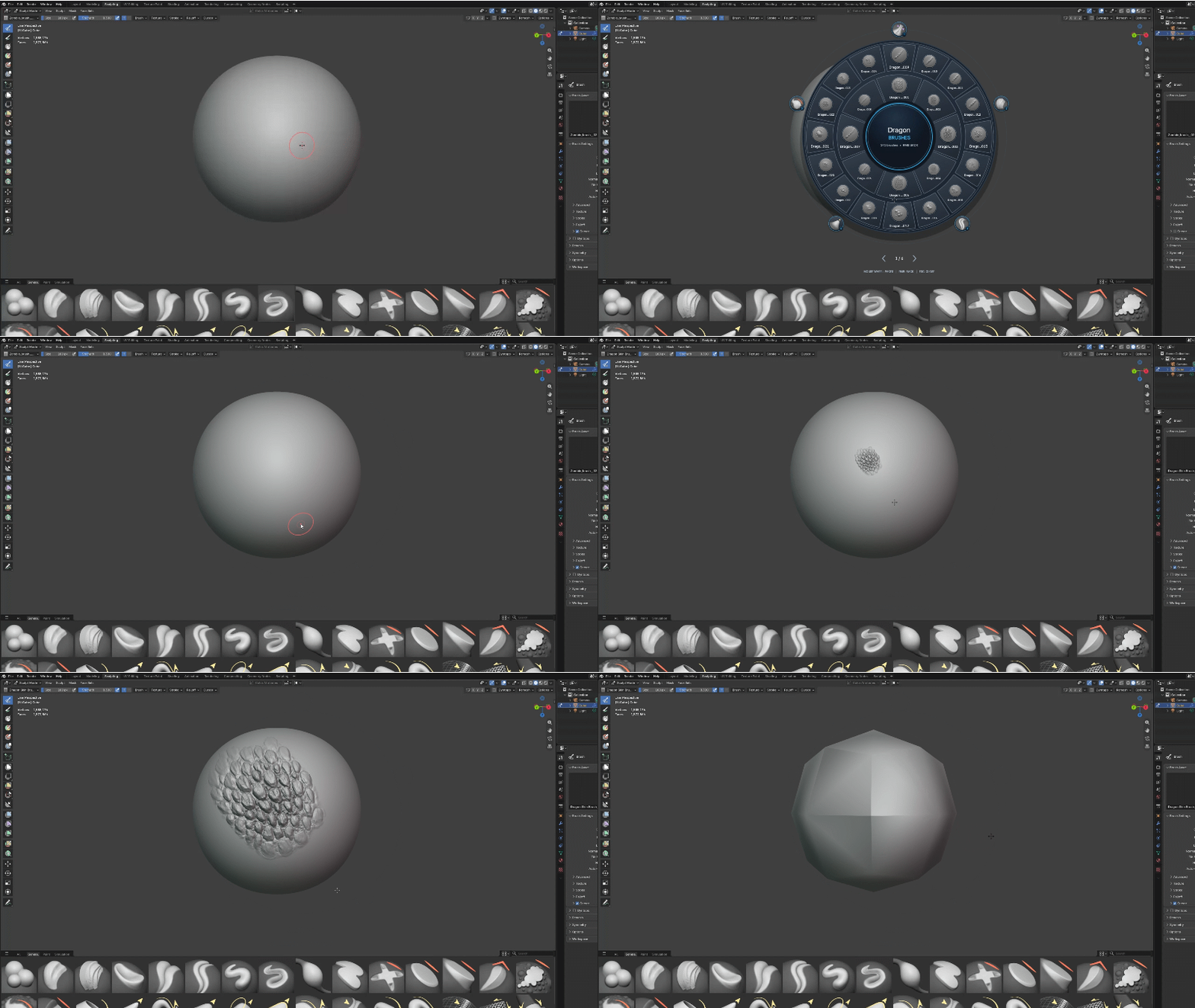
On a fresh installation, all six included categories are configured automatically. Alpha textures are packed inside the libraries, and previews are included. Install the add-on, enter Sculpt Mode, and press Q.
A Clearer Way to Manage Sculpt Brushes
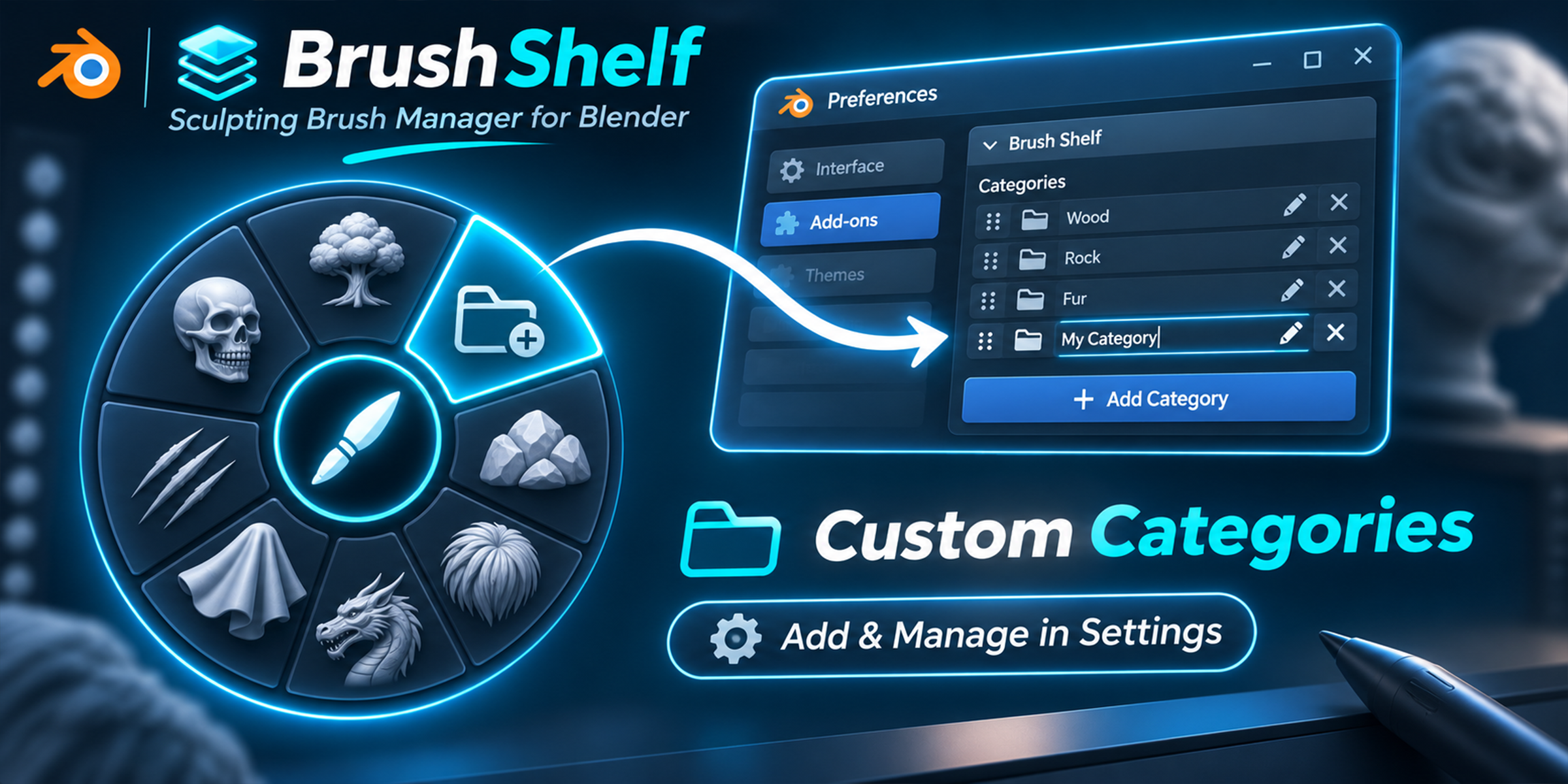
10 Category Slots
Two Rings of Brushes
5–15 Favorite Slots
Visual Brush Selection
Your Own Libraries
Settings That Stay Saved
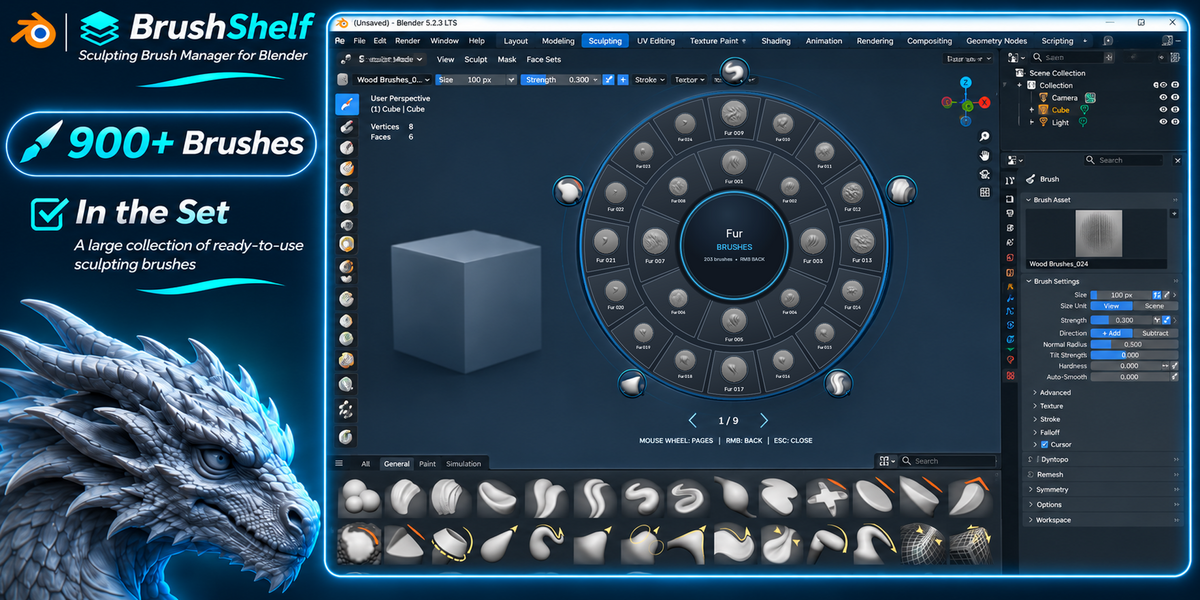
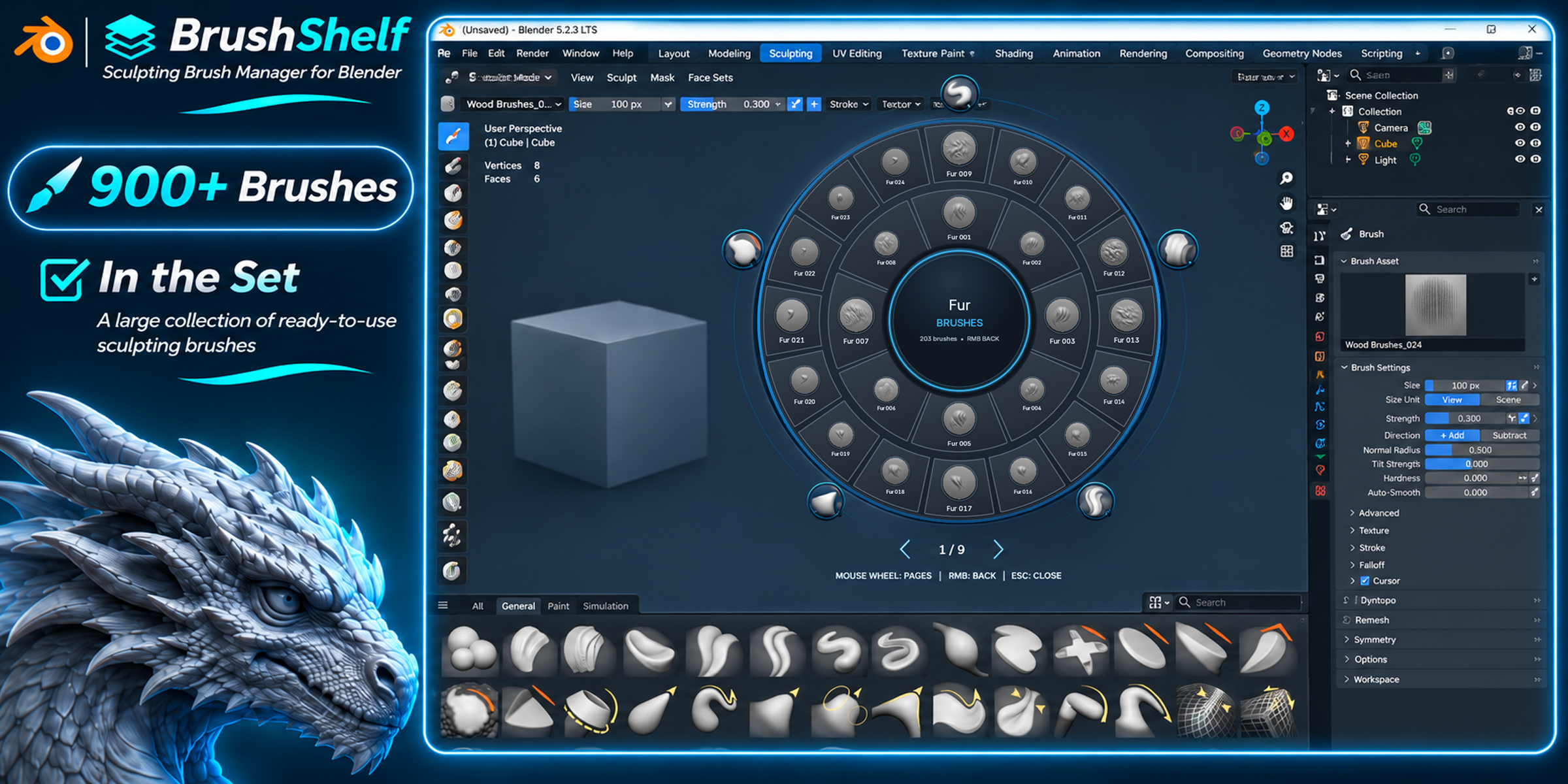
939 Brushes. Ready to Explore.
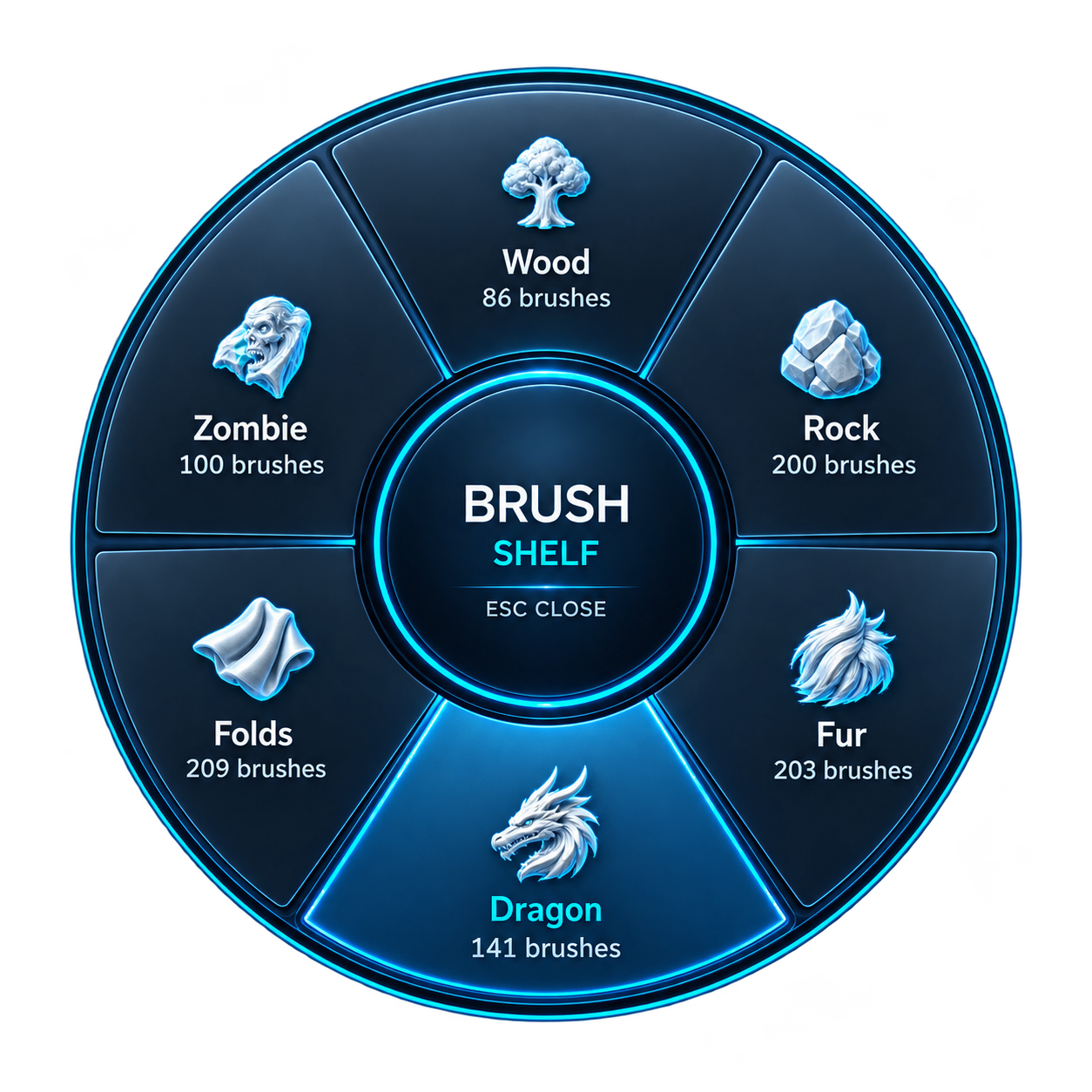
A varied collection for wood, scales, fabric, fur, stone, and creature surfaces. Each included brush has a preview, with its alpha texture packed into the library.
Wood
Dragon / Scales
Fabric / Folds
Fur / Hair
Rocks / Stone
Zombie / Creatures
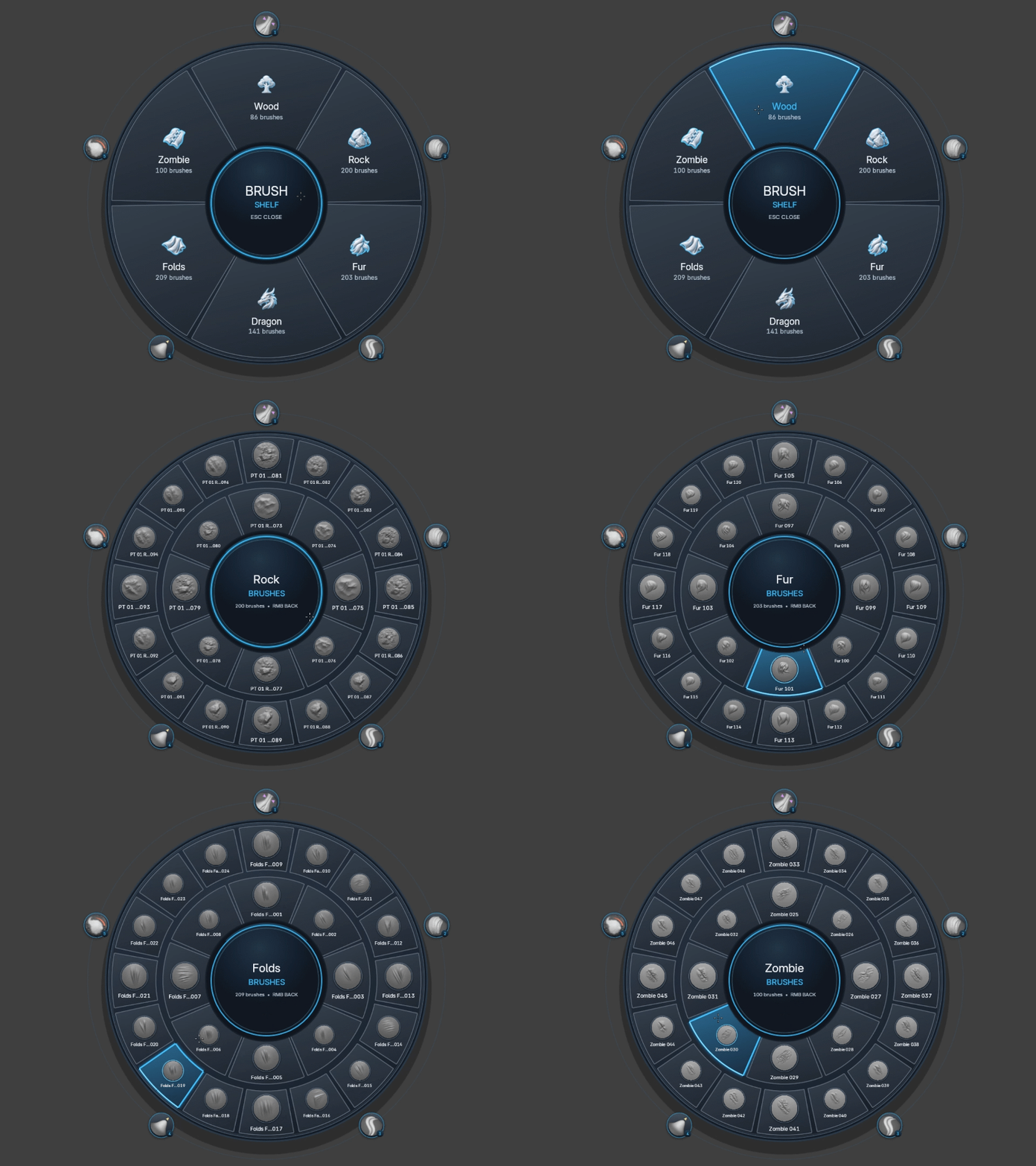
Original brush names and stroke settings are preserved.
From Your Library to Your Sculpt
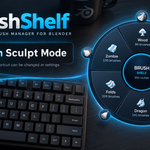
Press Q
Choose a Category
Select a Brush
Install Once. Start Sculpting.
The complete ZIP includes the add-on and all six brush packs. No separate brush-library installation is needed.
- Download BrushShelf. Keep the archive zipped.
- In Blender, open Edit → Preferences → Add-ons.
- Open the menu in the upper-right corner and choose Install from Disk.
- Select the ZIP archive and confirm installation.
- Make sure Brush Shelf is enabled.
- Select a mesh object and enter Sculpt Mode.
- Move your cursor over the 3D Viewport and press Q.
Alternative access: Sidebar (N) → Brush Shelf → Open Brush Shelf.
Simple, Familiar Controls
| Open Brush Shelf | Q |
| Select a category or brush | Left Mouse Button |
| Change brush pages | Mouse Wheel |
| Return to categories | Right Mouse Button or center button |
| Close the menu | Esc |
| Activate a favorite | Click its icon outside the menu |
| Open Blender Quick Favorites | Shift + Q |
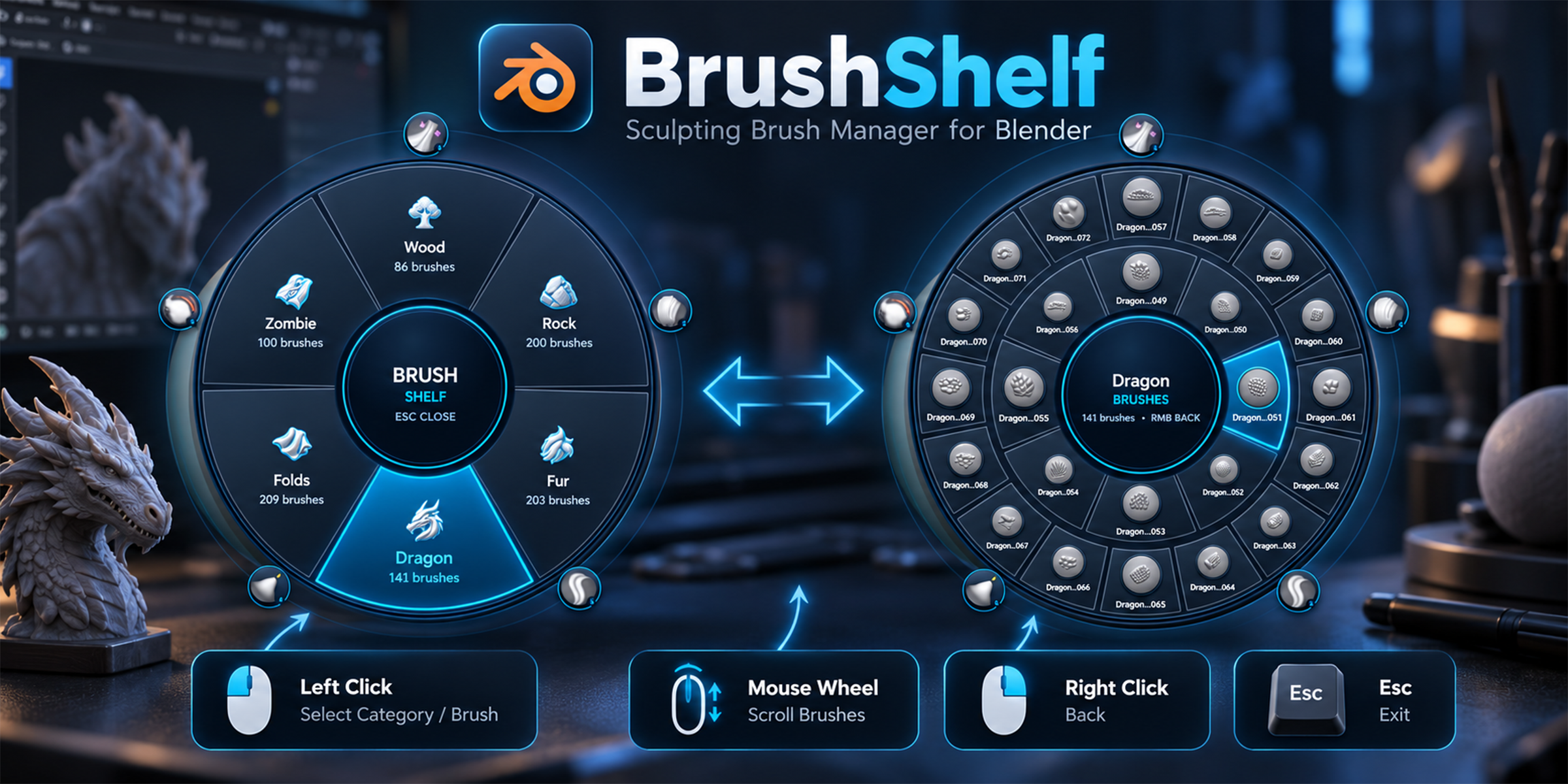
Categories stay on one screen. Mouse-wheel pagination applies to brushes within a category.
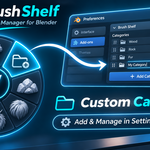
Your Categories. Your Favorite Brushes.
Open Edit → Preferences → Add-ons and search for Brush Shelf.
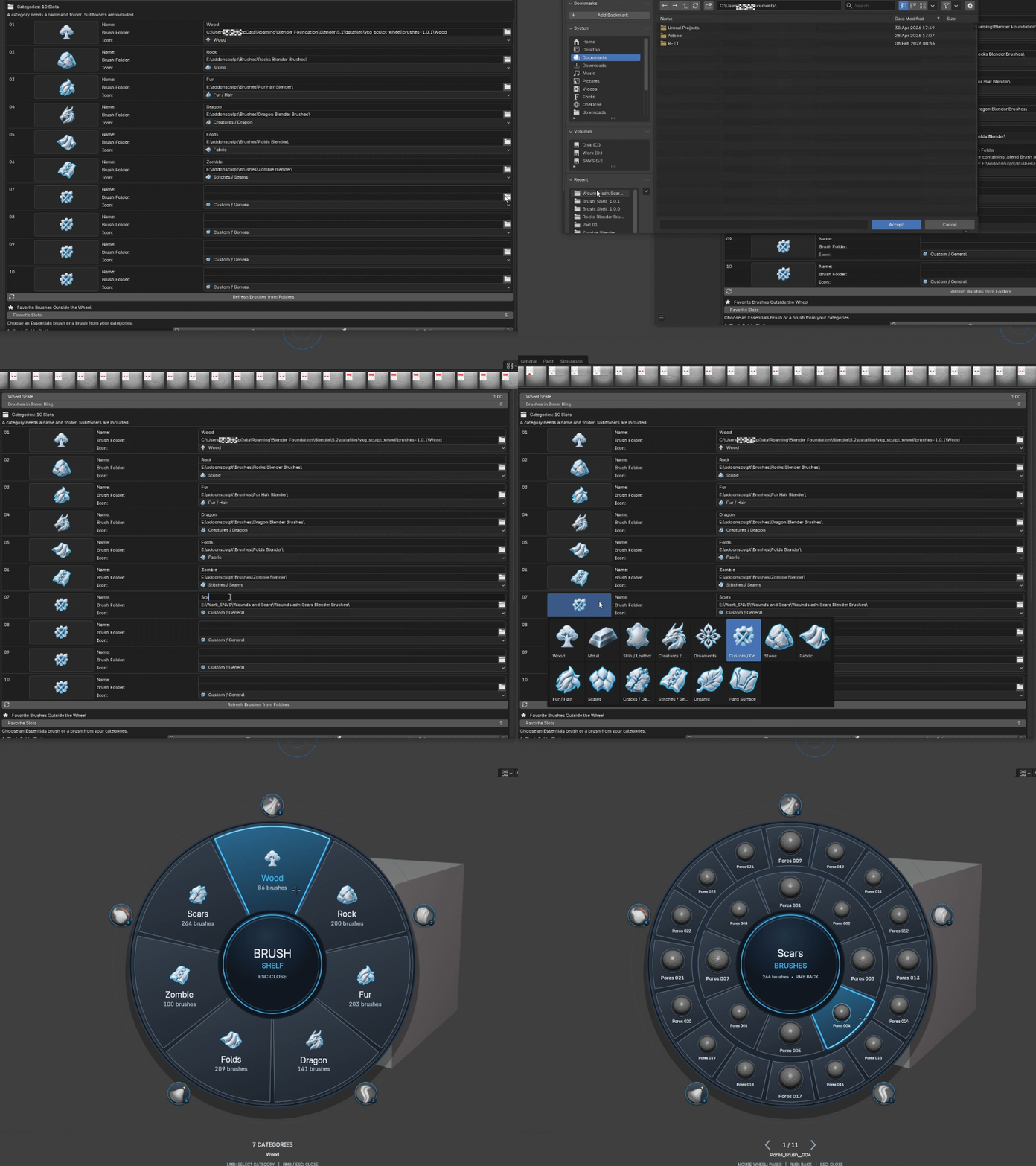
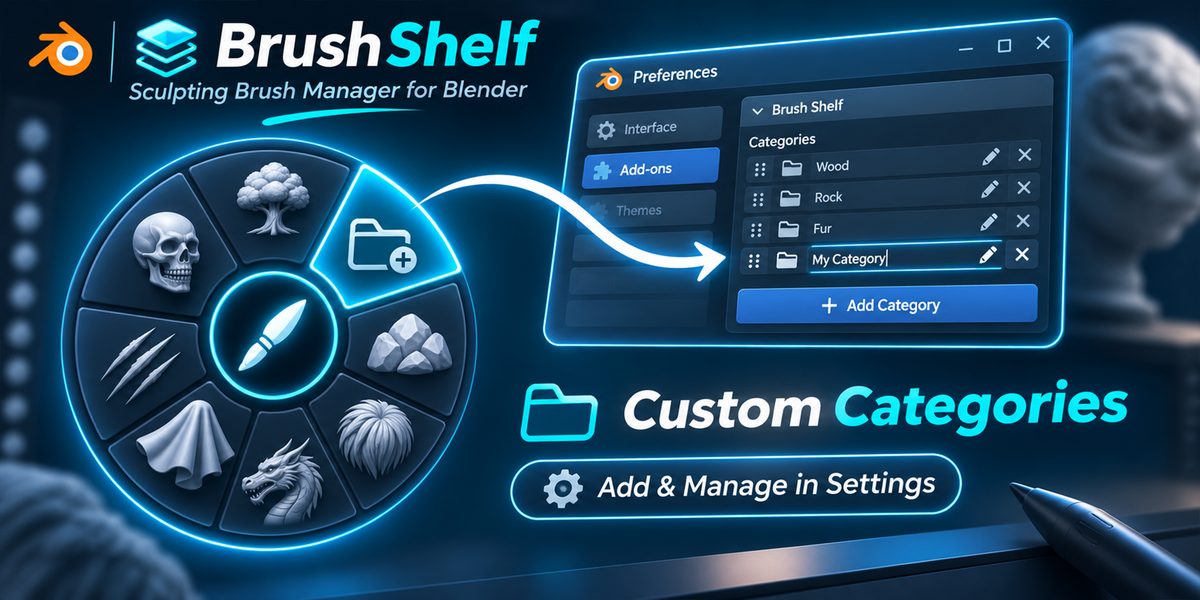
Add Your Own Libraries
- Choose an available category slot and enter a name.
- Select its brush folder and one of the included icons.
- Click Refresh Brushes from Folders and wait for scanning to finish.
Custom brushes must be marked as Assets in Blender. Subfolders are included. Empty or unavailable categories are hidden.
Configure Your Favorites
Set Favorite Slots to any number from 5 to 15.
Reducing the visible count keeps hidden assignments saved.
Adjust the Layout
Wheel Scale adjusts menu size. Brushes in Inner Ring accepts 4–12 slots; the outer ring holds twice as many. Edit shortcuts in the same Preferences panel. Reopen the menu after changing categories, icons, or favorite assignments.
Your Setup Stays With You
Brush Shelf saves category names, folders, icons, all 15 favorite assignments, the visible favorite count, menu appearance, and edited shortcuts. Your configuration returns when you restart Blender.
Install the new ZIP over the previous extension in the same repository. Custom names, icons, external folders, and shortcuts are preserved. Categories using an older bundled library move to their matching current folders. Favorites move when the same asset exists; otherwise they keep their working older library.
Compatibility & Sculpting Notes
Blender 4.5+
Complete Local Library
Fine grain, scales, folds, and other small details need enough geometry to reproduce the alpha pattern. Original brush stroke settings are retained; some brushes use stamp-style placement.
Frequently Asked Questions
Are the included brushes ready after installation?
Yes. A fresh installation automatically configures all six supplied categories. Select a mesh, enter Sculpt Mode, and press Q.
Can I use my own brushes?
Yes. Assign a category name and folder in Preferences, then refresh it. Your brushes must be Sculpt Brush Assets; subfolders are included.
Which favorite brushes are configured by default?
Draw, Clay Strips, Crease Sharp, Grab, and Smooth. You can replace them and increase the visible favorite count to fifteen.
Why does Q not open the menu?
Check that a mesh is selected, Sculpt Mode is active, and the cursor is over the 3D Viewport. Review the shortcut in the add-on Preferences, or open Brush Shelf from the Sidebar.
Why is a custom brush missing?
Check the category name and folder, confirm that the brush is marked as an Asset, then click Refresh Brushes from Folders. Wait for scanning to finish and reopen the menu.
Do I need to configure everything again after restarting?
No. Brush Shelf saves its own settings automatically, even when Blender’s global Auto-Save Preferences option is disabled.
Your Brushes. One Shortcut.
Start with the included library, add your own collections, and keep the brushes you use most within reach.
Brush Shelf — Sculpting Brush Manager for Blender
By VKGamedev

