CAD Hidden Cleaner
 AS Formworks





CAD HIDDEN CLEANER 1.1 — AS FORMWORKS
WHAT IT DOES
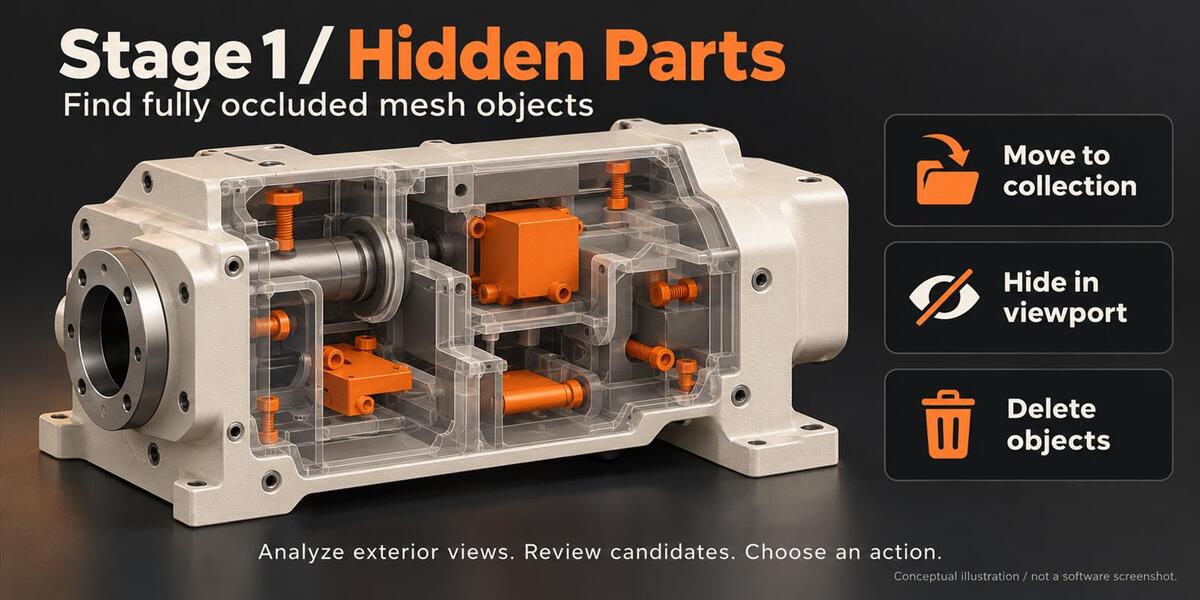
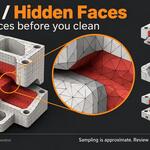
Find hidden mesh objects and occluded faces after importing CAD-derived geometry into Blender. Designed for static, opaque exterior product renders, industrial props in architectural visualization and asset preparation before further real-time optimization. This is not a CAD/STEP importer, decimator, retopology tool, CAD-solid editor or 3D-print repair tool. Import/convert with your existing tools first.
COMPATIBILITY
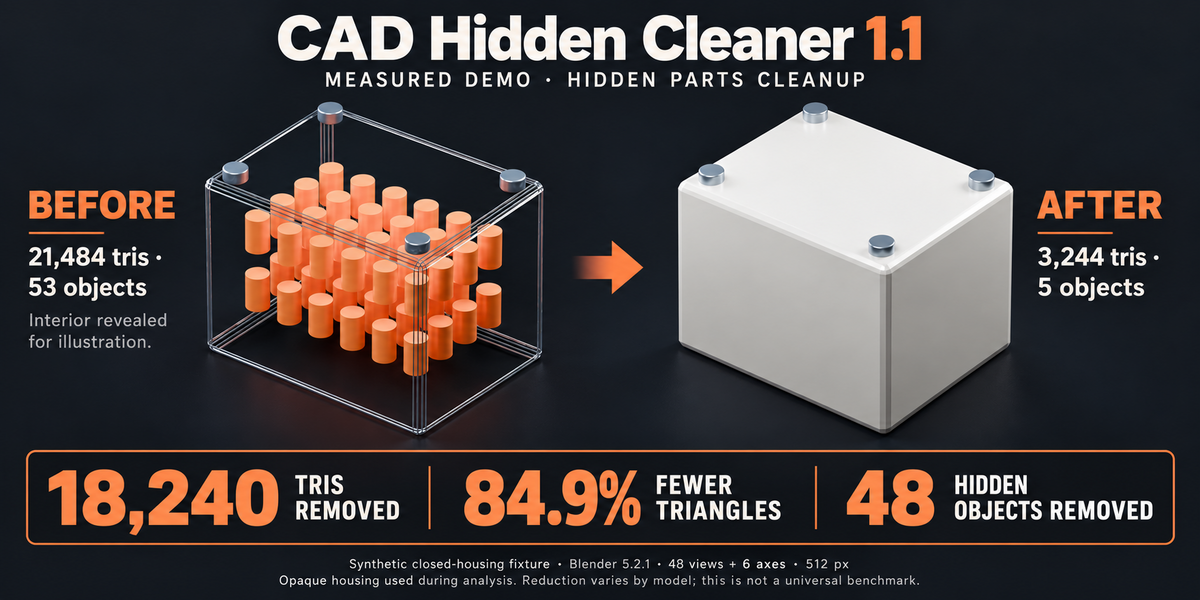
Minimum supported version: Blender 5.0. Tested on Windows with Blender 5.0.0 and 5.2.1 LTS. Intermediate versions, other operating systems and other GPU drivers have not been independently validated. An interactive Blender window and working offscreen GPU support are required. Background/headless mode is not supported. NumPy is included with Blender; no pip installation, account or network connection is required. The add-on contains no network requests or telemetry. The main mechanical illustration is conceptual. The measured-demo comparison uses a separate synthetic Blender fixture; neither graphic is a software-interface capture.
INSTALL OR UPDATE
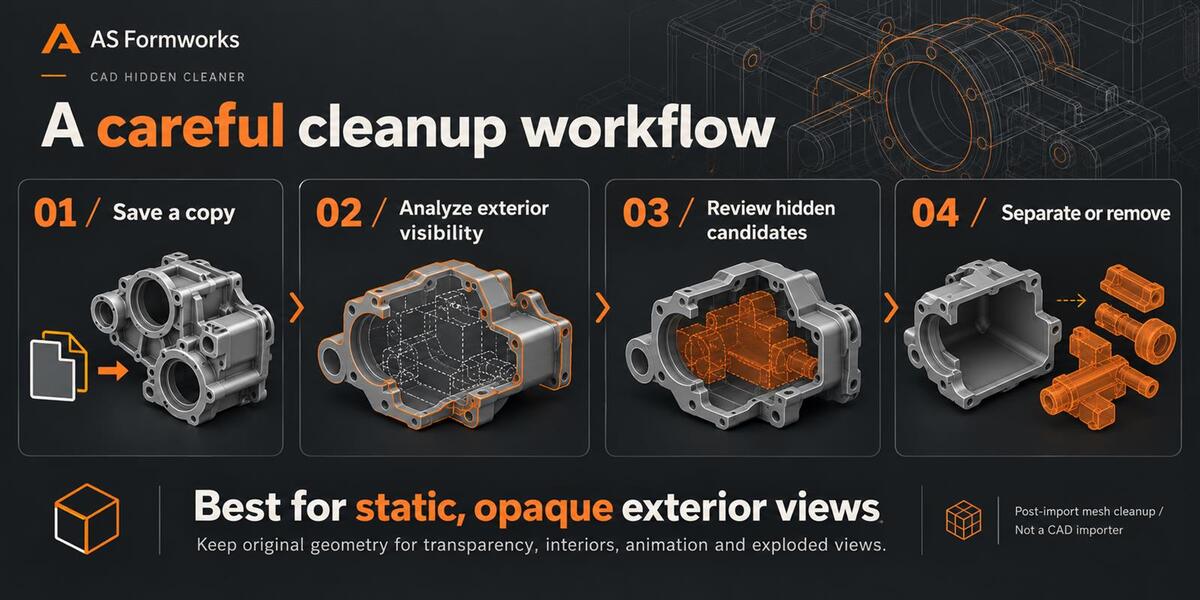
1. Save an original .blend and close any production project.
2. Disable/remove the older CAD Hidden Cleaner add-on if installed.
3. Edit > Preferences > Get Extensions > menu > Install from Disk. Choose cad_hidden_cleaner-1.1.0.zip without extracting it. Version 1.1 is a validated Blender Extension package for Windows x64.
4. Enable CAD Hidden Cleaner and restart Blender after replacing an older version.
5. Open your working copy, press N in the 3D Viewport and select CAD Clean.
6. Run fresh analyses after an update, file reload or Blender restart. Saved 1.0 result attributes are not trusted by 1.1.
PREPARE THE MODEL
Save an untouched original and work on a duplicate. Convert CAD-derived assets to mesh objects with your existing importer. Make the required occluders visible in the active view layer: hidden objects are not included. Curves and unrealized procedural instances must be converted to real meshes first.
Bake visible modifiers, Geometry Nodes, deformations and shape keys into a duplicate mesh before analysis. Version 1.1 refuses active modifiers, shape keys, linked-library mesh data and objects shared across multiple scenes, rather than silently analyzing an incorrect base-mesh shape. Use local single-scene copies. Materials and transparency are ignored during sampling; assume opaque geometry.
QUICK START: WHOLE OBJECTS
1. Set View Count and Resolution; keep Axis Views enabled for six extra axis directions.
2. In 1 · Parts choose All Visible or Selected. Unselected visible meshes still act as occluders.
3. Click Analyze Parts. Candidate hidden objects become selected, and object/triangle estimates appear.
4. Start at Min Pixels = 1 and Min Visibility = 0. Increase either threshold only after reviewing small features.
5. Choose Move to Collection, Hide or Delete, then Apply. Move to Collection preserves the objects in CAD_Hidden_Parts, hidden from both viewport and render in 1.1. Hide affects viewport visibility only. Delete removes objects and asks for confirmation in the UI.
6. Analysis is cleared after cleanup. Run another analysis for the next pass. Use Undo immediately or reopen your original to recover from unwanted edits.
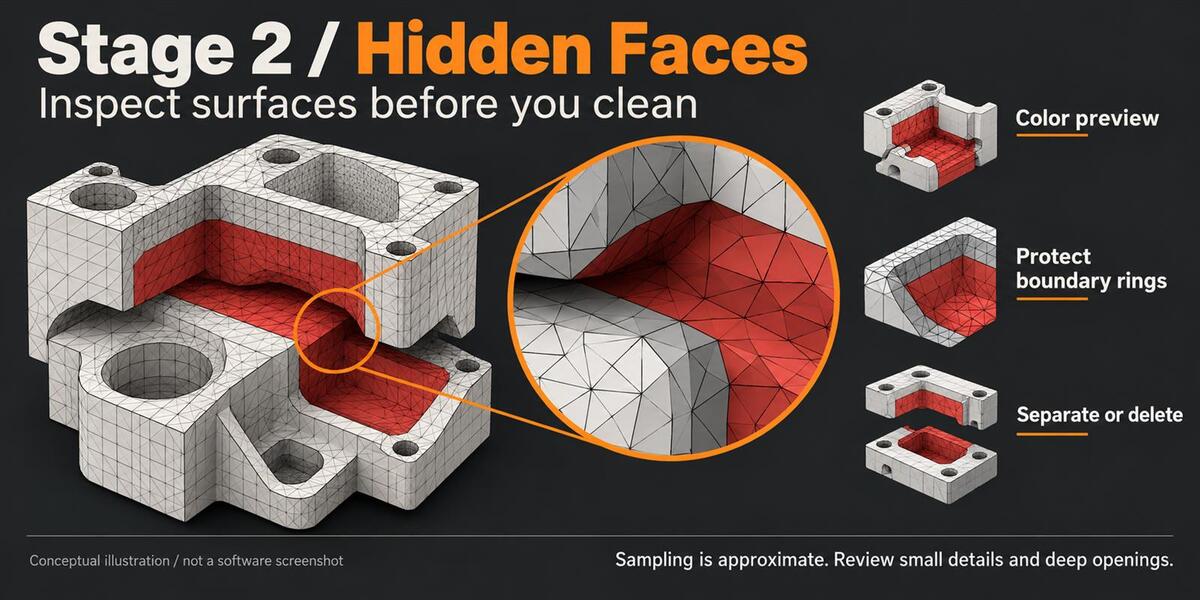
QUICK START: MESH FACES
1. Select the visible mesh objects to analyze. Review Shared Mesh mode first.
2. Click Analyze Faces in 2 · Faces. Red Color Preview marks hidden candidates in Solid shading.
3. In 1.1 Min Pixels defaults to 1: a face must have no recorded visible pixels to qualify by that threshold. Min Visibility = 0 avoids an extra view-percentage filter. Raising thresholds can classify visible details as hidden.
4. Safety Rings expands the visible region by shared-vertex neighbors. More rings preserve more boundary geometry. It is conservative but not a guarantee against sampling errors.
5. Use Select in Edit Mode for manual inspection. Apply always regenerates candidates from thresholds; it does NOT apply a manually edited selection. To remove a hand-edited selection, use Blender's own face-deletion command instead.
6. Separate Faces keeps candidate faces in backup objects inside CAD_Hidden_Faces. The collection and backup objects are disabled for rendering. Delete permanently removes the faces from the mesh and asks for confirmation in the UI. Both operations change the working mesh and can produce holes/non-manifold surfaces.
7. Save and inspect your exterior render/export. Analysis is cleared after applying. Clearing analysis removes add-on attributes and preview colors; it does not put geometry back.
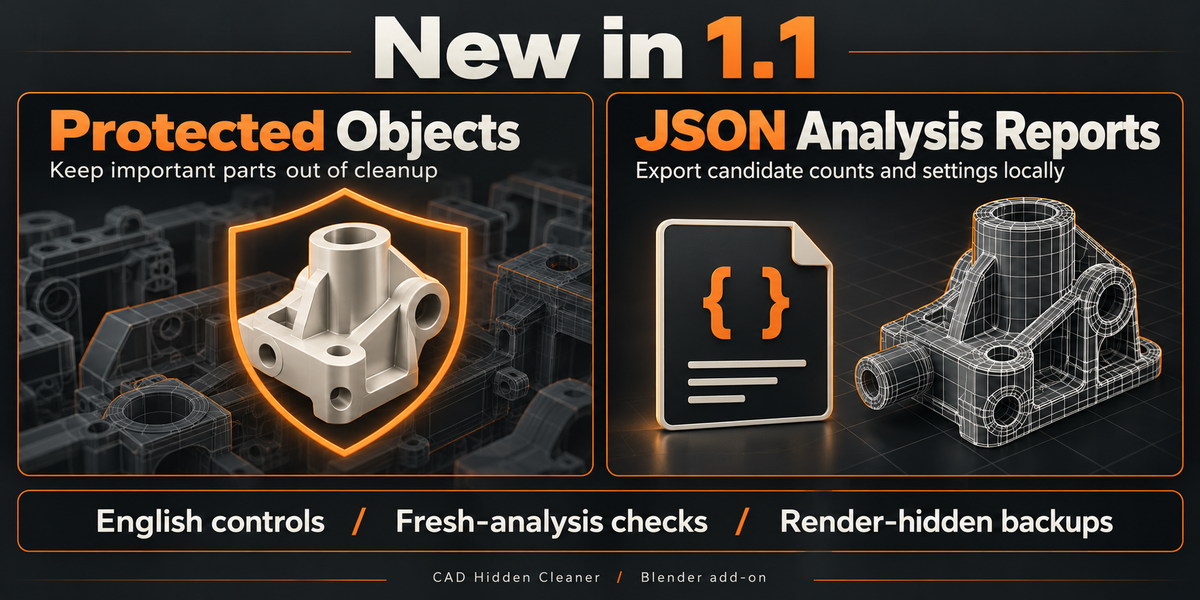
NEW FEATURE 1: PROTECTED OBJECTS
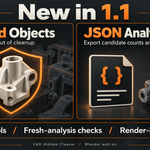
Select important mesh objects and click Protect at the top of CAD Clean. Protected objects remain visible occluders but are excluded from cleanup targets. The panel identifies a protected active object. Select the object again and click Unprotect to include it in a future analysis.
Changing protection invalidates previous results; reanalyze before applying. In Combine mode a protected object protects its whole shared mesh from face cleanup. Single User mode allows an unprotected selected copy to be evaluated independently, without editing the protected user's mesh. Protection is a persistent object property and is intentionally not removed by Clear Analysis.
After Analyze Parts, the add-on replaces the selection with hidden candidates. To unprotect an object, explicitly select it again first.
NEW FEATURE 2: LOCAL JSON ANALYSIS REPORT
After a fresh analysis and before cleanup, click Export Analysis Report. Pick a local .json path in Blender's file browser. The report includes add-on version, UTC timestamp, scene name, analysis settings, validity flags, per-object hidden-candidate flags and per-mesh face/candidate counts. It contains analysis candidates, not post-cleanup savings or a runtime benchmark. It is never automatically uploaded. Scene/object/mesh names can reveal project information; review the file before sharing. Export after cleanup or after scene changes is blocked until you analyze again.
SHARED MESHES AND SCOPE
Combine evaluates visible instances sharing the selected mesh and merges visibility evidence. Pixel counts are summed; the view percentage is combined instance/view evidence. For strict "never visible" use Min Pixels = 1 and Min Visibility = 0. This preserves a face when any tested instance exposes a pixel.
If a shared mesh has hidden or other-scene object users, 1.1 blocks face analysis to avoid changing unseen users. Choose Single User to copy selected mesh data for independent edits. Objects linked into multiple scenes must be duplicated into a single-scene working copy. The add-on validates geometry, transforms, visible occluders, protection, render-analysis settings, active scene and view layer before Select/Apply/Export. An expired analysis is blocked with a request to reanalyze. After reloading a file or restarting Blender always analyze again.
ACCURACY AND LIMITS
Multiple orthographic exterior directions are sampled using GPU ID buffers and depth testing. Materials, transparency, actual cameras, reflections and future motion are not simulated. This is approximate visibility sampling, not a proof of invisibility from every possible camera. Tiny surfaces, narrow openings, deep holes, coincident faces and extreme scene scales can produce uncertain results. Inspect manually, increase sampling or preserve uncertain areas. Do not use automatic cleanup for glass interiors, cutaways, exploded views, opening machinery, animated assemblies or inside-camera shots without retaining the original.
Removing geometry can change shadows/reflections and may create open meshes. Check UVs, material slots, hierarchy, shading and target exporter behavior. Separation preserves backup mesh data and copies object settings, but it is not a one-click restoration system for every downstream workflow. To restore after further work, use the saved original; for immediate recovery use Undo. Backup collections still occupy memory and file space, so isolate a separate export copy when making a smaller deliverable.
MEASURED DEMO
Measured synthetic demo in Blender 5.2.1: a closed housing with 48 internal pins and four exterior fasteners went from 21,484 to 3,244 triangles after Analyze Parts > Delete. That is 18,240 triangles removed (84.9%), with 53 mesh objects reduced to 5. Settings: 48 directions plus six axis views, 512-pixel resolution, Min Pixels 1 and Min Visibility 0. The before graphic reveals the interior for explanation; analysis used the full opaque housing. This is a controlled demonstration, not a representative CAD benchmark or a guaranteed reduction for other models. Triangle counts describe remaining scene geometry, not render speed, memory use or file-size savings.
QUALITY AND PERFORMANCE
Start with 24 directions and 512 resolution for a quick review, then try the defaults (96 directions, 1024 resolution, six axis views) for a more detailed pass. These are starting points, not accuracy guarantees. More views cost more work; doubling resolution creates four times as many pixels to read back. High resolutions and large assemblies require substantial CPU/GPU memory. Analysis runs synchronously and Blender can remain busy until it finishes. Keep an original saved and start small; do not repeatedly interrupt a large analysis.
1.1 encodes faces directly instead of allocating an ID for every triangle, avoids repeated triangle-to-face reduction and uses dense pixel-count histograms when appropriate. Sparse cases retain a lower-memory counting path. This reduces overhead in applicable cases; end-to-end speed and reduction depend on your geometry and hardware. No universal FPS, speedup or reduction percentage is promised. The included validation reports use synthetic fixtures; the CPU counting measurement is not a full CAD scene benchmark.
TROUBLESHOOTING
No targets: select an unprotected visible mesh, ensure the correct scope and inspect shared/protected users.
Modifiers/shape keys/library error: convert a local single-scene duplicate to static mesh, then reanalyze.
Scene changed/analysis expired: exit Edit Mode if needed, finish edits and run the analysis again. Changing resolution, view count, axis sampling, scope or shared mode also requires reanalysis.
Too many candidates: reset Min Pixels to 1, Min Visibility to 0, increase Safety Rings and sample quality, and preserve small visible details manually.
Preview absent: turn on Color Preview in Solid mode. Clear Analysis restores the previous active color attribute; viewport shading is restored per viewport when preview ends.
Hidden geometry still visible in render: Hide is viewport-only. In 1.1 Move to Collection and Separate create render-hidden backups; check whether you manually re-enabled them or whether your exporter includes hidden objects.
Export blocked: reports require fresh results and must be exported before Apply clears them. Choose a writable local path.
Blender busy/out of memory: reduce resolution/view count and split target selections while retaining required occluders. There is no guaranteed maximum supported assembly size.
SUPPORT
Use Contact Creator on the CAD Hidden Cleaner product page. Provide Blender version, operating system, GPU/driver, settings, traceback and reproducible steps. Share a small non-confidential fixture rather than proprietary CAD data. Keep your original project and explain whether the issue occurs in parts or faces analysis.
VERSION HISTORY
1.0.0 — 2026-10-22: Initial store package of the supplied implementation, with release/author metadata, GPU object and face analysis, live thresholds, preview, shared mesh modes and separation/deletion. Turkish UI with English workflow guide. Basic nested-cube detection and separation validated on Blender 5.2.1 Windows.
1.1.0 — 2026-10-22: Adds Protected Objects and local JSON Analysis Reports. Uses direct polygon IDs and adaptive dense/sparse pixel counting. Adds scene/geometry freshness checks and scene-local face scope; blocks unsafe hidden shared users, linked data, multi-scene objects, active modifiers and shape keys. Clears results after Apply. Makes backup collections render-hidden. Preserves object settings in face backups, restores GPU viewport/depth/blend state, restores each viewport's shading and the previous active mesh color attribute. English controls/tooltips and conservative face-pixel default of 1. Delete actions show confirmation. Raises declared minimum to tested Blender 5.0. Validated on Windows Blender 5.0.0 and 5.2.1 with the accompanying automated fixture reports.
Have questions about this product?
Login to message
| Blender Extension Compatible | Yes |
| Published | about 5 hours ago |
| Blender Version | 5.0 - 5.2 |
| Extension Type | Add-on |
| License | GPL |
Discover more products like this
modeling 3d product visualization optimization hidden geometry cad ArchViz blender mesh cleanup