CADPrep — CAD Import & Prep for Blender
 Anvil Interactive Solutions



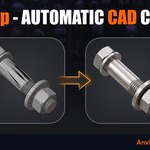
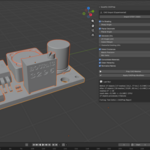
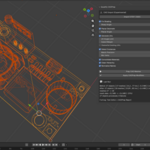
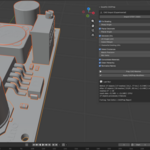
Quadify CADPrep — Documentation
Version 1.2.0 · Blender 4.2+ · Windows, Linux, macOS (Apple Silicon and Intel) Anvil Interactive Solutions — [email protected]
1. Installation
CADPrep is a Blender extension with a bundled CAD engine. The engine is platform-specific, so make sure you download the build matching your operating system:
-
quadify_cadprep-x.x.x-windows_x64.zip— Windows -
quadify_cadprep-x.x.x-linux_x64.zip— Linux -
quadify_cadprep-x.x.x-macos_arm64.zip— macOS on Apple Silicon (M1/M2/M3/M4) -
quadify_cadprep-x.x.x-macos_x64.zip— macOS on Intel
Install steps:
- In Blender, open Edit → Preferences → Get Extensions.
- Click the dropdown arrow in the top-right corner and choose Install from Disk.
- Select the downloaded zip. Do not unzip it first.
- Blender installs the extension and its bundled CAD engine automatically. No Python setup, no pip, no internet connection is required.
To verify the engine: open the extension's preferences (Edit → Preferences → Add-ons → Quadify CADPrep). It should read "CAD engine: bundled, ready."
Important: install through Get Extensions, not the legacy Add-ons → Install button. The legacy path does not deploy the bundled engine.
Upgrading
Remove the old version from Get Extensions, then Install from Disk with the new zip. Your saved scenes are unaffected.
2. Quick start
- Open the sidebar in the 3D viewport (press N) and select the CADPrep tab.
- Press Import STEP / IGES and pick your file.
- Leave Prep After Import enabled.
- Press Import.
Your assembly arrives shaded, decimated, UV-mapped, instanced, with consolidated materials, a clean hierarchy, and normalized names. The Last Run box in the panel shows what changed, and the full audit log is in the Text Editor under CADPrep Report.
If the model seems invisible after import, it is usually just small and off-camera: hover the viewport and press Home to frame everything, or select a part in the outliner and press NumPad-period.
3. CAD Import
Supported formats
- STEP (
.step,.stp) — recommended - IGES (
.iges,.igs) - BREP
Proprietary formats — SolidWorks (.sldprt, .sldasm), CATIA, Creo, NX, Fusion (.f3d) — cannot be read by any Blender addon. Export STEP from the native application first; every one of these packages can. For one-off SolidWorks conversions without a SolidWorks license, Onshape's free tier can import the file and export STEP.
Import options
The options appear in the file dialog's right-hand sidebar.
Linear Deflection (default 0.1) Maximum distance, in model units, between the true CAD surface and the generated mesh. Smaller values produce denser, smoother meshes on curved surfaces. 0.1 is a good general default for mechanical parts in millimeters. Use 0.02–0.05 for hero-render close-ups; use 0.2–0.5 for background or game assets.
Angular Deflection (default 0.5) Maximum angle, in radians, between adjacent mesh facets. Lower values add density on tight curvature. Adjust this when small fillets or threads look faceted even at low linear deflection.
Scale (default 0.001) Multiplier applied to coordinates. Most CAD files are authored in millimeters; the default converts them to Blender's meters at true real-world size. If your file is authored in meters, set Scale to 1. If parts arrive 1000× too small or too large, this is the setting to change — re-import rather than scaling afterward when possible.
Prep After Import (default on) Runs the full prep pipeline on the imported objects immediately. Disable it if you want to inspect the raw import first; you can always run Prep CAD Meshes manually afterward.
What the importer produces
Each CAD body becomes a separate Blender object, named Part_0001, Part_0002, and so on (the Normalize Names stage keeps these tidy). Objects carry a 90° X rotation from the OBJ intermediate's Y-up to Z-up conversion; this is normal and does not affect geometry.
4. The prep pipeline
Press Prep CAD Meshes to run the pipeline on the current selection. With nothing selected, the entire scene's mesh objects are processed. Every stage below can be toggled off independently, and each stage writes an OK or FAIL line per object to the report.
Fix Shading
Sets all faces to smooth shading, detects sharp edges from the angle between adjacent faces, marks them, and adds a Weighted Normal modifier with sharp-edge preservation. The result: crisp machined edges, smooth curved surfaces, no faceted CAD look.
Sharp Angle (default 30°) — edges whose face angle exceeds this are marked sharp. Lower it (15–20°) if soft chamfers are being missed; raise it (45–60°) if curved surfaces are picking up unwanted creases. Boundary and non-manifold edges are always marked sharp.
Planar Decimate
Adds a Decimate modifier in Dissolve mode, removing redundant coplanar tessellation while protecting sharp edges, material borders, and UV seams. It is non-destructive: the modifier sits on the object until you press Apply CADPrep Modifiers.
Planar Angle (default 2°) — faces within this angle of coplanar are merged. Raise it slightly (4–5°) for aggressive reduction on flat-heavy parts; keep it low for parts with subtle curvature.
Generate UVs
Smart-projects UVs onto every mesh that has none. Objects with existing UV maps are left alone unless Overwrite Existing UVs is enabled.
UV Angle Limit (default 66°) — face-angle threshold for island splitting. Island Margin (default 0.02) — spacing between UV islands.
Detect Instances
Finds repeated parts and links them to a single shared mesh, cutting scene memory dramatically on fastener-heavy assemblies. It works in two passes:
- Exact match — identical mesh data is linked directly.
- Aligned match — CAD importers bake each copy's position and rotation into its vertex data, so copies of the same part have different coordinates. CADPrep computes a rigid alignment between candidates, verifies the match numerically vertex-by-vertex, and only then links them — folding the recovered transform into the object so world-space geometry does not move.
Parts that cannot be verified (see Limitations) are skipped and named in the report rather than guessed at.
Match Precision (default 5) — decimal precision of the geometric comparison. Lower to 4 if legitimately identical parts are being skipped due to importer noise; raise to 6–7 for very small parts where false matches would be conceivable. Min Verts (default 8) — parts below this vertex count are ignored by instancing.
Consolidate Materials
Merges duplicate materials by base name and surface properties (base color, metallic, roughness), remaps every material slot to the surviving material, and purges materials with no remaining users.
Clean Hierarchy
Removes empty transforms that do not parent any real geometry, however deep the chain. Empties that are ancestors of actual meshes — your real assembly structure — are always preserved.
Normalize Names
Strips importer suffix noise (.001-style duplicates, stray spaces), and renames groups of colliding names with clean, zero-padded numbering. Mesh datablocks with a single user are renamed to match their object.
5. Apply CADPrep Modifiers
Shading and decimation live as modifiers so you can inspect and adjust before committing. Apply CADPrep Modifiers bakes them down for export.
Objects sharing an instanced mesh are skipped automatically — applying a modifier to a shared mesh would break the instancing the pipeline just created. If you need modifiers applied on instanced parts, make the relevant object single-user first (Object → Relations → Make Single User → Object & Data), accepting the memory cost.
6. Reading the report
The Last Run panel
After every run the panel shows:
- Before / After — objects, unique meshes, vertices, triangles, estimated mesh memory, materials, and empties.
-
The delta — e.g.
meshes 28 → 19,materials 2 → 1,mesh data ~3.2 MB → ~0.5 MB (−85%). - Objects processed and failure count.
Memory figures are estimates from a per-element model and are marked with ~. They are directionally reliable for judging a cleanup, not an exact accounting.
The CADPrep Report
The full audit log is written to a text datablock named CADPrep Report (open a Text Editor area and select it from the dropdown). It contains the before/after statistics plus one line per stage per object:
[OK] shading :: Part_0007 :: 42 sharp edges
[OK] instances :: scene :: 0 exact links, 9 aligned links
[OK] instances :: Part_0012 :: geometry similar but alignment unverified, skipped
[FAIL] uv :: Part_0019 :: <reason>
[FAIL] lines never abort the batch — the object is skipped for that stage and everything else completes. When contacting support, paste this report; it usually identifies the problem immediately.
7. Recommended workflows
Product visualization
- Import STEP with Linear Deflection 0.02–0.05 for close-up quality.
- Prep After Import on.
- Inspect shading; adjust Sharp Angle and re-run if needed (re-running is safe).
- Apply CADPrep Modifiers, assign materials, render.
Game assets
- Import with Linear Deflection 0.2–0.5 to keep the mesh light.
- Prep After Import on — instancing matters most here.
- Apply CADPrep Modifiers.
- Export to your engine. Instanced parts export as shared meshes in glTF and FBX.
- For quad topology on hero parts, run the result through Quadify.
Large assemblies (thousands of parts)
Run Prep on the whole scene in one pass — instancing works scene-wide and per-object failure isolation means one bad body cannot stop the batch. Expect the instances stage to do the heavy lifting on fastener-heavy data.
8. Limitations
Stated up front, because every tool has them:
- Proprietary formats. SolidWorks, CATIA, Creo, NX, and F3D require a STEP export from their native application. No Blender addon can read them legitimately.
- Perfectly symmetric parts are skipped by instancing. A plain cylinder or featureless washer offers no geometric handle to verify an alignment against, so those copies are left untouched and named in the report rather than risk a false merge.
- Mirrored instances are not matched in this version.
- CADPrep is not a retopologizer. It produces clean, light, correctly shaded tessellated meshes. For quad-dominant, subdivision-ready topology, use the Quadify retopology editions on the prepped result.
- Very large single bodies tessellate in one operation; a single enormous solid may take a while during import. The 10-minute conversion ceiling exists to prevent hangs.
9. Troubleshooting
"I imported but see nothing." The model is at true real-world scale and likely small. Press Home to frame all, or NumPad-period with a part selected. If it is genuinely microscopic, re-import with Scale 1.
"Curved surfaces look faceted." Lower Linear Deflection (try 0.02) and/or Angular Deflection at import. Density is decided at tessellation time; re-import rather than subdividing.
"Instancing found nothing on my assembly." Check the report. If parts are listed as "alignment unverified, skipped," they are likely rotationally symmetric (see Limitations). If nothing was even attempted, the parts may genuinely differ, or Min Verts may be excluding them. Lowering Match Precision to 4 tolerates more importer noise.
"Sharp edges appear on smooth surfaces." Raise Sharp Angle (try 45°) and re-run — the pipeline is safe to re-run and will re-mark edges.
"Preferences say the CAD engine is not bundled." You installed a build for the wrong platform, or installed via the legacy Add-ons path. Remove the extension, download the zip matching your OS, and install via Get Extensions → Install from Disk.
"Apply Modifiers skipped some objects." Those objects share an instanced mesh — this is deliberate protection. See section 5.
Anything else: email us the CADPrep Report text plus your Blender version and platform.
10. FAQ
Do I need Python, pip, or an internet connection? No. The CAD engine ships inside the extension and Blender installs it automatically. CADPrep is fully local: no network access, no accounts, no telemetry.
Which Blender versions are supported? Blender 4.2 and newer, including the 4.4 LTS line and Blender 5.0.
Is this a subscription? No. One-time purchase per edition, updates included.
Will instancing move my parts? No. Every match is verified numerically before linking, and the recovered transform is folded into the object so world-space geometry stays exactly where it was. This is a hard guarantee of the pipeline, and the report shows every link it made.
Can I run Prep on meshes from other importers? Yes. The pipeline runs on any mesh objects in the scene regardless of origin — a third-party STEP addon, a plain OBJ, or a scan.
Is it safe to run Prep twice? Yes. The pipeline is idempotent: re-running on an already-prepped scene makes no further changes. Re-running after adjusting a setting (like Sharp Angle) updates only what that setting affects.
Does it modify my file on disk? Never. All changes happen in the open Blender scene; nothing is saved until you save.
Why did my part names change? The Normalize Names stage cleans importer suffix noise. Toggle it off before running if you need original names preserved.
Do instanced parts survive export? Yes — glTF and FBX both export shared meshes as instances, and Unreal and Unity both consume them as such.
How do the deflection settings relate to file size? Roughly: halving Linear Deflection can double or triple triangle counts on curved geometry. Start at the default and only go finer where the render demands it.
What licenses cover the product? The addon code is GPL-3.0-or-later, as all Blender extensions must be. The bundled engine components are OpenCASCADE (LGPL-2.1 with exception) and VTK (BSD-3-Clause). Full texts ship inside the package.
What is your refund policy? Refunds are handled per Superhive's marketplace refund policy. If something misbehaves, send us the CADPrep Report first — most issues are resolved in one reply.
Quadify CADPrep is part of the Quadify family by Anvil Interactive Solutions. quadify3d.com · theanvilstore.com
 Included
Includes 12 months of
- Support from Anvil Interactive Solutions
- Product updates
Extend this product’s Support Period +12 months: 50% of product price
Have questions before purchasing?
Login to message
Discover more products like this
step product-visualization import retopology-adjacent cad game assets iges optimization hard surface