 Anvil Interactive Solutions



Blender cannot open CAD files.
Now it can — and cleans them too.
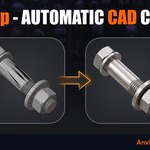
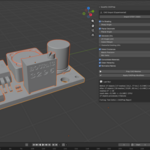
Imports STEP and IGES with a CAD engine that ships inside the extension — no Python setup, no pip, no internet, no external converters. Then repairs everything a CAD import gets wrong: shading, wasted triangles, missing UVs, hundreds of duplicated fasteners, and an outliner full of junk.
Every run shows you the receipts: what it changed, what it skipped, and why — per object, in a written report. Nothing happens silently.
The CAD engine is inside the box
Getting engineering data into Blender normally means installing Python, fighting pip, or round-tripping through external converters that pick a mesh density for you. CADPrep ships a full OpenCASCADE engine in the extension itself — install it like any other addon and STEP files just open.
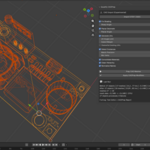
| STEP, IGES, BREP — zero setup The engine is bundled per platform. No system Python, no pip commands, no network access, no account. Offline from the first click. | You choose the mesh density Linear and angular deflection sliders in the import dialog. Fine tessellation for hero renders, light tessellation for game assets — your call, not a converter's default. |
| Real-world scale, handled Millimeter CAD data arrives at true size in meters by default, with a scale control right in the dialog when your file is authored differently. | Prep After Import One checkbox runs the full seven-stage cleanup the moment your file lands. STEP file to finished asset in a single action. |
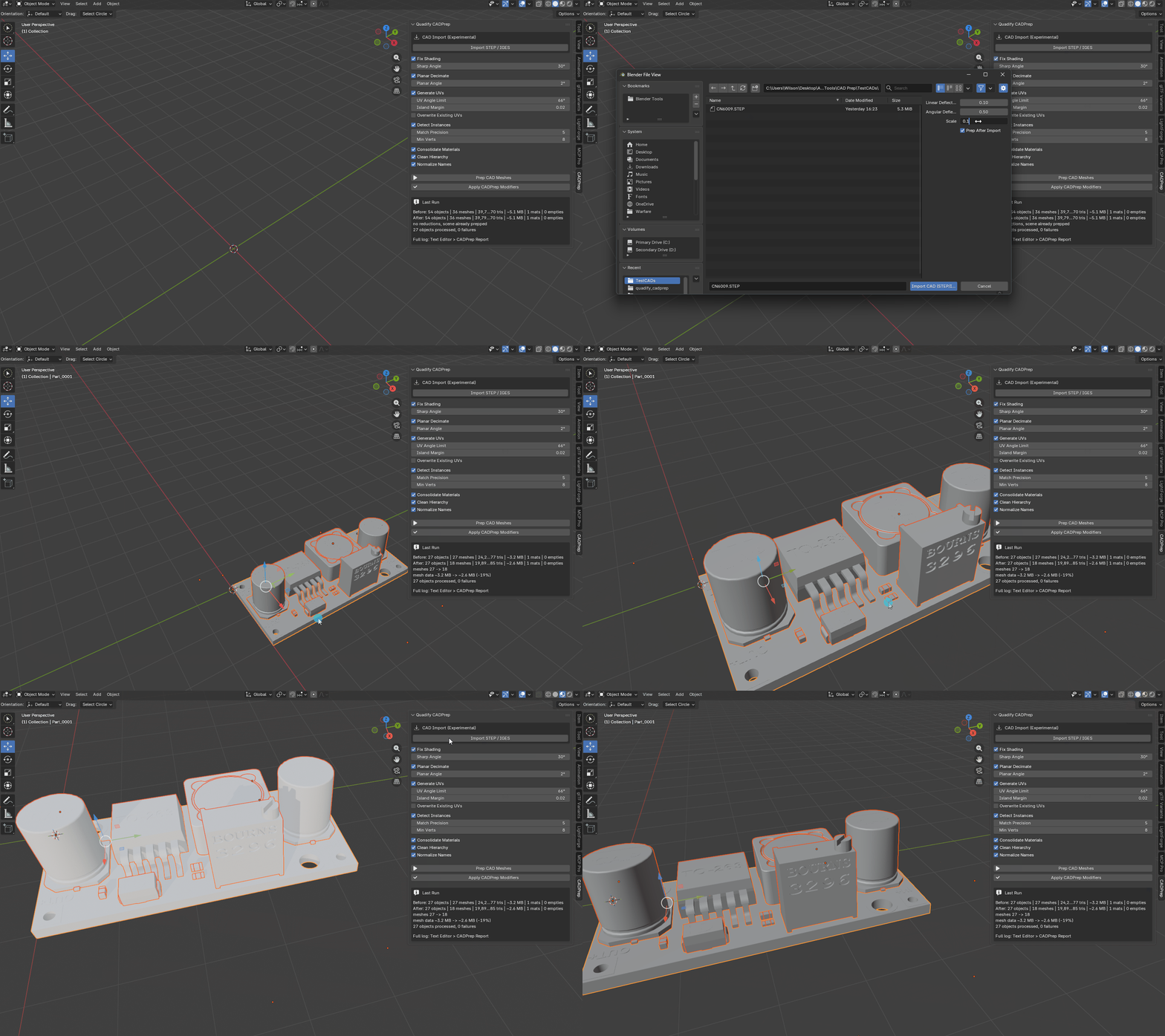
Seven stages. Each one toggleable. Each one reported.
Runs on CADPrep's own imports or meshes from any other importer. Select objects, or select nothing to process the whole scene.
| Fix Shading Sharp edges detected from face angles, weighted normals applied on top. Machined edges stay crisp, curved surfaces stay smooth — the faceted CAD look is gone. | Planar Decimate Dissolves redundant coplanar tessellation while protecting sharp edges, material borders, and UV seams. Non-destructive modifier until you choose to apply it. |
| Detect Instances — even rotated ones CAD importers bake every screw's position into its geometry, so ordinary duplicate detection finds nothing. CADPrep matches repeated parts by rigid alignment, verifies the geometry numerically, links them to one shared mesh, and corrects the object transforms so nothing visibly moves. Parts it cannot verify are skipped and named — never guessed. | Generate UVs Smart projection for every mesh that has none. Existing UVs are respected unless you say otherwise. |
| Consolidate Materials Duplicate materials merged by name and surface properties, every slot remapped, the leftovers purged. | Clean Hierarchy + Normalize Names Dead empty transforms removed, your real assembly structure preserved. Importer suffix noise becomes clean, numbered part names. |
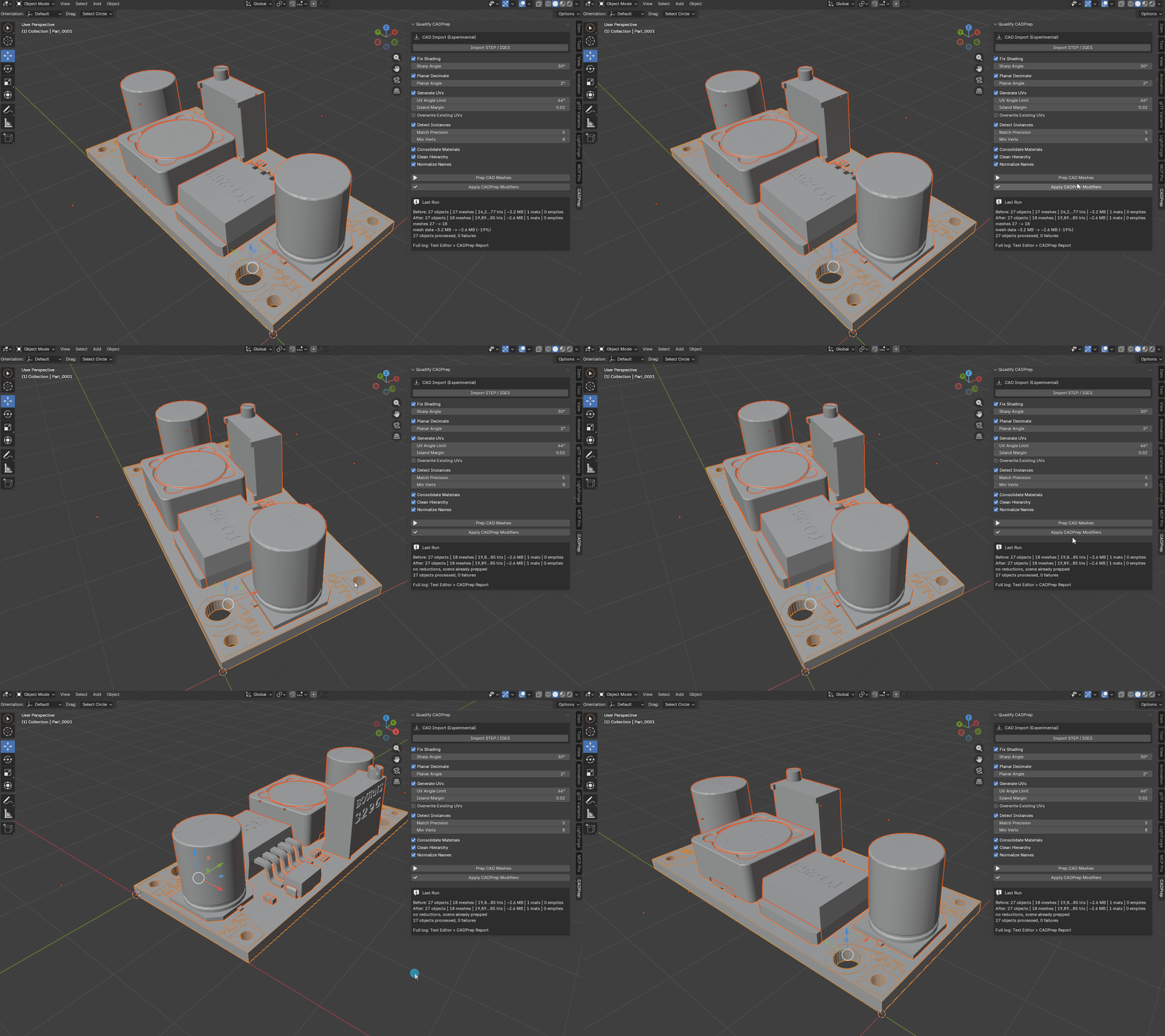
Receipts, not magic
A tool that silently rewrites your scene is a tool you cannot trust. Every CADPrep run records the scene before and after and shows you the difference.
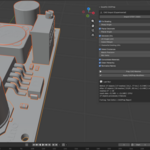
| The delta, on screen "meshes 28 → 19 · materials 2 → 1 · mesh data −85%" — objects, unique meshes, vertices, triangles, estimated memory, materials, and empties, before and after, in the panel. | A written audit log Every stage logs an OK or FAIL line per object to a report in the Text Editor. What was linked, what was skipped, what was renamed — named, not summarised. |
Every tool has limits. Here are ours, stated up front rather than discovered in a review.
| Proprietary formats need one export step SolidWorks, CATIA, Creo, and Fusion's F3D are closed formats that no Blender addon can read legitimately. Export STEP from the native application — every one of them can — and CADPrep takes it from there. |
| Perfectly symmetric parts are skipped, not guessed A plain cylinder or featureless washer offers no geometric handle to verify an alignment against. Rather than risk a false merge, CADPrep leaves those copies untouched and names them in the report. Mirrored instances are not matched in this version. |
| It is not a retopologizer CADPrep produces clean, light, correctly shaded tessellated meshes. If you need quad-dominant, subdivision-ready topology, that is the job of the Quadify retopology editions — the two work well in sequence. |
| Memory figures are estimates The before/after memory numbers use a per-element model and are marked with "~". They are directionally reliable for judging a cleanup, not an accounting audit. |
Works with your existing pipeline
CADPrep sits at the front of the pipeline and hands clean assets to whatever comes next.
Prepped assemblies feed straight into Quadify for quad topology, or into your engine export of choice.
Importer alone | Quadify CADPrep | |
| After the file opens | Your problem — shading, UVs, duplicates, and hierarchy are manual cleanup hours | Handled in the same click: shading, decimation, UVs, instancing, materials, hierarchy, names |
| Repeated parts | Every screw is its own full mesh | Matched by rigid alignment, verified, and instanced — including rotated copies |
| Visibility | Whatever happened, happened | Before/after stats in the panel, per-object OK/FAIL audit log in the Text Editor |
| Setup | Varies — some require external dependencies | Engine bundled in the extension. Install and import. |
| Do I need Python or anything else installed? No. The CAD engine ships inside the extension and Blender installs it automatically. No system Python, no pip, no internet connection required. |
| Can it open SolidWorks, CATIA, or F3D files? Not directly — those are closed proprietary formats. Export STEP from the native application (all of them can) and CADPrep handles the rest. Free options exist for one-off conversions, such as Onshape's free tier for SolidWorks files. |
| Will instancing move my parts around? No. Every match is verified numerically before linking, and the recovered transform is folded into the object so world-space geometry stays exactly where it was. Parts that cannot be verified are skipped and named in the report. |
| Does it work with meshes from other importers? Yes. The prep pipeline runs on any mesh objects in your scene, whatever produced them — CADPrep's own importer, a third-party STEP addon, or a plain OBJ export. |
| What if something goes wrong on my file? Send us the CADPrep Report from the Text Editor. It records every decision and the status of every step per object, which usually identifies the problem immediately. Include your Blender version and platform. Refunds are handled per Superhive's marketplace refund policy. |
