 HanaYou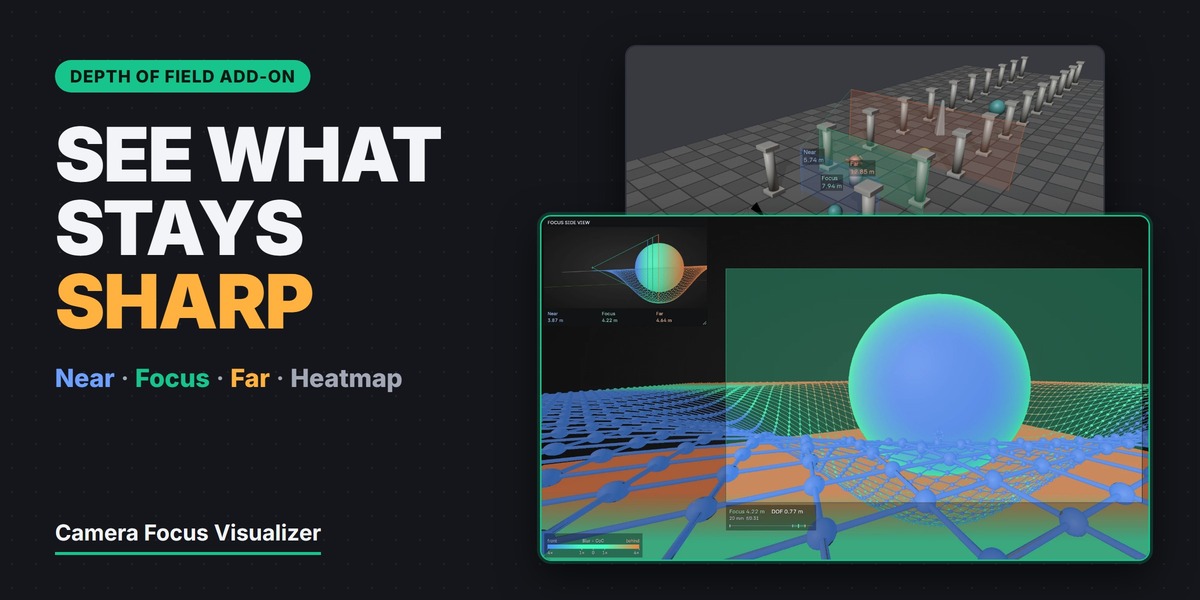
Installation
Extension package (recommended)
- Download camera_focus_visualizer-1.0.0-extension.zip. Do not unzip it.
- Drag the ZIP into Blender, or open Edit → Preferences → Add-ons (or Get Extensions), click the arrow menu at the top right and choose Install from Disk….
- Camera Focus Visualizer is installed and enabled.
- In the 3D Viewport, press N and choose the Camera Focus tab.
You can also drag the product from your Superhive purchase page into Blender, or add Superhive as a remote repository (Blender 4.2 and newer) to install and update it from inside Blender.
Regular add-on ZIP
- Download camera_focus_visualizer-1.0.0.zip. Do not unzip it.
- Edit → Preferences → Add-ons → arrow menu → Install from Disk… → select the ZIP.
- Enable Camera Focus Visualizer, then open the 3D Viewport sidebar (N) → Camera Focus.
Install only one of the two. If one is already enabled, the other refuses to start and tells you so. When you switch from the regular add-on to the Extension package, the Extension picks up the defaults you saved before.
Updating
Install the newer ZIP the same way. Your saved defaults are kept.
Quick Start
- Select a camera. The checkbox in the Camera Focus panel header turns the overlay on and off.
- In Camera Setting, turn on Depth of Field and adjust Focus and F-Stop.
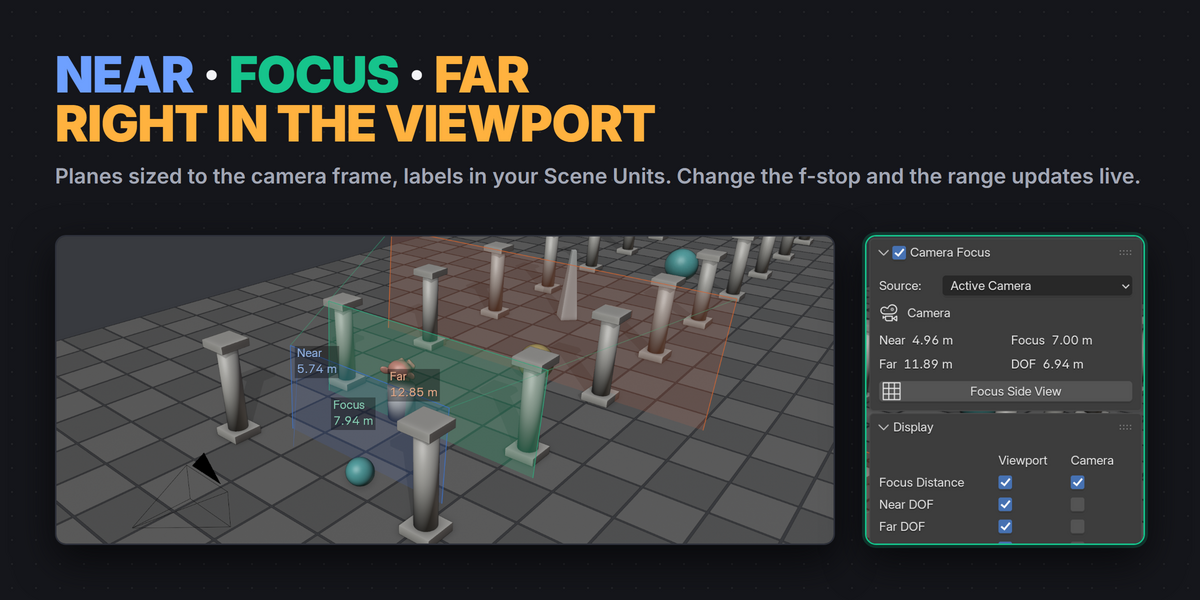
- Look at the camera from the side: green is the focus distance, blue is the near limit, orange is the far limit.
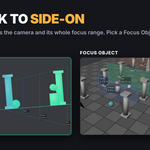
- Press Focus Side View for an exact side-on view of the range. Press Exit Side View to return.
Panels
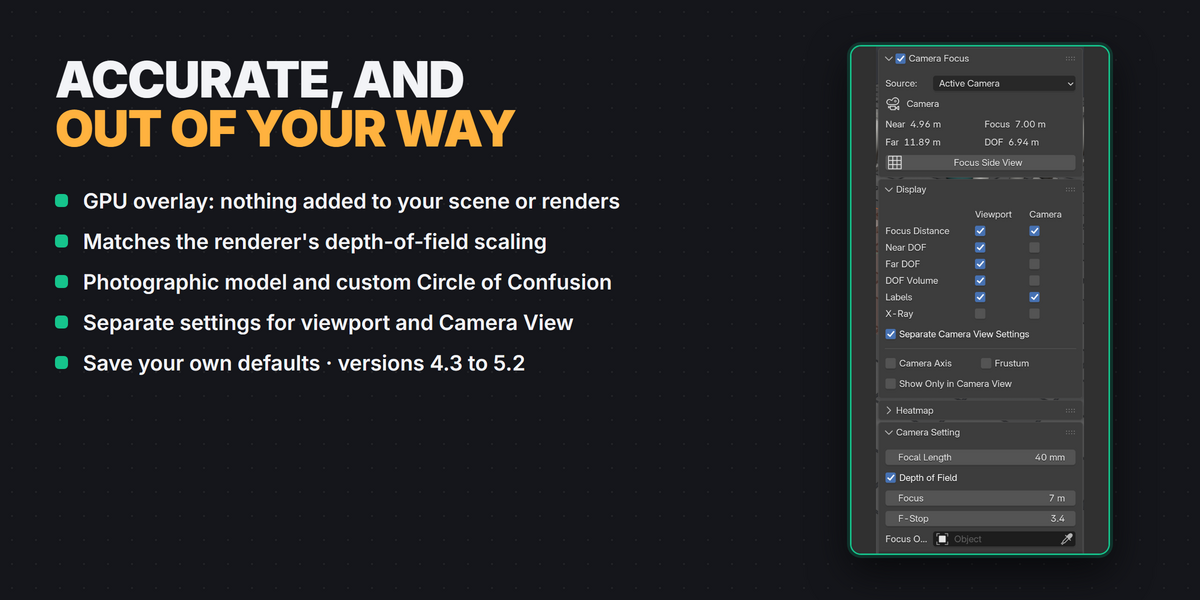
| Camera Focus | On/off, camera source, Near / Focus / Far / DOF readout, Focus Side View |
| Display | Separate Viewport and Camera View columns for Focus, Near, Far, Volume, Labels and X-Ray; camera axis, frustum, Show Only in Camera View |
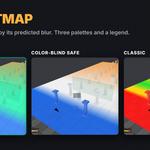
| Heatmap | Show in Viewport / Camera / PiP, colors, opacity, Red at, legend |
| Camera Setting | Focal Length, Depth of Field, Focus distance or Focus Object, F-Stop, Track To target |
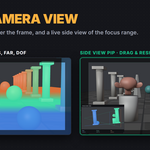
| Side View PiP | A small live side view inside Camera View: what it shows, position and size |
| Style | Colors, opacity, line width, label size, label background, far display limit |
| DOF Calculation | Calculation model and Circle of Confusion |
| Debug | Internal values and the last drawing error, for bug reports |
Near / Focus / Far Planes
Planes are sized to the camera frame at each distance. Turn on DOF Volume to connect them. If the far limit is at infinity or beyond the Far Display Limit, a dashed frame marks the display limit instead. Labels follow your Scene Units (metric, imperial or none).
In Display, the Viewport and Camera columns let you show different things when you look through the camera, for example only the Focus plane and labels.
Camera View Readout
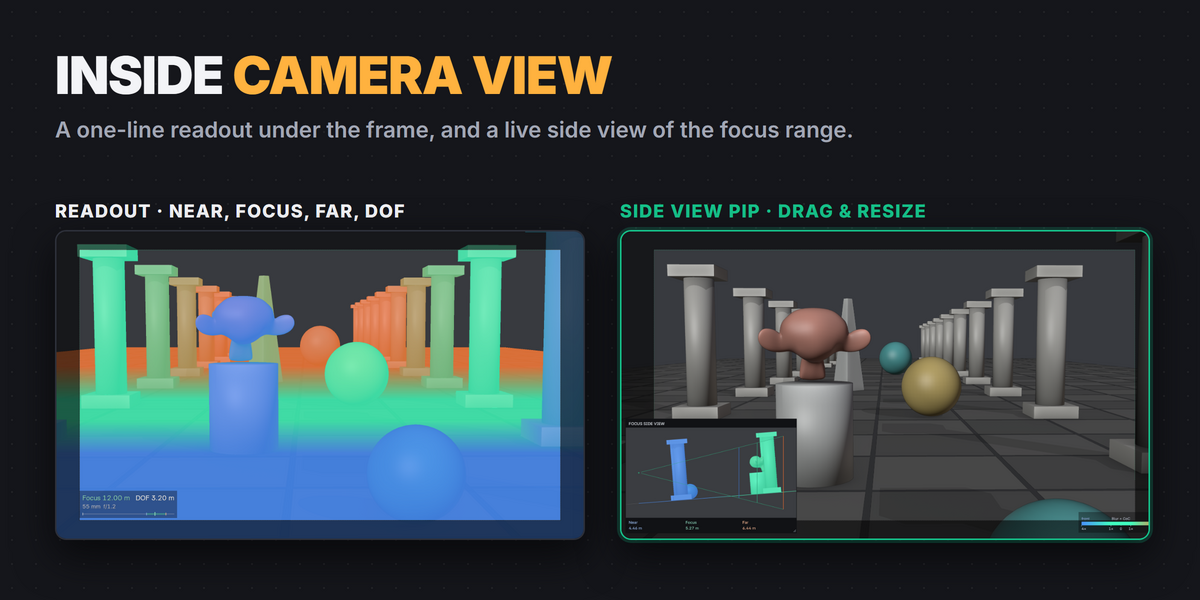
When you look through the visualized camera, the 3D labels are replaced by one line under the frame: Near, Focus, Far, DOF, focal length, f-stop and a depth bar.
DOF Heatmap
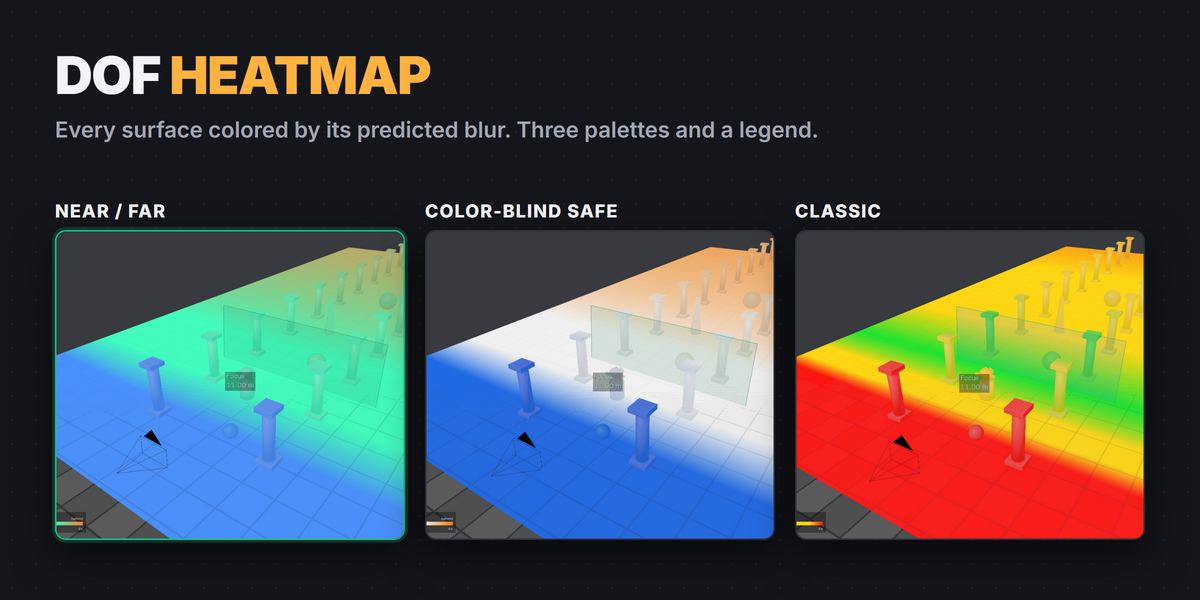
Colors visible surfaces by the predicted blur at each point, using the current focal length, f-stop, focus and Circle of Confusion. Turn it on separately for the Viewport, Camera View and the PiP.
- Near / Far (default): sharp areas in the Focus color, blur in front ramps to the Near color and blur behind to the Far color.
- Color-Blind Safe: blue – white – orange.
- Classic: green – yellow – red by blur amount.
Red at sets how much blur reaches full color (default 4 × CoC). The Legend shows the scale in a viewport corner. The heatmap is a guide, not a render: it does not blur anything or change materials.
Side View PiP
Inside Camera View, a small side-on picture of the real scene with the Near / Focus / Far lines drawn over it. Drag the title bar to move it and the corner handle to resize it; Esc or right-click cancels a drag. It uses more GPU time than the plain overlay; PiP Max FPS in the add-on preferences caps its refresh rate.
Focus Side View
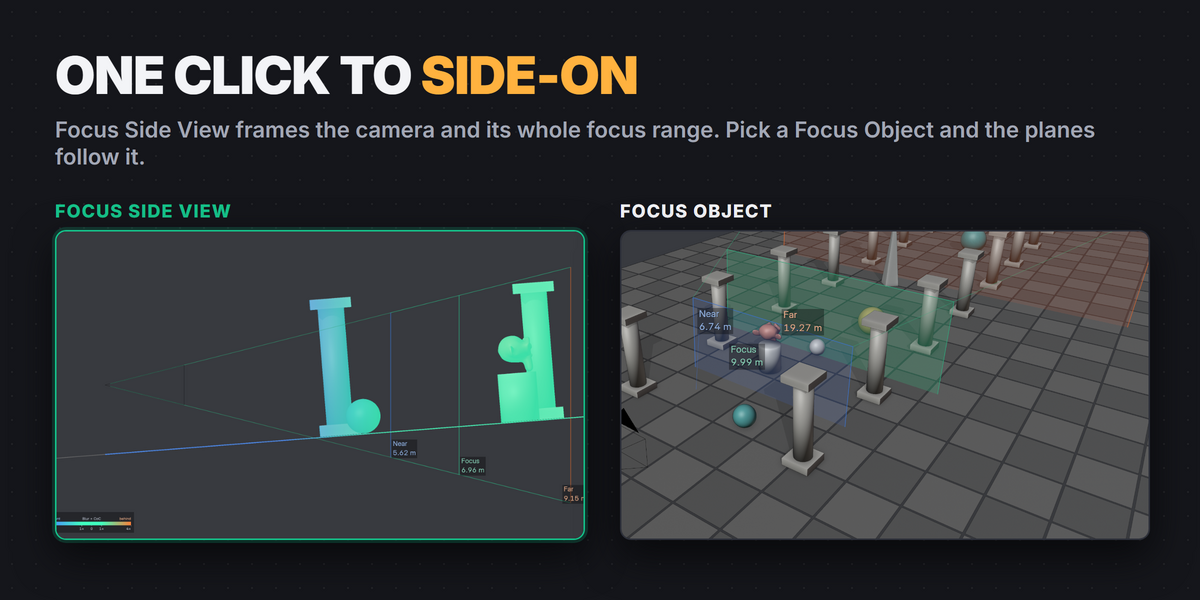
Switches the viewport to an orthographic side view of the camera, framed to fit the camera and the focus range, with the planes seen edge-on. Press the button again after moving the camera to reframe. Exit Side View restores your previous view.
Focus Object and Track To
Pick a Focus Object (or a bone of an armature) with the eyedropper; the distance to its origin is tracked and the planes follow it. Track To lets you aim the camera at an object; Add Track To creates the constraint if the camera has none.
Your Own Defaults
In Preferences → Add-ons → Camera Focus Visualizer:
- Update Defaults from Current Scene saves all add-on options as your defaults.
- Apply Defaults to Current Scene applies them now.
- Reset Saved Defaults to Factory restores the original values.
New scenes, and scenes that never stored add-on settings, start with your defaults. Camera lens values, focus targets and render settings are never part of the defaults.
How the Numbers Are Calculated
The default model, Blender Render, matches how Blender's own depth of field scales blur, including anamorphic Aperture Ratio. Photographic uses the classic thin-lens hyperfocal formulas.
The Circle of Confusion decides what counts as "sharp". Auto uses the camera's effective sensor diagonal ÷ 1500, a common photographic standard. For a fixed threshold, choose Custom and enter a value in mm.
Rendered depth of field has no hard edge; Near and Far mark where the blur circle reaches the chosen CoC.
Known Limitations
- Orthographic cameras show the Focus plane only.
- Panoramic, fisheye and custom cameras, and per-eye stereo projection, are not supported.
- Render Border is ignored; the full camera frame is shown.
- Lens breathing, macro magnification, diffraction, and EEVEE's maximum bokeh size are not modeled.
- The heatmap works on mesh-convertible surfaces and instances; transparency, volumes and hair interiors are not evaluated.
- Heatmap and PiP add GPU and memory cost in heavy scenes. PiP in Material Preview or Rendered mode can be much slower than in Solid. With Cycles, PiP shows an EEVEE-based preview.
- Display settings are stored per scene.
- Tested on Windows with NVIDIA (OpenGL). macOS (Metal), Linux and Vulkan are expected to work but were not part of release testing.
Troubleshooting
- Nothing is drawn: check the checkbox in the Camera Focus panel header, that the Source points to a camera, and that the Display column for the current view (Viewport or Camera) has the planes turned on. Viewport overlays must be enabled.
- Only the Focus plane appears: turn on Depth of Field in Camera Setting, or the camera is orthographic.
- The far plane is a dashed frame: the far limit is at infinity or beyond the Far Display Limit (Style panel).
- PiP is slow: switch the viewport to Solid, make the PiP smaller, or lower PiP Max FPS in the add-on preferences.
- "Camera Focus Visualizer is already enabled": both the regular add-on and the extension are installed. Disable or remove one, then enable the other.
Support
Send a message through Superhive. Please open the Debug panel, copy the last drawing error, and include it with your Blender version, operating system and GPU. I aim to reply within 72 hours.
Have questions about this product?
Login to message
| Blender Extension Compatible | Yes |
| Published | about 24 hours ago |
| Blender Version | 4.3 - 5.2 |
| Extension Type | Add-on |
| Render Engine Used | Cycles, Eevee |
| License | GPL |
Discover more products like this
cinematography overlay heatmap dof bokeh depth of field focus-distance focus viewport camera