Camera Manager
 Rusowsky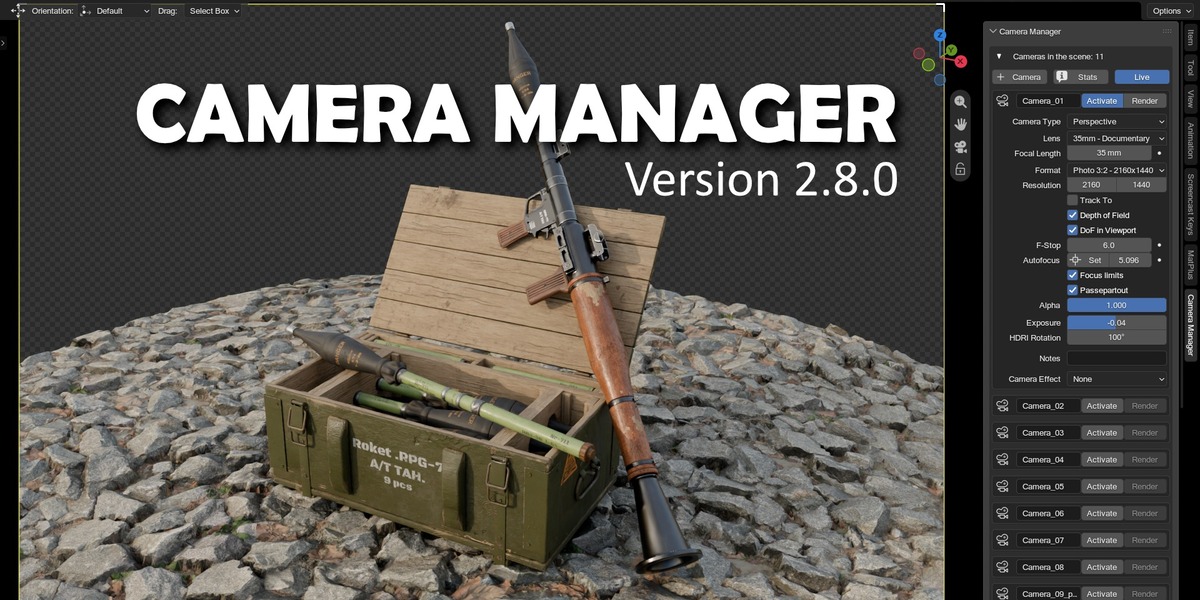
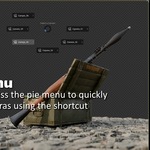
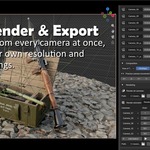
How can I apply the camera effect?
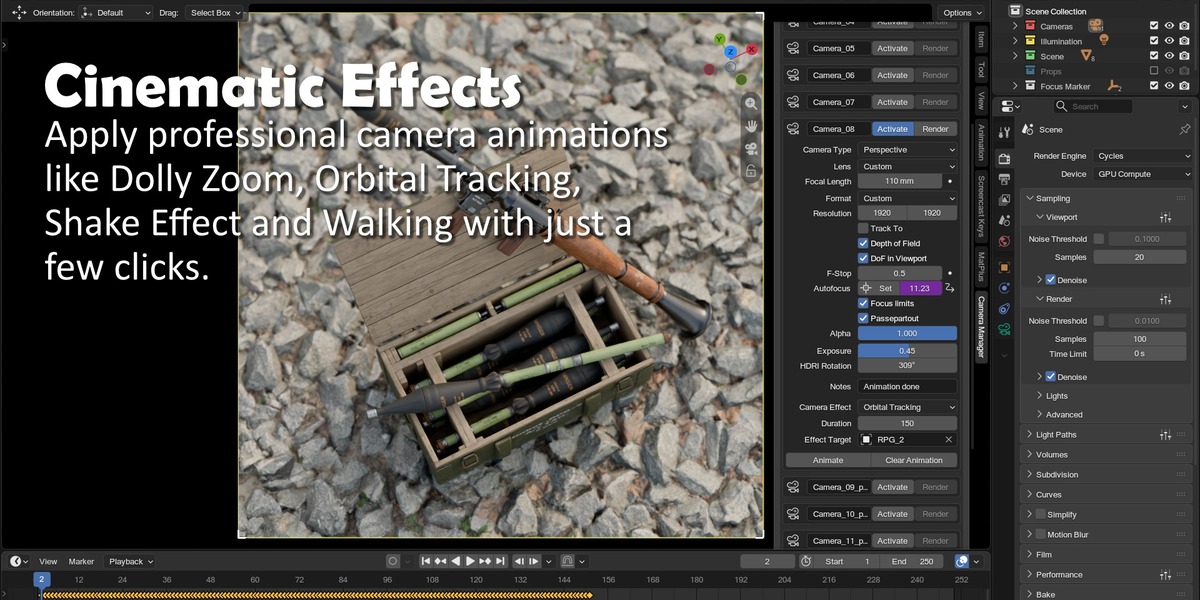
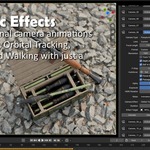
1. Select the camera, then you will have 3 options: Dolly Zoom, Orbital Tracking and Shake Effect.
2. With Dolly Zoom you need to Target the focus point of your subject, then select that new Empty on the Target Object field, then click on Animate.
3. With Orbital Tracking you need to select your subject on the Target Object field, then click on Animate.
4. And finally with the Shake Effect just position your camera, set the time and intensity of the effect and click on Animate.
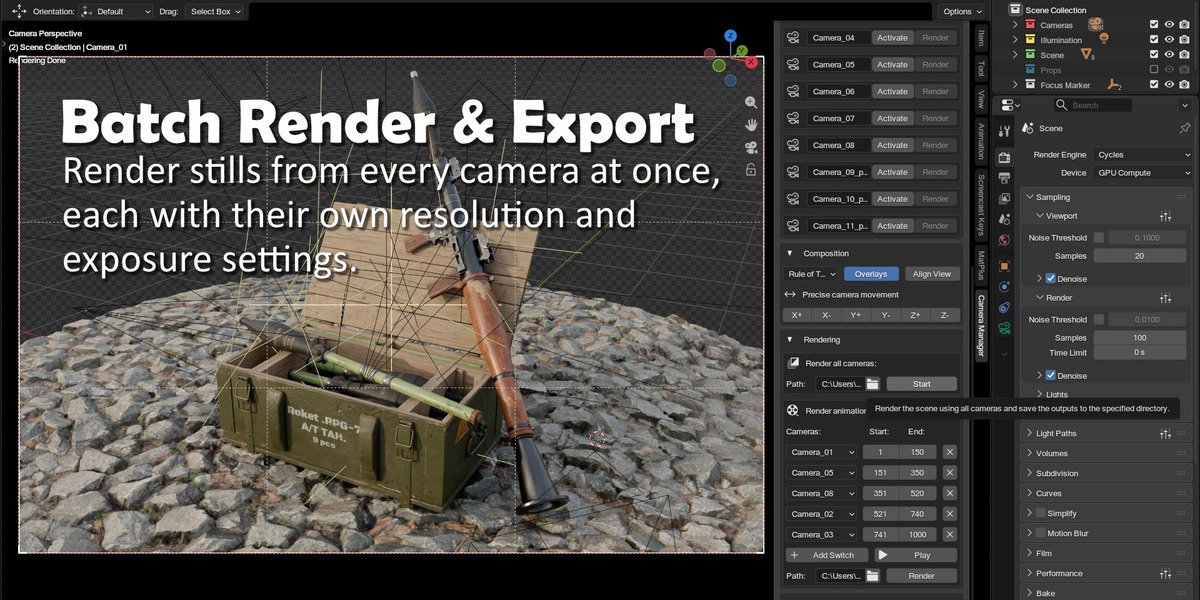
How can I render all my cameras in the scene?
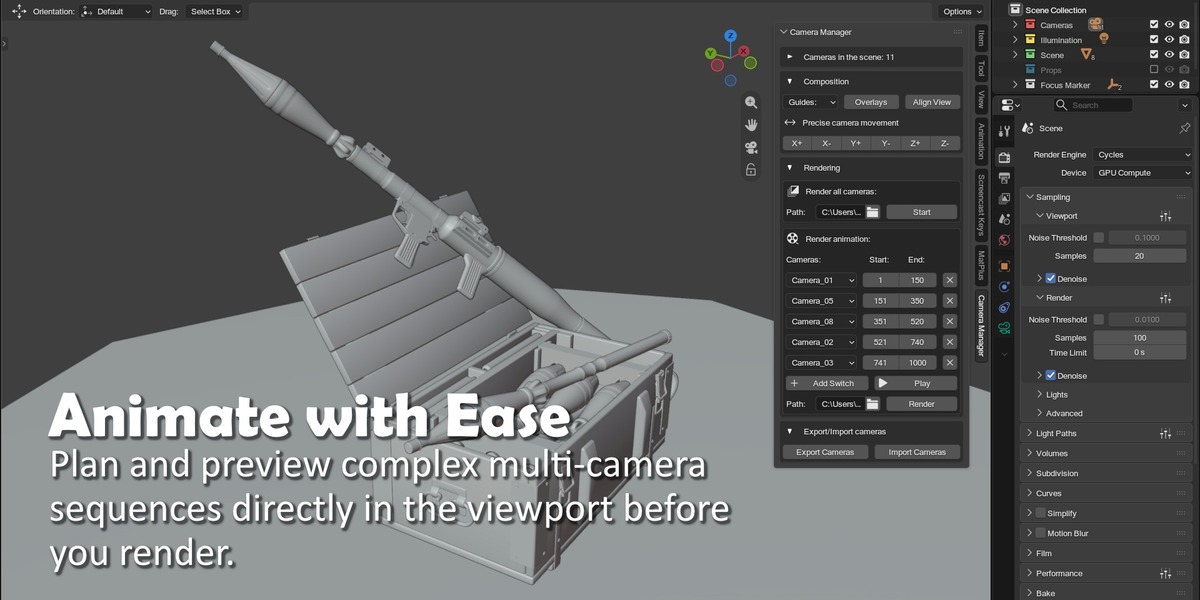
1. Setup all your cameras, then open the addon, select the location to save all the renders.
2. Click on Start, and then Blender will render all your cameras, each camera with its own configuration.
How can I add a new camera from a desired view?
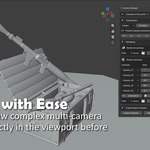
1. Just navigate on the 3D Viewport and choose the angle you want for your new camera, then click on the button Add Camera to View.
2. Rename it, and ready to work with it.
How can I focus with just one click?
1. Select the desired camera from the Camera Manager.
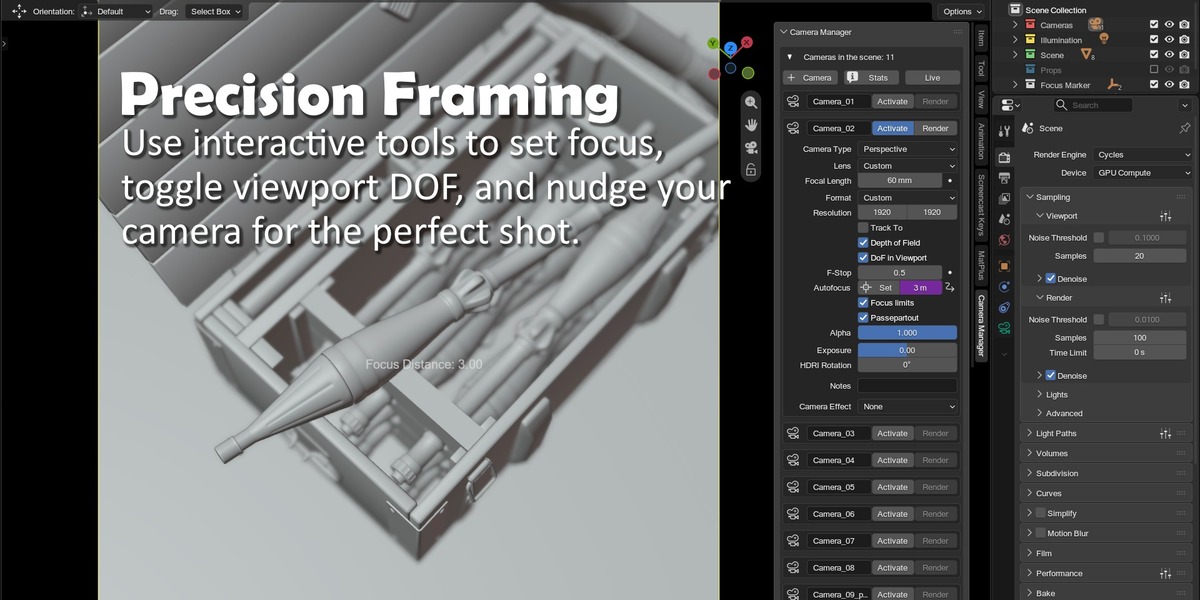
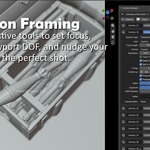
2. In the section Manual Focus just click on the target button, then click on the 3D Viewport where do you want your camera to be focused.
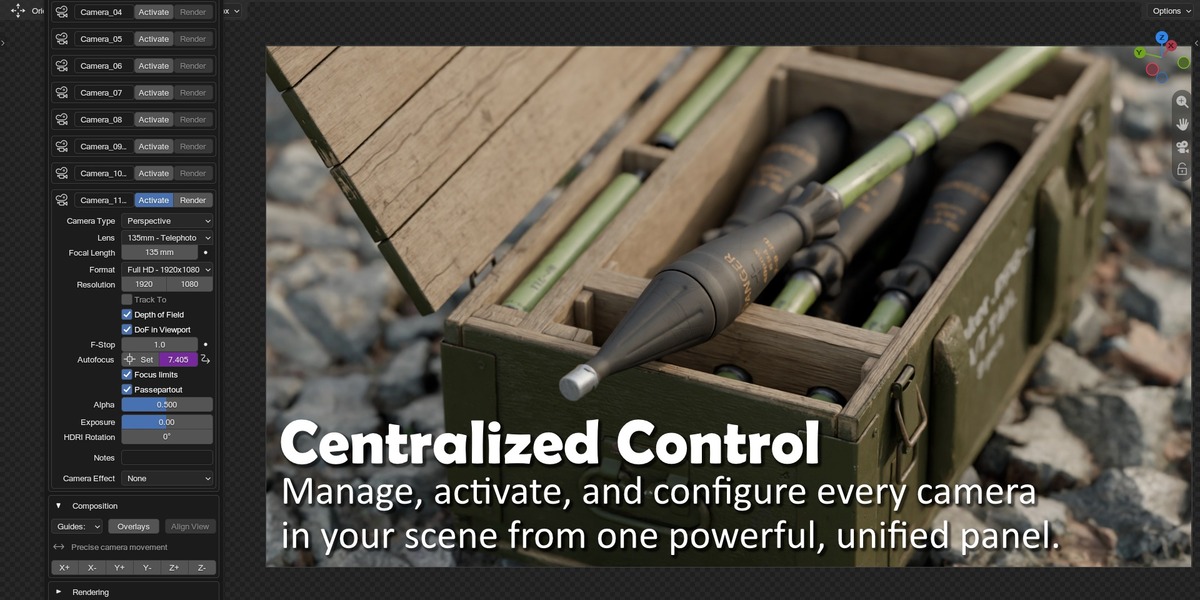
How do I change the camera’s resolution?
1. Select the desired camera from the Camera Manager.
2. In the camera properties, adjust the values of "Resolution X" and "Resolution Y".
How do I adjust the depth of field (DOF)?
1. Select the desired camera in the Camera Manager.
2. In the camera properties, check the "Depth of Field" box.
3. Adjust the "F-Stop" and "Focus Distance" values as needed.
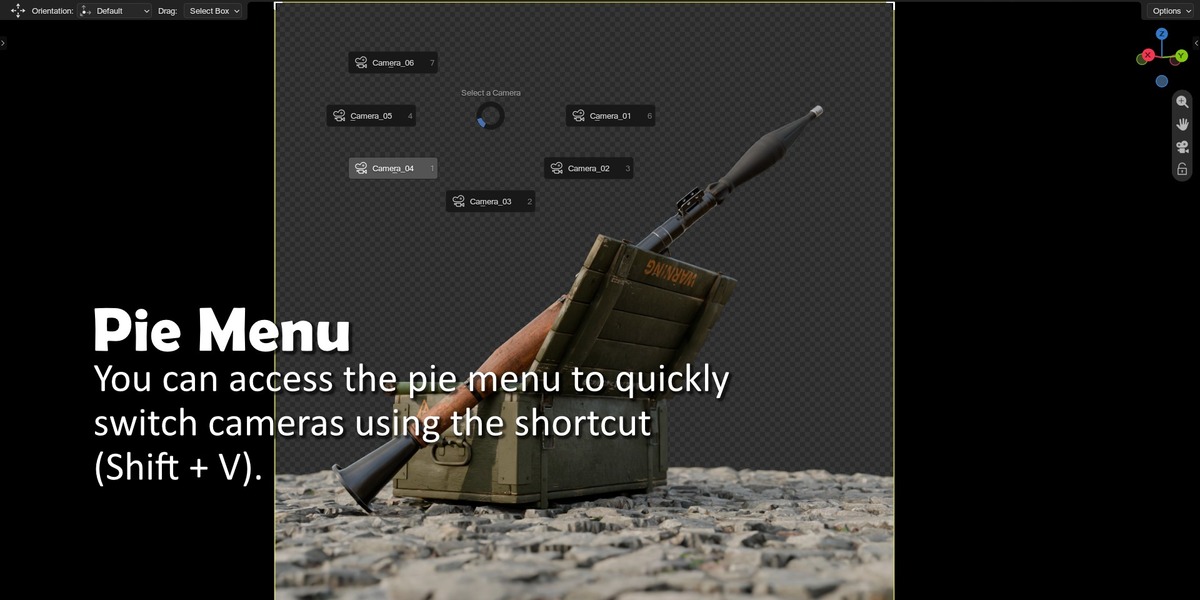
How do I activate a different camera?
1. Open the Camera Manager (Ctrl + Left Click).
2. In the list of cameras, click the "Activate" button next to the camera you want to activate.
$8
Have questions about this product?
Login to message
| Blender Extension Compatible | Yes |
| Sales | 60+ |
| Dev Fund Contributor | |
| Published | over 2 years ago |
| Blender Version | 5.0 - 5.2 |
| Extension Type | Add-on |
| Render Engine Used | Cycles |
| License | GPL |
Discover more products like this
camera controls cinematic camera camera rig render manager lens presets batch render b3d multi-camera render blender camera addon camera switcher camera animation dolly-zoom