Camera Nodes Fx
 EdenWeby 3D



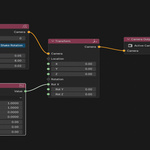
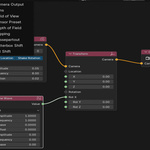
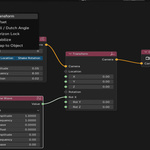
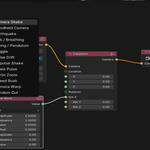
// Complete Reference
Documentation
Everything you need to install, configure, and master Camera Nodes. 78 nodes, 8 categories, full workflow from first launch to baked keyframes.
FULL DOCUMANTAION FILE PROVIDED WHEN YOU PURCHASE
// Contents
Getting Started
01 · Installation
02 · First Node Tree
03 · Interface Overview
04 · How It Works
Node Reference
05 · Sockets & Values
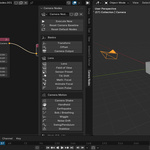
06 · All 8 Categories
07 · Recipes & Examples
08 · Troubleshooting
01
Installation
Camera Nodes is a single Python file — no dependencies, no packages. Install like any Blender addon.
Download the file
Download camera nodes fx.zip from your SuperHive purchase page.
Open Blender Preferences
Go to Edit → Preferences → Add-ons. Click Install… top right. or just drag the zip to blende
Enable the addon
Search for "Camera Nodes" and tick the checkbox to enable it.
Open Node Editor
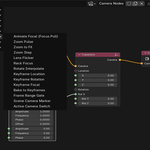
Switch any editor to Node Editor. Select Camera Nodes from the tree-type dropdown.
Requires Blender 4.0+. Uses session_uid for camera tracking and node socket APIs introduced in Blender 4.0.
02
How It Works
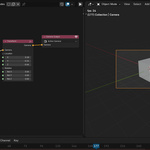
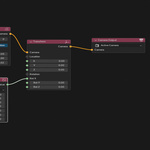
Each frame, the node tree evaluates left to right, accumulating camera state (position, rotation, lens, DOF) and writes the result to the active camera object.
Evaluation order
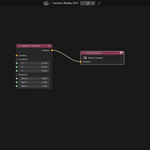
Input nodes (Sine Wave, Frame, Random) compute values each frame. Effect nodes (Shake, Orbit) read those values via sockets and modify camera state. Camera Output writes the final state to Blender.
Dirty flags — only axes explicitly modified by a node are written back. Disconnecting a socket immediately restores the camera's original baseline position.
03
Sockets & Values
Every float socket works the same way regardless of which node it's on:
04 · Input Nodes
Driving Sockets
Input nodes produce float values each frame. Connect their output to any socket on any effect node to animate it procedurally.
05
All Node Categories
06
Recipes
Breathing Handheld Shake
Sine Wave (A=0.3, F=0.2) → Shake Amplitude. Add Handheld after (Stability=0.4). Result: intensity breathes while organic micro-movement layers on top.
Orbit with Inward Tilt
Ramp (frames 1→120, out 0→-15) → Circle Orbit Camera Tilt. Camera orbits while tilting increasingly downward toward the subject over 120 frames.
Blend Two Rigs with Ramp
Handheld → Cam A. Circle Orbit → Cam B. Ramp (frames 50→100, out 0→1) → Factor. Frames 1-50: handheld. Frames 50-100: blends into orbit. Frames 100+: full orbit.
Dynamic Focus Pull
DOF node (F-Stop=1.8). Ramp (frames 1→120, out 2→20) → Focus Distance. Camera automatically pulls focus from 2m to 20m over the shot.
07
Troubleshooting
Camera doesn't move when I change values
Make sure a Camera Output node is in the tree and connected. Check the target camera is the active scene camera.
Camera doesn't return to original position on disconnect
Press Reset Camera Baseline in the N-panel to re-capture the original position.
Time-based nodes stop working after loading a file
Disable and re-enable the addon. The frame handler is @persistent and should survive file loads, but re-enabling forces re-registration.
Expression Driver shows an error
Open the Blender System Console for the exact message. Available variables: frame, t (time in seconds), sin, cos, pi, sqrt, abs, pow.
Camera Nodes
Documentation · v1.0
Developed by Raisy Clutch × Eden Weby
Blender 4.0+ · Available on SuperHive (former Blender Market)
© 2025 All rights reserved.
-
$19
All Basic Nodes 25 Extra fx nodes(includes shake) Free Updates and Fixes
-
$32
All Basic Nodes 73 Extra FX Nodes New Node Upgrades and fixes
-
$46
All 78 Nodes + more 72 to be added. till we make 150 nodes Every new node i add will be in this variant.
Have questions about this product?
Login to message
| Blender Extension Compatible | Yes |
| Sales | 70+ |
| Dev Fund Contributor | |
| Published | 5 months ago |
| Blender Version | 4.0 - 5.1 |
| Extension Type | Add-on |
| Render Engine Used | Cycles, Eevee |
| License | GPL |

Discover more products like this
camera-nodes camera zoom camera shake camera camera effects camera dolly