CamForge — Your Blender Cutscene Cameras in Unity, Frame for Frame: Lens, Sensor Fit, Shift, Focus and Cuts, Measured in Pixels
 Skava
CamForge
v1.0.0 · Blender 4.2 LTS and later (tested on 4.2.9 and 5.2.2, exported from both into Unity) · Unity 6 (tested on 6000.0, 6000.4 and 6000.6) · Windows / macOS
1. What it does
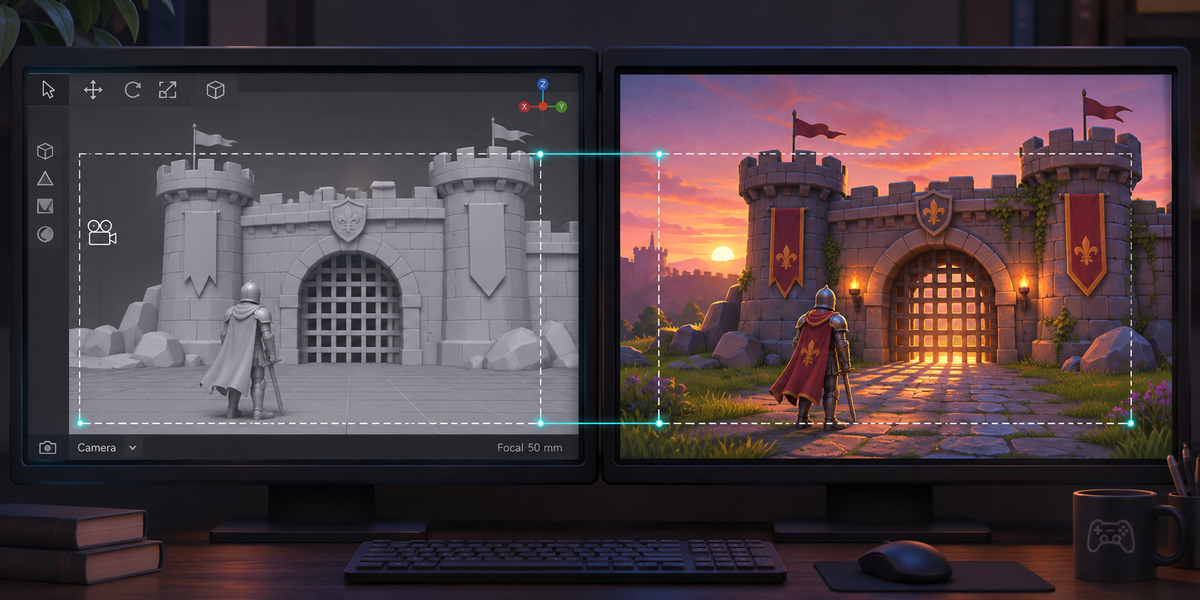
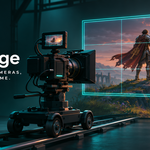
CamForge carries the cameras of a Blender cutscene into Unity so that every frame is framed as in Blender. It reads every camera's lens on every frame and the cuts of your markers bound to cameras; in Unity the CamForge Rig component switches the cameras at the cuts and sets each camera's lens for the screen's own aspect. Check measures Unity's frame against Blender's own frame in pixels.
2. Installing
Edit, Preferences, Add-ons, the arrow in the top right corner, Install from Disk, pick the zip, tick the checkbox. The panel is in the 3D Viewport sidebar (N), tab CamForge.
3. Quick start
- Open your cutscene's scene. CamForge reads its frame range, its camera and the markers bound to cameras (with a camera and a marker picked, Ctrl+B in the Timeline).
- Press Scan: the shots (first frame and camera, as Blender plays them) and each camera's lens, sensor fit, shift and depth of field.
- Choose a Folder (inside your Unity project's Assets saves a copy step) and press Export for Unity.
- In Unity: click <name>.camforge.json in the Project window and choose Tools > CamForge > Set Up Cutscene. A prefab <name>.prefab appears next to it, with an Animator playing the cameras and the CamForge Rig component.
- Choose Tools > CamForge > Check Cutscene. The report <name>.camforge-check.txt is written next to the prefab and printed to the Console.
- Put the prefab in your scene. Time Source on the rig: Animator (default: the Animator Set Up made plays the cameras), Director (a Timeline's Playable Director gives the time; Director Start is the Timeline second where the cutscene begins) or Manual (your script sets Time in seconds). With Director or Manual, CamForge pauses the Animator while the game runs and plays the cameras' moves itself, so moves, lenses and cuts run on one clock; back on Animator, the Animator carries on from the same moment. On a Timeline, do not also put the cutscene's Animator on an Animation Track, and note that clip-in and speed of a Timeline clip are not followed.
4. What CamForge carries
- Focal length, animated or not, on every frame.
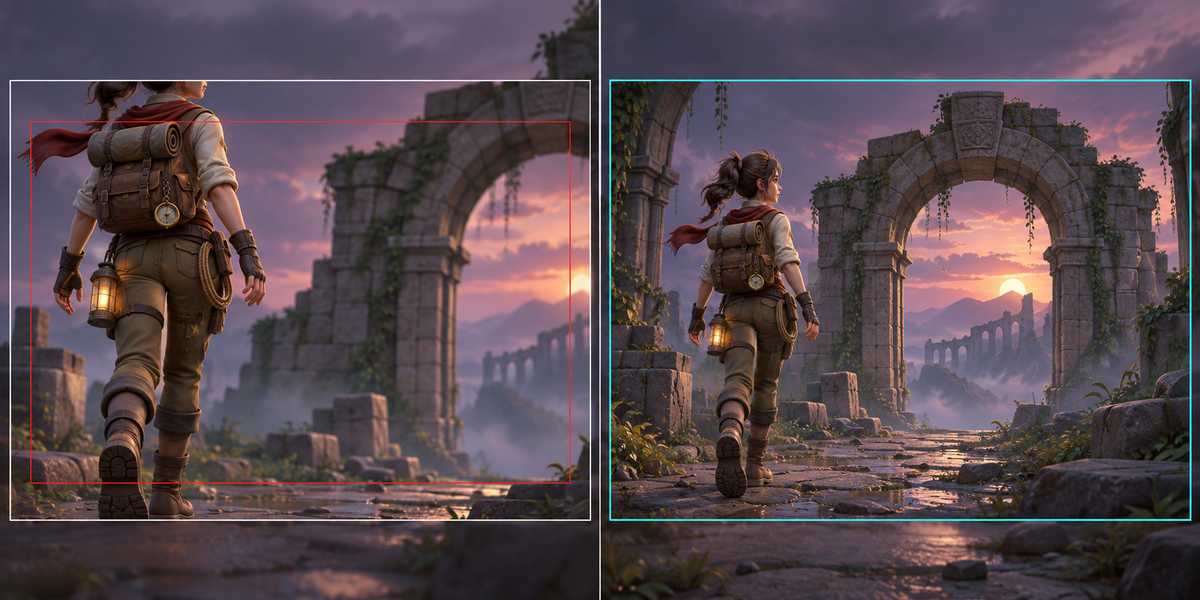
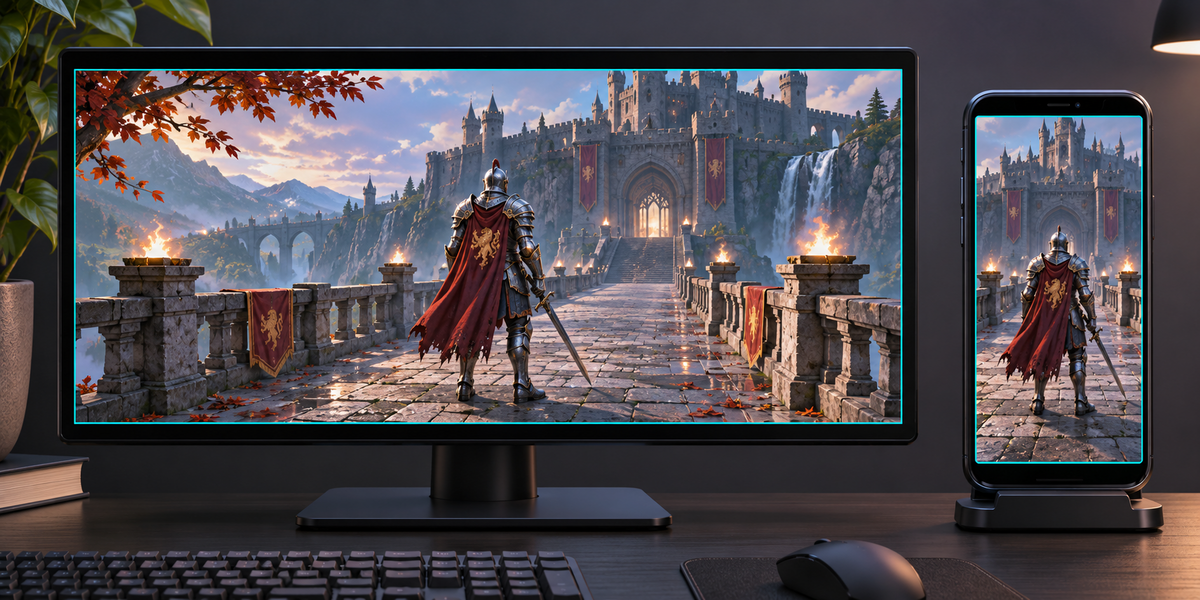
- Sensor and sensor fit as Blender fits them: Auto (the sensor width spans the larger side of the frame), Horizontal (the width), Vertical (the sensor height spans the height). Unity fits its gate differently; CamForge cuts the sensor to the screen's aspect so nothing is left to Unity's gate fit, and redoes it when the aspect changes.
- Lens shift, counted as Blender counts it (in units of the fitted side); for an orthographic camera, where Unity has no lens shift, through the projection.
- Orthographic cameras and their animated scale.
- Clipping, start and end.
- Focus distance and aperture (f-stop) when depth of field is on, including a focus object (its distance along the view, as Blender measures it), set on the Unity camera's physical properties.
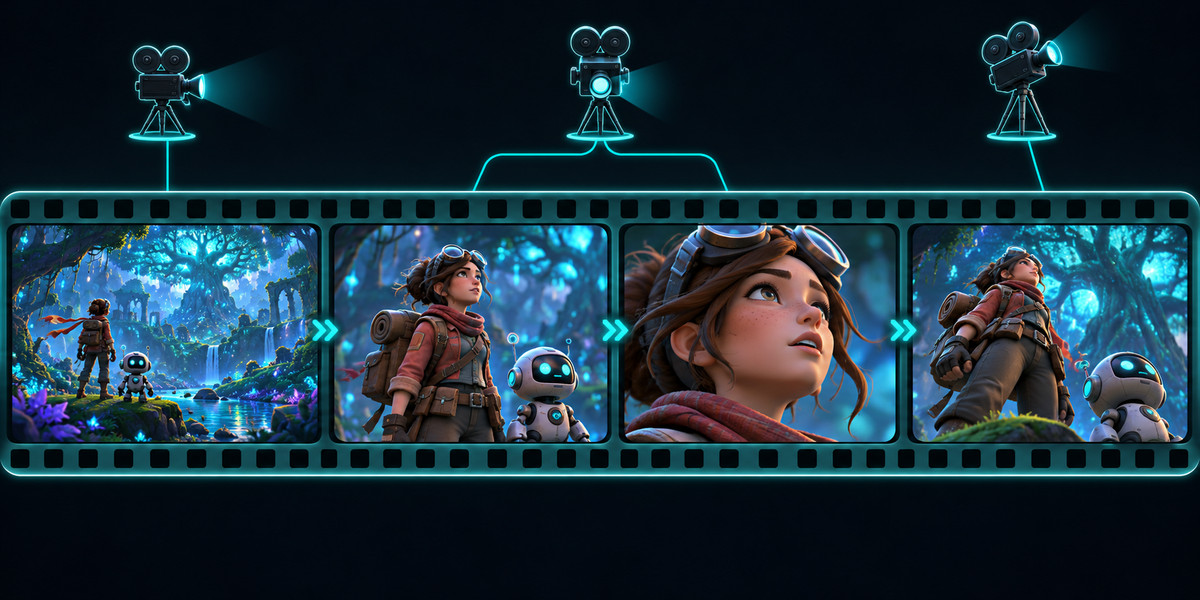
- Cuts: the camera of every frame, as Blender decides it from the markers bound to cameras (or the scene camera when there are none).
- Camera moves: whatever moves a camera (parents, bones of an armature, a Follow Path dolly, vertex parents, a car it rides on, constraints such as Track To, drivers) is read from Blender's own evaluation on every frame, and, while the camera is on screen, on moments inside every frame: CamForge compares the curve Unity will draw through the keys with Blender at the moments halfway between them and halves the spacing until they agree within half a pixel of a 4K frame (from quarters down to 64ths of a frame); where the path turns sharply between frames (the corners of a Follow Path curve) it puts a key on the corner itself, up to 32 a frame. A fast Follow Path close-up can turn at so many corners that a frame stays above half a pixel of 4K (in our test up to about one): Export names those frames, Check measures them, and the limit there is still Check's 1 pixel; nothing but the cameras' placements leaves Blender. Set Up builds the cameras' clip with those keys, so Unity follows Blender's own in-between. Where something jumps on a constant key, CamForge finds it from Blender's eighths of the frame (and finer where it needs them): the smooth part of the move carries on up to the frame, and the jump happens on the frame itself, with no in-between pose, even when the camera rides something that keeps moving. Check measures moments inside frames as well.
- Scene units: a scene in centimetres or any unit scale comes out in metres, counted the way Blender's FBX exporter counts them; Check measures that one metre in Blender is one metre in Unity.
5. What it does not carry, and why
- Panoramic cameras: no Unity counterpart; Scan refuses them by name. A lamp or an empty set as the scene's camera is refused by name too.
- Very long cutscenes with very fast moves late in them: Unity keeps a clip's time in single precision, so late in a long clip its time step is a noticeable part of a frame. Measured: 6 minutes at 60 fps, a pan of 12° a frame near the end was up to 2 px off on a 4K screen from that alone (Check red). Export estimates this for your cutscene and names the frames; split such a cutscene into shorter ones. A 6-minute cutscene with ordinary moves passes (measured).
- Non-square pixels (pixel aspect other than 1) and cameras disabled in viewports (the monitor icon, on the camera, a parent or their collection): Blender does not move them there; Scan and Export refuse them by name.
- Depth of field effects: CamForge sets the camera's physical Focus Distance and Aperture; an effect has to be set to read them from the camera (URP's depth of field keeps its own focus in its Volume). Tested with Unity's built-in pipeline.
- Two cameras with the same name (a local one and a linked one): Scan refuses them by name; rename one.
- Your scene itself: export your meshes as usual. CamForge's FBX uses Blender's default FBX axes and scale, so export your scene with the same settings for the cameras to stand where they stood in Blender (measured: still geometry within 0.33 px). Objects that move in the cutscene keep the accuracy of their own FBX: with Blender's default Simplify and Unity's default animation compression our moving car was 8 px and a moving truck 20 px off in the frame. For frame-exact moving objects, export them with Bake Animation, Simplify 0, and set Anim. Compression to Off in Unity's import settings, as CamForge does for the cameras.
6. Check
When you export, CamForge takes proof points on every proof frame from the camera Blender shows on that frame: a 3×3 grid of its frame at three depths (the nearest half a metre away, as close as a face in a close-up, or nearer the focus distance), so no pan or orbit can take them out of view; four markers in a tiny FBX tie Blender's space to Unity's, exactly as Unity maps a scene exported with Blender's FBX defaults. For up to 96 frames (and the first frame of every shot and the frame before it) Blender's own pixels of those points are written into the passport, at the scene's resolution and its transpose (a landscape cutscene on a portrait screen and the other way round). Frames where something jumps and frames that needed the most keys are added (up to 200 of each). In Unity, Check plays those frames and moments inside each of them, never on a key, so what Unity interpolates is measured: 0.3 and 0.85 of the frame, the middle of the first stretch between keys, the moment CamForge found Unity's curve farthest from Blender's, and the middle of the last stretch before a jump, from the cameras' clip, lets the CamForge Rig set the lens for that aspect, checks that the camera Blender shows is the one Unity shows, and measures every point in pixels. The limit is 1 pixel. A frame where fewer than three proof points are in view is reported as NOT CHECKED, and the check fails rather than pass unmeasured. Check also measures the scene units, and lists any value Unity limits on its own (a clip start, an aperture beyond Unity's range).
7. What was measured
Ten cutscenes, each exported from Blender 4.2.9 and from Blender 5.2.2, set up and checked in Unity 6000.4 on Windows; the same cutscenes exported from Blender 5.2.2 in Unity 6000.0 and 6000.6 on macOS. Every checked frame and every checked moment between frames of every one within the limit of Blender's own frame, at the scene's aspect and its transpose, the camera right at every cut:
- Three cameras with cuts at frames 41 and 81: a zoom from 35 to 85 mm with a lens shift and Auto fit; an APS-C camera with Vertical fit circling with Track To; a 24 mm camera under a turning, scaled parent.
- A 2.39:1 scene in centimetres: an orthographic camera with an animated scale and a shift riding a moving car, a camera on an animated bone with focus on an object, a Vertical-fit camera with a shift and a zoom from 40 to 120 mm, cameras hidden by their own eye and by their collection's eye.
- A dolly on a Follow Path curve, a close-up camera parented to that dolly, and a camera on three vertices of a moving truck.
- A camera that jumps and snaps its zoom from 24 to 85 mm on constant keys; and a 29.97 fps scene starting at frame 1001 with a snap zoom on a constant key while the camera glides. Half a frame after a held frame Unity still shows the held position, rotation and zoom, through the clip and through the Animator, while the glide carries on.
- A camera riding a moving cart whose own position and tilt jump on constant keys while it pans smoothly: the jumps happen on the frame, the ride and the pan carry on in between.
- A 90° whip pan in 12 frames with a zoom from 24 to 70 mm and a 2° tilt correction on a constant key in the middle of the pan, and a second camera dollying on linear keys to a stop.
- A 9:16 phone shot with a shift and depth of field.
- A 4K scene: a 14 mm camera with a lens shift of 0.3 and −0.2 panning 140° and rolling while its position jumps on a constant key, then an orthographic map camera 100 m wide, tilted and turning, with points checked out to 100 m deep; then a small orthographic camera (2 m wide) with its clip end at 10 km, panning.
- A 6-minute 4K cutscene at 60 fps that pans and jumps on a constant key in its last second (0.20 px).
- The scene exported separately with Blender's FBX defaults: still geometry within 0.33 px of Blender's frame through CamForge's cameras.
- Check turns red on a lens or orthographic scale 3% off, a lens shift with the wrong sign, a wrong sensor fit, a cut 5 frames late, scene units off by a factor of 100, every camera moved by 1 cm, jumps played through instead of on the frame, and a camera's moves taken from whole frames only, without Blender's in-between.
- In Play mode (Unity 6000.4, Windows): the rig switches to the right camera and sets its lens every frame; with the Animator the cameras stand exactly where the clip puts them; Manual time poses them exactly and pauses the Animator; back on Animator, or with the rig switched off, the Animator carries on from the same moment.
- The rig costs about 0.003 ms per frame for three cameras in the Unity Editor with the Animator and allocates no memory per frame, reading the Animator's time included; with Director or Manual time, where it samples the clip itself, at most 0.03 ms per frame on our cutscenes, also without allocating.
8. Notes
- After exporting again from Blender, run Set Up Cutscene again: it updates the prefab in place, so your changes to it stay. A camera renamed or removed in Blender becomes a new camera object, or goes, with what you added to it. Check tells you when the prefab was set up from another export.
- The Unity scripts use Unity's built-in Director module (for the Timeline time source); it is on in Unity's default project templates. If your project has switched it off in the Package Manager's built-in packages, switch it back on.
- The Unity scripts come with their own assembly definitions. Export straight into your project's Assets and they are written once per project: a new export into another folder of the same project updates the copy already there. Exporting outside a Unity project, copy the CamForge folder into the project only once; two copies would not compile.
- CamForge Rig acts while the game runs; in the editor outside Play mode it leaves your scene alone.
- CamForge Rig runs after other scripts (execution order 10000). Turn off Drive Cuts or Drive Lens on the component to let your own system do that part.
- License: the Blender add-on is GPL v3 or later; the two Unity scripts are MIT (LICENSE-CamForge-Unity.txt, written next to them on export), so you may ship them inside your games, closed source or not. They contain no Blender source code.
Have questions about this product?
Login to message
| Published | about 1 hour ago |
| Blender Version | 4.2 - 5.2 |
| Extension Type | N/A |
| License | GPL |