Cascade Plus - Instant Cloth Simulation
 Limitless Creative




Blender 4.2 or newer. Cascade comes in two parts: the add-on, a small .zip you install in Blender, and the simulation library, a folder of baked caches that stays on your drive.
- Download the add-on .zip and the simulations for your edition.
- Unpack the simulations into a folder you will keep, a data drive is ideal. The Full library is about 15 GB to download and 16.6 GB unpacked; Lite is 6.8 GB and 7.6 GB. Cascade reads the caches straight from this folder, so do not delete it after installing.
- In Blender, open Edit › Preferences › Get Extensions, open the menu at the top right and choose Install from Disk. Pick the Cascade Plus .zip. Dragging the .zip into Blender works too.
- Point Cascade at the library, as below.
- Open Edit › Preferences › Add-ons, find Cascade Plus and expand it.
- Under Simulation Library, press Browse and pick the .blend inside the simulations folder. Pasting the path of the folder itself works too.
- Wait for the green tick and the simulation count: 103 for Full, 60 for Lite, 6 for Starter.
- Cascade remembers the library, even when you disable, reinstall or update the add-on. Reload Library reads it again, for instance after moving the folder.
- Gallery Size and Popup Thumbnail Size set how large the thumbnails are in the sidebar and in the browsing popup.
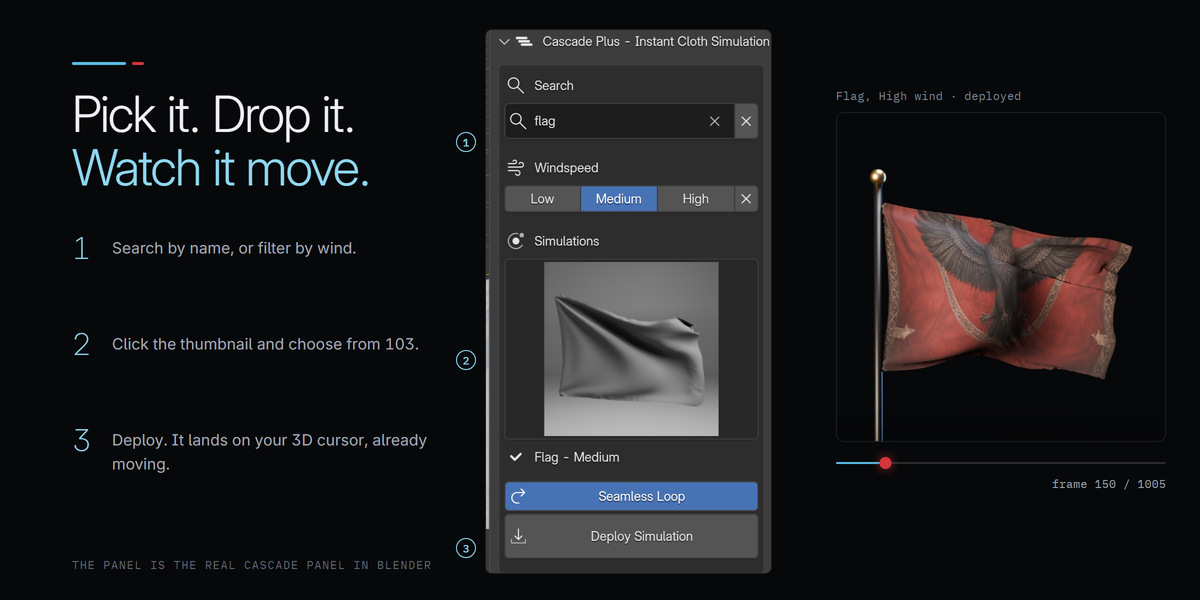
- Put the 3D cursor where the cloth should stand.
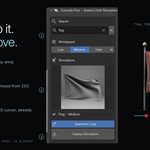
- In the 3D Viewport press N and open the Cascade tab.
- Search, or filter by wind, then click the gallery and pick a simulation.
- Press Deploy Simulation and play the timeline.
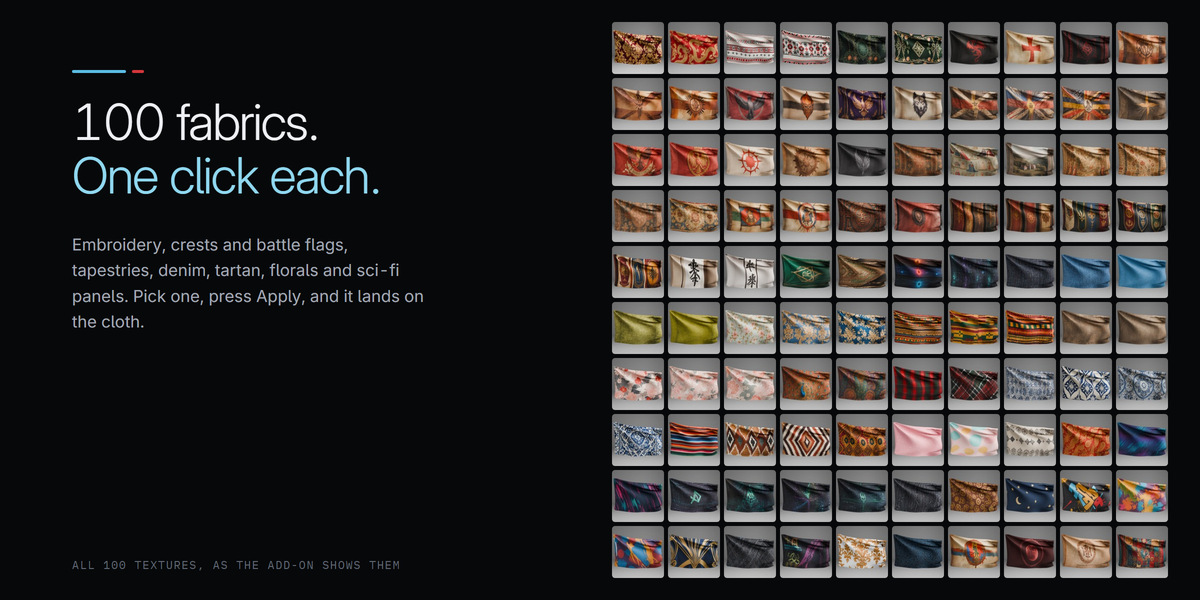
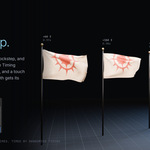
- With the cloth selected, pick a fabric under Cascade Textures and press Apply Texture.
- Remove the old Cascade Plus in Edit › Preferences › Add-ons before installing 1.3. While an old copy is still enabled, the Cascade tab shows a warning with a button that takes you to it.
- Set the library once more: 1.3 installs as an extension and does not read the old setting. The simulations have not changed, so the folder you already have works as it is.
- Scenes made with 1.1 keep working. Apply Texture repairs their fabrics, and Enable Timing Controls adds the new timing and loops to their simulations.
- Search matches any part of a name. Every word you type must match, so monk high finds the Monk Cape in high wind. The X clears it.
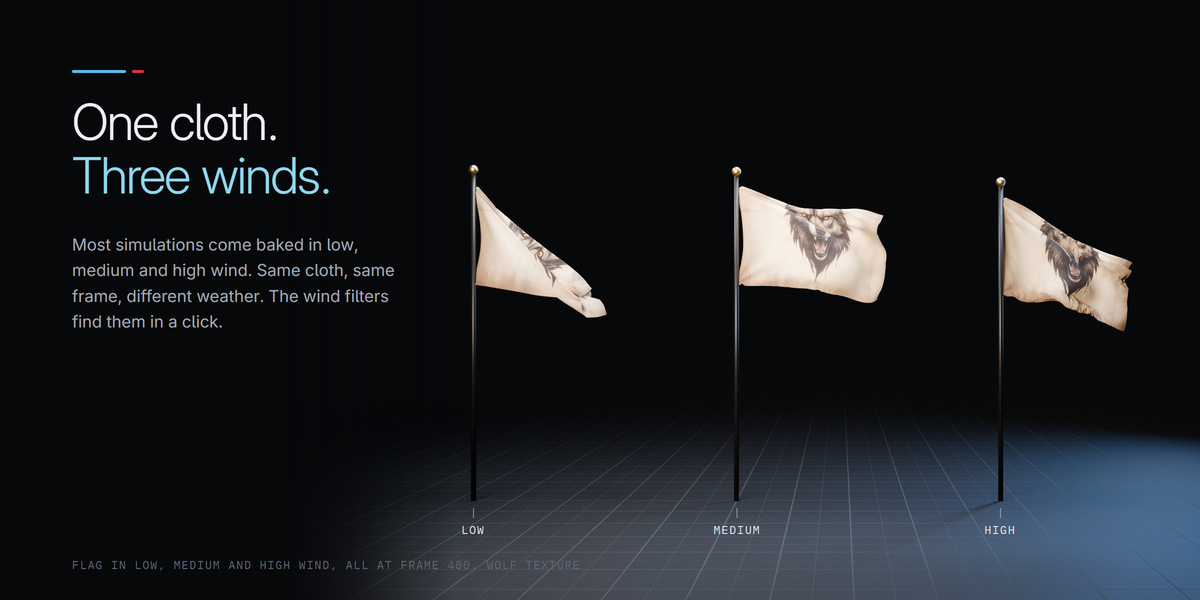
- Windspeed: Low, Medium and High filter the gallery and can be combined. The X clears them. Simulations that come in one version only, such as the Ghost, hide while a wind filter is on.
- The gallery shows your current pick. Click it to browse every match as thumbnails, then click one to choose it. Its name appears under the gallery with a tick.
- Seamless Loop: switch it on before deploying and the new cloth loops forever. See Seamless loops.
- Deploy Simulation adds the cloth at the 3D cursor, in the active collection, starting on the scene's first frame.

- Each simulation arrives as an empty with the cloth parented to it. Move, rotate and scale the empty to place it.
- The Adjust Last Operation panel in the corner of the viewport offers Align to Cursor Rotation, which turns the cloth to match the 3D cursor, and Seamless Loop.
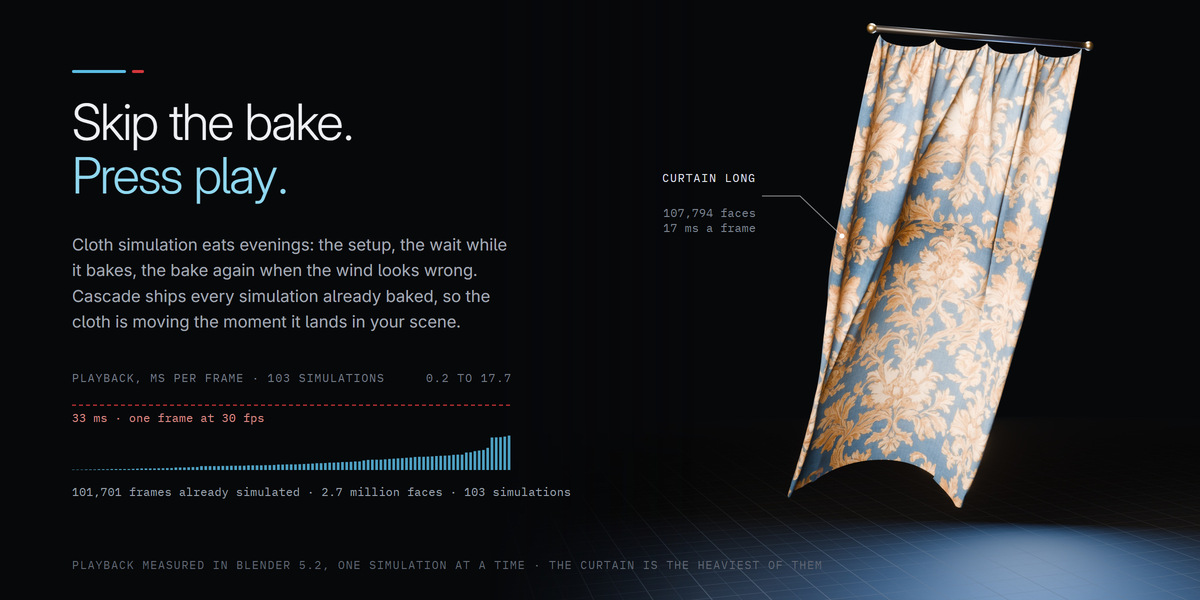
- The cloth plays from a baked Alembic cache through Blender's own Mesh Sequence Cache modifier. Nothing is simulated in your scene, so it plays as you scrub.
- Deploy as many as you like, or copy them with Shift+D. Copies share one cache until they are individualised; see Timing.
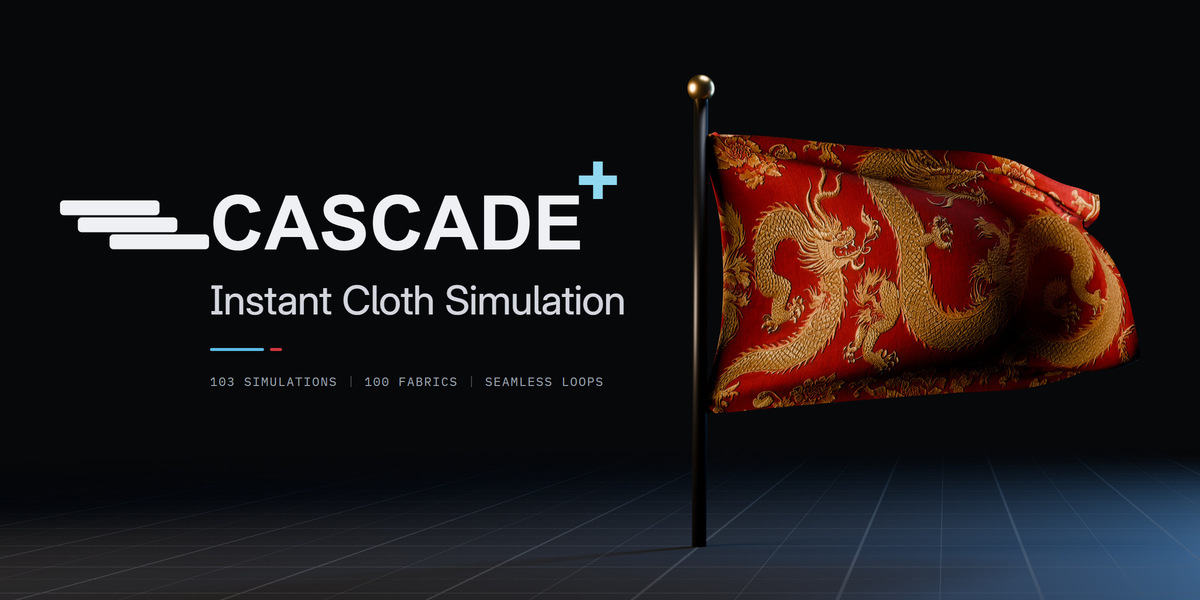
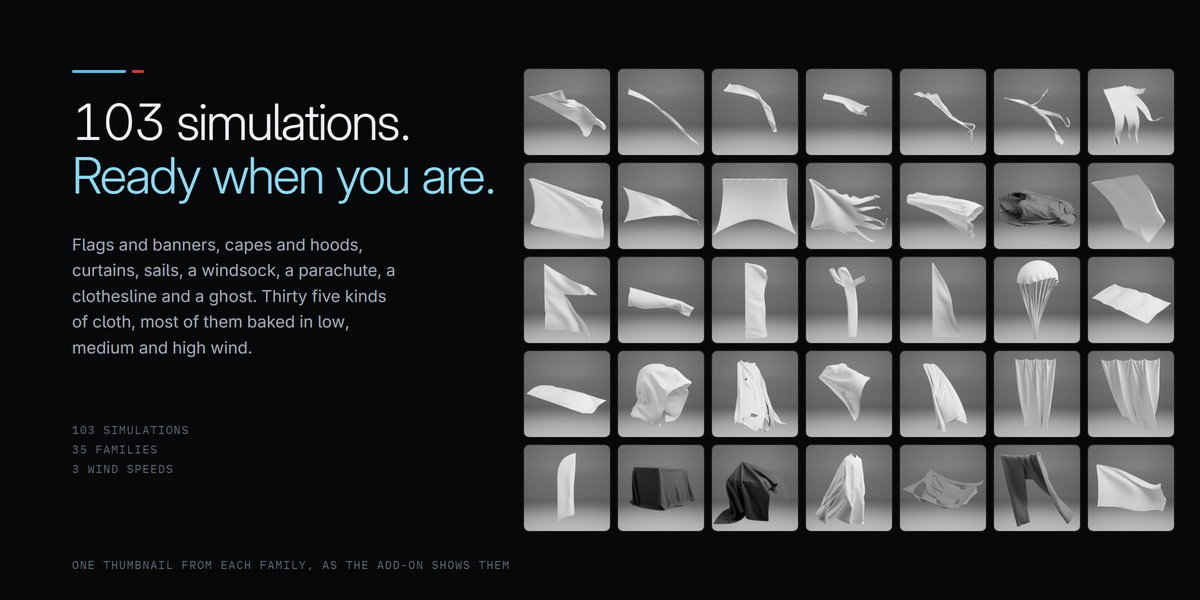
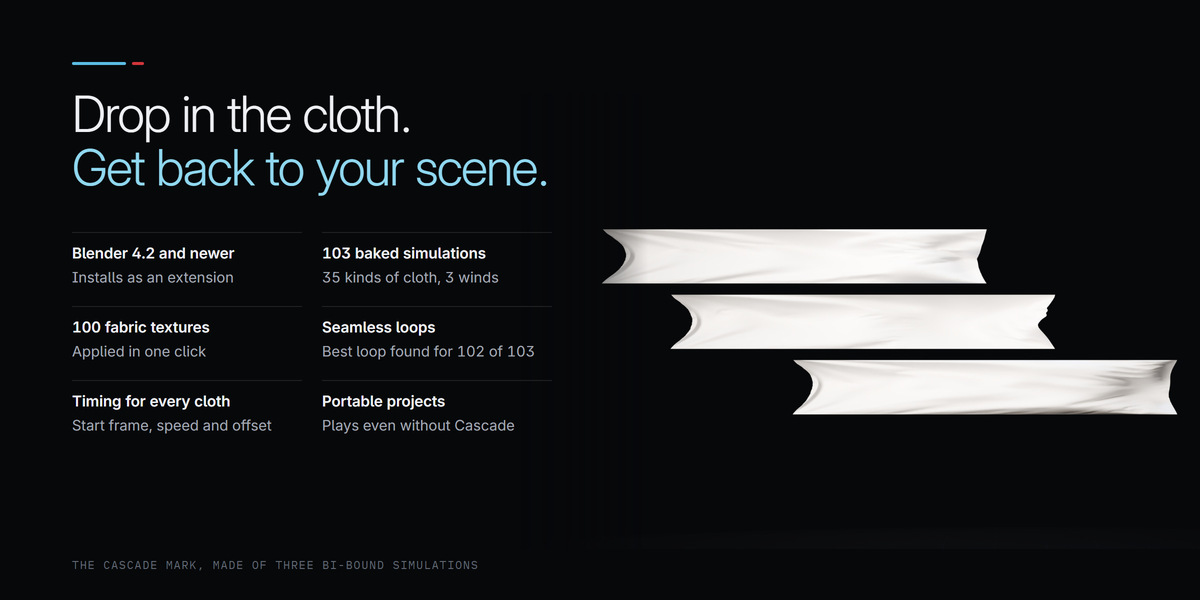
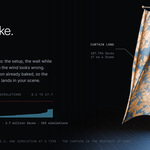
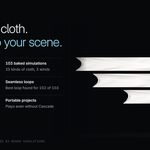
The 35 kinds of cloth in the Full edition, 103 simulations in all. Most come in low, medium and high wind. A few come as variations instead: three ship sails, a parachute opening and fully open, six garments on the cloth line.


Select a deployed cloth and Simulation Tools shows its name and timing. The settings live on the cloth itself.
- Start Frame is the scene frame where the simulation begins.
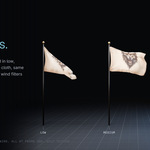
- Speed 1.00 plays it as it was baked; 0.5 is half speed and 2 twice as fast. A touch slower or faster also changes the feel of the wind.
- Offset is how many frames into the simulation it begins. Use it to skip the first moments, or to set copies apart.
- When copies share one cache, the panel says so: Cache shared with and the number of others.
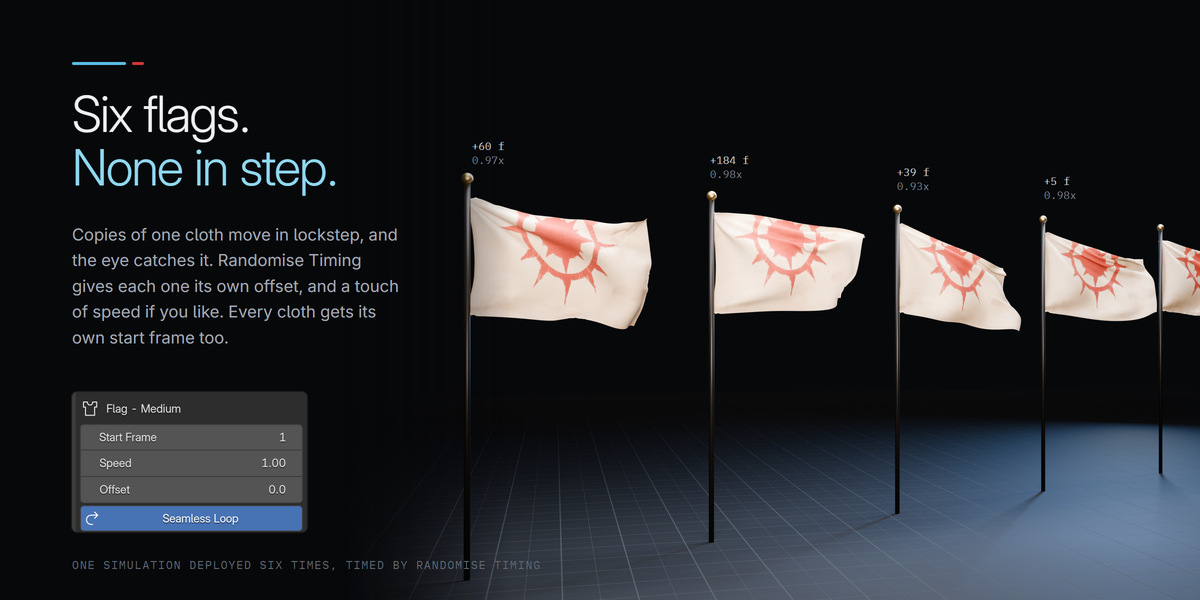
Copies made with Shift+D share one cache, so a timing change moves all of them at once. Select the copies and press Individualise Simulations: each gets a cache of its own and keeps its own timing.
Select several cloths and press Randomise Timing to give each a different offset, so no two move in step. Copies that share a cache are separated for you. Its options appear in the Adjust Last Operation panel:
- Min Offset and Max Offset: the range, 10 to 35 frames by default.
- Spread Over Loop: looping cloths start anywhere in their loop instead.
- Speed Variation: how far each speed may differ from normal. 0 leaves the speeds alone.
- Seed: another roll of the dice. Every click rolls a new one.

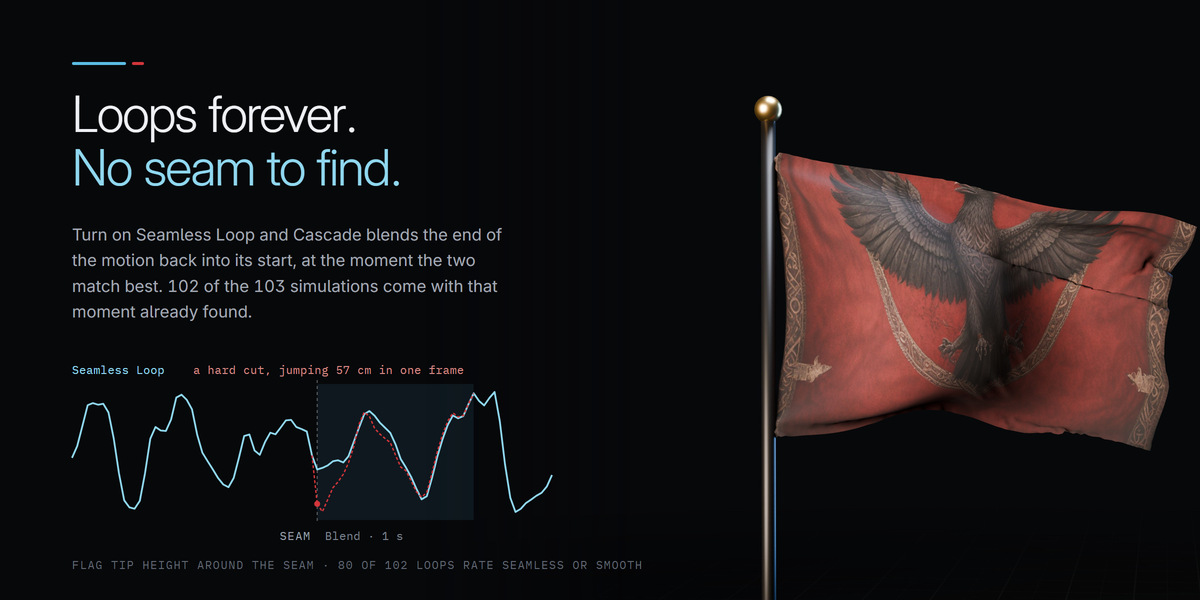
A baked simulation has an end. Seamless Loop makes it carry on forever: Cascade plays one stretch of the cache over and over, and at the start of every pass blends the end of the motion back into its beginning, so there is no jump. Every simulation that can loop comes with its best loop already found.
- Turning it on. Switch on Seamless Loop before Deploy Simulation, or select deployed cloths and press Seamless Loop in Simulation Tools. Press it again to stop looping.
- Quality rates the loop, from Seamless down to Not recommended (below).
- Loop Start and Loop Length are the stretch of the cache that repeats, in frames. Blend is how long the crossfade lasts: 30 frames, one second at 30 fps.
- Best Loop puts back the best loop known for the simulation. Once you change the loop by hand, the label reads Custom.
- Analyse studies the cache in a background Blender and finds its best loop in a few seconds, while you keep working. Use it on a cache Cascade has no loop for. The result is remembered.
- Start Frame, Speed and Offset still apply: Offset picks where in the loop the cloth begins, and the loop plays before the Start Frame too, so a looping flag is already moving on frame 1.
| Seamless | Hard to tell where the loop starts, even close up. 20 simulations. |
| Smooth | A gentle blend you are unlikely to notice in motion. 60 simulations. |
| Soft blend | The blend can show on close inspection. Try a longer Blend, or another Loop Start. 18 simulations. |
| Not recommended | Motions that happen once, such as the Box Reveals, and do not repeat naturally. Best left unlooped. 4 simulations. |
| Custom | You changed the loop by hand. Best Loop restores the original. |
Box Reveal 2 is too short to loop.
- Select Texture: click the thumbnail to browse every fabric, then click one to choose it.
- Apply Texture gives the selected cloths a Cascade material with that fabric. Apply another fabric later and the image is swapped in place. The material the cloth had before is left untouched.
- Individualise Texture gives each selected cloth its own copy of a shared Cascade material, so each can have its own scale and offset.
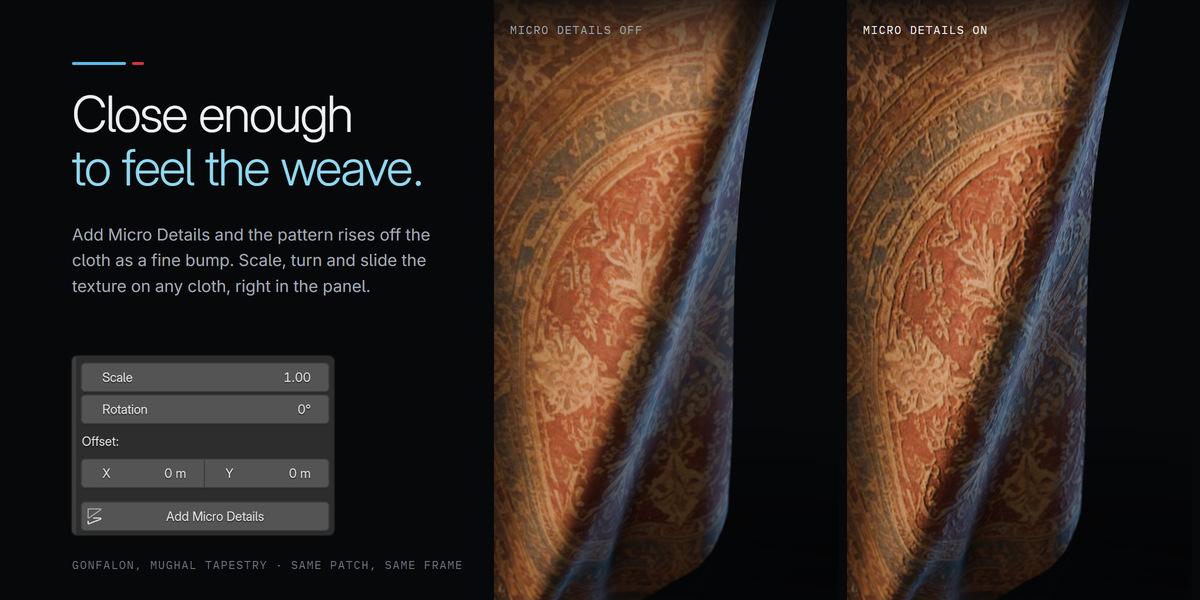
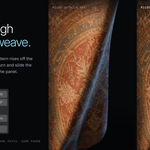
- Scale, Rotation and Offset X and Y place the pattern on the active cloth: size it, turn it, slide the motif where you want it.
- Add Micro Details adds a fine bump made from the fabric itself, so embroidery and weave catch the light.
- Strength blends it in. Distance is the height of the relief, 8 mm by default. The X removes it again.
The Cascade material is an ordinary Principled BSDF with an Image Texture node. Swap its image for your own in the Shader Editor, and Scale, Rotation and Offset keep working.

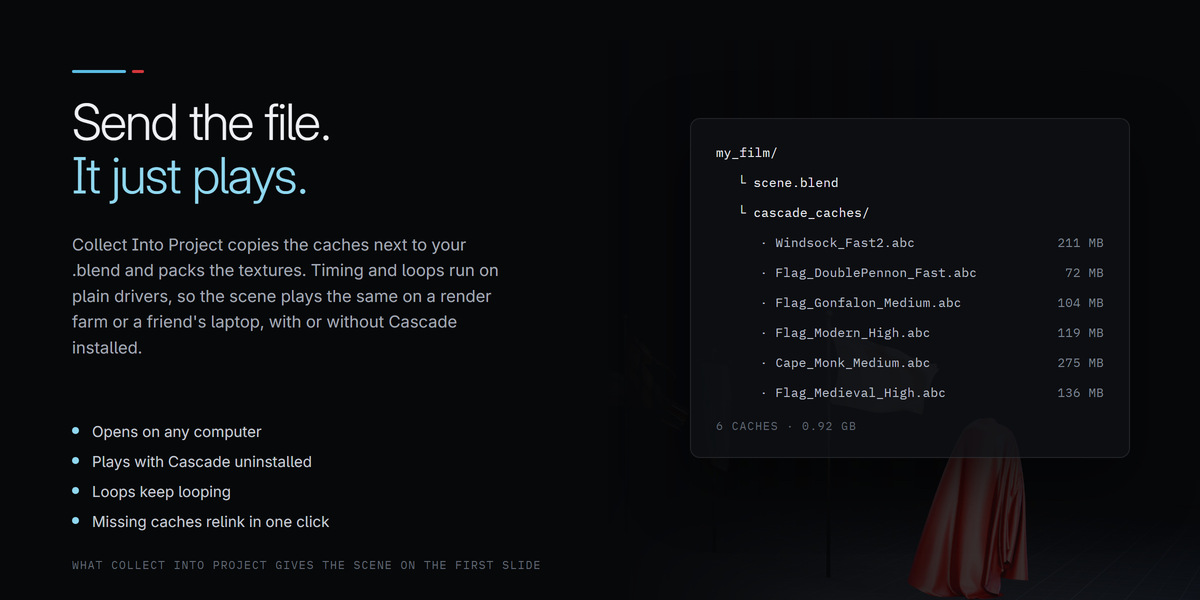
The caches a scene plays are separate files, and they go missing the moment a project moves to another folder or computer. The Project section at the bottom of Simulation Tools keeps a scene in one piece.
- Save the .blend. The button stays greyed out until you do.
- Press Collect Into Project. A dialog lists how many cache files it will copy, and how large they are.
- Leave Pack Cascade Textures on to store the fabrics inside the .blend, then press OK.
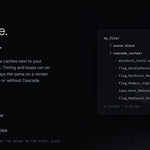
- The caches are copied into a cascade_caches folder beside your .blend, and the scene points at them with relative paths. Copy the .blend together with that folder, and the project opens anywhere.
- Running it again only copies what is new or changed.
When a cache file cannot be found, the Project section says how many are missing and offers Find Missing Caches. It looks for files of the same name in the project's cascade_caches folder and in your simulation library, and relinks them.
Timing and loops are stored on each cloth as plain values and drivers that Blender runs without Python. A collected project plays and renders on a computer that has no Cascade, with Auto Run Python Scripts off, and on render farms.
| Caches | //cascade_caches/ beside your .blend, after Collect Into Project. Before that, they are read from your simulation library. |
| Fabrics | packed into the .blend with Pack Cascade Textures, otherwise read from the add-on. |
| Timing and loops | custom properties on the cloth object, such as cascade_start, cascade_speed and cascade_offset, read by drivers. |
| Library path | remembered by Cascade, through updates and reinstalls. |