 ZEG
ZEG
Installation
In Blender open Edit, Preferences, Get Extensions, then use Install from Disk and pick the cemetery_generator zip.
Usage
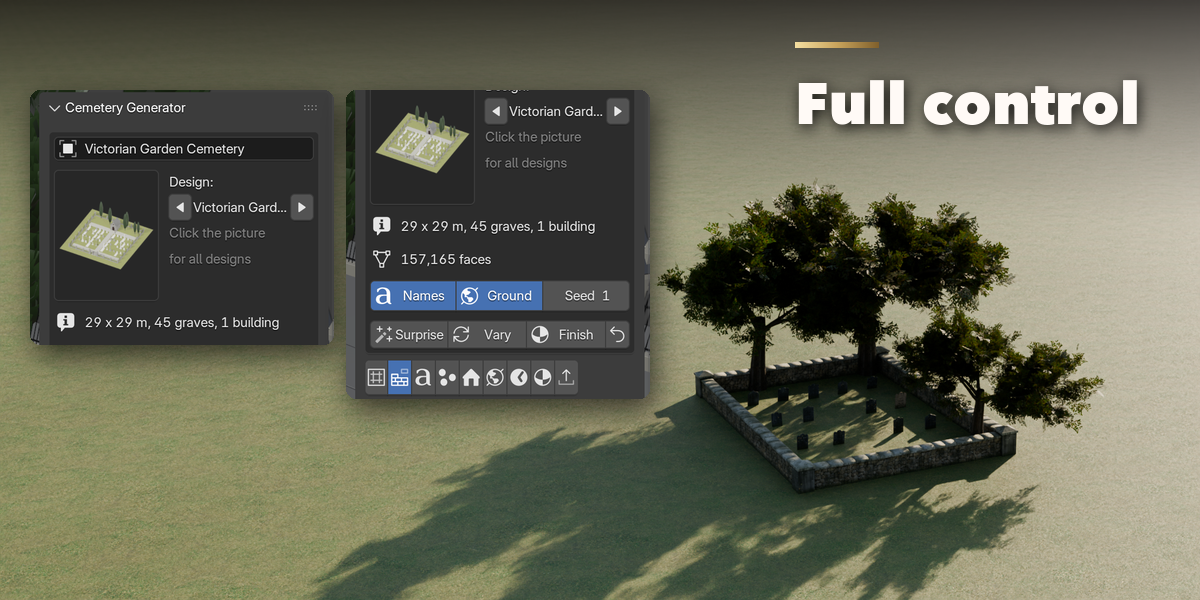
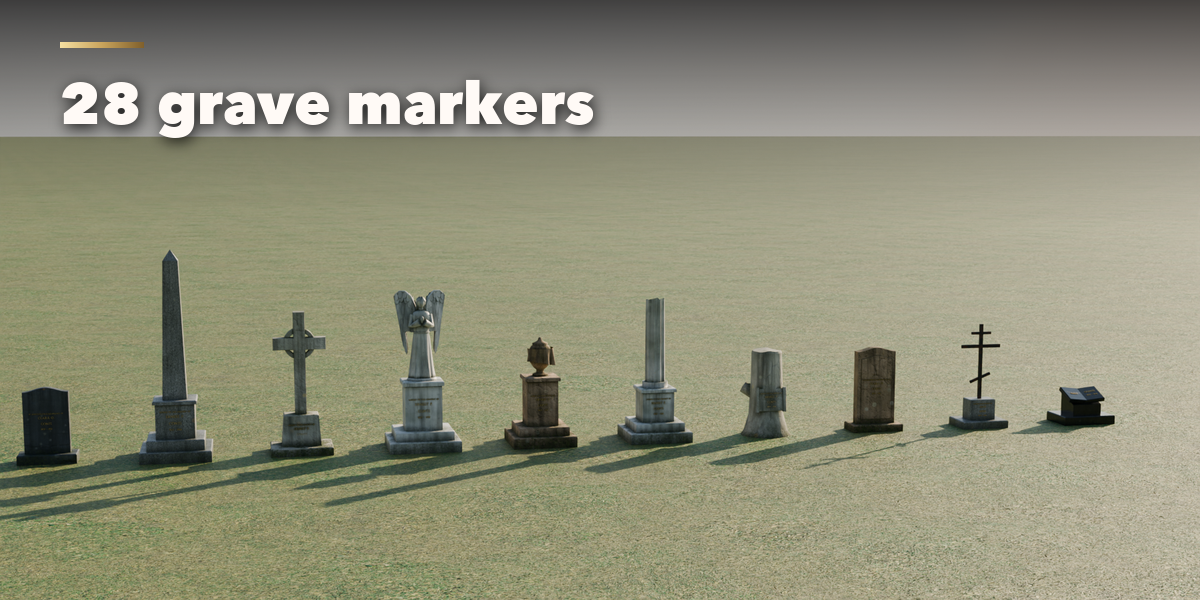
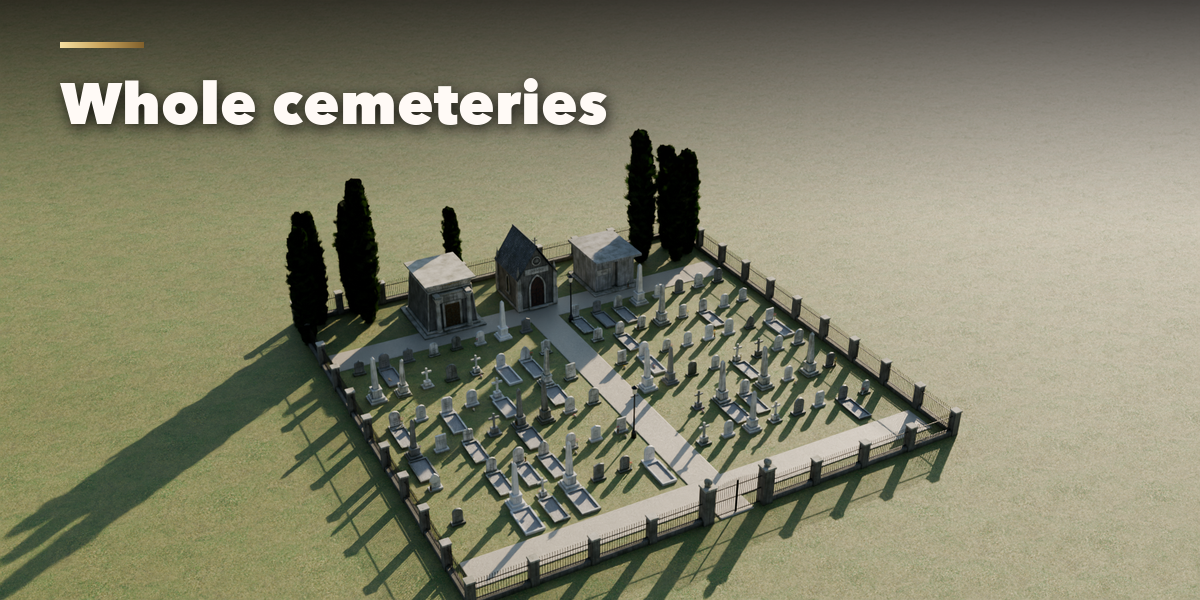
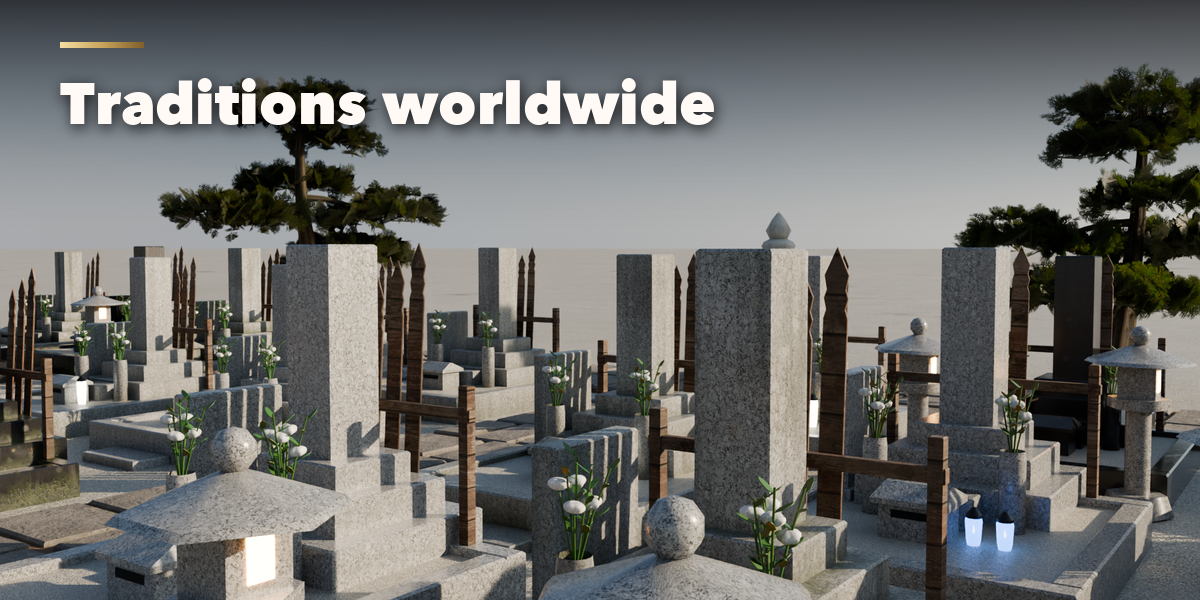
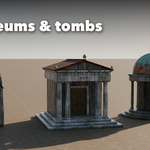
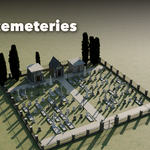
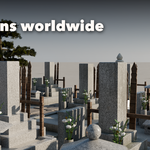
- Open the Cemetery tab in the 3D viewport sidebar (N). With no cemetery selected, click the big picture to browse the designs, or pick a group and a design, then press Add to place it at the 3D cursor. You can also use Shift+A, Mesh, Cemetery.
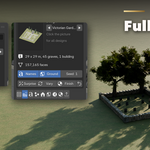
- The card at the top shows the design, its size, the number of graves and buildings and the face count. Names switches the inscriptions, Ground the terrain, and Seed gives new names, placement and choices. Surprise makes a new random cemetery, Vary changes the current one a little and Finish gives it new stones and a new age.
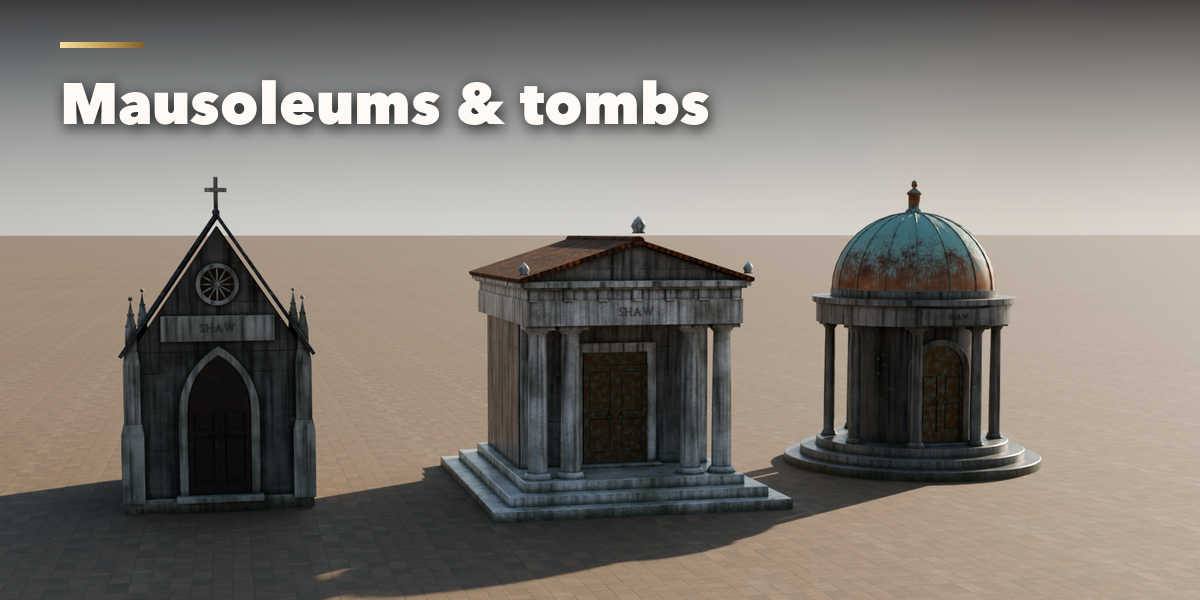
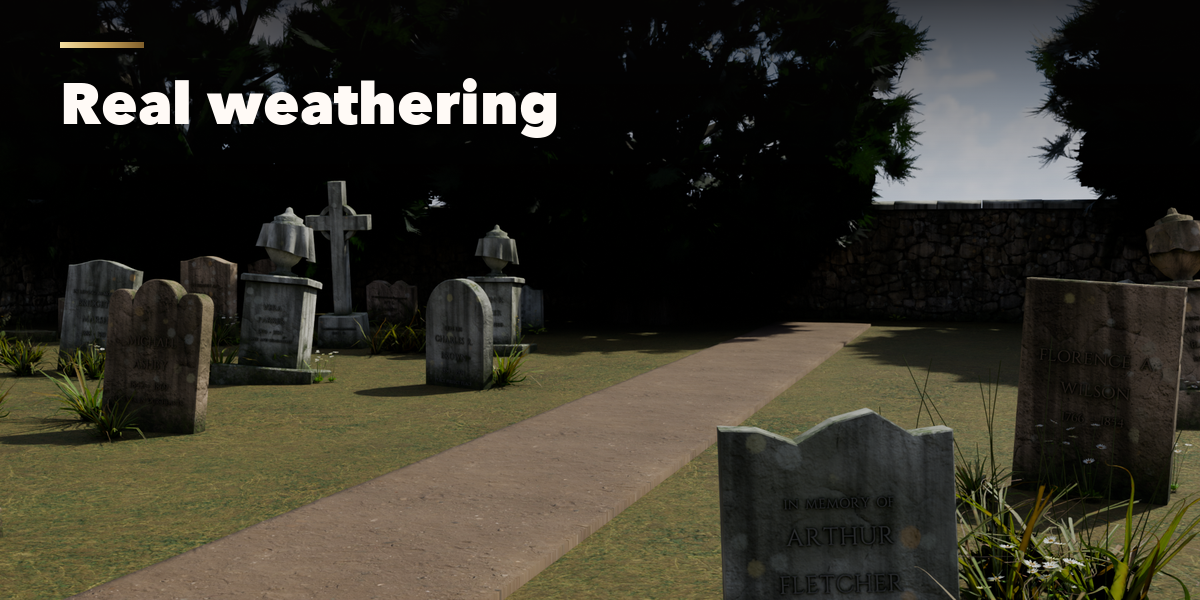
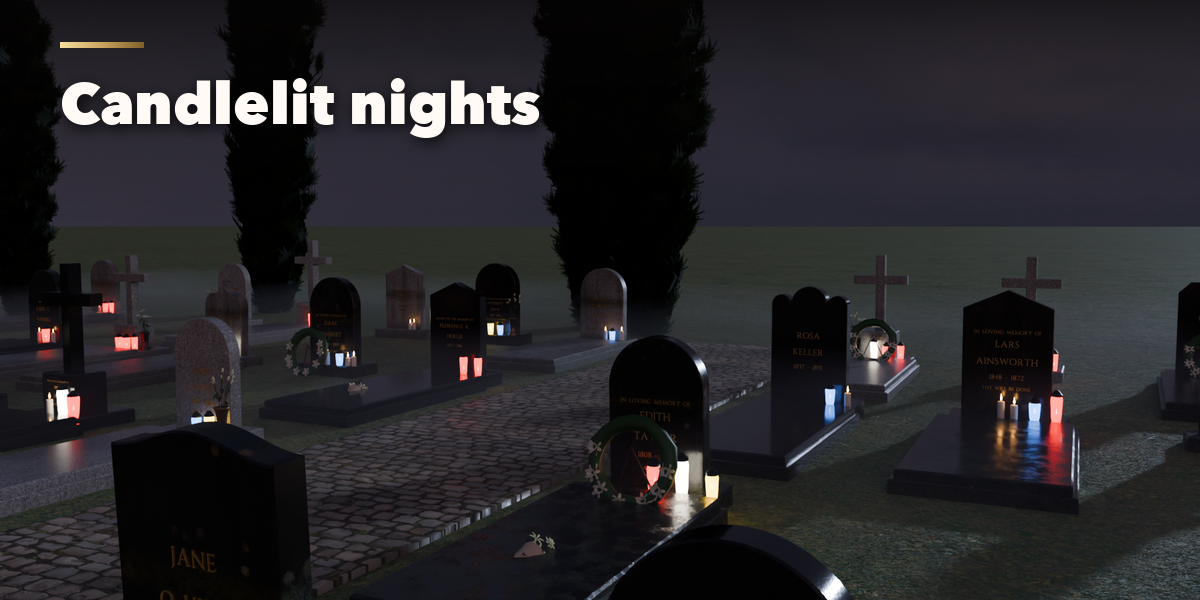
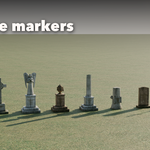
- The icon tabs hold every setting: Layout (rows, scattered or churchyard, counts and spacing, the object a churchyard surrounds), Graves (marker kind, a second and third kind mixed in, tops, sizes, bases, plots and the qibla direction), Inscriptions (years, header, epitaph, lettering style, font and your own text), Offerings (flowers, wreaths, candles, grave lights, pebbles, photos), Buildings (mausoleums, niche walls, chapel, ossuary, memorial), Grounds (ground, slope, paths, boundary, gate, trees, lamps, weeds), Age (lean, sinking, broken stones, lichen, moss, dirt, worn letters), Finish & Mood (stones, metal, fog, sky and sun) and Parts & Export (part visibility, detail level, Convert to Mesh).
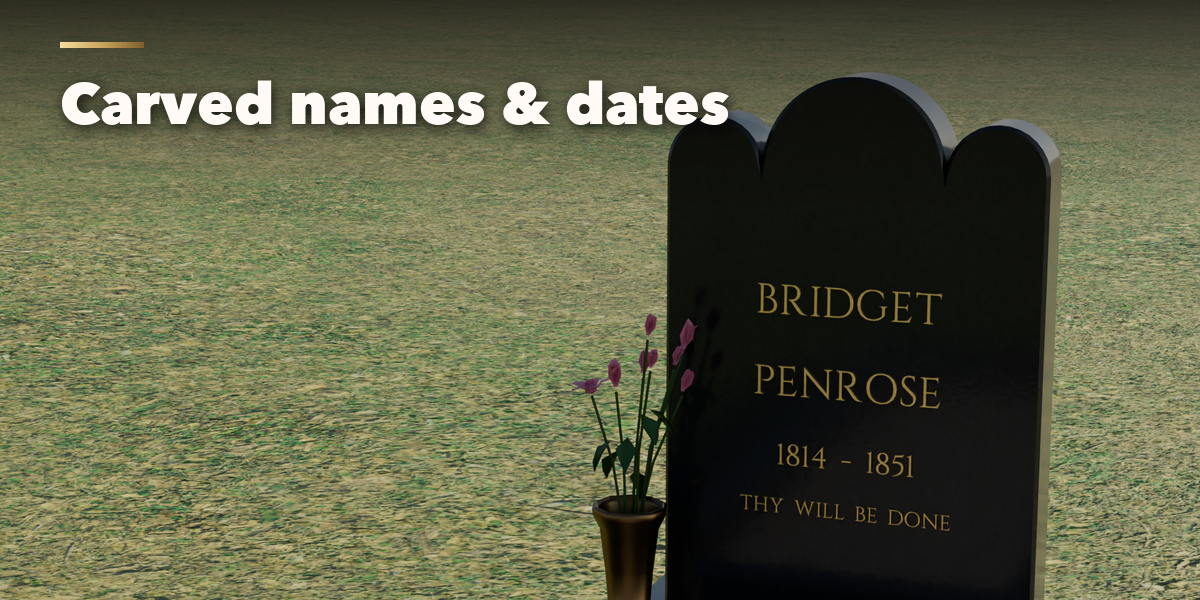
- Names and dates are fictional. For Hebrew, Arabic, Chinese, Japanese or Korean inscriptions choose Your Font, pick a font file that has those letters and type your own lines.
- Convert to Mesh copies the cemetery as plain meshes; Delete removes it with all its parts.
All sizes are in meters. The root empty sits on the ground at the front middle; the graves face the front (-Y) and buildings stand at the back (+Y).
Have questions about this product?
Login to message
| Blender Extension Compatible | Yes |
| Published | about 24 hours ago |
| Blender Version | 4.2 - 5.2 |
| Extension Type | Add-on |
| Render Engine Used | Cycles, Eevee |
| License | GPL |

Discover more products like this
grave cemetery Mausoleum headstone tombstone Game asset Generator halloween environment graveyard architecture procedural