
Change Frame Rate

Vikky3D in Rendering


User Documentation

Change Frame Rate (Blender Add-on)
Location: Output Properties > Frame Range > Change Frame Rate

Installation & Activation

1

In Blender, open Edit > Preferences > Add-ons

2

Click Install... via the arrow menu and select the change_frame_rate.zip file

3

Search for Change Frame Rate and enable the checkbox.

Access the panel in Output Properties > Frame Range panel.

Main Feature Panels

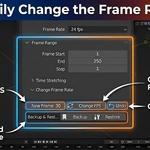
1) Smart Frame Rate Conversion

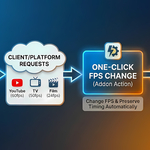
Change scene FPS while automatically scaling the frame range to preserve animation timing.

  • New Frame Rate: Input your desired target FPS (e.g., 24, 30, 60).
  • Change FPS Button: Instantly converts the scene. The add-on calculates the new End Frame so the duration in seconds remains exactly the same.
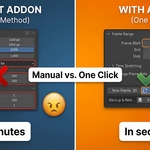
  • No Math Required: Replaces the manual calculation of Time Stretch and Frame Range.
Workflow UI

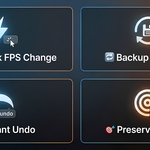
2) Undo Changes

Revert to the previous state if you made a mistake or want to compare.

  • Undo Button: Restores FPS, Time Stretch, and Frame Range to their values before the last "Change FPS" operation.

3) Backup & Restore System

Manually save your current configuration to safe-keep your settings.

  • Backup: Saves the current FPS, Base, Start/End Frames, and Time Stretch settings into the scene memory.
  • Restore: Reloads the saved settings at any time. Useful for experimenting with different frame rates.
$2.49

Have questions about this product?
Login to message

Details
Blender Extension Compatible Yes
Sales 10
Dev Fund Contributor
Published 8 months ago
Blender Version 3.6 - 5.0
Extension Type Add-on
Render Engine Used Cycles, Eevee
License GPL