Charred - One-Click Realistic Fire Damage
 one99addons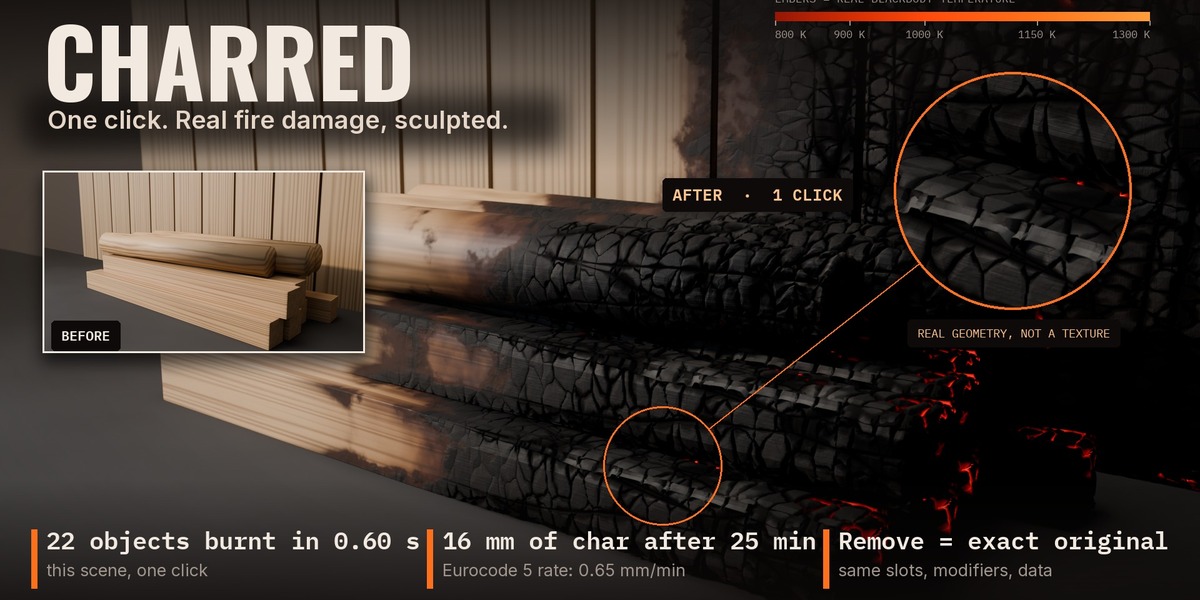
Install
- Edit > Preferences > Add-ons > (arrow menu, top right) Install from Disk.
- Pick Charred_v1.1.0.zip.
- Tick "Charred". The Charred tab appears in the 3D Viewport sidebar (N).
Quick start
- Select everything that should burn, including the walls.
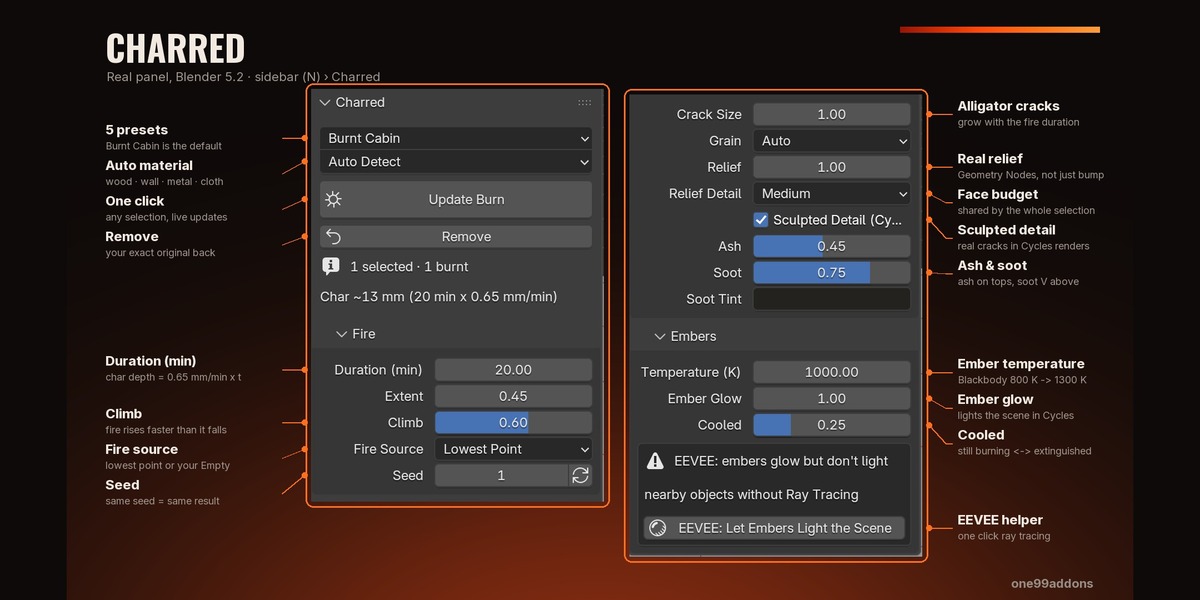
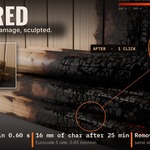
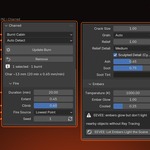
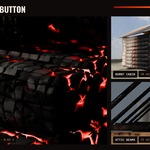
- 3D Viewport > Sidebar (N) > Charred tab: pick a preset (Burnt Cabin is the default) and click Burn Selected.
- Move the "Charred Fire Source" Empty to move the fire: the burn updates live. Change any setting and click Update Burn.
- Click Remove to get back your exact original (same material slots, same modifiers, no orphan data).
Tips
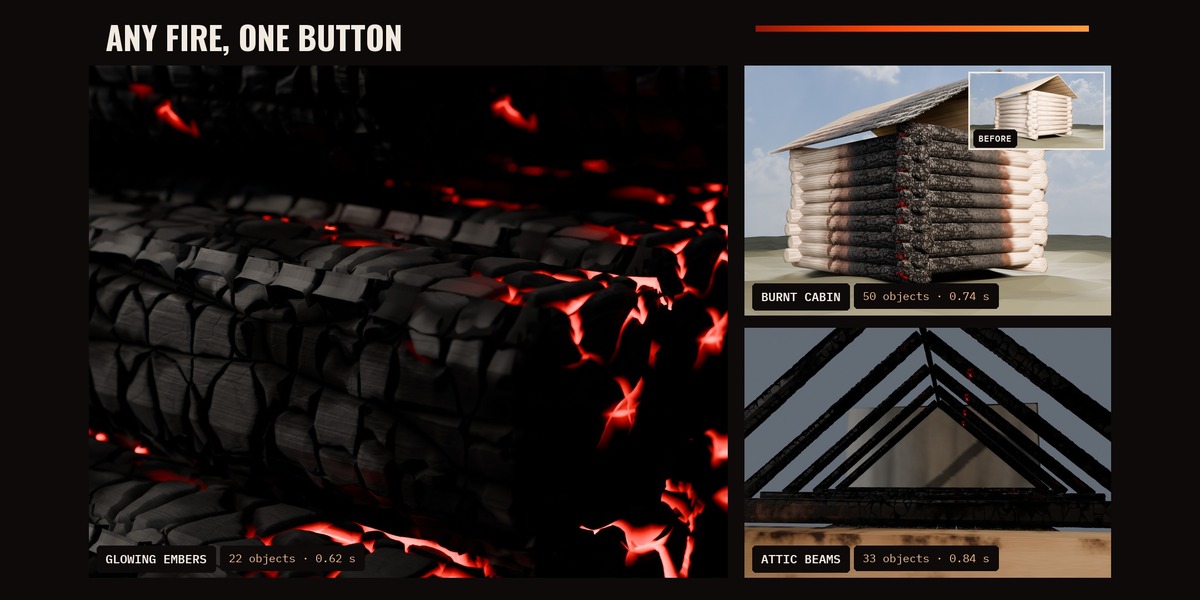
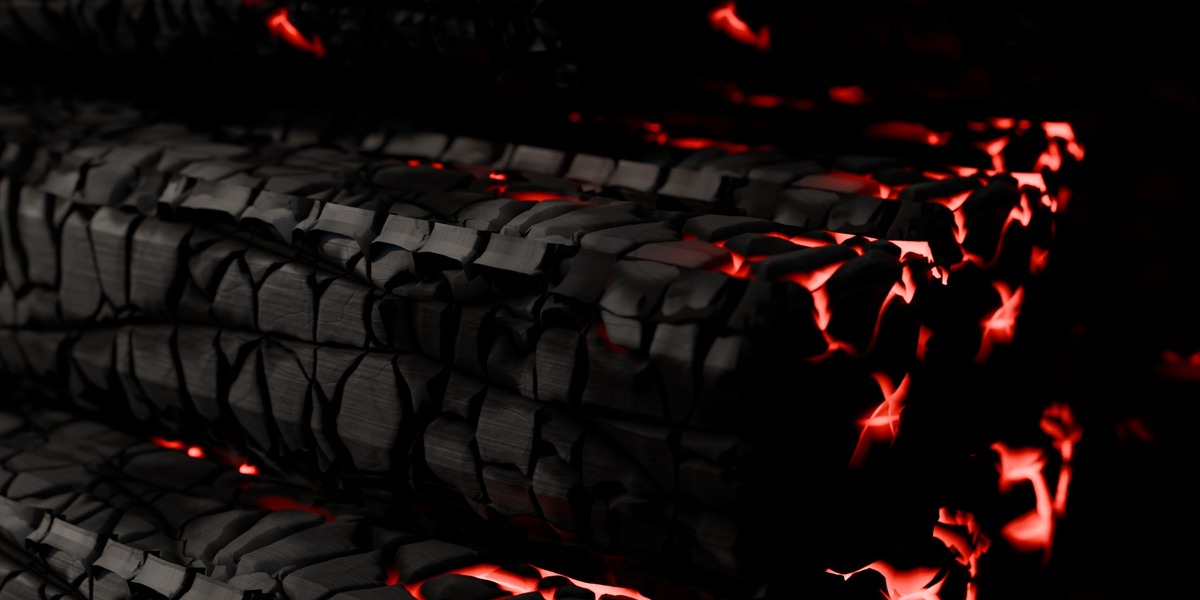
- Embers look best in a darker scene; in EEVEE click the EEVEE helper button (turns on Ray Tracing).
- For close-ups use Relief Detail: High. For big scenes keep Medium or Low.
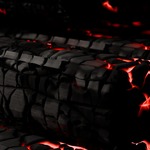
- Sculpted detail needs a light that rakes across the surface: a low sun or a side light looks best.
- Material detection is a guess from names and settings; force the type (Wood, Wall, Metal, Cloth) when it guesses wrong.
- If you change the render resolution a lot after burning, click Update Burn so the sculpted detail is resized.
Requirements
Blender 5.2 (made for 5.2 LTS). Also tested on 5.0.1 and 5.1.2. Cycles and EEVEE. No external files, no image textures, no extra Python module.
Have questions about this product?
Login to message
| Published | about 3 hours ago |
| Blender Version | 5.0 - 5.2 |
| Extension Type | N/A |
| Render Engine Used | Cycles, Eevee |
| License | GPL |