CheckMate Pro | Your Pro-Tier Task Management Pipeline
 Pixel Vampire





How to Find CheckMate Pro
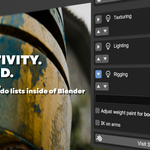
To find CheckMate Pro, navigate to your sidebar within the 3D viewport and select the ‘CheckMate’ tab.
Making New Categories
To add a new category, simply click ‘Add Category’ and name it. This will create a new category submenu within CheckMate Pro.
The Category Submenu
Once a category is created (in this example, ‘Lighting’), we create a new category block.
The highlighted blue arrow will hide or expand the category. This is useful if you have a lot of categories or tasks to organise.
The up and down arrows below it control the hierarchy of the category. The up arrow will move the category further up in the menu, and the down arrow will move it down in the menu.
The input box allows you to write out your task or note, and ‘Add’ adds it to the list of outstanding tasks. These can then be ticked off individually, or deleted entirely by using the X ‘cross’ icon next to each task. To delete the entire category, use the X ‘cross’ icon in the top left.
Users may use this sidebar menu to view and tick off tasks or, if the sidebar is a distraction or in use already, the pop up list.
Using the Pop-Up List
Whilst working in the 3D viewport, users can view their outstanding tasks using the shortcut SHIFT + T by default. This can be remapped in the settings (Edit - Preferences - Keymap) by looking under ‘3D view’ for ‘Outstanding Tasks Menu’.
Ticking tasks off in this pop up menu will hide them in the pop up menu, but will NOT delete them from the sidebar menu, only tick them off.
Have questions about this product?
Login to message
| Sales | 10+ |
| Dev Fund Contributor | |
| Published | about 1 year ago |
| Blender Version | 4.0 - 5.2 |
| Extension Type | N/A |
| Render Engine Used | Cycles, Eevee, Freestyle, Luxrender, Mental-Ray, Octane, Vray, Yafaray |
| License | GPL |
Discover more products like this
to-do Tasks Workflow To Do List creative professionals 3dartistproductivity organisation Blender Professional Tools pipeline 3DEfficiency 3DPipeline 3D workflow to do