Chroma 3MF - Blender to MultiColor 3D Print
 Ambiens


Installation
To install the plugin, drag and drop the .zip file into Blender, or go to Edit > Preferences > Add-ons, click the Install button, and select the .zip file.
Operators and panels
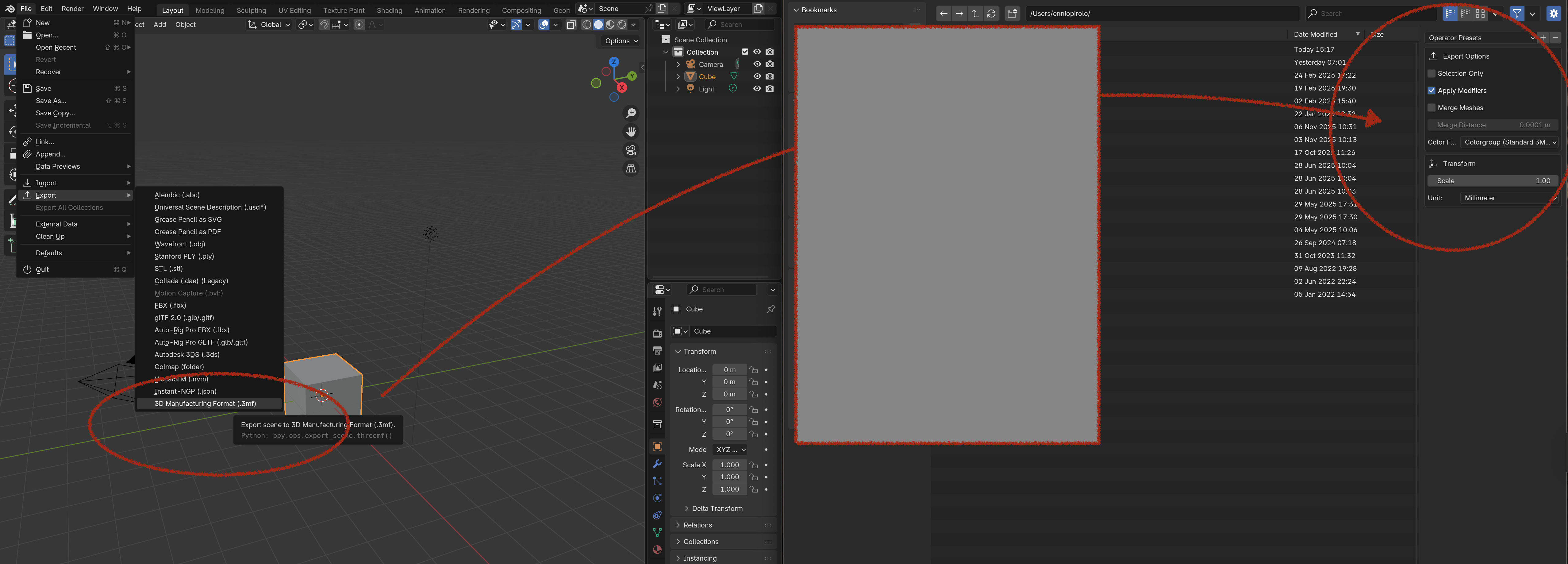
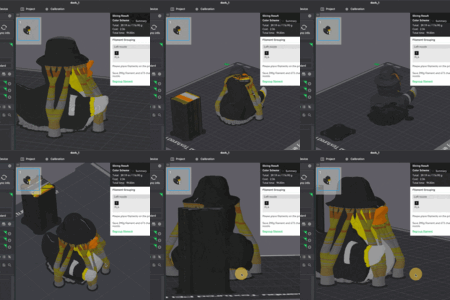
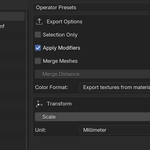
Once the plugin is installed, you will find a new "Export" option in the File > Export menu called "3D Manufacturing Format". This will open the export panel with the following options:
- Selection Only: Exports only the selected objects.
- Merge Meshes: Combines multiple objects into a single mesh (useful for better slicing).
-
Color Format:
- Export Textures from Materials: Texture-based export with UV preservation.
ColorGroup (Standard 3MF): Exports only the color data derived from baking, compliant with the 3MF ColorGroup specification.
Editing Panel
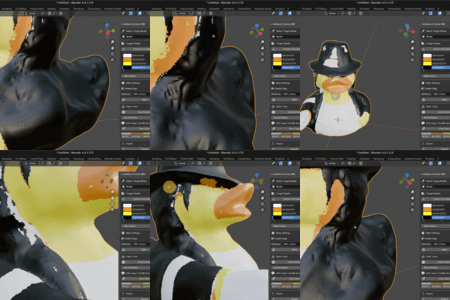
When you are in the 3D Viewport, press N to open the sidebar. Here, you will find the editing panel that lets you manipulate the 3D model for 3D printing.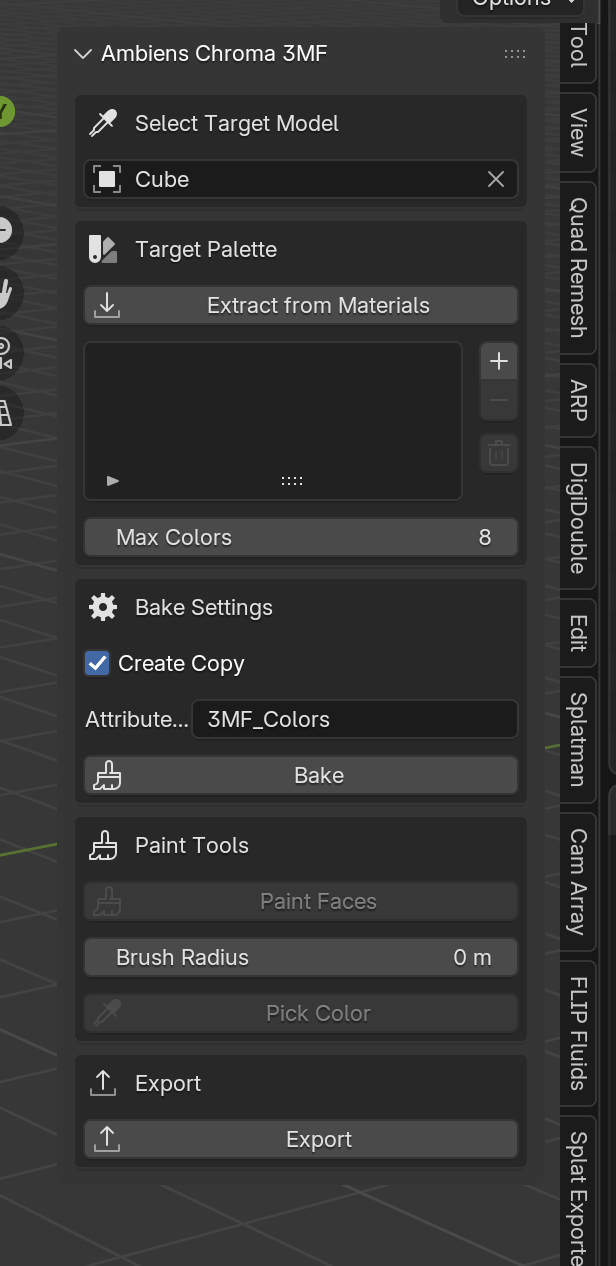
Texture → Face Color Conversion
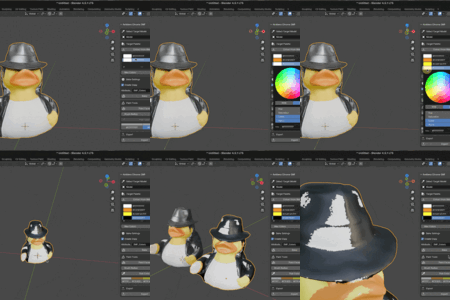
The plugin features a workflow optimized specifically for multicolor FDM printers. You can generate a palette via Automatic Extraction from assigned materials or Manual Generation using a color picker. It includes Color Remapping capabilities to define a maximum color count and perform color quantization. This optimizes the output for 3D printer limits while maintaining consistency with the actual texture mapping.
Baking
Once you have found the right color palette, you can extract a mesh in which every face is colored using the nearest color from the model's texture. The bake process creates a copy of the target object. Every time you re-edit the palette, simply press bake again, and the copy will be overwritten.
Face Painter
You can manually apply colors from your active palette to specific faces of the model for precise adjustments before exporting.
Have questions about this product?
Login to message
| Blender Extension Compatible | Yes |
| Dev Fund Contributor | |
| Published | 7 months ago |
| Blender Version | 4.0 - 5.0 |
| Extension Type | Add-on |
| License | GPL |