CityShip
 AugyWorld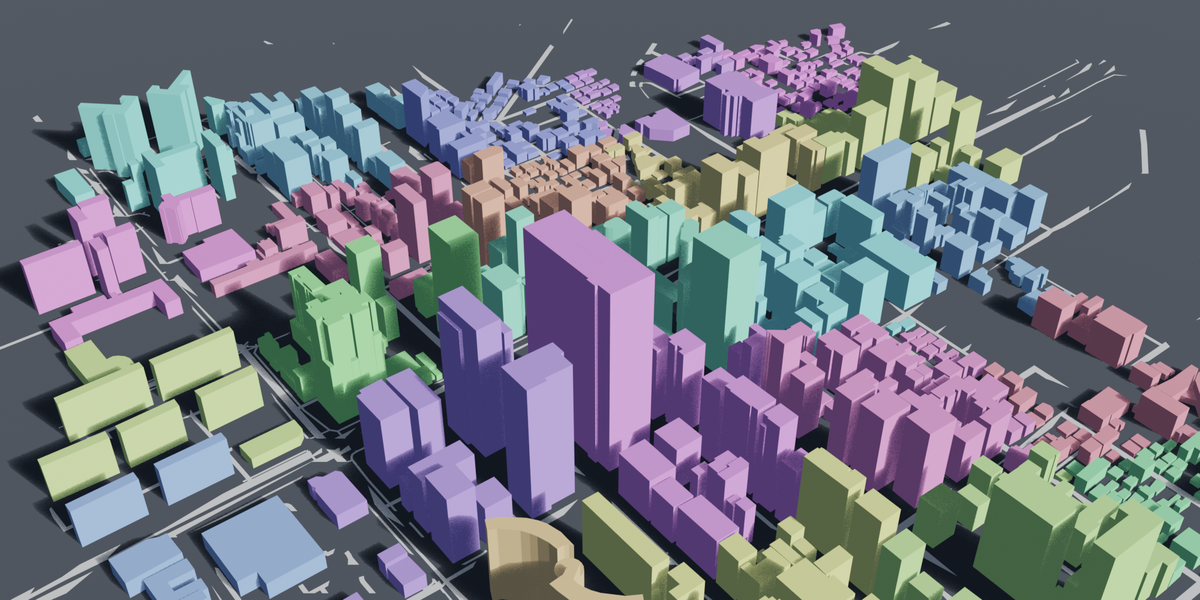
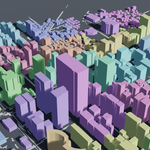
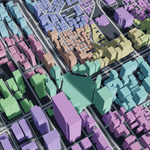
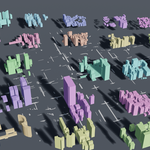
Install
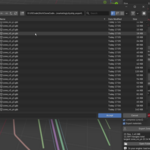
- Edit > Preferences > Add-ons
- Install from Disk… and pick the downloaded zip (do not unzip it)
- Tick the checkbox next to CityShip
- Press N in the 3D viewport and open the CityShip tab
Quick start
- Import a city (for example with Blosm) or open your own scene. If you use Blosm, turn OFF "Single object" before importing, otherwise the whole city arrives as one mesh and cannot be split.
- Pick your Target engine: three.js, Unity, Godot or Unreal.
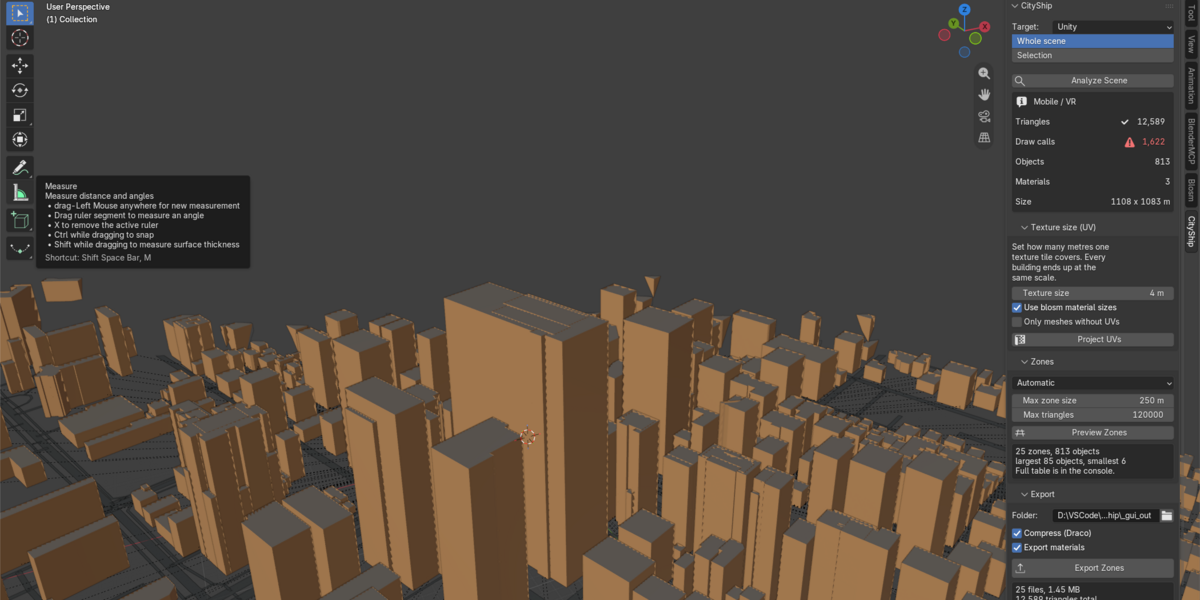
- Analyze Scene — triangles, draw calls, materials and size against a budget for that platform.
- Project UVs — gives every face the same texture scale in metres.
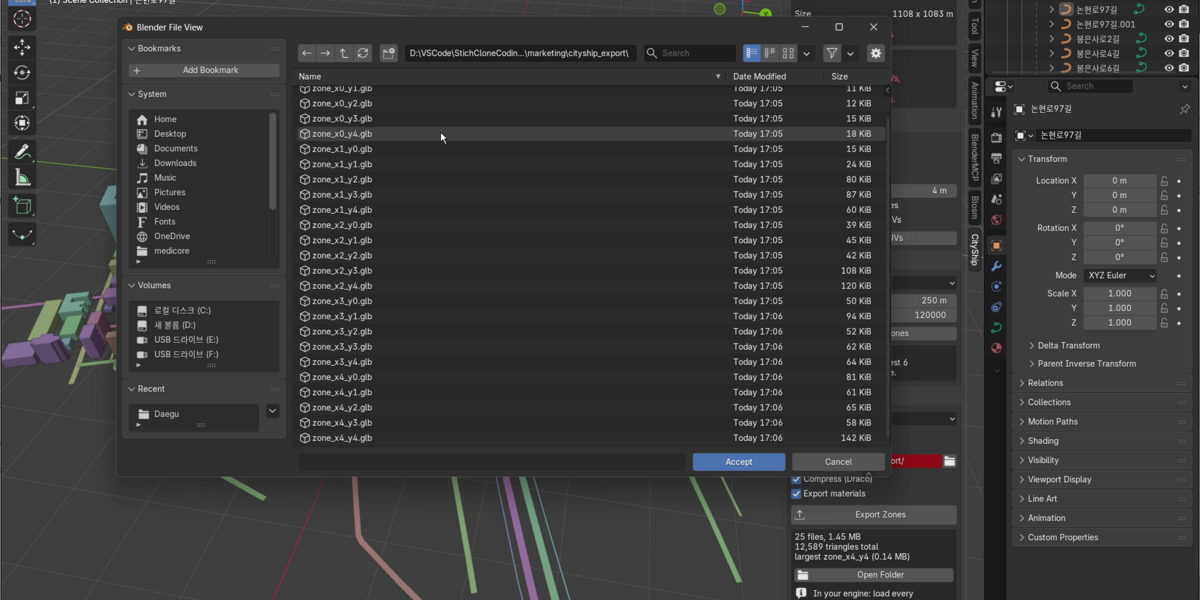
- Pick a Format (glTF/GLB or FBX), set an output Folder, and press Export Zones.
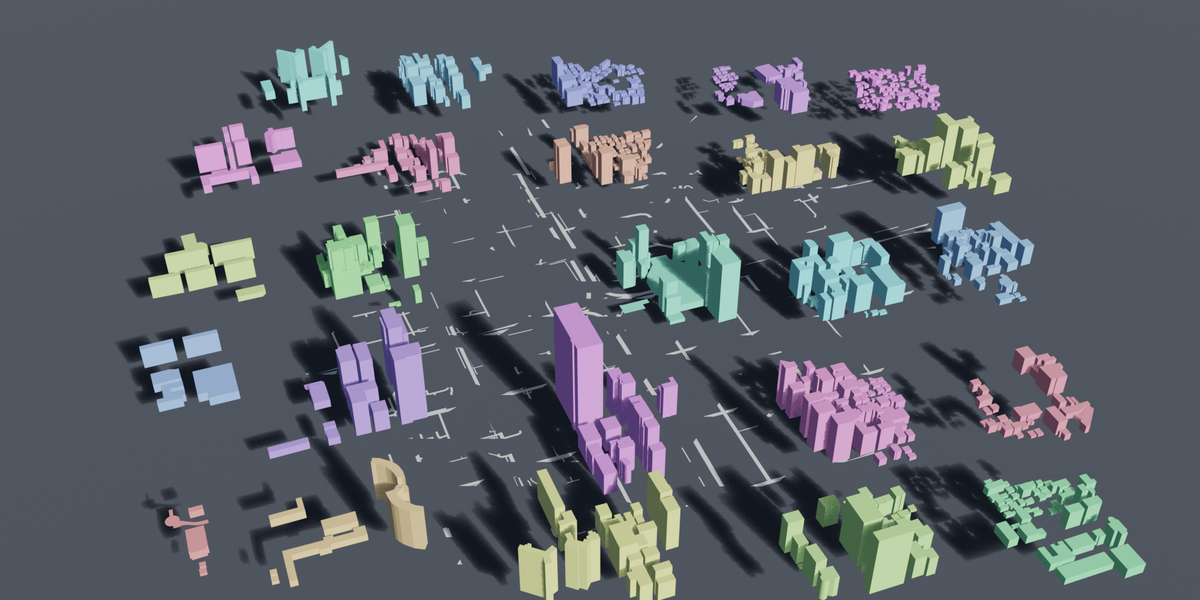
You get one file per zone plus a manifest.json.
Loading the zones in your engine
Load every file at position (0, 0, 0) with no rotation and no scaling. Each file keeps its original world coordinates, so the pieces land in the right place on their own.
manifest.json lists each zone's file, triangle count, draw calls, size in bytes and world-space bounds. Use the bounds for distance-based streaming. Zones marked "always_load": true hold meshes larger than one cell (terrain, ground planes, road networks) — keep those loaded.
Buttons
- Analyze Scene — draw calls are an upper bound (objects × materials used); engines batch, so the real count is lower. Problems that would block the export are listed under Needs attention.
- Project UVs — one texture tile covers a fixed distance (4 m by default). Walls are projected along their own normal, so slanted walls keep exact texel density, and vertical UV follows world height. Use blosm material sizes applies per-material sizes for Blosm's wall, roof, terrain, water and forest materials. Only meshes without UVs leaves existing UVs alone.
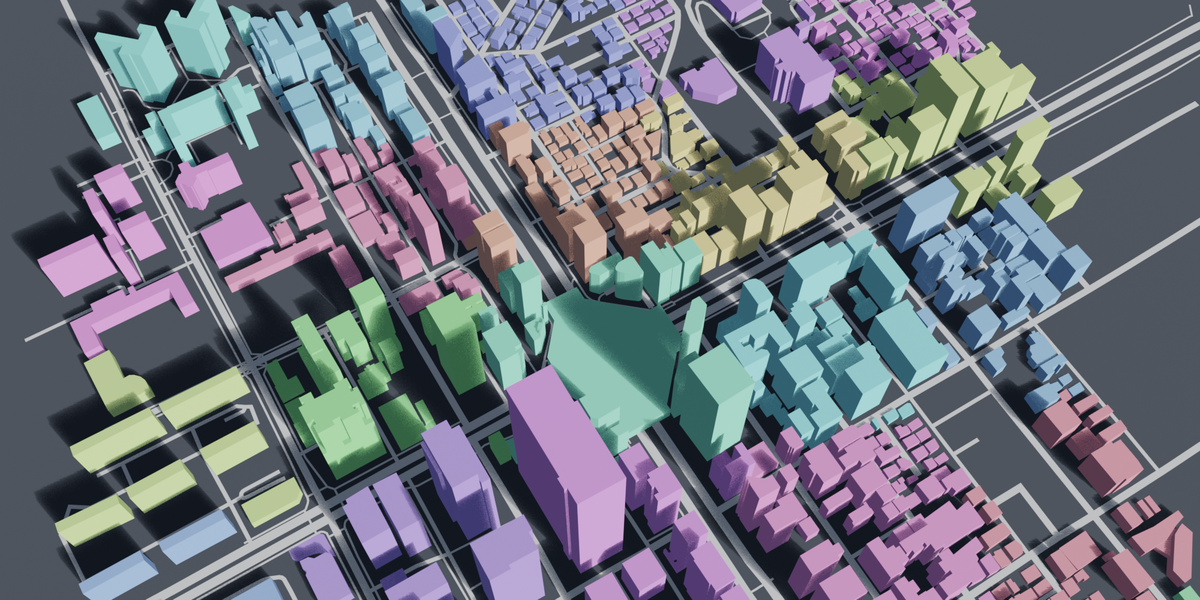
- Zones — Automatic picks the grid from whichever is tightest: triangle count, zone size or object count. Fixed grid lets you choose columns and rows, Use collections writes one file per collection, One file does not split. Max zone size (250 m by default) is your streaming granularity. Objects are sorted by their centre, never cut, so zones can overlap slightly.
- Export Zones — for glTF/GLB, Draco compression is on with quantisation tuned so world-scale UVs do not drift. FBX has no compression, so that option is greyed out.
Which format?
- glTF / GLB — about 2× smaller. Unity needs Unity's own free glTFast package (Window > Package Manager > Add package by name). Best support in Godot, and the only practical option for the web.
- FBX — opens natively in Unity and Unreal. Larger, no compression.
Both formats preserve world coordinates exactly.
Troubleshooting
- Nothing got split / one zone holds almost everything — the scene is a single joined mesh. With Blosm, turn off "Single object" and import again. For your own scene: Edit Mode > P > By Loose Parts.
- Textures look stretched or the wrong size — run Project UVs. If some meshes already had UVs, untick Only meshes without UVs so they are redone at a consistent scale.
- "Save the .blend first, or set the output folder to an absolute path" — the default folder is relative to the .blend file. Save the file or type a full path.
- Draw calls over budget — merge materials, or join objects that share one.
- Unity cannot import the .glb — install Unity's glTFast package, or switch the Format to FBX.
- Export is slow — Draco compression is the slow part. Turn it off while iterating.
Limits
CityShip does not import OSM data, cut meshes, generate LODs or create textures.
Requirements and licence
Blender 5.0 to 5.2 on Windows, macOS or Linux. Released under GPL-3.0-or-later; the full licence text is included in the zip. Anything you export with CityShip is yours.
 Included
Includes 12 months of
- Support from AugyWorld
- Product updates
Extend this product’s Support Period +12 months: 50% of product price
Have questions before purchasing?
Login to message
| Published | about 2 months ago |
| Blender Version | 5.0 - 5.2 |
| Extension Type | N/A |
| Render Engine Used | Cycles, Eevee |
| License | GPL |
