Clay Magnet - Animate Invisible Rigs.
 Ali Amirdivan


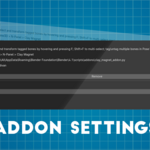
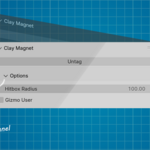
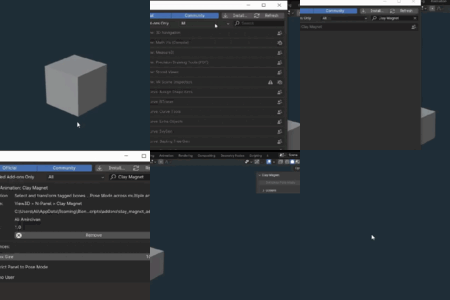
The installation guide is inside the documentation and in the addon page in form of a gif among the preview photos.
Short Version
Click Edit, Click Preferences. Click Add-Ons on the left, Click Install... at the top, Find the addon you downloaded in your computer, It's a ZIP file, Double click it, Wait 10 seconds so Blender installs and then automatically writes the installed addon's name in the search field to display the addon from the list, see it? Check the checkbox to activate, Enjoy.
Note: You don't have to save the blender file to save the addon, as soon as you check the activation box it will always be active and installed on your blender until you manually disable it. you can safely quit right after installing and/or activating.
Sometimes more advanced rigs feature custom shapes (e.g. Wireframe boxes around the hand instead of the default bone shape inside the palm).
Those shapes are meant to represent the bones better visually and outside the characters body, so they use different shapes and colors, Sometimes those shapes appear offset from the actual default bone's location, so you have to know where the basic default bone is.
You can usually guess where it would be, as the bone is always where it is supposed to work on the body, For example if your character's shoulders are using a curved custom shape around and outside the shoulders, since you know they are supposed to control the shoulders, the base default bone should be inside the shoulder or the clavicles, keep that in mind and click around to catch it.
You can also find and Unlink (X) the custom shape in the Bone Properties > Viewport Display > Custom Shape > Custom Object. But beware as this is tedious to undo manually as you have to find the custom shape again from the list of all custom shapes.
Discover more products like this
Efficient Animating 3D rigging blender3d 3d animation character posing