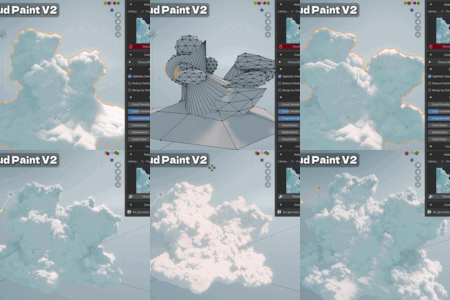
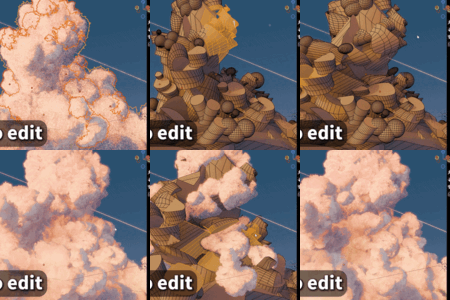
Cloud Paint V2- Stylized Cloud Generator

Casey_Sheep in Procedural Generators
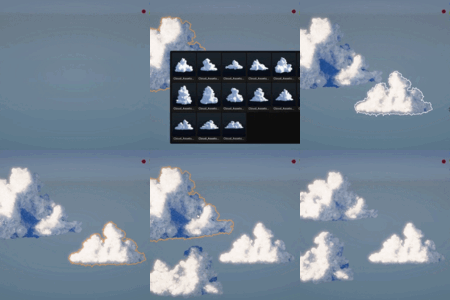

Cloud Paint — User Documentation

Painterly 3D Stylized Clouds for Blender

Stylized Cloud Paint Generator: Complete Workflow

Overview

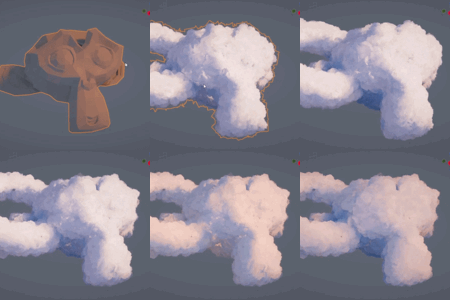
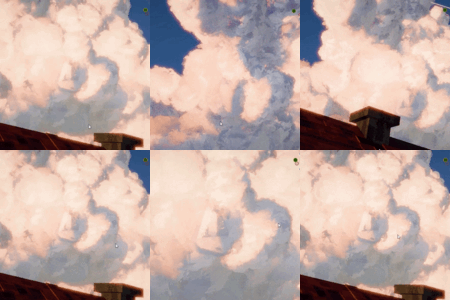
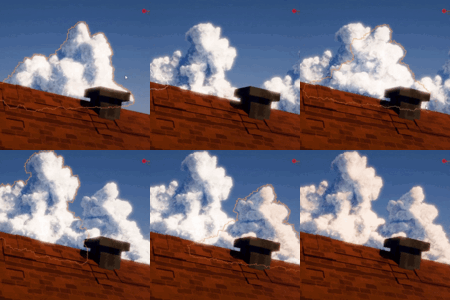
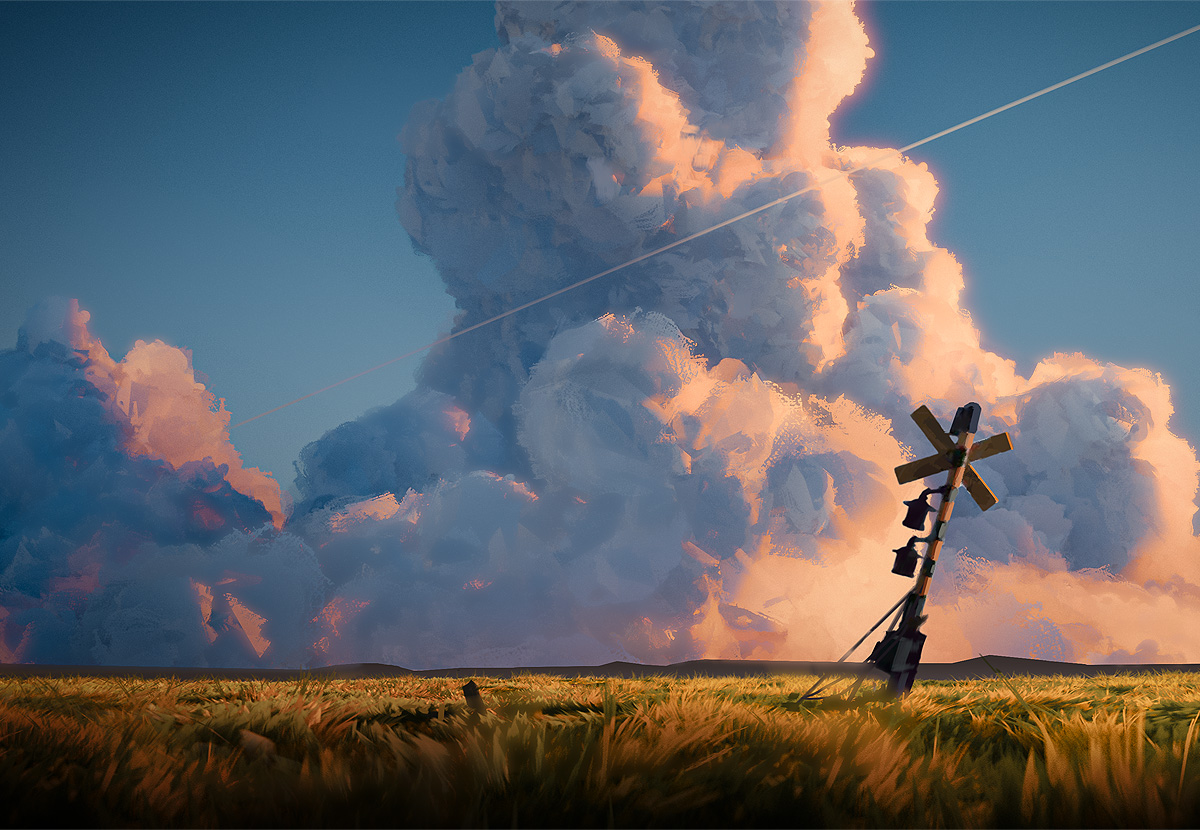
Cloud Paint is a Blender add-on for creating painterly, stylized 3D clouds with real volume you can view and render from any angle. Use built-in cloud assets for fast sky blocking, or apply the Cloud Generator to turn any mesh into a stylized cloud with ready-made presets.

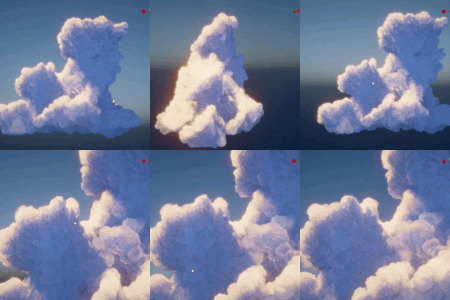
Cloud Paint stylized cloud example

Requirements

  • Blender 4.5 or above (including Blender 5.x)
  • Eevee only — Cloud Paint is designed for Eevee / Eevee Next. Cycles is not supported.
  • Recommended for anime scenes, fantasy skies, toon environments, and stylized environment workflows.

Installation & Activation

1

Open Blender, go to Edit > Preferences > Add-ons

2

Click the Install... button and select the Cloud Paint .zip file

3

Enable the add-on by checking its checkbox in the list

After enabling, open the 3D Viewport sidebar (N key) and switch to the Cloud Paint tab.

Panel Overview

The Cloud Paint panel has two main sections:

  • Assets Library — Browse cloud assets and generator presets, then import or apply them
  • Control Panel — Adjust Geometry Nodes modifier parameters on the active object

Use the header icon to Reload Assets (refresh thumbnail library).

Assets Library

  • Library Type: Filter by category, or choose All to show every asset
  • Thumbnail Grid: Click a thumbnail to select an asset or generator preset
  • Regular assets show Import Asset; generator presets show Cloud Generator

How to Import Built-in Cloud Assets

Steps

  1. In Assets Library, choose a Library Type (or All)
  2. Click a cloud asset thumbnail (non-generator item)
  3. Optionally enable Import at 3D Cursor to place the cloud at the cursor; otherwise it imports at the world origin
  4. Click Import Asset

Imported clouds are linked into your active collection and automatically selected. Use them for fast sky blocking, background clouds, and quick environment setup.

Cloud Generator — Mesh to Stylized Cloud

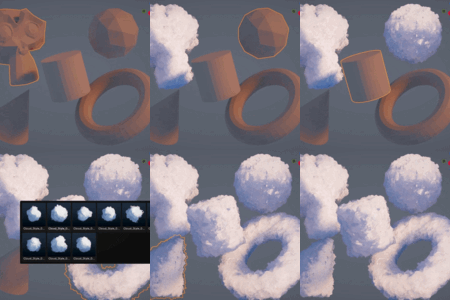
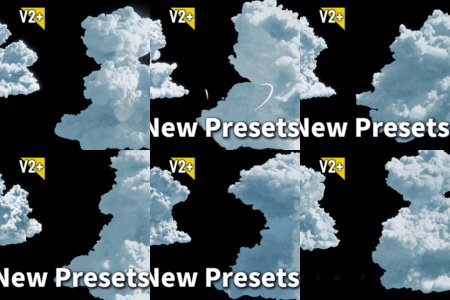
The Cloud Generator converts a mesh object into a painterly stylized cloud by applying a Geometry Nodes modifier. The library includes 10 ready-to-use generator presets for different cloud styles.

  • Generator items appear under library types ending with _Generator
  • Select one or more mesh objects, pick a generator preset, then click Cloud Generator
  • If the active object already has the generator modifier, the button turns red and removes it from selected objects

Steps to Apply a Generator Preset

  1. Select a mesh object (plane, cube, or custom silhouette)
  2. In Assets Library, filter to a _Generator category
  3. Click a generator preset thumbnail
  4. Click Cloud Generator to apply the modifier
  5. Open Control Panel to fine-tune shape, density, and look

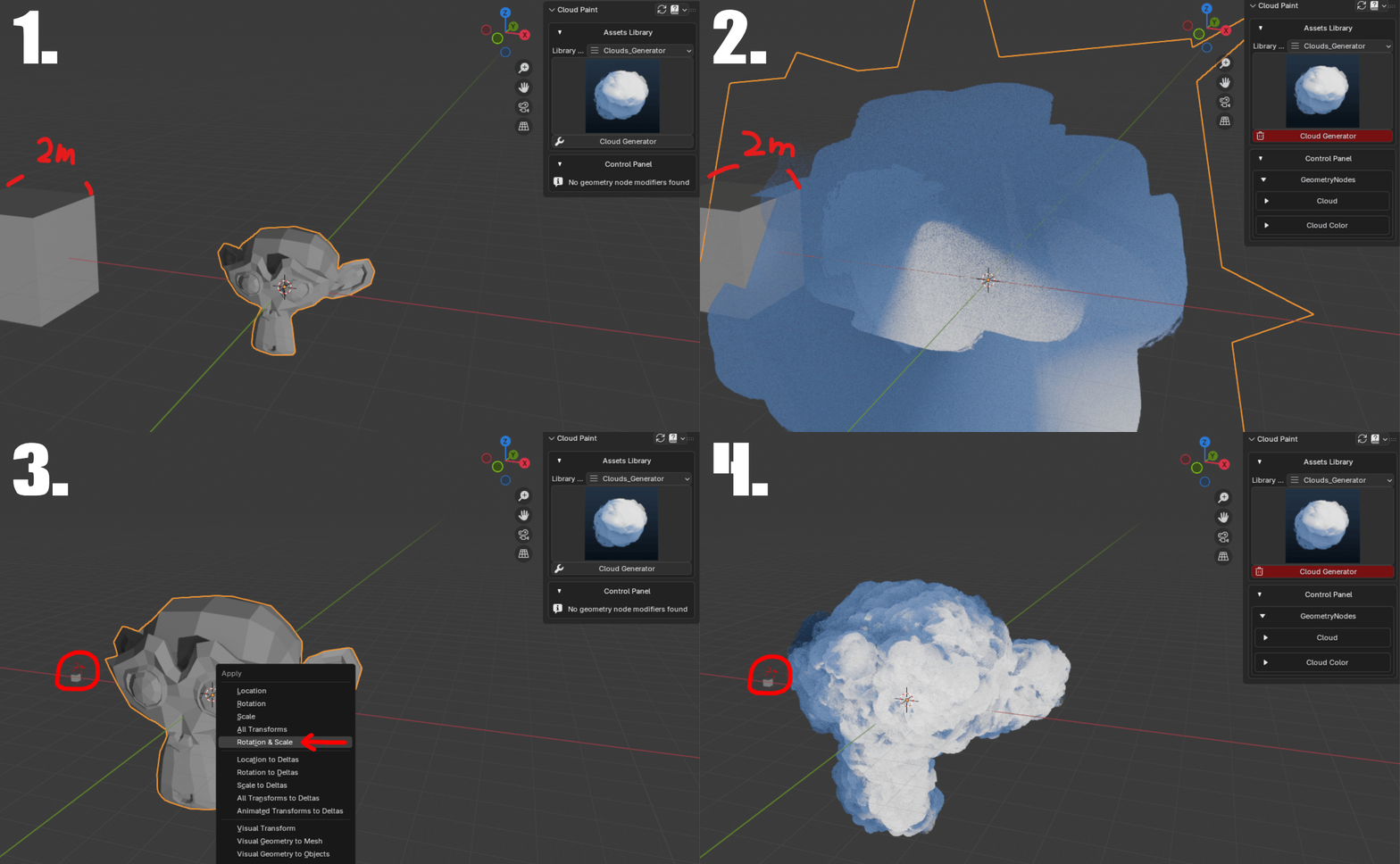
Common issue: mesh too small

When generating a cloud with Cloud Generator, if the mesh object is too small, the result may not look correct. Scale up the object first, then apply Scale & Rotation (Object > Apply > Scale & Rotation, or press Ctrl+A and choose Scale & Rotation).

Scale up a small mesh and apply Scale and Rotation before Cloud Generator

Cloud Paint mesh to cloud generator example

Control Panel

The Control Panel displays Geometry Nodes modifiers on the active object and lets you adjust parameters without opening the modifier stack.

  • Modifier Expand/Collapse: Click a modifier name to show or hide its parameters
  • Category Groups: Related settings are grouped into collapsible categories for easier navigation
  • Supports sliders, vectors, colors, materials, collections, and object inputs where exposed by the node group

Select an object with a Cloud Generator modifier applied, then expand categories in the Control Panel to shape your cloud and art-direct the final look.

Eevee Render Settings

Cloud Paint is built for Eevee. If your scene is not set up correctly, a red warning appears at the top of the panel.

Click Click to Fix Eevee Settings to switch to the correct Eevee engine and enable ray tracing when needed.

Workflow Recommendations

Quick sky with built-in assets

  1. Fix Eevee settings if prompted
  2. Browse Assets Library and import ready-made clouds
  3. Move, scale, and duplicate clouds to block out your sky

Custom cloud shapes from mesh

  1. Create or select a mesh that defines your cloud silhouette
  2. Pick a _Generator preset and click Cloud Generator
  3. Tweak parameters in Control Panel until the shape and painterly look match your scene
  4. Try different presets to compare styles without rebuilding the mesh

Things to Know

  • Cloud Paint supports Blender 4.5+ and is designed for Eevee only. Cycles is not supported.
  • Clouds generated from larger or denser meshes may produce higher polygon counts and can affect performance on lower-end hardware.
  • Performance depends on your hardware, scene complexity, and viewport settings.
  • This product is intended for use inside Blender. Exporting Cloud Paint assets, shaders, or node systems to other software or game engines is not officially supported.
  • Cloud Paint Addon + Over30 Presets

    $24
  • Cloud Paint+GrassPaint+StylizedWater All Presets

    $38
$24

Have questions about this product?
Login to message

Details
Sales 700+
Rating
2 ratings
Dev Fund Contributor
Published 5 months ago
Blender Version 4.5 - 5.1
Render Engine Used Eevee
License Royalty Free
Discover more products like this

clouds cloud stylized eevee