Collection Copier - Copy Paste Collections
 baolongshen


📖 Collection Copier - Official Documentation
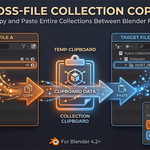
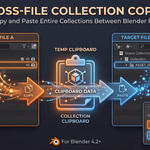
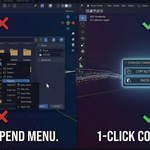
Welcome to Collection Copier! This lightweight add-on is designed to make transferring entire collections between different Blender files as easy as copying and pasting text.
1. Installation Guide
Installing Collection Copier takes only a few seconds:
Download the provided
.zipfile after purchase. (Do not extract it).Open Blender and navigate to Edit > Preferences > Add-ons.
Click the Install... button in the top right corner.
Locate and select the downloaded
.zipfile, then click Install Add-on.In the Add-ons list, search for "Collection Copier" and check the box next to it to enable the add-on.
2. How to Use (Step-by-Step)
Step A: Copying a Collection
Open your source Blender project.
In the Outliner, click on the icon of the Collection you want to copy to make it the active selection. (Note: This will also copy all nested child collections inside it).
Hover your mouse over the 3D Viewport and press the
Nkey on your keyboard to open the Sidebar.Click on the Tool tab.
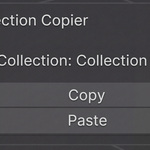
In the "Collection Copier" panel, click the Copy button. You will see an info message at the bottom of the screen confirming it was successful.
Step B: Pasting the Collection
Open your target Blender project (or open a completely new Blender window).
Open the
Npanel in the 3D Viewport and go to the Tool tab.Click the Paste button.
The copied collection—along with all its objects, materials, modifiers, and hierarchies—will instantly appear in your active scene!
3. Frequently Asked Questions (FAQ)
Where is the copied data stored? Will it fill up my hard drive? The add-on securely writes the data to your operating system's default temporary folder (Temp). Every time you click "Copy", it simply overwrites the previous file. It will never clutter your hard drive with junk files.
Can I copy multiple separate collections at the same time? The tool copies the currently active collection. If you need to copy multiple separate collections at once, the easiest workaround is to simply drag them into a new "Parent" collection in the outliner, and then copy that Parent collection.
Does it keep my materials and textures? Yes! It works exactly like Blender's native "Append" feature under the hood. All materials, node setups, and modifiers attached to the objects within the collection are transferred perfectly.
4. Support & Feedback
If you encounter any bugs, have feature requests, or need help with the add-on, please feel free to send a message through the creator contact form on this platform. Happy blending!
Have questions about this product?
Login to message
| Blender Extension Compatible | Yes |
| Published | 7 months ago |
| Blender Version | 3.0 - 5.0 |
| Extension Type | Add-on |
| Render Engine Used | Cycles, Eevee |
| License | GPL |

Discover more products like this
append clipboard kitbash utility E-commerce collection productivity asset management paste copy Workflow transfer