 kaleab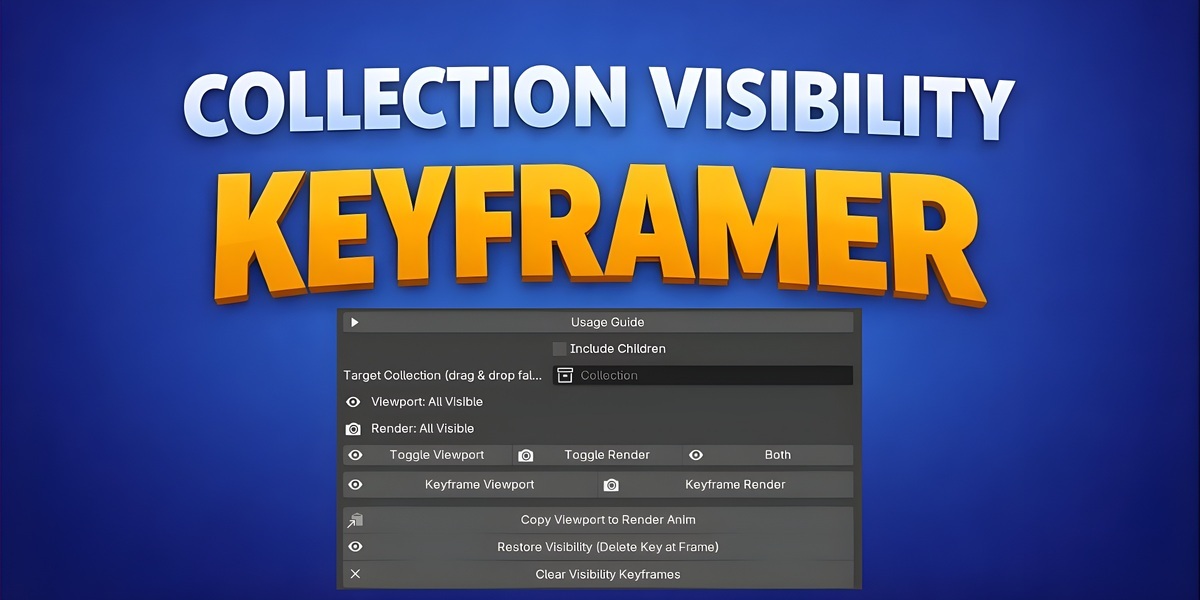



Installation
- Download the addon ZIP file (do not unzip it).
- In Blender, go to Edit > Preferences > Add-ons.
- Click Install and select the ZIP file.
- Search for "Collection Visibility Keyframer" and enable the checkbox.
- The panel will appear in the Properties editor under the Scene context.
Compatibility: Blender 4.4 and later.
Accessing the Panel
- Switch to the Properties editor (icon looks like a wrench or use the sidebar).
- Select the Scene tab (icon looks like a clapperboard).
- Look for the Visibility Keyframing panel (it may be collapsed by default, expand it).
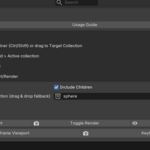
The panel includes a Usage Guide button (toggle with the arrow icon). Enabling it shows a quick reference:
- Multi-select collections in the Outliner (Ctrl/Shift) or drag to the Target Collection field.
- Fallback order: Selected collections > Target Collection > Active collection.
- Toggle visibility first, then set frame and keyframe.
Targeting Collections
The addon operates on one or more collections. Selection logic:
- Primary: Select collections in the Outliner editor (use Ctrl/Shift for multiples). Operations apply to these.
- Fallback: If no Outliner selection, use the Target Collection field (drag a collection from the Outliner or search/select it).
- Last Resort: If neither is set, it uses the active collection (the one highlighted in the Outliner).
- Recursive Option: Enable Include Children to apply operations to all child collections recursively. This is useful for nested hierarchies.
If no valid collections are found, operations will show a warning.
State Display: Below the options, the panel shows a sampled state of the target collection(s) (Viewport/Render: All Visible/Hidden/Mixed). It samples up to 50 objects to avoid performance issues in large scenes. If empty, it notes "No objects in target."
Operations
All buttons support undo (Ctrl+Z) and update the viewport/render as needed. They only affect objects within the targeted collections (empty collections are skipped).
Toggling Visibility
These switch visibility for all objects in the targeted collections. If objects have mixed states, it toggles based on the majority state.
- Toggle Viewport (icon: eye): Hides/shows objects in the 3D viewport. Useful for decluttering during editing.
- Toggle Render (icon: camera off): Hides/shows objects in renders. Helps optimize render times.
- Toggle Both (text: Both, icon: eye): Syncs both viewport and render to the same state.
Reports the number of affected collections (or warns if none).
Keyframing Visibility
These insert keyframes at the current frame for all objects in the targeted collections. Keyframes use constant interpolation for sharp on/off transitions and are grouped under "Visibility" in the Graph Editor/Action Editor.
- Keyframe Viewport (icon: eye): Keys the current viewport hide state.
- Keyframe Render (icon: camera off): Keys the current render hide state.
To animate:
- Toggle visibility to the desired state.
- Set the timeline frame.
- Click the keyframe button.
- Move to another frame, toggle again, and keyframe.
Reports the number of objects keyed (or warns if none).
Transferring Animations
- Copy Viewport to Render Anim (icon: down arrow): Copies all viewport visibility keyframes to the render channel for objects in the targeted collections. Overwrites existing render keys. Only works if viewport keys exist.
Reports the number of collections affected (or warns if none).
Clearing and Restoring
- Clear Visibility Keyframes (icon: X): Removes all viewport and render visibility keyframes from objects in the targeted collections. Resets objects to visible in both viewport and render.
Reports the number of collections cleared (or warns if none).
- Restore Visibility (Delete Key at Frame) (icon: eye): Globally scans all scene objects (not just targeted collections) and deletes any viewport/render visibility keyframes at the current frame. If no keys remain for an object, sets it to visible. Useful for cleanup across the entire scene.
Reports the number of objects restored (or notes if none needed).
Tips and Best Practices
- Performance: For very large scenes, disable Recursive or sample states may lag slightly, it's optimized but Blender's object iteration can be slow.
- Animation Workflow: Use in combination with the Graph Editor to fine-tune timings or add easing (though defaults to constant for visibility).
- Edge Cases: If collections are empty or have no objects, operations skip them silently.
- Undo/Redo: All changes are undoable, but keyframing creates animation data, use Clear to remove it.
- Debugging: Check the Blender console (Window > Toggle System Console) for any errors.
- Customization: The addon uses custom actions/slots named like "ObjectName_visibility", avoid manual edits to prevent conflicts.
Have questions about this product?
Login to message
| Sales | 10+ |
| Dev Fund Contributor | |
| Published | 8 months ago |
| Blender Version | 4.4 - 5.2 |
| Extension Type | N/A |
| Render Engine Used | Cycles, Eevee |
| License | GPL |
Discover more products like this
animation toggle viewport Workflow collections tools visibility blender keyframing Render addon