Collection Zones
 Giorgi Samukashvili


Version 1.1.0 Released!
Collection Zones — User Documentation
Collection Zones is a Blender add-on that automatically organizes objects into collections based on where they are in 3D space. Place an object inside a zone and it moves to that zone's collection. Move it out and it returns home. No manual drag-and-drop in the Outliner needed.
Installation
- Download the add-on
.zipfile. - Open Blender and go to Edit → Preferences → Extensions.
- Click Install from Disk... and select the
.zip. - The add-on is enabled automatically after installation.
Blender version: Collection Zones officially supports Blender 5.0 and later.
Where to Find the Panel
Once installed, open the 3D Viewport sidebar by pressing N. You will find a tab called Collect. Zones on the right-hand side.
Getting Started
The basic idea is simple:
- Pick a collection in the Outliner.
- Click Create Zone in the sidebar — a wireframe cube appears in the viewport representing that collection's zone.
- Resize and reposition the cube to cover the area where objects belonging to that collection should live.
- Enable zones with the Zones Active toggle.
- Move objects around — the add-on automatically reassigns them to the correct collection whenever they enter or leave a zone.
Main Panel
The top of the Collection Zones panel contains global controls that affect everything.
Zones Active
A large toggle button at the very top. When active (showing a play icon), zone detection is running. When inactive (showing a pause icon), nothing is detected and objects stay wherever they are.
Settings
| Setting | Description |
|---|---|
| Show Zones | Hides or shows all zone wireframe cubes in the viewport at once. Useful to declutter the viewport while you work. |
| Check Interval | How often (in seconds) the add-on checks object positions. Lower values are more responsive but heavier on performance. Default is 0.5 seconds. |
| Show Movement Log | Enables a log panel at the bottom of the sidebar that records every time an object is moved to a new collection. |
| Fallback | The collection objects are sent to when they leave every zone and have no original collection to return to. If left empty, the Scene Collection is used. |
Refresh All Zones
The Refresh All Zones button (with a refresh icon) updates the name and display of every zone object in the scene. Use this if you rename a collection and want the zone object's name to reflect that change.
Collection Zones
A Collection Zone is a resizable wireframe cube that defines the 3D area belonging to one specific collection. Any object whose origin falls inside the cube will be assigned to that collection.
Creating a Zone
- Click on a collection in the Outliner to make it active.
- In the sidebar panel, the collection's name will appear below the Settings box.
- Click the Create Zone button (with a + icon).
- A wireframe cube appears at the 3D cursor position.
Resizing and Repositioning
Select the zone cube in the viewport and use the standard Blender transforms:
- G — move (reposition in 3D space)
- S — scale (resize the zone volume)
Important: Do not use Edit Mode to reshape the zone cube. Zone detection uses the object's scale and position, not the raw mesh shape. Editing vertices will make the detection volume mismatch what you see. Use scale instead.
You can also type exact values directly in the sidebar. When the zone is active, the panel shows:
- Zone Dimensions — Width (X), Length (Y), Height (Z) fields that reflect the actual size of the cube in world units.
- Position — The XYZ location of the zone's center.
Selecting a Zone Object
Click Select Zone (with the selection icon) to instantly select the zone cube and make it the active object. Handy if you have Show Zones turned off and can't click the cube directly.
Removing a Zone
Click the small X button next to the collection name in the panel header to remove the zone. The wireframe cube is deleted and the collection is no longer managed by zone detection.
World Zones (Chunk Grid)
World Zones is a more advanced system for large scenes. Instead of manually creating one zone per collection, it automatically generates a grid of equally-sized rectangular cells ("chunks") that tiles across a defined area of your world. Each chunk becomes its own collection.
This is useful for open-world scenes, large environments, or any situation where you want to organize objects by region without manually placing dozens of zone cubes.
Setting Up
In the World Zones sub-panel (collapsed by default), you will find the configuration fields — available only before the grid is generated:
| Setting | Description |
|---|---|
| World Width (X) / World Length (Y) | The total size of the area to cover. |
| Chunk Width (X) / Chunk Length (Y) | The size of each individual cell. |
| Grid Center X / Y | Where in the world the grid is centered (defaults to the origin). |
A preview label below the settings shows how many chunks will be created (e.g. "Will create 100 chunks (10 × 10)").
Once you are happy with the settings, click Generate World Zones. A confirmation dialog will appear (especially if the number of chunks is large) — click OK to proceed.
Note: Large grids (hundreds of chunks) may slow down the Outliner. It is recommended to set up World Zones in a fresh scene and build your project from there.
Grid Overlay
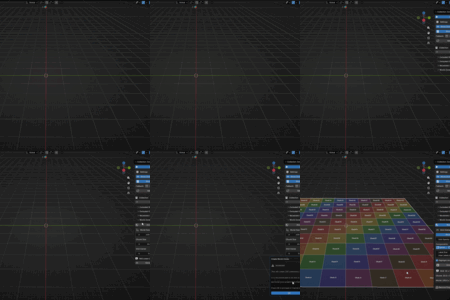
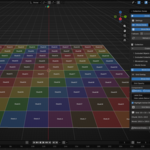
After the grid is generated, a visual overlay appears directly in the viewport. You can control it from the Grid Overlay section:
| Setting | Description |
|---|---|
| Show Grid Overlay | Master toggle for the entire overlay. |
| Grid Opacity | How transparent the overlay is. |
| Wireframe | Draw the grid lines. |
| Color Fill | Color each chunk cell based on its collection color tag. |
| Labels | Show the chunk name (e.g. "Chunk A1") in the center of each cell. |
| Label Size | Font size for the chunk labels. |
| Highlight Active Chunk | Tints the chunk that contains the currently selected object. |
Chunk Naming
Chunks are named using a spreadsheet-style grid reference: columns are letters (A, B, C, …) and rows are numbers (1, 2, 3, …). For example: Chunk A1, Chunk B3, Chunk AA1.
Managing the Grid
After generation, two buttons appear at the bottom of the World Zones panel:
- Remove Empty Chunks — Deletes any chunk collections that contain no objects. Great for cleaning up after you have finished placing everything.
- Remove All — Tears down the entire World Zones grid and deletes all chunk collections.
Excluding Objects
Sometimes you have objects that should never be automatically reassigned — for example, a camera, a light rig, or helper objects. You can exclude specific objects from zone detection entirely.
Excluding Objects
- Select the object(s) you want to exclude in the viewport.
- Open the Excluded Objects sub-panel in the sidebar (collapsed by default).
- Click Exclude Selected.
The selected objects will appear in the exclusion list and will be ignored by zone detection from that point on.
Removing Exclusions
- Click the small − button next to an object's name in the list to un-exclude that single object.
- Click the X button at the top of the panel to remove all exclusions at once (Clear All Exclusions).
Excluding Collections
You can also exclude entire collections. Objects in an excluded collection will never be moved out by zone detection, even if another zone overlaps them.
Excluding a Collection
- Click a collection in the Outliner to make it active.
- Open the Excluded Collections sub-panel in the sidebar.
- Click Exclude Active.
Collections that have their own zone attached, as well as World Zone collections, cannot be excluded — the button will be grayed out for those.
Removing Exclusions
- Click the − button next to a collection's name in the list to un-exclude it.
- Click the X button to clear all collection exclusions at once.
Movement Log
The Movement Log sub-panel records every collection reassignment the add-on makes. Each entry shows the object name and the collection it was moved to, in the format:
ObjectName → CollectionName
The log shows the 15 most recent entries in the panel. Up to 50 entries are stored in total. Click the X button in the log header to clear all entries.
Note: The log panel is only visible when Show Movement Log is enabled in the Settings.
Active Zone Info
When you select a zone wireframe cube in the viewport, the Active Zone Info sub-panel (collapsed by default) becomes available. It shows:
- Which collection the zone belongs to.
- The zone's current dimensions.
- A list of all objects currently inside that collection.
Tips
- Zone detection is triggered by moving objects. If you manually drag a collection assignment in the Outliner, the add-on detects this and updates its internal tracking accordingly — your manual change is respected.
- Resize zones with S, not Edit Mode. Entering Edit Mode on a zone cube will trigger a warning popup reminding you of this. The detection volume is calculated from the object's scale, so only scaling in Object Mode works correctly.
- Overlapping zones: If an object is inside more than one zone, it is assigned to the zone whose center is closest to the object's origin.
- The Fallback collection catches any object that leaves all zones but has no original collection to return to. Setting one explicitly keeps your Outliner tidy.
- Check Interval: If objects seem to snap to the wrong collection with a slight delay, try lowering the Check Interval in the Settings.
Have questions about this product?
Login to message
| Blender Extension Compatible | Yes |
| Dev Fund Contributor | |
| Published | 6 months ago |
| Blender Version | 5.0 - 5.2 |
| Extension Type | Add-on |
| License | GPL |
Discover more products like this
kitbashing automatic collection sorting tool chunk-based 3d asset collection 3d-workflow-automation chunk zones sorting collection automation