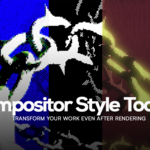
Compositor Style Toolkit For Blender
 Mica
Mica


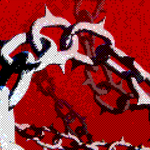
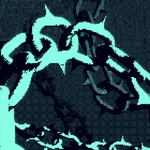
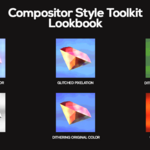
What about future updates?
All future updates will be free. Please create an account before purchasing to access future update files. Making any purchase as a guest won't grant you access, as that is linked to your purchase history.
How do I install the Compositor Style Toolkit?
- Download the Compositor Style Toolkit zip file, and extract its contents.
- You'll end up with a Compositor Style Toolkit folder. Make sure to keep it somewhere safe in your device.
- Open Blender, go to Edit > Preferences > File Paths > Asset Libraries, and press the "+" button.
- A window will pop up. Navigate inside your Compositor Style Toolkit folder and hit Add Asset Library.
- Make sure you hit Save Preferences, and you're done!
I've already added it. How can I access the effects?
- Open the Asset Browser window in your Blender.
- Click on the drop-down button at the top left corner and select Compositor Style Toolkit.
- That's it! You can now drag & drop your favorite effect directly into the Compositing tab.
Can I use this with Cycles and EEVEE?
Yes!! You can use the Compositor Style Toolkit on any of your Cycles or EEVEE projects.
$15
Have questions about this product?
Login to message
| Sales | 20+ |
| Published | about 1 year ago |
| Blender Version | 4.2 - 4.5 |
| Render Engine Used | Cycles, Eevee |
| License | Royalty Free |
Discover more products like this
halftone Blender_Compositing Dithering Artistic Compositing CRT Blender pixelation postprocessing retro 3d effect