Cool Addons Menu
 Kito Studio




**************************************************
Cool Addons Menu1.0
**************************************************
YouTube presentation video: https://youtu.be/060NC2pbluc
1 - Installation
================
The main addon file is CoolAddonsMenu1_0a.zip
Don't unzip the file
- Run Blender
- Go to Edit/Preferences/Add-ons
- Click the menu "Install from disk..." in the top right of the preferences windows
- Navigate to the file CoolAddonMenu1_0a.zip ,select and validate
The addon is now installed.
There is no configuration to be made
2 - Access to the addon
=======================
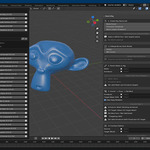
Cool Addons Menu can be reached with the dedicated "plugin" button in the 3Dview header menu.
You can also display Cool Addons Menu window with shortcut ALT+K
3 - Features
============
a/ Addons list
The Addon list will automatically detect and list your activated addons.
Only the addons that have a panel in the N-Panel will be listed.
If you install new addons or uninstall or enable/disable addons, Cool Addons Menu will dynamically update its lists.
The addons are listed alphabetically.The current version of each addon is listed beside the name.
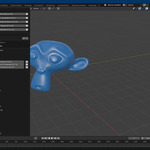
If you click the "Sort by N-Panel tabs" checkbox, the addons will be categorized by the N-Panel tab they are located in.
The tabs are listed alphabetically.
The number after the name indicated the number of addons found in the tab.
Just click on a tab to view the addons it contains.
b/ Access the addon panel
Just click on the addon you want to use. It will open its panel.
To display back the addons list, click again on "Cool Addons Menu" button.
c/ Access the addon preferences page of your addons
Just click the gear button to access the preferences configuration page of the selected addon
d/ Addons finder
The addons finder let you type whatever string you want to search.
Type a string and press the find button.
It will filter the list with only the addons that contains the string you type in their name.
Click the x button to unfilter the list again
e/ Recently used
This area will not appear until you select at least one first addon.
The 5 last addons you have reached from Cool Addons Menu will appear in the "Recently used" list
From this list, you can select any addon and access it UI panel or preferences page the same way than the main list.
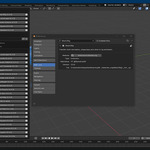
f/ Display disabled addons
This feature will display all your installed but disabled addons or those having issues.
Just activate the option and start cleanup your Blender session from unused addons.
4 - Know issues
***************
You may experience an error message "Error activating addon" when clicking on an addon you have selected
This can append in the following case:
- The addon you selected is not usable in the current mode you are in: Object mode, Edit mode, Sculpt mode, etc.
Just switch to a mode suitable for the addon
- Some addons may appear in the list while they do not have a UI panel.
- Their is a problem with the installation or configuration of the addon. Try to install it again
5 - Version history
*******************
1.0 (20250608):
- Initial release
1.0a (20250626):
- Renaming the addon from "Cool Addons Manager" to "Cool Addons Menu"
- The addon now has a dedicated button in the 3Dview header menu
- Add default shortcut ALT+K
- Description of the addons are now displayed as tooltip
- The addon is no longer displayed in the N-Panel tab but in a dedicated popup window
- Add new feature "Display disable addons"
- Fix the main and recent list when an addon is disabled
Have questions about this product?
Login to message
| Sales | 100+ |
| Dev Fund Contributor | |
| Published | about 1 year ago |
| Blender Version | 4.1 - 5.2 |
| Extension Type | N/A |
| License | GPL |