 SetPixel


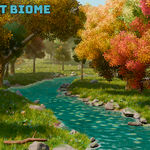
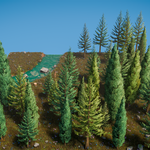
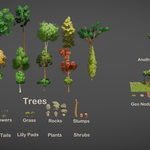
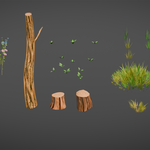
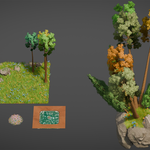
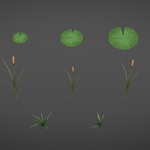
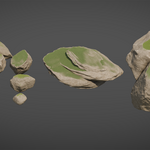
Cozy Forest Biome Asset Pack
Introduction
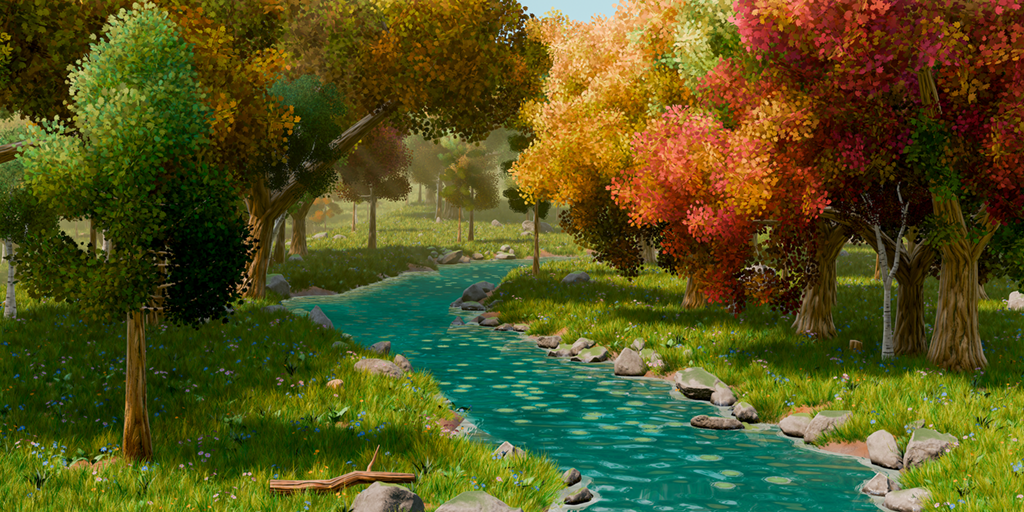
Welcome to the Cozy Forest Biome Asset Pack for Blender. This manual will guide you through installing, configuring, and using all the assets in the pack, including trees, rocks, foliage, and water features. The pack is designed for stylized environments, optimized for both real-time applications (games, engines like Unity) and rendered scenes in Blender (Eevee and Cycles).
Quick Overview
The SP Procedural Biome Scatter System is a stylized forest and environment toolkit for Blender, built around reusable assets, geometry nodes, and material-driven variation.
The pack includes trees, grass, flowers, shrubs, rocks, and water-aware elements designed to work together through consistent configuration nodes and shared materials. Variation is achieved through configurable parameters, seasonal controls, hue variation, and scatter-based overrides rather than manual duplication or material editing.
The system is non-destructive and modular, allowing you to build environments quickly while maintaining control over visual style, density, and seasonal appearance. It is aimed primarily at game-ready, low-poly environments, while still supporting higher-quality close-up renders when needed.
Installation
1. Set Up the Asset Library Path
Blender uses Asset Library paths to locate .blend files that contain assets.
To make the Cozy Forest assets available, the folder containing the asset .blend file must be added to an Asset Library path.
- You can place the asset
.blendfile inside an existing Asset Library path Or add a new path:
Go to Edit → Preferences → File Paths → Asset Libraries
- Click the + icon to add the Path
- Select the folder that contains the Cozy Forest asset
.blendfile - Save Preferences
Once added, Blender will scan this folder and make all items marked as assets available in the Asset Browser.
2. Asset Import Method
When dragging assets from the Asset Browser into your scene, Blender offers different import methods.
These methods do not affect the source asset file — they only control how data is handled inside your current scene.
Append (Reuse Data) — Recommended
- Imported assets share mesh, material, and node data
- Changes to shared data affect all reused instances
- Object transforms remain per-instance
This option is recommended for the Cozy Forest Biome Asset Pack, as assets are designed to support variation through configuration nodes, materials, and scatter systems rather than per-object duplication. Using Append (Reuse Data) keeps scenes lighter, avoids unnecessary duplicate materials, and allows consistent adjustments across large environments.
3. Using the Asset Browser
- Open an editor and switch it to Asset Browser
- Select the Cozy Forest library from the dropdown
- Drag assets directly into your scene
What's Included
The Cozy Forest Biome Asset Pack provides a complete stylized forest toolkit for Blender, suitable for large-scale environments and game-ready workflows. All assets are designed to support natural variation, efficient rendering, and scalable detail through LODs and shared systems.
Triangle Counts
All triangle counts listed below refer to LOD0 (base geometry).
Where LODs are provided, each level reduces triangle count by approximately 25–40% per LOD.
Trees
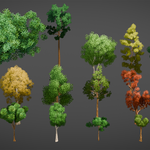
- 15 tree models with 4 bark types and 2 canopy types (broadleaf and fir)
- Broadleaf trees: 16 leaf variations
- Fir trees: 4 leaf variations
- Two textures per leaf type
- Seasonal color control via canopy materials, with variation generated automatically when instanced from the Asset Browser or scattered via the Biome Scatter Node
- LOD collections included for game export
- Triangle Count (LOD0): ~8,000 – 2,000 tris per tree
Grass
- 9 grass objects with 4 material variations
- Designed for clump and falloff-based scattering
- Triangle Count (LOD0): ~350 – 90 tris per clump
Flowers
- 9 flower objects with 3 color variations
- Intended for clustered and patch-based scattering
- Triangle Count (LOD0): ~1,200 – 600 tris per bunch
Shrubs
- 3 shrub objects with patch generator support
- Suitable for mid-ground and undergrowth
- Triangle Count (LOD0): ~400 tris per bunch
Ground Plants
- 2 ground plant objects for forest floor detail
- Triangle Count (LOD0): ~180 tris per bunch
Fox Tails
- 3 fox tail variations
- Used as accent foliage and ground detail
- Triangle Count (LOD0): ~300 tris per fox tail
Lily Pads
- 3 lily pad variations for water surfaces
- No LODs included
- Triangle Count (LOD0): ~200 tris per pad
Props
- 1 Tree log
- 2 Tree stumps
Rocks
- 9 rock objects designed for modular formation building
- RGB mix material with tri-planar projection
- Integrated moss, wetness, dirt, and edge masks
- High-poly meshes included
- LOD collections included for game export
- Triangle Count (LOD0): ~3,300 – 1,500 tris per rock
Materials & Shaders
- Shared canopy materials per tree type (broadleaf and fir)
- Tri-planar RGB Mask material system for rocks
- Light Ray material for God ray effects
- Water and ground materials integrated with the SP Water Mask Generator
- Combination of 4K textures and procedural shaders
Utility Nodes
- SP Procedural Biome Scatter Node — main node for distributing trees, foliage, and rocks across surfaces
- SP Water Mask Generator Node — generates water-aware masks for ground, rocks, and objects based on water intersections, enabling wetness and foam effects in compatible materials
- Clump and falloff generators for grass, flowers, and shrubs
- Selector nodes for foliage and asset filtering
- Additional utility nodes for masks, variation, and control
- All nodes are asset-browser ready
Demo Scenes (Eevee & Cycles)
The asset pack includes two demo scenes, available from Blender’s Scene dropdown:
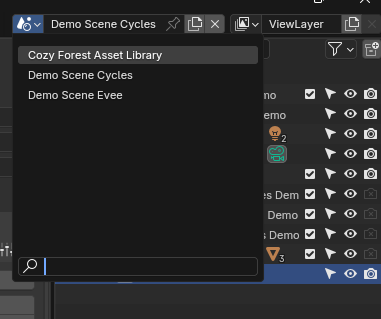
- Demo Scene Evee
- Demo Scene Cycles
The Eevee Demo Scene is ready to use out of the box and reflects the default material and lighting setup used throughout the pack.
The Cycles Demo Scene is provided as a reference for Cycles rendering. When using this scene, some material adjustments are required:
- The SP Tree Shader subsurface scattering values need to be reduced, as Cycles requires significantly lower SSS values than Eevee.
- The water shader has a cycles output that would need to be selected, although I get decent results at times depending on the scene with the Evee shader.
These demo scenes are intended as starting points and visual references rather than fixed presets.
All assets are organized in the Asset Browser with custom thumbnails and clear categorization for models, materials, geometry nodes, and utility nodes.
Using the Assets
Trees
The Cozy Forest Asset Pack includes a focused set of stylized tree assets built around shared materials and procedural configuration.
Included tree assets:
- 13 Broadleaf Trees
- 2 Fir Trees
All trees use the same core systems for variation, instancing, and biome control.
Tree Canopy Materials
Tree canopies use shared materials designed to support variation without duplicating material instances.
Key characteristics:
- Seasonal color control driven by a color ramp
- Hue variation applied per tree instance
- Optional per-leaf (texture-level) hue variation
Variation is achieved through material parameters and configuration inputs rather than unique materials, keeping large scenes efficient and consistent.
SP Tree Config Geometry Node
Each tree asset includes an SP Tree Config geometry node.
This node defines how variation is generated when a tree instance is created.
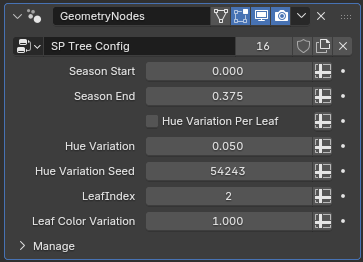
The SP Tree Config controls:
Season Start
Lower bound of the seasonal color range.-
Season End
Upper bound of the seasonal color range.A random seasonal value is chosen between these two values when a tree is instantiated.
Hue Variation
The amount of random hue variation applied per tree instance.Hue Variation Seed
Seed value used to randomize hue variation generation.-
Hue Variation Per Leaf (Boolean)
Controls how hue variation is applied:- Off: Variation is applied at the canopy level
-
On: Variation is applied per leaf texture
(This does not mean per physical leaf — it operates at the leaf texture level.)
Leaf Index
Selects which leaf texture set is used.-
Leaf Color Variation
Controls how much of the baked grayscale color variation in the selected leaf texture is used:- 0: No baked color variation
- 1: Full baked color variation
Instancing Behavior (Dragging and Duplicating)
When a tree is:
- Dragged from the Asset Browser into the scene
- Duplicated inside the scene
The SP Tree Config is evaluated and:
- A random seasonal value is chosen within the start/end range
- Hue variation is generated using the configured seed
- Per-instance variation is applied automatically
Each new instance receives its own randomized values.
Existing trees do not change unless their configuration is manually edited.
Editing Configuration Values
Some SP Tree Config values affect how trees randomize at creation time and should be edited at the asset library level.
- Season Start / End
- Hue Variation settings
- Hue Variation Per Leaf
To change how all future trees behave:
- Edit the SP Tree Config in the original asset library
.blendfile
Changing these values on a tree already placed in a scene:
- Only affects that specific tree
- Does not change how new trees are created
Leaf Index Behavior
The Leaf Index is a special case.
- It is intended to be set in the asset library file so that all trees of the same type use consistent leaf textures
- This ensures visual coherence across instances
However:
- The Leaf Index can be changed per tree in a usage
.blendfile - Changing it in-scene only affects that specific tree instance
Seasonal Color Ramp
Seasonal color is driven by a shared canopy material using a color ramp.
- The ramp operates in increments of 0.125
- This results in 8 discrete seasonal color steps
- The Season Start and End values define which part of the ramp is used
A random value within this range is selected when each tree instance is created.
Scatter Node Overrides
When trees are placed using the Biome Scatter Node, certain SP Tree Config values are overridden at evaluation time.
In this case:
- Seasonal ranges can be controlled at the biome level
- Hue variation values can be driven by the scatter setup
These overrides:
- Do not permanently modify the tree assets
- Only apply while the scatter system is evaluating
Manual tree placement and biome scattering can therefore coexist without conflict.
Summary
- Trees use shared materials and procedural configuration
- SP Tree Config controls instancing-time variation
- Randomization occurs when trees are created or duplicated
- Core configuration should be edited in the asset library file
- Leaf Index is consistent by default but can be overridden per instance
- Biome scattering overrides tree-level values without altering assets
Rocks
The Cozy Forest rock assets are designed to deliver high visual variation and consistency using a combination of baked detail and procedural surface layering.
Each rock uses:
- Its own dedicated rock material
- A shared triplanar base material utilizing a RGB mask for the base texture and micro normal detail
- Baked normals, edge masks, and dirt masks unique to each rock
This approach allows each rock to retain its sculpted identity while still benefiting from consistent texel density and procedural variation.
Rock Geometry and Materials
Each rock mesh includes:
- Baked normal maps from a high-poly source
- Custom baked edge masks
- Custom baked dirt masks, shaped specifically for that rock’s silhouette
Because these baked maps are unique per rock, each rock has its own material instance.
However, all rock materials reference the same underlying shared triplanar base material utilizing an RGB mask, which is responsible for:
- The main rock texture
- Micro normal detail
This ensures that all rocks share the same surface language while preserving their individual baked detail.
Moss, Dirt, and Wetness Layers
Surface layering follows a strict order to ensure consistent and believable results.
- Dirt and edge highlights are blended together using the RGB mix shader, driven by the rock’s baked dirt and edge masks
- This blended result is applied on top of the triplanar base material
- Wetness is applied next, layered over the existing surface
- Moss is applied last, sitting on top of all other surface detail
This ordering ensures that moss visually sits on top of wet or dry surfaces, while dirt and edge wear remain integrated into the rock’s base shading.
All dirt, edge, and moss values are controlled from a global configuration node that contains values for all 10 rocks. This allows you to adjust all parameters for each rock from one central location, avoiding the need to manually edit each rock material individually.
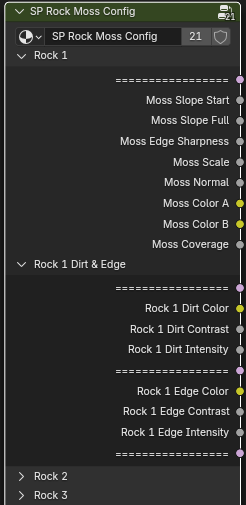
Parameters included in the global node:
- Dirt: color, contrast, intensity
- Edge: color, intensity, contrast
- Moss: moss slope start, moss slope full, moss edge sharpness, moss scale, moss normal, moss color A, moss color B, moss coverage
Moss System
Moss is generated procedurally in the rock material and behaves as follows:
- Moss grows only on upward-facing normals
- Rock orientation directly affects moss placement
- Rotating rocks naturally creates variation
Because moss is applied last, it always appears visually on top of dirt, edges, and wetness, reinforcing depth and realism.
Wetness System
Wetness is applied after dirt and edge blending, but before moss.
- Driven by externally generated mask attributes
- Typically used near water features
- Darkens and modifies surface response rather than altering texture detail
The rock materials are already configured to receive wetness masks.
Rotation, Scale, and Triplanar Behavior
Because the base material uses world-space triplanar projection, object transforms matter.
Important rule:
- Rotation and scale must be applied for correct moss, dirt, and wetness behavior
This is handled automatically when:
- Rocks are placed using the Biome Scatter Node
If you manually:
- Rotate rocks
- Scale rocks
- Build custom rock formations
You must:
- Apply Rotation and Scale (
Ctrl + A → Rotation & Scale)
Failing to do so can result in incorrect mask behavior.
Texel Density Consistency
The shared triplanar base material ensures:
- Texture detail does not stretch when rocks are scaled
- Large and small rocks maintain consistent texel density
- Micro detail remains visually stable across size variations
This allows rocks to be reused freely without texture adjustments.
Performance Notes
Triangle counts are defined at LOD 0.
Each LOD reduces geometry by approximately 25–40%.
Approximate base triangle counts:
- Rocks: ~3.3k – 1.5k tris per rock (LOD-ready)
Summary
- Each rock has its own material due to unique baked maps
- Shared triplanar base material utilizing an RGB mask provides consistent surface detail
- Dirt and edge highlights are blended via the RGB mix shader
- Wetness is applied before moss
- Moss is always layered last and driven by orientation
- Applied transforms are required for correct masking
- Global configuration node controls dirt, edge, and moss parameters across all rocks
- Texel density remains consistent at any scale
Foliage Assets
The Cozy Forest Biome pack includes a variety of foliage assets for ground and mid-ground detail. These are designed for flexible placement in Blender and efficient instancing, allowing you to quickly populate your scenes.
Triangle Counts
All triangle counts listed below refer to the base objects for each asset type.
Additional patches generated via the clump/falloff generators or scatter system will vary based on density, scale, and distribution.
Grass
-
9 individual grass clumps in varying sizes
- Includes 2 large and 2 medium-sized custom patches
- 4 material variations: 2 green and 2 dead/washed-out variants
-
MaskMap texture asset:
- G channel: Ambient Occlusion
- A channel: Smoothness (inverted in Blender material; authored for Unity)
- Patch Generator Node: Can create additional clumps/patches for use with the SP Biome Scatter Node
Usage Notes:
- Drag from the Asset Browser into the scene
- Or use the SP Biome Scatter Node to distribute over terrain
Triangle Count (LOD0): ~350 – 90 tris per clump
Flowers
- 9 flower objects with 3 color variations
- Designed for clustered or patch-based scattering
- Patch Generator Node: Can create additional clumps/patches for use with the SP Biome Scatter Node
Usage Notes:
- Drag from the Asset Browser into the scene
- Or scatter via SP Biome Scatter Node
Triangle Count (LOD0): ~1,200 – 600 tris per bunch
Shrubs
- 3 shrub objects, suitable for undergrowth or mid-ground
- Patch Generator Node: Can create additional clumps/patches for use with the SP Biome Scatter Node
Usage Notes:
- Drag from the Asset Browser into the scene
- Or scatter via SP Biome Scatter Node
Triangle Count (LOD0): ~400 tris per bunch
Ground Plants
- 2 forest floor plant objects for subtle detail
- Patch Generator Node: Can create additional clumps/patches for use with the SP Biome Scatter Node
Usage Notes:
- Drag from the Asset Browser into the scene
- Or scatter via SP Biome Scatter Node
Triangle Count (LOD0): ~180 tris per bunch
Fox Tails
- 3 fox tail variations for accent foliage
- Patch Generator Node: Can create additional clumps/patches for use with the SP Biome Scatter Node
Usage Notes:
- Drag from the Asset Browser into the scene
- Or scatter via SP Biome Scatter Node
Triangle Count (LOD0): ~300 tris per fox tail
Lily Pads
- 3 water surface variations
- No LODs included
- Patch Generator Node: Can create additional clumps/patches for use with the SP Biome Scatter Node
Usage Notes:
- Drag from the Asset Browser into the scene
- Or scatter via SP Biome Scatter Node
Triangle Count (LOD0): ~200 tris per pad
Notes on Instancing and LODs:
- All foliage assets are designed to be instanced efficiently in Blender
- LODs are not used in Blender; the meshes in Blender always use the full LOD0 geometry
- LODs exist purely for export to game engines
- Additional variation in patches is handled through the SP Biome Scatter Node and SP Patch Generator Node
Utility Nodes
The Cozy Forest Biome Asset Pack includes a set of utility geometry nodes designed to simplify asset management, procedural variation, and patch generation.
This section focuses on the Asset Selector Nodes and the Patch Generator Nodes, which provide tools for selecting specific assets or creating larger patches for use in your scenes.
Asset Selector Nodes
Certain assets, such as Grass, Flowers, and Shrubs, include nested collections and pre-generated patches. Blender does not natively allow selection of sub-collections when feeding a larger collection into a geometry nodes network. To solve this, Asset Selector Nodes were created.
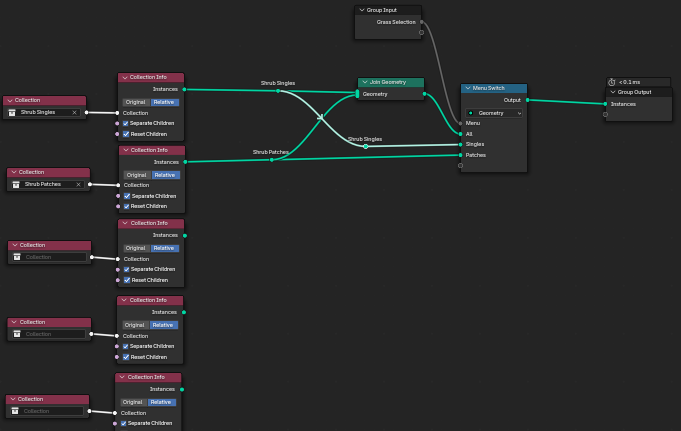
Available selector nodes:
- SP Grass Selector
- SP Flower Selector
- SP Shrub Selector
How It Works
- The node exposes a dropdown menu to select which set of assets to output.
- Internally, the node stores all relevant collections (e.g., small, medium, large clumps, pre-generated patches).
- When a selection is made from the menu, the node joins the geometry of the chosen internal collections and outputs a single set of instances.
Adding New Assets
If you add additional variations or custom assets (for example, new grass patches or other foliage) to the asset library under the appropriate collection (e.g., Assets → Grass → Monkey Grass), you can include these in the Asset Selector Node by editing the node:
- Add the new collection inside the node.
- Add a corresponding item to the Menu Switch node dropdown.
- Ensure the geometry is joined correctly based on the selection.
This allows the node to output new assets alongside existing ones without changing the rest of the system.
Purpose
- Simplifies asset selection without manually duplicating or joining collections.
- Provides flexibility for using individual clumps, pre-generated patches, or combinations.
- Primarily used for assets that have multiple sub-collections.
Patch Generator Overview
For generating grouped clusters of assets, the following patch generators are provided:
- SP Grass Patch Generator
- SP Flower Patch Generator
These nodes already use the relevant selector internally, allowing you to generate patches made up of specific grass or flower assets directly.
Additionally, there is:
- SP Generic Patch Generator
This version accepts a collection input and can be used to generate patches for any other asset type. You are also free to create your own custom Patch Generators if you’ve added new asset types or want to generate patches for things like rock formations, debris clusters, or other custom geometry.
Patch Generators are standalone tools. They are commonly used to create clustered geometry that can later be scattered, but they do not depend on any other system to function.
Patch Generator Nodes
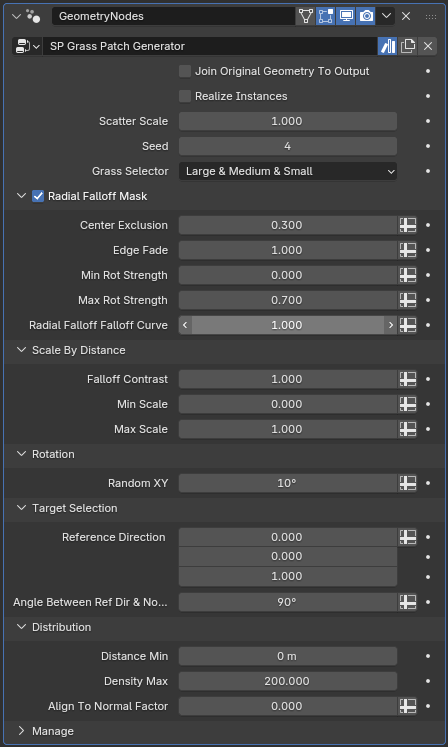
Radial Rotation
This section controls how instances gradually align and rotate outward from the center of the patch. Rather than randomizing rotation, these values remap rotation strength based on distance from the center.
Center Exclusion
Defines the inner radius of the patch. Rotation strength starts being evaluated from this point outward.
If this value is greater than zero, the very center of the patch is effectively ignored for falloff calculations.Edge Fade
Defines where the falloff reaches its maximum effect toward the edge of the patch. Together with Center Exclusion, this sets the distance range over which rotation strength is remapped.Min Rotation Strength
The rotation strength applied at the start of the falloff range (at the Center Exclusion distance).
If this value is above zero, instances near the center will still receive some outward rotation.Max Rotation Strength
The rotation strength applied at the end of the falloff range (at the Edge Fade distance).Falloff Curve
Shapes how rotation strength progresses from the inner range to the outer range. This allows you to bias rotation closer to the center or push most of the effect toward the edges.
This system remaps distance from the center into a controlled rotation factor, producing a smooth, predictable outward alignment rather than random variation.
Interaction with Align to Normal
The outward falloff rotation is added on top of the normal alignment.
- When Align to Normal Factor is enabled, instances first align to the surface normal.
- The radial falloff rotation is then applied additively, pushing instances outward relative to the patch center.
Because these effects stack, it can sometimes be harder to visually understand the falloff behavior. For debugging or fine-tuning the rotation effect, it can be helpful to temporarily set Align to Normal Factor to zero so the radial rotation is easier to see.
This is especially useful on complex geometry (such as sculpted meshes or test objects like Suzanne) rather than flat planes.
Scale by Distance
This section controls instance scale based on distance from the center of the patch.
Min Scale / Max Scale
Define the scale range across the patch.Falloff Contrast
Controls how sharply scale transitions between the center and the edge.
This allows you to shape patches visually, such as denser or taller growth near the center and softer edges around the perimeter.
Random Rotation
-
Random XY Rotation
Adds subtle random leaning to instances, helping organic assets feel less rigid.
Random Z Rotation
The node internally randomizes rotation around the vertical axis to reduce repetition.
Direction Filtering
This section controls where instances are allowed to appear based on surface orientation.
- Reference Direction
- Selection Angle
Only faces whose normals fall within the specified angle relative to the reference direction will receive instances. This acts as a hard filter rather than a gradient.
Distribution
This section controls spacing and alignment behavior.
Minimum Distance
Prevents instances from appearing too close together.Maximum Density
Controls how many instances can appear within the patch.Align to Normal Factor
Controls how strongly instances align to the surface normal.
A value of 1 fully aligns instances, while lower values allow them to remain more upright.
The Patch Generator is designed to give intuitive, distance-based control over rotation and scale, making it easy to shape patches that feel intentional, organic, and visually grounded.
Summary
- Patch Generators are built on the SP Scatter Instances node
- Radial falloff enables outward rotation and scale control from the center
- Scale-by-distance allows natural patch gradients
- Random rotation adds organic variation
- Direction-based selection restricts placement by surface angle
- Distribution controls spacing, density, and normal alignment
This system provides a flexible foundation for generating foliage patches while remaining simple to extend or customize.
SP Water Mask Generator Node
The SP Water Mask Generator Node generates mask attributes for wetness and foam effects on ground, rocks, and water surfaces. The supplied Ground, Rock, and Water materials already use these attributes internally, but they can also be used in custom materials if needed.
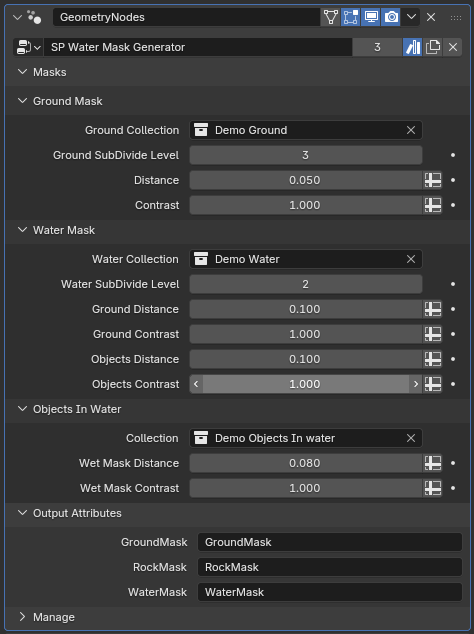
Purpose
- Generate wetness masks for ground and rocks
- Generate foam masks for water surfaces along edges of ground and objects
- Masks are pre-integrated in the supplied materials for immediate use
Inputs
- Water Collection – Meshes representing water surfaces (required for the node to function)
- Ground Collection – Meshes representing the ground (optional)
- Objects in Water Collection – Meshes partially or fully submerged (optional)
Distance / Contrast Controls
- Ground Mask Distance / Contrast – Wetness spread/intensity for ground
- Rock Mask Distance / Contrast – Wetness spread/intensity for rocks
- Water Mask Ground Distance / Contrast – Foam along water edges of ground
- Water Mask Object Distance / Contrast – Foam along water edges of objects in water
Important:
This node places the geometry at the location of the objects in the collections and outputs that geometry. This allows:
- Correct calculation of wetness and foam masks
The output geometry to be used with the Scatter Node or other procedural setups
Objects in the collections should have visibility off and render disabled to avoid overlapping geometry
- If optional collections are not present:
- No Ground Collection: only rocks and objects in water receive wetness/foam
- No Objects in Water Collection: only ground and rocks receive wetness/foam
Without a Water Collection, the node is effectively pointless, since no wetness or foam can be calculated
Subdivision Values (Ground / Water) – Increasing subdivision creates a denser mesh for higher mask quality
Outputs
-
GroundMask
- Wetness on ground above the waterline
- Controlled by Ground Mask Distance / Contrast
-
WetnessMask
- Wetness on objects intersecting water
- Controlled by Wetness Mask Distance / Contrast
-
WaterMask
- Foam along water edges
- Ground Distance / Contrast → foam along edges of ground
- Object Distance / Contrast → foam along edges of objects in water
Outputs are already connected in the included materials but can also be used in custom shaders.
Practical Tips
-
Collections Placement and Visibility
- Keep objects in collections invisible and render-disabled
- Node outputs geometry automatically so it can be used with the Scatter Node for foliage or other procedural setups
-
Distance and Contrast Settings
- Adjust to control wetness and foam falloff
- Set to 0 for collections that are empty
-
Subdivision for Better Masks
- Increasing subdivisions on ground and water meshes improves mask accuracy and smoothness
-
Dynamic Scenes
- If you move objects, simply move the items in the collections. The node handles the relative input automatically, so the masks and geometry will update without needing to refresh the node.
Summary
- GroundMask → wetness on ground above the waterline
- WetnessMask → wetness on objects intersecting water
- WaterMask → foam along edges of ground and objects in water
- Required Input → Water Collection
- Optional Inputs → Ground Collection, Objects in Water Collection
- Geometry Placement → node places geometry at object locations; objects must be invisible and render-disabled
- Subdivision Values → improve mask quality
- Outputs → already integrated in materials; usable in custom shaders
- Controls → distance and contrast for wetness and foam behavior
SP Biome Scatter Node
The SP Biome Scatter Node is the main node for distributing assets across terrain or surfaces. It allows placement of multiple asset types with control over density, scale, rotation, slope, and other parameters, while respecting exclusion areas and selection rules.
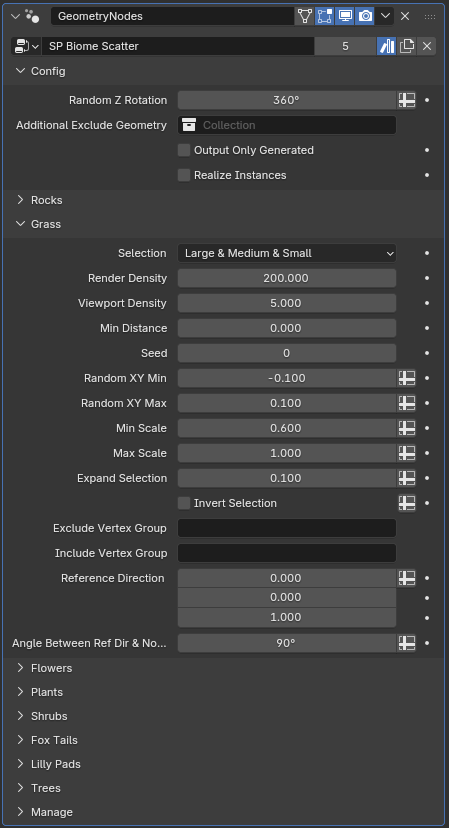
Global Config Section
-
Random Z Rotation
Applies a global Z-axis rotation to all scattered assets. This variation is applied to every asset and ensures natural-looking placement across the scene. -
Exclude Geometry Collection
- Input a collection of objects that assets should not grow under.
- Example: houses, bridges, or props in the environment.
- The scatter system will automatically avoid placing instances beneath or intersecting these objects.
-
Output Only Generated Mesh
- When enabled, only the newly scattered geometry is output.
- The original mesh (used for distribution reference) is excluded.
- Useful for workflows like generating rocks in water: first use the Water Mask Generator on the mesh, then scatter assets without outputting the reference geometry.
-
Realize Instances Boolean
- Optional control to realize instances at the end of the node graph.
- Helps with performance in large environments, since always realizing instances can be heavy on the system.
- Allows instances to remain procedural until realization is necessary.
Asset Sections
The node contains sections for each asset type, with controls for density, scale, rotation, masks, slope/angle restrictions, and selection from selectors or patches:
Rocks
The Rocks section allows you to scatter rock assets across a surface with control over placement, scale, and density.
Inputs & Parameters:
Collection
Select the rock assets to scatter. Can include multiple rocks or variations.-
Render Density
Controls how many rocks are generated for final renders.Important: Always set this value. If left at 0, no rocks will appear in renders.
Viewport Density
Controls how many rocks are displayed in the viewport to improve performance during editing.Min Distance
Minimum distance between rocks to avoid overlap.Seed (per asset)
Allows you to control randomization for each rock independently. For example, you may like how trees are scattered but want a different variation for rocks.Min Scale / Max Scale
Controls the scaling range for scattered rocks.-
Include Vertex Group / Exclude Vertex Group
Include restricts placement to vertices in the group, Exclude prevents placement on vertices in the group.Note: If a vertex appears in both groups, the exclude takes precedence.
Reference Direction
Direction vector used to influence placement orientation.Angle Between Reference Direction and Normal (°)
Only surfaces with an angle below this threshold relative to the reference direction will receive rocks.
Rotation:
- Rocks are always rotated randomly on all axes between -360° and 360°. No separate rotation input is provided.
Usage Notes:
- Rocks are processed first so that all other assets grow around them and avoid intersections.
- Always set Render Density to ensure rocks appear in your renders.
- Scaling, min distance, and random rotation create natural variation and prevent overlapping rocks.
- If vertex groups are left blank, rocks are scattered across all available surfaces.
Grass
The Grass section allows you to scatter grass assets across a surface with control over placement, rotation, and spacing. Unlike rocks, grass uses a Selector node rather than a direct collection input. This makes it easy to pick specific grass clumps or patches for scattering.
Inputs & Parameters:
Selector
Choose which grass assets to scatter using the SP Grass Selector. This can include small, medium, large clumps, or pre-generated patches.-
Render Density
Controls how many grass instances are generated for final renders.Important: Always set this value, or no grass will appear in renders.
Viewport Density
Controls how many grass instances are displayed in the viewport to improve performance during editing.Min Scale / Max Scale
Controls the scaling range for scattered grass.Seed (per asset)
Controls the randomization for each grass clump or patch independently.Min XY Random Rotation / Max XY Random Rotation
Controls random leaning of grass in the X and Y axes to add natural variation. All instances are still randomly rotated on Z by default.-
Include Vertex Group / Exclude Vertex Group
Include restricts placement to vertices in the group, Exclude prevents placement on vertices in the group.Note: If a vertex appears in both groups, the exclude takes precedence.
Expand Selection
Expands the selection area around any excluded geometry (including rocks) to give additional spacing between grass and obstacles.Reference Direction & Angle Between Normal and Reference Direction (°)
Only surfaces with an angle below this threshold relative to the reference direction will receive grass.Invert Selection
Inverts the resulting selection, so grass is scattered on all areas except those that would normally be selected.
Usage Notes:
- Grass is scattered around rocks and other exclusion geometry automatically, with extra spacing if Expand Selection is enabled.
- Random XY rotation combined with Z rotation adds natural variation and prevents a uniform, planted look.
- Scaling, selection, and seed values allow fine control for realistic grass distribution across terrains.
- Always set Render Density to ensure grass appears in renders.
Flowers
The Flowers section allows you to scatter flower assets across a surface with control over placement, rotation, and spacing. Like grass, flowers use a Selector node rather than a direct collection input, making it easy to choose specific flower types or pre-generated patches.
Inputs & Parameters:
Selector
Choose which flower assets to scatter using the SP Flower Selector. This can include different flower types or pre-generated patches.-
Render Density
Controls how many flower instances are generated for final renders.Important: Always set this value, or no flowers will appear in renders.
Viewport Density
Controls how many flower instances are displayed in the viewport for performance.Min Scale / Max Scale
Controls the scaling range for scattered flowers.Seed (per asset)
Controls the randomization for each flower type or patch independently.Min XY Random Rotation / Max XY Random Rotation
Adds random leaning of flowers in the X and Y axes to create natural variation. All instances are still randomly rotated on Z by default.-
Include Vertex Group / Exclude Vertex Group
Include restricts placement to vertices in the group, Exclude prevents placement on vertices in the group.Note: If a vertex appears in both groups, the exclude takes precedence.
Expand Selection
Expands the selection area around excluded geometry (including rocks) to provide extra spacing between flowers and obstacles.Reference Direction & Angle Between Normal and Reference Direction (°)
Only surfaces with an angle below this threshold relative to the reference direction will receive flowers.Invert Selection
Inverts the resulting selection, so flowers are scattered on all areas except those that would normally be selected.
Usage Notes:
- Flowers are scattered around rocks and other exclusion geometry automatically, with extra spacing if Expand Selection is enabled.
- Random XY rotation combined with Z rotation adds natural variation and prevents uniform placement.
- Scaling, selection, and seed values allow fine control for realistic flower distribution across terrains.
- Always set Render Density to ensure flowers appear in renders.
Ground Plants
Ground plants use a Collection input rather than a selector node. The rest of the parameters and functionality are the same as flowers and grass.
Inputs & Parameters:
Collection
Select which ground plant assets to scatter.-
Render Density
Controls how many instances are generated for final renders.Important: Always set this value to ensure ground plants appear in renders.
Viewport Density
Controls how many instances are displayed in the viewport.Min Scale / Max Scale
Controls the scaling range for scattered plants.Seed (per asset)
Controls the randomization for each plant independently.Min XY Random Rotation / Max XY Random Rotation
Adds random leaning in X and Y axes. All instances are still randomly rotated on Z by default.-
Include Vertex Group / Exclude Vertex Group
Include restricts placement to vertices in the group, Exclude prevents placement on vertices in the group.Note: If a vertex appears in both groups, the exclude takes precedence.
Expand Selection
Expands the selection area around excluded geometry, providing extra spacing between plants and obstacles.Reference Direction & Angle Between Normal and Reference Direction (°)
Only surfaces with an angle below this threshold relative to the reference direction will receive plants.Invert Selection
Inverts the resulting selection, scattering plants on areas that would normally be excluded.
Shrubs
Shrubs use a Selector node like grass and flowers. You can choose which shrub types or patches to scatter using the SP Shrub Selector. All other parameters are consistent with grass and flowers.
Fox Tails
Fox tails use a Collection input. All other parameters and functionality are consistent with ground plants.
Lilly Pads*
Lilly pads also use a Collection input. Unlike other assets, they do not have LODs*. All other parameters and functionality are consistent with ground plants.
Trees
Trees use a Collection input. All standard parameters (Render Density, Viewport Density, Min/Max Scale, Seed, Vertex Groups, Expand Selection, Reference Direction & Angle, Invert Selection) are consistent with other assets.
Additional Inputs & Parameters:
Hue Seed
A seed value for randomizing the hue of the trees independently from other assets.-
Hue Random by Type (Boolean)
- True: Each tree canopy gets a random hue.
- False: Hue randomization is applied per leaf texture on the canopy.
Hue Variation (Float)
Controls the amount of hue variation. Keep reasonably small (<0.1) to avoid unnatural colors.-
Season Start / Season End (Float, 0–1)
The tree’s season value is chosen randomly between these ranges.- 0–0.5: Early season / summer shades
-
>0.5: Late summer to autumn, with yellow/red tones for deciduous trees, and browner or “dead” colors for fir trees.
Canopy color ramps can be found in the relevant materials. Users may modify or add ramp stops as desired.
Mask Value (Integer Bitmask)
Each tree is assigned a mask value based on its index:2^index.
To select multiple trees, add together the mask values of the desired indices. Only trees matching the combined value will be included.
Example indices and mask values:
| Index | Mask Value |
|---|---|
| 0 | 1 |
| 1 | 2 |
| 2 | 4 |
| 3 | 8 |
| 4 | 16 |
| 5 | 32 |
| 6 | 64 |
| 7 | 128 |
| 8 | 256 |
| 9 | 512 |
| 10 | 1024 |
| 11 | 2048 |
| 12 | 4096 |
| 13 | 8192 |
| 14 | 16384 |
| All Trees | 32767 |
The remaining inputs (Min/Max XY Rotation, Seed per Asset, Expand Selection, etc.) function identically to other foliage assets.
Each section lets you specify which assets to scatter, how they are transformed, and any restrictions based on terrain or slope.
Workflow Notes
- Assets can be placed by dragging them from the Asset Browser or selecting them via Selectors/Patches.
- Multiple asset types can be layered on the same surface for complex scenes.
- Exclusion and density masks allow control over where assets appear.
- Realize Instances is optional for performance management.
- Output Only Generated Mesh is useful when the original geometry should not appear in the scene but is needed for calculations like wetness or foam masks.
Additional Utility Nodes
These utility nodes are generally optional and are included to make complex setups easier. They are not required for the main scatter workflow, but can help with selection, distribution, or quick procedural tweaks.
Geometry Utility Nodes
Distribute Exclude Geometry
Distributes points across geometry while removing points that intersect with a given exclusion mesh. Useful for custom scattering workflows when you want to avoid certain objects.Angle Between Node
Checks the angle between a reference direction and a normal, comparing it to a test angle. This can be used to limit placement to surfaces that face a certain direction or slope.
Material Utility Nodes
- SP Tree Shader
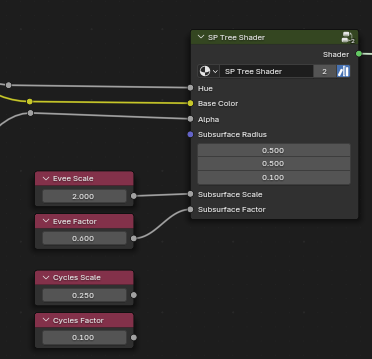
The SP Tree Shader is the shared canopy material used by both broadleaf and fir trees.
The shader is configured by default for Eevee, particularly with regard to subsurface scattering (SSS).
The default SSS Scale and SSS Blend Factor values are tuned for Eevee
When rendering in Cycles, these values will be far too strong and should be reduced significantly
-
For convenience:
- The shader includes value fields with recommended Cycles starting values
- These are not final — they are intended as a baseline and will still need to be tweaked based on:
- Lighting
- Scene scale
- Artistic style
Fir tree canopies are set up with no SSS by default
- This reflects their denser needle structure
- SSS can still be enabled or adjusted if a softer or more stylized look is desired
- Always adjust SSS after choosing your render engine
- Final tuning should be done once lighting and seasonal color are set
SP Moss Generator
Procedural moss generator for surfaces.Wetness Adjustment
Node for adjusting wetness or dampness in materials, useful for foliage or ground assets.SP RGB Mix Shader
Shader utility to blend multiple textures using RGB masks.Cheap Contrast Node
Applies a simple contrast adjustment to a float value (0–1). Increases or decreases the difference from the midpoint (0.5). Useful for quickly modifying mask values or procedural attributes in materials without creating complex math.SP Combine Normal Maps
Combines multiple normal maps into a single output for materials that require layered detail.SP UV Map Offset
Offsets and scales UVs to select a specific texture index from a texture atlas. Typically used for tree canopies or other assets where the atlas is 2x2 or 4x4, allowing different textures to be selected based on an index value.
Final Notes
This asset pack is designed to be flexible, modular, and non-destructive.Most parameters are intentionally exposed so you can adapt the assets to:
- Different lighting conditions
- Stylized or realistic projects
- Eevee or Cycles workflows
- Performance-focused or cinematic scenes
There are no “correct” values — use the provided defaults as a starting point and adjust to suit your project and artistic direction.
Support & Feedback
This pack will continue to evolve, and user feedback directly helps guide:
- Fixes and refinements
- Quality-of-life improvements
- Future expansions
Please refer to the store page or included documentation for update notes when new versions are released.
For support, bug reports, or questions, please use the contact method listed on the product’s store page.
If you encounter any issues, inconsistencies, or have suggestions for improvement, feedback is always welcome.This ensures you are always reaching the correct and most up-to-date support channel.
Thank You
Thank you for supporting this project and for taking the time to explore the assets.
I hope this pack helps you build natural, believable environments faster and with less friction — whether for games, cinematics, or personal projects.
Keep Creating
Have questions about this product?
Login to message
| Published | 8 months ago |
| Blender Version | 4.5 |
| Render Engine Used | Cycles, Eevee |
| Misc Data | Uvs-Unwrapped, Normal-Mapped, Textured |
| License | Creative Commons |
Discover more products like this
geometry nodes low poly forest forest-scatter-generator lod ready procedural scatter asset pack seasonal variation Blender vegetation cozy-forest stylized environment biome scatter