Crackertoa
 Egret Studios LLC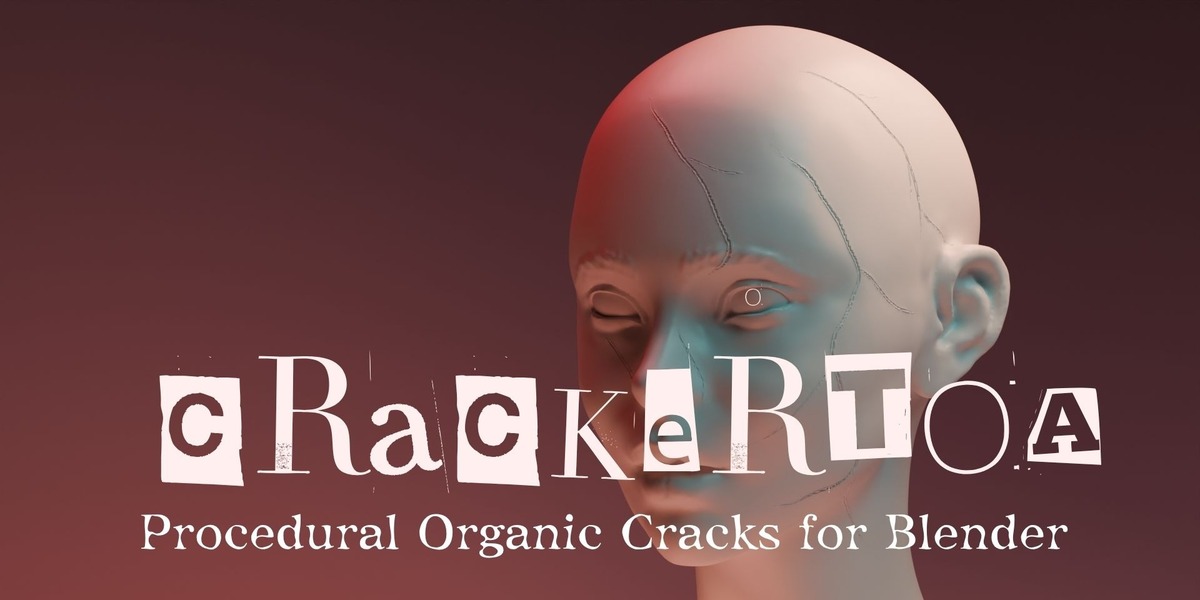
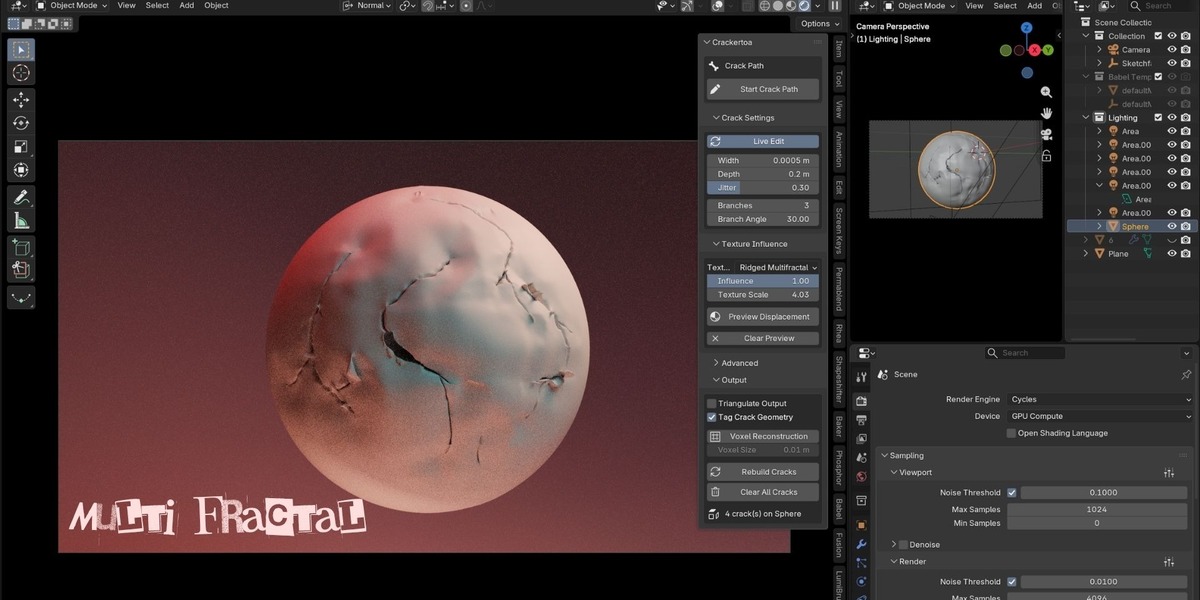
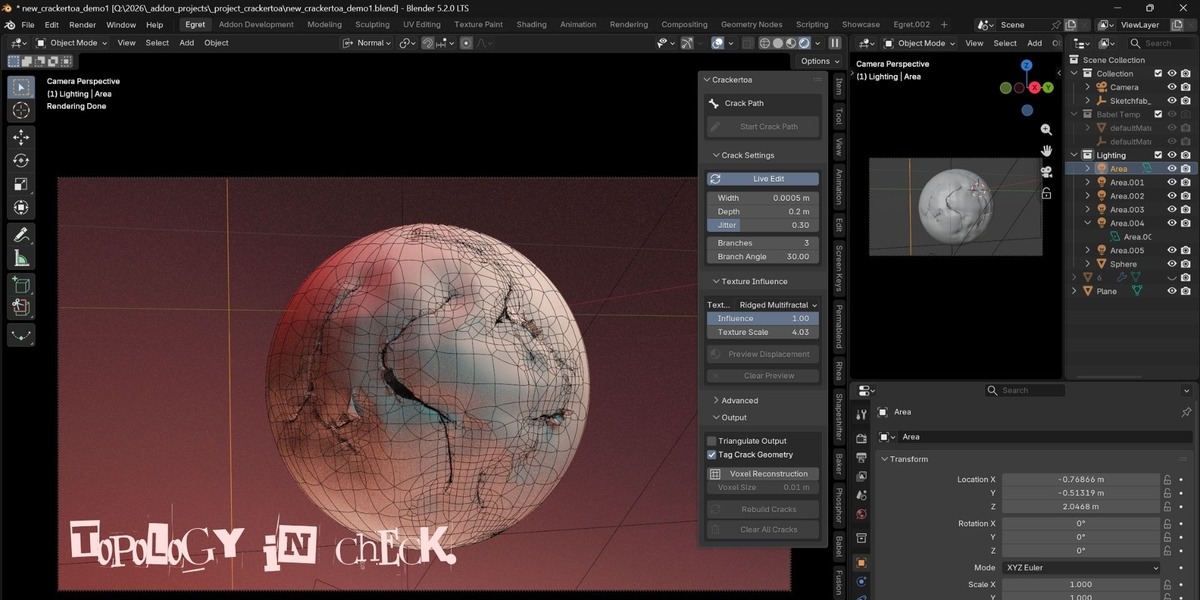
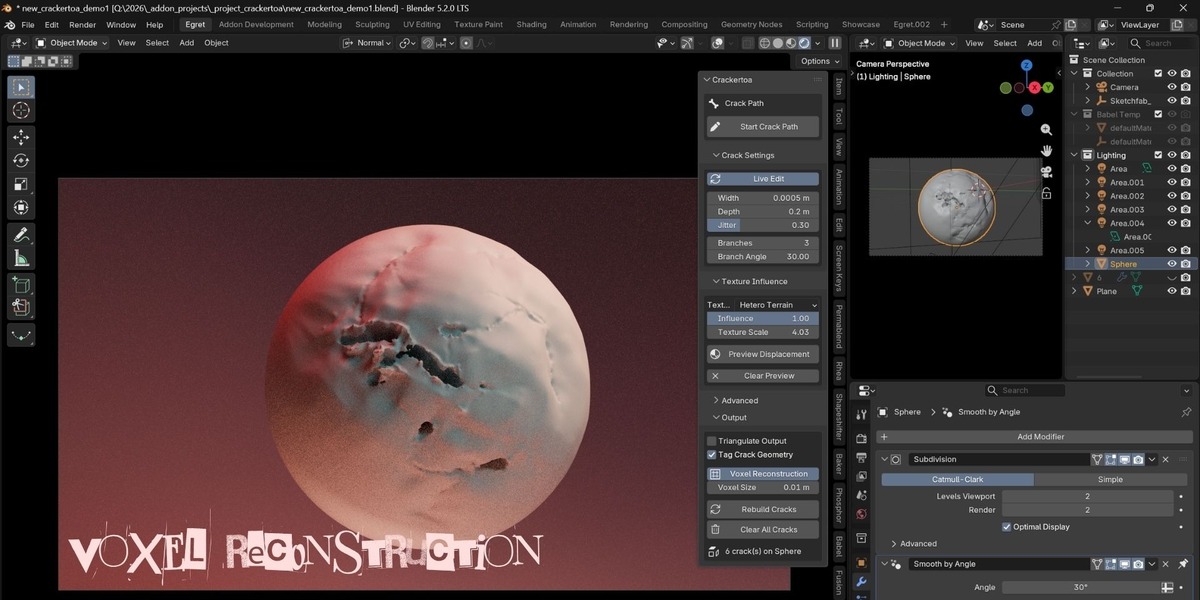
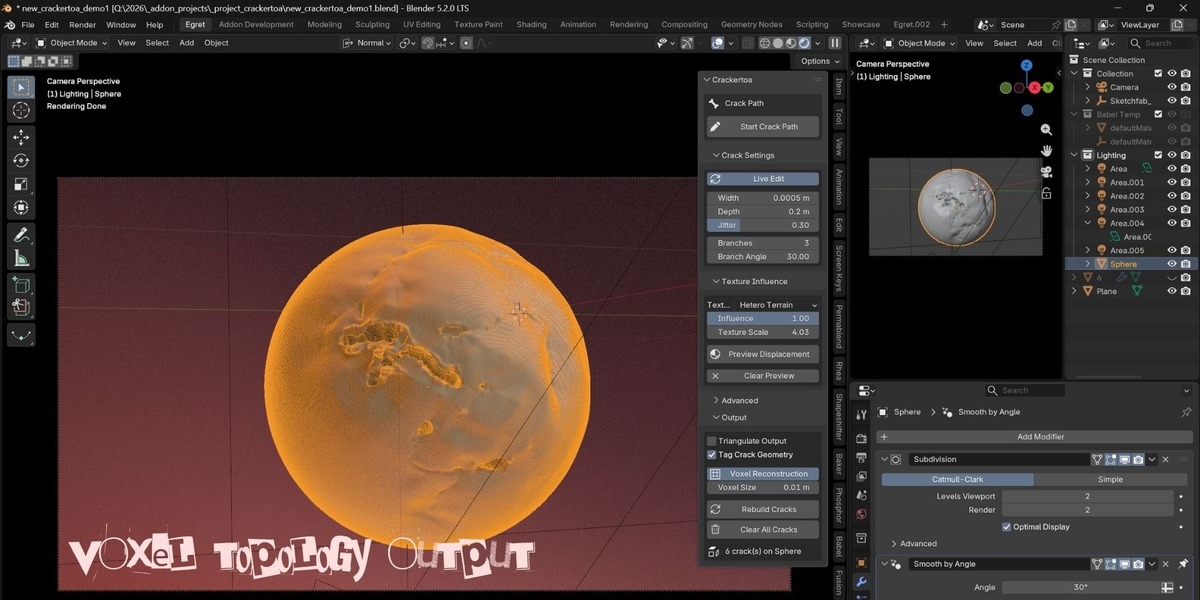
Crackertoa Documentation
Procedural, Non-Destructive Crack Generation for Blender
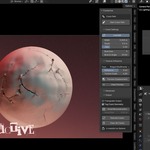
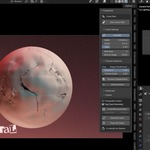
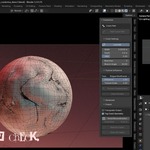
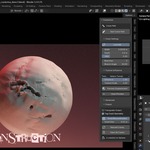
Create realistic, game-ready cracks directly on any mesh using an intuitive point-and-click workflow. Every crack remains fully editable, allowing you to refine its appearance at any stage of your project without permanently altering the original mesh.
Version: 1.0.0
Compatible with: Blender 4.0+ (Extension support on Blender 4.2+)
Developer: Egret Studios
Table of Contents
Overview
Installation
Getting Started
Non-Destructive Workflow
Interface Reference
Procedural Textures
Output & Topology
Voxel Reconstruction
Attribute Tagging
Example Workflows
Troubleshooting
Keyboard Shortcuts
Known Limitations
Changelog
Overview
Crackertoa is a procedural crack generation tool for Blender that lets you draw realistic fractures directly onto any mesh.
Instead of manually cutting geometry, cleaning topology, and rebuilding damaged surfaces every time a revision is requested, Crackertoa allows you to simply draw a path and generate a natural-looking crack in seconds.
Each crack includes:
Organic path variation
Procedural branching
Adjustable width and depth
Recessed fracture floor
Clean production-ready topology
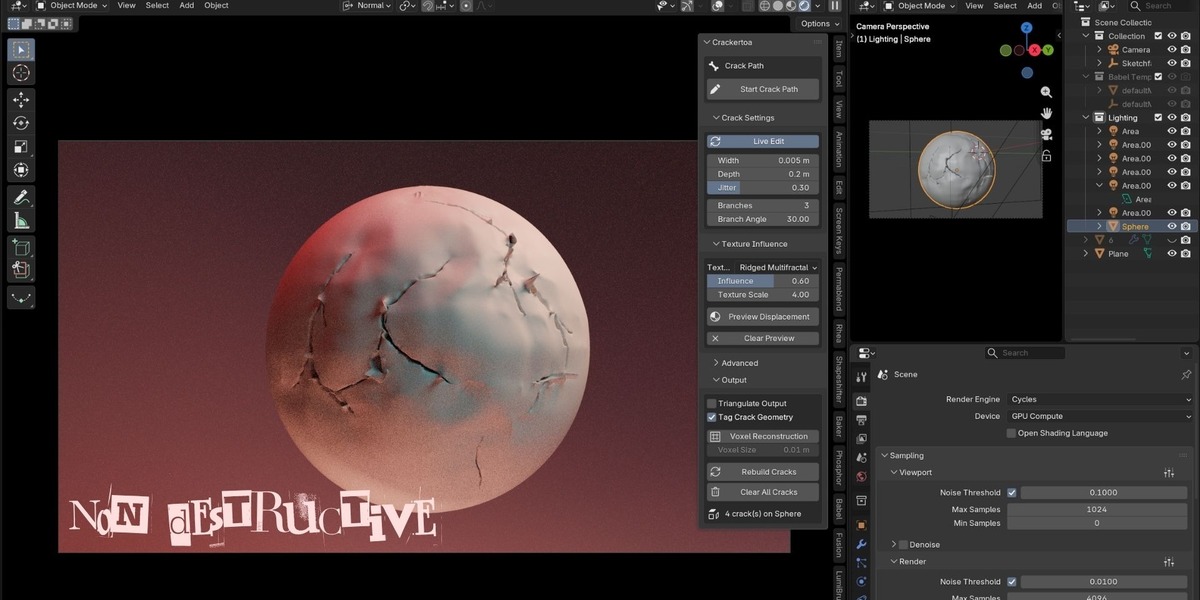
Unlike traditional destructive workflows, Crackertoa keeps every crack fully procedural. Width, depth, branching, textures, and other settings remain editable long after the crack has been created.
Whether you're creating damaged concrete, broken walls, rocks, roads, ruins, cliffs, or stylized environments, Crackertoa is designed to fit seamlessly into professional production pipelines.
Installation
Blender 4.2 and Newer (Recommended)
Open Edit → Preferences.
Select Get Extensions.
Open the menu in the top-right corner.
Choose Install from Disk.
Select:
crackertoa-1.0.0.zip
Blender 4.0 – 4.1
Open Edit → Preferences.
Select Add-ons.
Click Install...
Select the same ZIP package.
Enable Crackertoa.
Open the 3D View Sidebar (N) and select the Crackertoa tab.
No internet connection, external libraries, or image assets are required.
Updating: If installing a newer version, remove the previous version first or restart Blender after installation to clear cached Python modules.
Getting Started
Creating your first crack takes only a few steps.
Select a mesh object in Object Mode.
Open the Crackertoa panel.
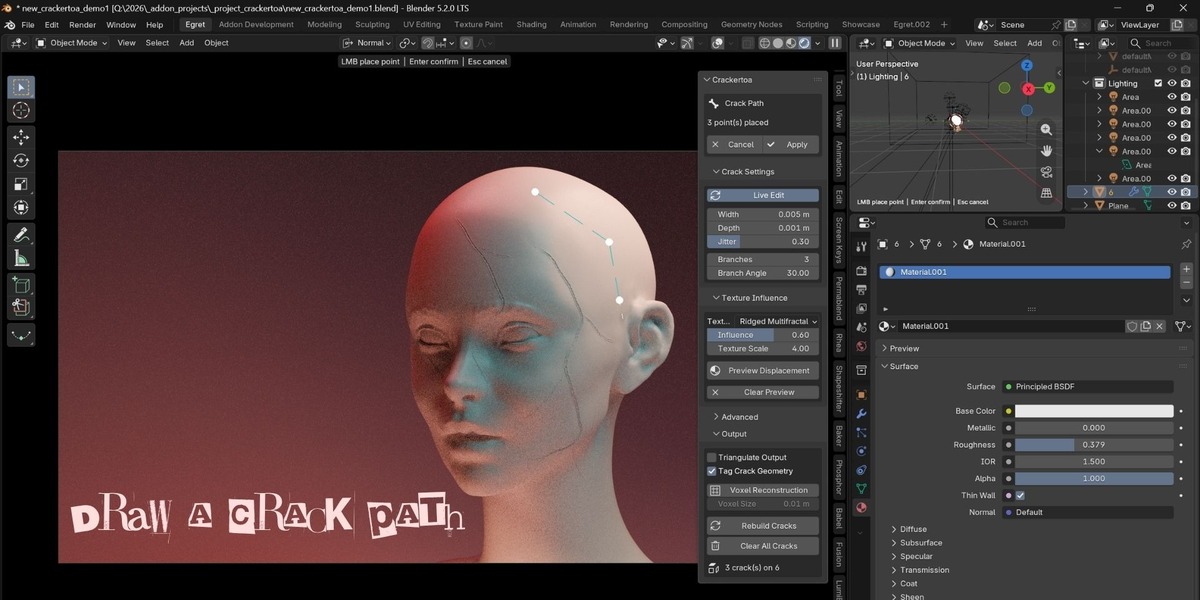
Click Start Crack Path.
Left-click on the mesh to place two or more points.
A live preview displays the crack path as you draw.
Press Enter, double-click, or click Apply.
Crackertoa generates the crack instantly.
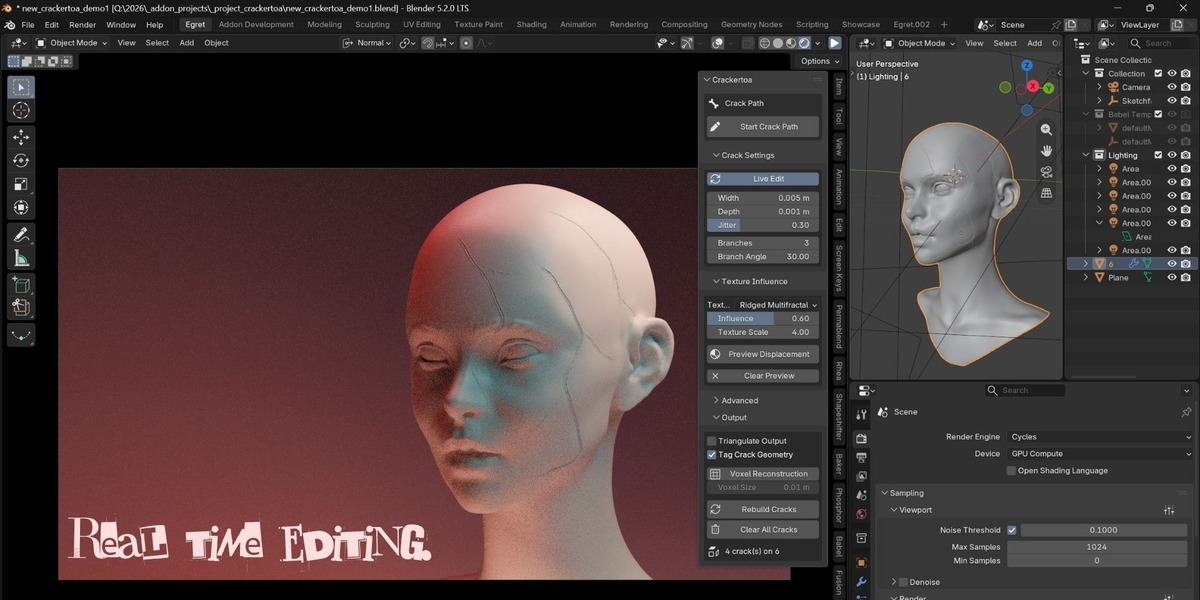
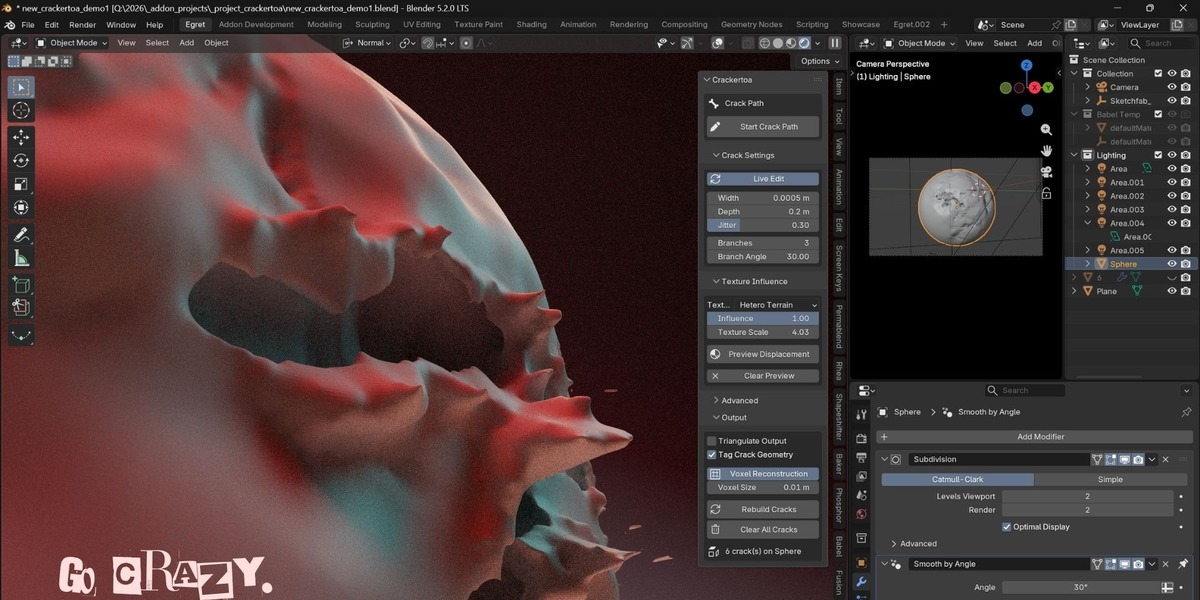
Once created, adjust any parameter—including Width, Depth, Jitter, Branches, or Texture—and the crack rebuilds automatically.
To completely remove every generated crack and restore the original mesh, simply press Clear All Cracks.
Non-Destructive Workflow
One of Crackertoa's core features is its completely non-destructive workflow.
When the first crack is created, the original mesh is automatically stored as a hidden backup.
Each crack is then saved only as:
Its drawn path
Generation settings
Whenever any parameter changes, Crackertoa regenerates every crack from the untouched source mesh.
This provides three major advantages:
| Feature | Benefit |
|---|---|
| Live Editing | Change settings without recreating cracks |
| Multiple Cracks | Stack unlimited cracks on a single object |
| Full Restore | Return to the original mesh with one click |
Nothing is permanently baked into the geometry unless you choose to do so.
Interface Reference
Crack Path
| Control | Description |
|---|---|
| Start Crack Path | Begins interactive crack drawing mode. |
| Apply | Generates the crack from the current path. |
| Cancel | Discards the current path. |
Crack Settings
Live Edit
Automatically rebuilds all existing cracks whenever a parameter changes.
Disable this option on heavy meshes for improved performance and use Rebuild Cracks manually instead.
Width
Controls the opening between the two sides of the crack.
Larger values create wider fractures.
Depth
Controls how deeply the fracture sinks into the mesh.
Higher values produce more dramatic cracks.
Jitter
Adds natural randomness to the crack path.
Low values produce cleaner fractures while higher values create rough, irregular cracks.
Branches
Controls how many secondary fractures split away from the main crack.
Branch Angle
Determines the average angle of secondary branches.
Natural variation is automatically applied to avoid repetitive results.
Procedural Textures
Crackertoa includes nine procedural texture generators.
These textures influence crack width, depth, branching, and overall surface variation.
Because every texture is generated procedurally, no external image files are required.
| Texture | Description |
|---|---|
| Voronoi | Cellular fracture patterns |
| Voronoi Crackle | Sharp cell-edge cracks |
| Noise | Smooth natural variation |
| Cell Noise | Blocky segmented patterns |
| Turbulence | Soft flowing distortion |
| Fractal (fBm) | Classic layered noise |
| Musgrave | Multi-fractal terrain detail |
| Ridged Multifractal | Sharp ridge structures |
| Hetero Terrain | Valleys with detailed peaks |
Influence
Blends between manual settings and procedural texture values.
0 = Manual settings only
1 = Fully texture-driven
Texture Scale
Controls the size of the procedural pattern.
Lower values create larger features.
Higher values create finer detail.
Preview Displacement
Temporarily bakes the texture field into vertex colors, allowing you to preview displacement before generating the final crack.
Output & Topology
Crackertoa is designed to generate production-ready geometry.
Every crack is rebuilt using an optimized topology pipeline.
Features include:
Quad- and triangle-only output
No Ngons
Local remeshing around the crack corridor
Quad reconstruction where possible
Automatic tapering at crack ends
Manifold validation after every rebuild
Triangles appear only where mathematically required during the cutting process.
For workflows requiring completely uniform topology, use either Voxel Reconstruction or Triangulate Output.
Triangulate Output
Converts the final mesh into fully triangulated geometry.
Recommended for export to:
Unity
Unreal Engine
Godot
Voxel Reconstruction
Voxel Reconstruction rebuilds the final result using Blender's OpenVDB voxel remesher.
This produces a clean, uniform quad mesh across the entire object.
Recommended for:
Rocks
Cliffs
Concrete
Sculpting bases
Retopology workflows
Important Notes
Keep Voxel Size smaller than the crack Width.
Large voxel sizes may close the crack opening.
UVs and custom attributes are discarded during voxel remeshing.
Best suited for closed meshes.
Attribute Tagging
When Tag Crack Geometry is enabled, Crackertoa creates two custom attributes.
| Attribute | Domain | Purpose |
|---|---|---|
crackertoa_crack |
Face | Marks crack surfaces |
crackertoa_crack_edge |
Edge | Marks crack borders |
These attributes can be used for:
Material masking
Geometry selection
Shader effects
Export filtering
Voxel Reconstruction removes these attributes as part of the remeshing process.
Example Workflows
Hero Assets
Draw the crack.
Adjust Width and Depth.
Increase Jitter.
Select Voronoi Crackle.
Fine-tune using Live Edit.
Game Assets
Generate the crack.
Enable Triangulate Output.
Keep Tag Crack Geometry enabled.
Export to your game engine.
Sculpting Base
Generate the crack.
Enable Voxel Reconstruction.
Reduce Voxel Size below the crack Width.
Continue sculpting.
Heavy Meshes
Disable Live Edit.
Adjust all desired settings.
Click Rebuild Cracks once.
Troubleshooting
Crack Path Button Is Disabled
Ensure:
A mesh object is selected.
You are in Object Mode.
Another crack session is not already active.
Crack Is Too Small
Increase the crack path length or reduce the Width value.
Crack Closed After Voxel Reconstruction
Voxel Size is larger than the crack Width.
Reduce the voxel size and rebuild.
Triangles Are Visible
This is expected.
Knife cuts cannot remain entirely quad-based.
For uniform topology use:
Voxel Reconstruction
Triangulate Output
Changes Did Not Apply After Updating
Restart Blender after installing the updated version.
Manifold Warning
If Crackertoa reports non-manifold edges, inspect them using:
Select → Select All by Trait → Non-Manifold
If reproducible, report the mesh and settings for investigation.
Keyboard Shortcuts
| Shortcut | Action |
|---|---|
| Left Click | Place point |
| Enter | Generate crack |
| Double Click | Generate crack |
| Esc | Cancel |
| Right Click | Cancel |
Known Limitations
Original mesh backups are stored per object.
Voxel Reconstruction removes UVs and custom attributes.
Live Edit may become slower on extremely dense meshes.
Physics-based fracture simulation is not included.
Animated crack growth is not included in Version 1.0.
Multi-object crack propagation is not supported.
Changelog
Version 1.0.0
Initial release featuring:
Interactive path-based crack generation
Fully non-destructive workflow
Real-time live editing
Procedural branching
Nine procedural texture generators
Quad-dominant topology pipeline
Optional Voxel Reconstruction
Attribute tagging
Manifold validation
Triangulated output for game engines
© Egret Studios — Crackertoa
 Included
Includes 12 months of
- Support from Egret Studios LLC
- Product updates
Extend this product’s Support Period +12 months: 50% of product price
Have questions before purchasing?
Login to message
| Blender Extension Compatible | Yes |
| Published | 2 months ago |
| Blender Version | 4.1 - 5.2 |
| Extension Type | Add-on |
| Render Engine Used | Cycles, Eevee |
| License | GPL |
