Crayon Box
 Whimsy Tools


Crayon Box - Material Manager (v1.0.0)
1. Overview
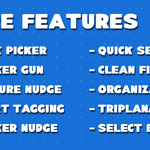
Crayon Box is a material management add-on for Blender. It adds a dedicated Crayon Box tab to the 3D Viewport sidebar, containing a searchable material list, a color-coded category system, a pie-menu material picker, an in-viewport UV adjustment tool, projection setup shortcuts, and a decal/sticker placement system.
The add-on operates on the materials already present in bpy.data.materials — it does not require materials to be created or imported in any special way.
2. Requirements
- Blender 5.0.0 or newer
- Tested on Blender 5.1 and 5.2
3. Installation
- Download the Crayon Box
.zipfile from your Superhive purchase receipt. - In Blender, go to Edit > Preferences > Get Extensions (or Add-ons, depending on your Blender version).
- Click the dropdown arrow in the top-right corner and choose Install from Disk.
- Select the downloaded
.zipfile. - Enable Crayon Box - Material Manager in the add-ons list if it is not enabled automatically.
- Open the 3D Viewport sidebar (press N) and select the Crayon Box tab.
If the package is extension-ready, it can also be installed by dragging the file into a running Blender window, or with one click from Preferences > Get Extensions once Superhive is added as a remote repository.
4. Interface Overview
Everything is accessed from the Crayon Box tab in the 3D Viewport sidebar (N-panel). The tab contains two sections. The main Crayon Box panel is open by default and holds the search bar, material list, and material creation/removal controls. Below it, the Sticker Gun sub-panel is collapsed by default and handles decal placement and management.
At the top of the main panel, next to the search field, is a row of five icon buttons:
| Button | Operator | Action |
|---|---|---|
| Refresh | Refresh Previews | Regenerates material preview thumbnails |
| UV Checker | UV Checker | Adds (or re-selects) a built-in UV checker material |
| Smart Tag | Smart Tag | Auto-assigns categories to materials by keyword match |
| Manage Categories | Manage Categories | Opens the category management popup |
| Quick Pick toggle | Toggle Quick Pick Hotkey | Enables/disables the E hotkey for Quick Pick |
5. Material List
The material list occupies the center of the main panel and shows every material in the file (bpy.data.materials), ten rows at a time with internal scrolling.
Each row, left to right:
- Pin toggle. Pins or unpins the material (see Pinning, below).
- Category swatch. Shows the material's assigned category color, or a plain "layer" icon if uncategorized. Clicking it opens a Set Category menu to reassign the material to a different category.
- Preview thumbnail. Clicking it runs Select by Material, selecting every object in the scene that uses this material.
-
Material name. Shown with a usage count in parentheses when the material is applied to at least one object (e.g.
Metal_Brushed (3)). Clicking the name runs Assign Material, applying it to the selected objects, or to the selected faces if in Edit Mode. - Rename, Duplicate & Apply, Projection, and Delete icon buttons.
Search: the field above the list filters by name as you type. Recent searches are kept in a history row (up to 5) that appears when the search field is empty; click an entry to reload it, or use the X button to clear history.
Sorting: pinned materials are always listed first (alphabetically), followed by unpinned materials (alphabetically).
Pinning: clicking the pin icon toggles that material only. Shift-click toggles all materials at once (pins all if fewer than half are currently pinned, otherwise unpins all). Alt-click pins only the clicked material and unpins every other one.
Row-level and panel-level operators
- Rename Material opens a text field to rename the material in place.
-
Duplicate & Apply Material copies the material (appending
_copyto the name), applies the copy to the selected objects, and opens the rename dialog for the new copy. - Delete Material removes the material from the file, after a confirmation prompt.
- Assign Material applies the material to the selected objects (or selected faces in Edit Mode).
- Select by Material selects every object in the scene currently using the material.
- New Material (labeled "NEW MATERIAL") creates a new node-based material, applies it to the selected objects, and opens a dialog to set its name and base color.
- REMOVE MATERIAL clears all material slots from the selected objects but does not delete the material data itself.
-
CLEAN UP FILE runs Blender's standard orphan-data purge (
outliner.orphans_purge) to remove unused data-blocks, including unused materials. - UV Checker adds a pre-built checker-pattern material (a 4096×4096 generated UV grid image wired through a Principled BSDF) and applies it to the selected objects. If the material already exists in the file, it's reused instead of duplicated.
- Refresh Previews forces Blender to regenerate material preview thumbnails.
6. Categories
Categories are named, color-tagged labels that materials can be assigned to. Category data is stored per-scene.
Open the category manager with the Manage Categories button (top of the main panel). This opens a popup containing:
- A Presets section to load a saved preset, or save the current category setup as a new preset (see Section 12).
- A Categories list — for each category, a color swatch (click to change color), the category name (click to rename), a keywords button (click to edit Smart Tag keywords), and a delete button.
- New Category..., which creates a category with a name and a color.
- Bulk Operations: Clear All Assignments removes the category tag from every material without deleting the categories, and Delete All Categories removes every category.
Category rules:
- Names accept letters, numbers, spaces, and underscores, up to 128 characters, and are stored in uppercase.
- Each color (Red, Orange, Yellow, Green, Blue, Purple, or None) can only be assigned to one category at a time.
- Deleting a category removes the category tag from any material that had it; the materials themselves are not affected.
A material's category can also be changed directly from its row in the material list by clicking its color swatch.
7. Smart Tag
Smart Tag scans every material's name against the keyword list defined for each category and assigns the first matching category automatically.
To use it:
- Open Manage Categories and click the keywords button on a category to enter a comma-separated keyword list (e.g.
metal, steel, chrome). - Click the Smart Tag icon button at the top of the main panel.
- Crayon Box checks each material's name (case-insensitive substring match) against every category's keyword list, in alphabetical order of category name, and assigns the first match. Materials with no keyword match are left unchanged.
The operator reports how many materials were tagged and how many had no match. If no category has keywords defined, Smart Tag reports a warning instead of running.
8. Quick Pick
Quick Pick is a pie menu for assigning materials without opening the sidebar.
The default hotkey is E, active in Object Mode, and can be turned on or off with the Quick Pick icon button at the top of the main panel. With no category selected, the pie menu shows pinned materials.
Selecting a category filters the list to that category's materials. If a category has 6 or fewer materials, all of them appear directly in the pie with no further navigation. Above 6, the pie shows 4 at a time with Prev/Next buttons to page through the rest.
A Search Materials button opens a text field in the center of the pie; typing filters the full material list by name, with the closest match assignable by pressing Enter and the remaining matches listed below it. Picking any material from the pie assigns it to the active object immediately.
9. Texture Nudge
Texture Nudge is a modal tool for adjusting a material's UV mapping (through its Mapping node) directly in the 3D Viewport, without opening the Shader Editor. It's launched from the center of the Quick Pick pie menu — select an object with a material that already has a Mapping node connected to its image texture(s), open Quick Pick, and choose Texture Nudge.
Once active, it behaves like Blender's native transform tools:
- G — move the mapping. Move the mouse to drag, or type a number for a precise offset.
- R — rotate the mapping around Z. Type a number to enter degrees directly.
- S — scale the mapping. Type a number to set an exact scale value.
- X / Y / Z — while in a G, R, or S mode, press an axis key to constrain to that axis; press it again to release the constraint. Shift+axis constrains to the other two axes instead.
- Hold Shift while dragging with the mouse for finer precision.
- Left Mouse / Enter confirms the current G, R, or S action; Right Mouse / Esc cancels it and reverts, without leaving the tool.
- Alt+G, Alt+R, or Alt+S instantly resets location, rotation, or scale to its default value while the tool stays active.
- Esc with no G/R/S mode active exits the tool entirely.
A material needs an existing Mapping node connected to its image textures before Texture Nudge can be used on it; there is currently no in-app control to insert one automatically.
10. Projection Helpers
Available from the Projection menu on a material's row in the material list:
- Box Triplanar — projects the material's image textures using triplanar (Object-coordinate box) projection. Locates the node tree that holds the material's image textures (searching into nested groups if needed), inserts a Texture Coordinate and Mapping node there if it doesn't already have them, and rewires every Image Texture node within that tree to use them. Intended for materials without existing UVs.
- UV Mapped — the same setup, but wired to the object's UV coordinates instead of Object coordinates, for standard UV-based texturing.
Both operators act on a single node tree — the one found to contain the material's image textures — rather than every texture node scattered across separate, unrelated node groups in the same material.
11. Sticker Gun
Sticker Gun places image-based decals onto a mesh's active material as an additional layer in the shader graph.
Applying a sticker:
- Select a mesh object.
- Open the Sticker Gun sub-panel and click Load Sticker.
- Choose an image file (PNG, JPG, JPEG, TGA, TIFF, EXR, or BMP) in the file browser.
- Crayon Box creates a hidden Empty parented to the object, placed at the point on the mesh surface closest to the object's origin and oriented to that surface's normal. It then builds a node group in the material's shader graph that projects the chosen image using that Empty's orientation, and mixes it into the existing shader output.
If the active object has no material, one is created automatically. If the active material is linked from a library, a local copy is made first.
Repositioning a sticker — Sticker Nudge:
- Click Sticker Nudge to enter nudge mode. This selects the sticker's Empty, enables face-projection snapping (
FACE_PROJECT, closest target, rotation-aligned), and reveals the normally-hidden Empty in the viewport. - Use Blender's standard transform shortcuts — G to move, R to rotate, S to scale — to reposition the sticker on the mesh surface. Snapping keeps it aligned to the surface as it's moved.
- Click Sticker Nudge again to exit. Viewport snap settings are restored to what they were before nudge mode was entered, and the mesh object is reselected.
Managing multiple stickers: every sticker applied to a material appears as a row in the Sticker Gun panel, showing its image name (or a custom label). Each row has:
- A name button — click to set that sticker as the active one for Sticker Nudge.
- Rename Sticker — sets a custom label for the sticker.
- Delete Sticker — removes that sticker's nodes and its Empty, and reconnects the shader graph to skip it.
Clean Stickers removes every sticker's nodes and Empty objects from the active material in one action.
Sticker Empties are named per-object (CB_sticker__), so multiple objects can each have their own numbered stickers without name collisions. Stickers do not modify the underlying mesh geometry.
12. Category Presets
A preset stores a full category setup (names, colors, and keyword lists) so it can be reused across files or shared with a team.
-
Save Preset (in Manage Categories) saves the scene's current categories under a name you choose. Saving under an existing name overwrites it.
-
Load Preset replaces the scene's current categories with the ones stored in the selected preset — this clears any categories not in the preset.
-
Copy Preset to Clipboard copies a preset's category data as JSON text to the system clipboard.
-
Import Preset opens a dialog pre-filled with clipboard contents (if valid JSON) where you can name and save an imported preset.
-
Rename Preset and Delete Preset manage saved presets from Add-on Preferences or the Manage Categories popup.
Presets are stored outside the .blend file, so they persist across projects and are available in every scene.
13. Add-on Preferences
Accessible via Edit > Preferences > Add-ons > Crayon Box - Material Manager, or via the Edit & Add Presets button in the Manage Categories popup.
The preferences panel lists all saved category presets, with rename, export-to-clipboard, and delete controls for each, plus an Import Preset from JSON... button.
Support
For support requests, contact: [email protected]
Support inquiries are answered within 72 hours.
License
Crayon Box - Material Manager is licensed under the GNU General Public License (GPL), in accordance with Blender add-on distribution requirements.
Changelog
v1.0.0
- Initial release
- Material list with search, search history, pinning, and per-row rename/duplicate/delete/projection controls
- Color-coded category system with per-category keyword lists
- Smart Tag automatic category assignment by keyword match
- Quick Pick pie menu with category filtering, paging, and live search
- Texture Nudge: modal Move/Rotate/Scale tool for UV mapping, launched from Quick Pick, with axis constraints and numeric entry
- Box Triplanar and UV Mapped projection helpers
- Sticker Gun decal system with surface-aligned placement, Sticker Nudge repositioning, per-sticker rename/delete, and bulk cleanup
- Category preset system with save/load/rename/delete and clipboard-based export/import
- Blender 5.0–5.2 compatibility
 Included
Includes 12 months of
- Support from Whimsy Tools
- Product updates
Extend this product’s Support Period +12 months: 50% of product price
Have questions before purchasing?
Login to message
| Blender Extension Compatible | Yes |
| Sales | 100+ |
| Downloads | 100+ |
| Rating | 1 ratings |
| Published | 3 months ago |
| Blender Version | 5.0 - 5.2 |
| Extension Type | Add-on |
| Render Engine Used | Arnold, Blender-Internal, Blender-Game-Engine, Cycles, Eevee, Freestyle, Luxrender, Mental-Ray, Octane, Vray, Yafaray |
| License | GPL |
Discover more products like this
Texturing quality-of-life PBR materials Triplanar Projection uv unwrapping material-management