Create a Procedural Etching Material and Reveal Animation
 Harry Helps
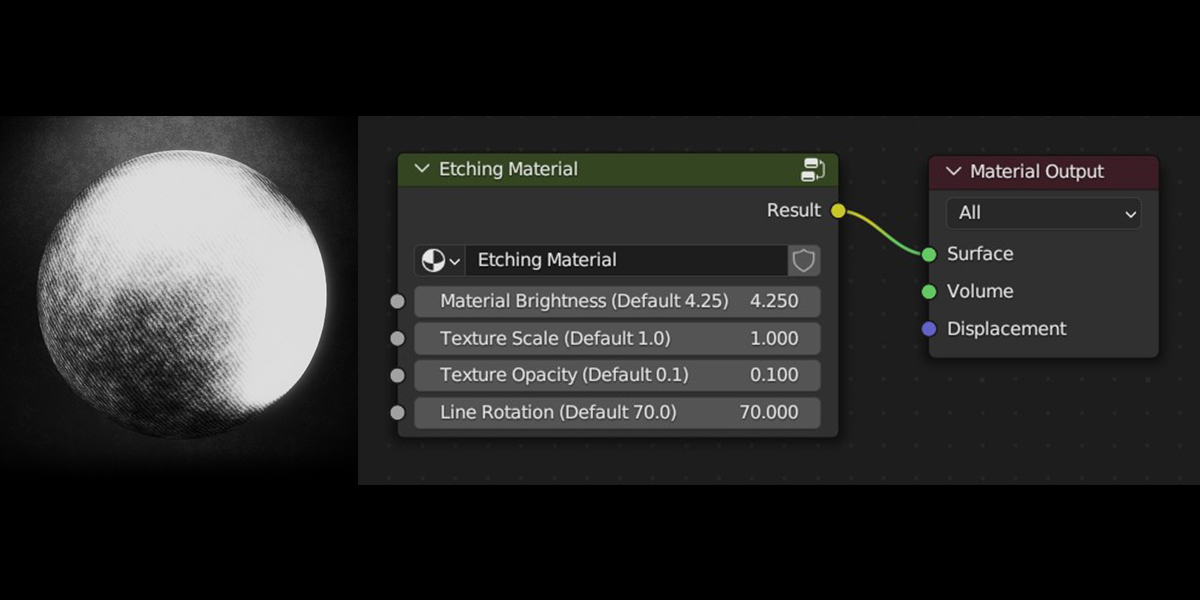
How do I add the provided etching material to a new project?
Great question! Follow the steps below to add the etching material into any file you'd like!
- Open the file you'd like to import the etching material into
- Go to File > Append...
- Navigate to where you saved the "Procedural Etching Material (Eevee Only)" file
- Select the file and click "Append"
- Navigate to the "Material" folder
- Select the "Procedural Etching Material (Eevee Only)"
- Click "Append"
- Select a model in your scene
- Go to the "Material Properties" tab
- From the material drop down, choose the "Procedural Etching Material (Eevee Only)"
- You're ready to adjust your material now!
Where can I find more Harry Helps classes?
You can find more classes just like this on my Blender Market shop! I have a variety of classes that cover a bunch of topics and experience levels!
What render engine is this tutorial/material made for?
This tutorial and provided node group use the Eevee render engine. This material will only work in the Eevee render engine due to the nodes used.
What version of Blender do I need?
You'll need Blender 3.5 or newer to utilize the provided Blender files. You can download the newest version of Blender completely free from https://www.blender.org/download/
$10
Have questions about this product?
Login to message
| Sales | 20+ |
| Dev Fund Contributor | |
| Published | over 3 years ago |
| Blender Version | 3.5 |
| License | Royalty Free |