 TopoPen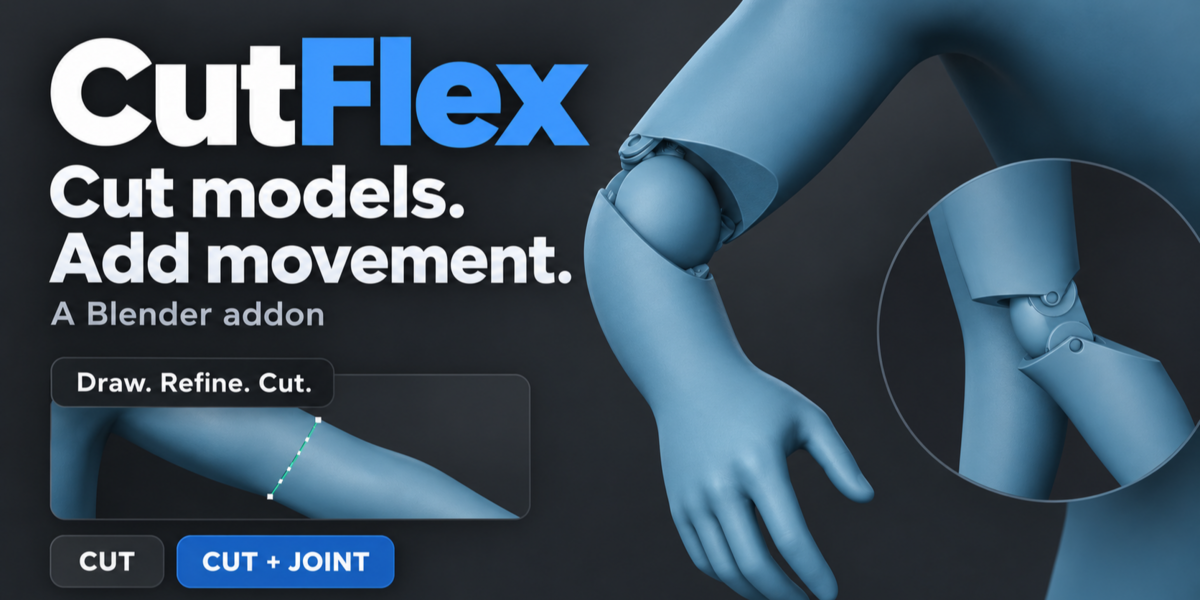

CUT · ARTICULATE · ASSEMBLE · EXPORT
Turn one sculpt into a poseable, jointed figure.
Draw a seam, split the model, drop in a fitted joint and pose it — all from one panel in Blender's sidebar. CutFlex keeps your original mesh safe and exports every part to STL, OBJ or FBX.
THE WORKFLOW
01 / SURFACE CUTTING
Draw the cut. Shape the seam.
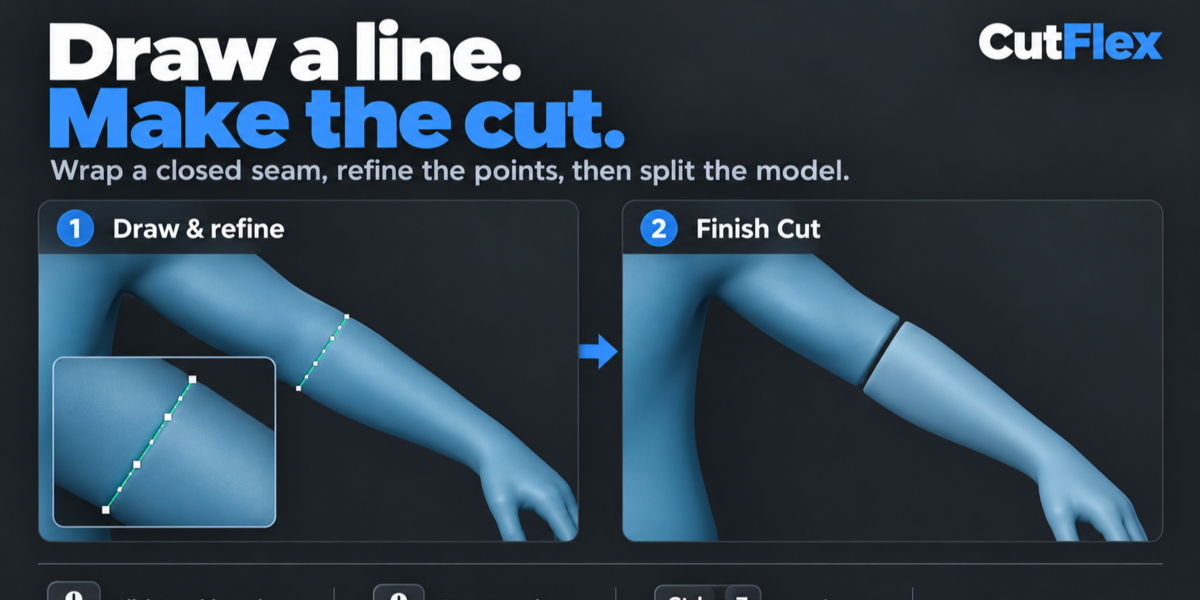
A short stroke across the visible surface becomes a closed contour that wraps the whole model, including the back. Refine the line directly on the mesh, then separate the parts.

Editable points, right on the surface
Hover to preview a point. Click to add it, drag to reshape the seam, or delete it. Undo and redo every edit while you orbit the model.

Separate parts. Original kept.
Confirm the seam to build the cut. Add alignment pegs for a rigid connection, or keep a plain cut. The original mesh stays in the scene.
Click any clip to open it full size ↗
02 / CHARACTER ARTICULATION
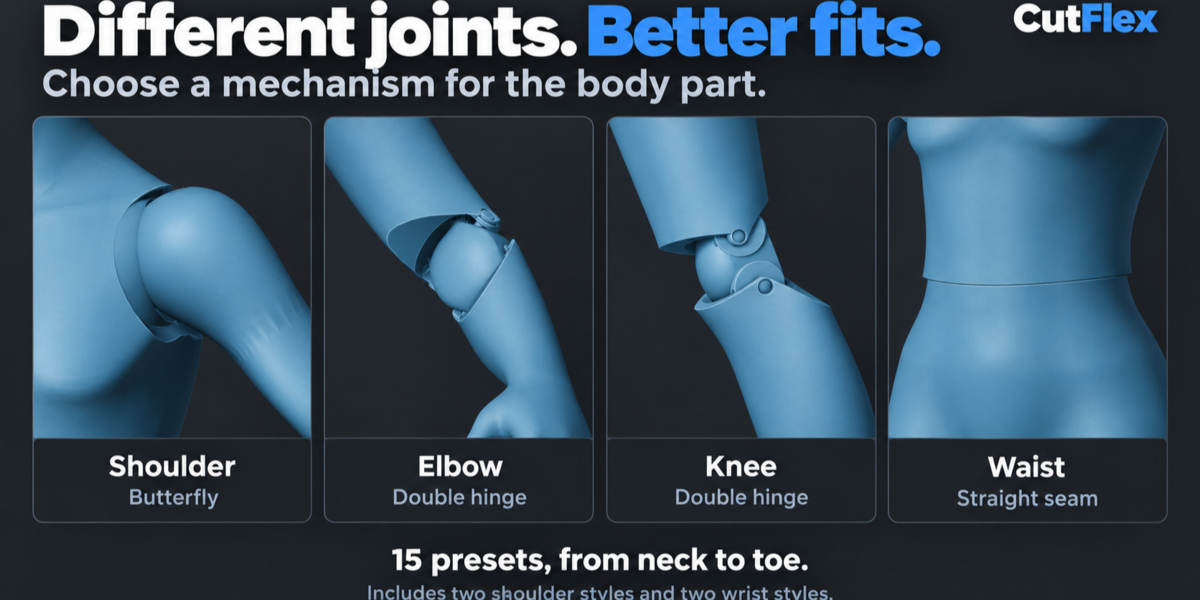
The right mechanism for every joint.
15 configurable presets designed around character forms — rounded hinge links, recessed bearings and fitted housings, each ready to adjust to your sculpt.
×2 = two styles included. The neutral silhouette and available travel depend on the surrounding sculpt and your placement.
03 / FIT AND MOVEMENT
Place it where the movement belongs.
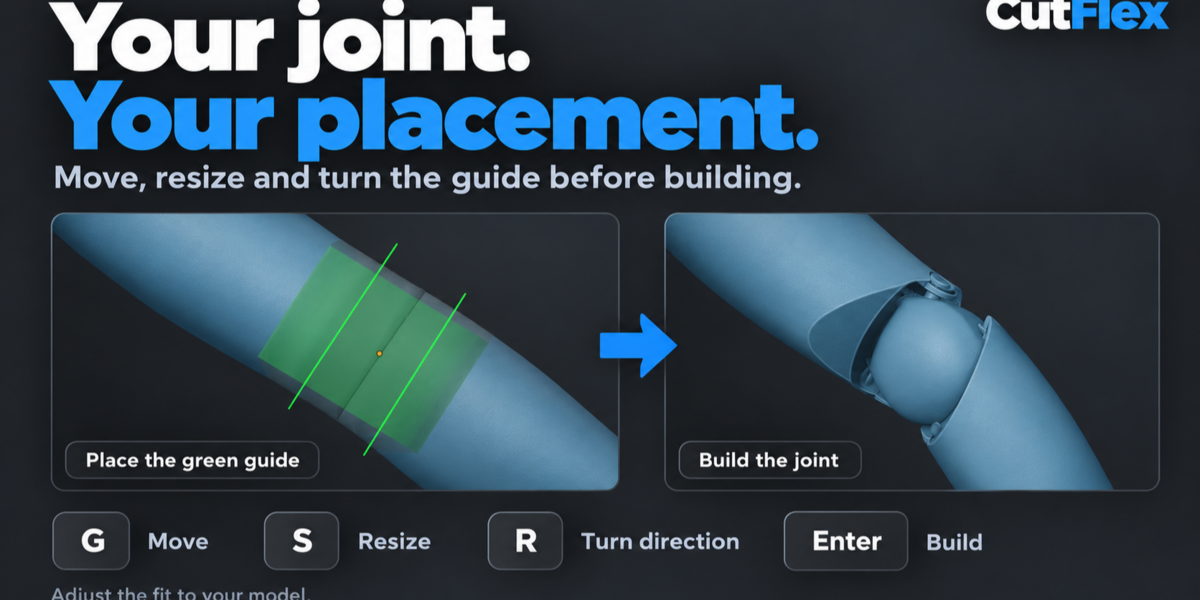
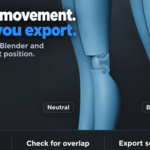
After the cut, a translucent orthographic view reveals the green joint guide inside the model. Move it, resize it and turn the bending direction — then build the exact geometry when the placement is right.

Adjust the fit before building
A lightweight guide keeps placement responsive. Elbow, knee and ankle presets add region height and width controls.
Inspect the joint in motion
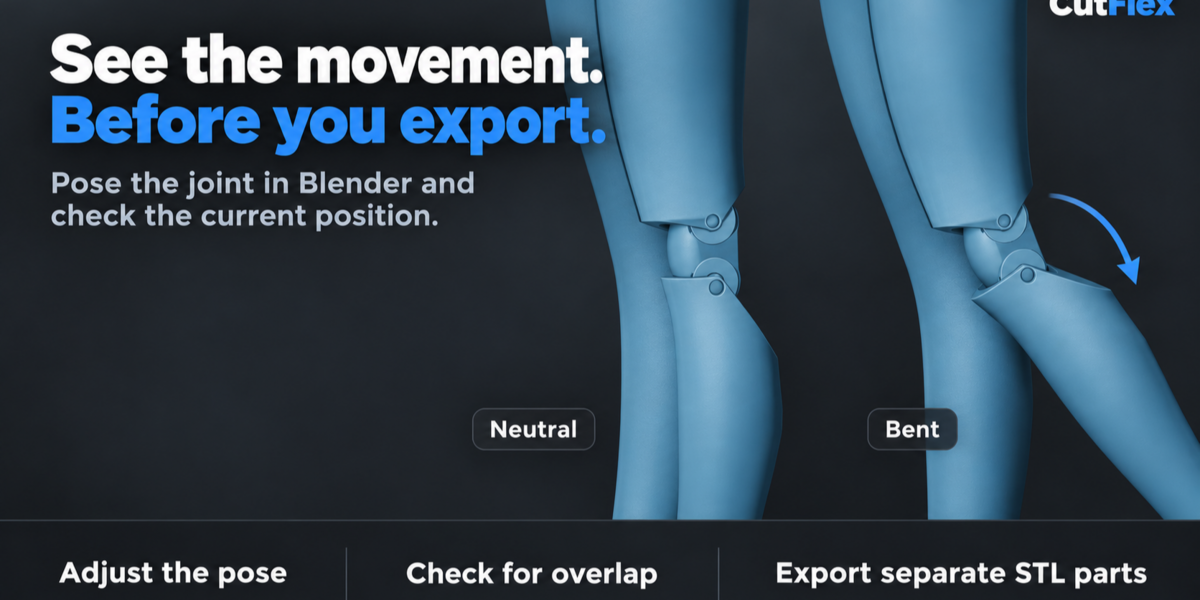
Bend, tilt or rotate the parts with that joint's controls. Check the pose for rigid overlap, then return to neutral.
Recorded in Blender with CutFlex 0.7.24 and 0.8.0; interface details may vary in 1.0.0. The joint-build wait is shortened in the placement clip.
04 / CONNECTORS AND HOLES
Build the connections around your design.
Add a peg and matching socket between parts, or place a hole directly on a surface. Size, placement and clearance stay editable in the saved operation.

Round or keyed connectors
Set diameter, depth, embed and clearance. Move, rotate or resize before confirming.
Holes and recesses
Blind recess or through-hole. A circular blind hole can be sized as a magnet pocket.
Saved operations
Reopen to edit, toggle visibility or remove — the target mesh data stays intact.
05 / PAIRED CUTS AND EXPORT
Two seams. One separation.
Cut a part connected in two places, free a model from its base, or remove a band between two sections. Draw and edit both seams, then build them together. Every resulting part is kept.

Take the whole assembly with you.
Export selected parts, the active assembly or all CutFlex results — as separate files or one combined file, in the neutral assembly or the current pose. Each export gets its own folder and a part manifest.
06 / WHAT YOU GET
Everything stays inside Blender.
Included
- ✓Editable surface cuts and alignment pegs
- ✓15 configurable joint presets
- ✓Joint placement and movement preview
- ✓Round / keyed connectors and holes
- ✓Paired cutting and saved seam editing
- ✓Batch STL, OBJ and FBX export
Compatibility
Verified on 4.5.5 and 5.2.2
07 / FAQ
Good to know before you buy.
Can I change a cut or joint?
Seams have editable points with undo/redo, and the joint guide can be moved, resized and turned before building. Use Edit Joint Placement to revise the scene's current saved joint; selecting an older result doesn't switch the active controls. Save the .blend to keep the source and setup. Saved seams need the source geometry and transform to stay unchanged.
What kind of mesh works best?
A coherent, closed surface with enough material around the mechanism. Overlapping shells, holes, internal faces and very thin areas may need repair or a different cut position. CutFlex fits the joint to the section you choose; anatomy and placement stay in your control.
Does it rig the whole character automatically?
No. CutFlex creates mesh parts and joint-specific movement previews; you choose each cut and preset. You edit one active seam at a time. Whole-character rigging and automatic anatomy detection are outside its scope.
What does the movement check tell me?
Check Pose evaluates rigid overlap at the current sampled pose. Travel depends on the sculpt, placement and joint size, and gaps can show as a joint bends. While connectors or holes are enabled the joint checker is disabled, since they change collision geometry; posing and export still work.
How does it handle dense models?
Placement uses a lightweight guide, and exact geometry is built only when you ask for it. Build time depends on the model, mechanism and computer; the clips demonstrate the tools and aren't timing benchmarks.
What about export and printing?
Batch export includes evaluated modifiers and omits CutFlex helpers. STL carries geometry; OBJ and FBX carry available UVs and material assignments (external textures aren't packed). Cut meshes may need UV work, and paired cuts don't transfer the original UVs. Physical fit and strength still depend on scale, material and print settings.
Ready to articulate your next character?
Surface cuts, 15 fitted joint presets, connectors and batch export — in one Blender panel.
Get CutFlex ↑Blender 4.5 LTS & 5.2 LTS · Windows · STL / OBJ / FBX