Cveld Quicknpanel
 Color Variations of Eldorado - cvELD -


# cvELD Quick N-Panel
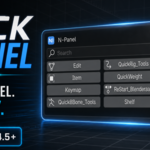
A Blender add-on for listing sidebar (N-panel) categories and quickly switching to the panel you need.
Open the category list from the header or a shortcut in the 3D View, Node Editor, or Image Editor. The selected category is temporarily collected under a `Focused` tab for quick access.
## Requirements
- Blender 4.5 LTS or later
- License: GPL-3.0-or-later
## Features
- Display N-panel categories in a popup list
- Collect the selected category under a temporary `Focused` tab
- Support the 3D View, Node Editor, and Image Editor
- Choose where the header icon appears
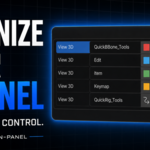
- Customize category order, display names, and icons
- Exclude unwanted categories from the list
- Assign a shortcut to each category
- Search categories by name
- Save and load settings as JSON
- Automatically save setting changes
- Display the UI in seven languages
## Supported Languages
- English (`en_US`, source language and fallback)
- Japanese (`ja_JP`)
- Simplified Chinese (`zh_HANS`)
- Spanish (`es`)
- Korean (`ko_KR`)
- French (`fr_FR`)
- Italian (`it_IT`)
The add-on follows the language selected under **Edit > Preferences > Interface > Translation > Language** in Blender. English is used when a translation or locale is unavailable.
## Installation
1. Package the add-on folder as a ZIP file.
2. In Blender, open **Edit > Preferences > Add-ons**.
3. Open the menu, choose **Install from Disk**, and select the ZIP file.
4. Enable `cvELD Quick N-Panel`.
## Basic Usage
1. Open the 3D View, Node Editor, or Image Editor.
2. Click the N-panel list icon in the header, or press the configured shortcut.
3. Select the category you want to display.
4. The panels in that category temporarily move to the `Focused` tab for immediate access.
Selecting the same category again closes the sidebar. Closing the `Focused` tab or selecting another category returns the moved panels to their original category.
## Settings
The following options are available in the add-on preferences.
### Header Menu
- Show or hide the N-panel list icon
- Place the icon at the left edge of the main header, in the tool settings header, or at the right edge of the main header
### Categories
- Change category priority
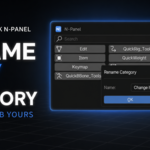
- Rename displayed categories
- Change category icons
- Exclude categories from the list
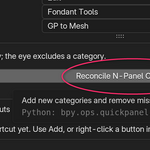
- Refresh the category list
Dimmed categories are unavailable in the current editor or mode.
### Shortcuts
Use a category's right-click menu to assign a shortcut that opens it directly. If a shortcut is lost, use the restore function in the add-on preferences.
### Settings File
Category customizations and shortcuts can be saved in JSON format. When automatic saving is enabled, the settings file is updated whenever a setting changes.
## Translation Catalog
UI translations are stored in `translation/translation.csv`. The `en_US` column contains the English source strings passed to Blender; the other columns contain the translations for each locale.
When adding or editing translations, save the CSV as UTF-8 and preserve the relationship between each English source string and its translations. An empty translation cell falls back to English.
## Credits
This add-on was rebuilt using ideas and selected implementation details from CleanPanels.
## License
GPL-3.0-or-later. See [LICENSE](LICENSE) for details.
$5
Have questions about this product?
Login to message
| Published | about 2 months ago |
| Blender Version | 4.5 - 5.2 |
| Extension Type | N/A |
| License | GPL |