 Color Variations of Eldorado - cvELD -



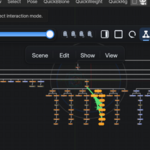
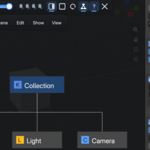
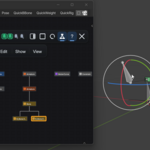
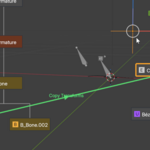

cvELD Schematic View
Product title
cvELD Schematic View — Softimage-Inspired Scene Hierarchy for Blender
★DOCUMENTATION Link
Short description
Navigate complex Blender scenes as an interactive node graph directly in the 3D View. Inspect hierarchy and links, organise nodes, and keep scene structure visible while you work.
Main description
When a Blender scene grows, its structure can become harder to read than the model itself. Objects live inside collections, rigs add bone relationships, and constraints, modifiers, materials, and instances create connections that are not always obvious in the Outliner.
cvELD Schematic View brings a Softimage-inspired schematic view into Blender's 3D View. Open it as a GPU overlay or in a dedicated window, then move through your scene as a connected graph without leaving your modelling, layout, or rigging workspace.
Use it to find the relationship you need, select the right element, and continue working—rather than repeatedly expanding, collapsing, and searching through a long Outliner.
See the connections that matter
- View Object, Collection, Bone, Material, and Instance nodes in one schematic.
- Inspect Parent, Constraint, Modifier, Material, and Instance links.
- Limit the view to the Scene, current View Layer, or current Selection when you need focus.
- Search, frame, expand, collapse, and toggle visibility while keeping selection synchronised with Blender.
Keep busy scenes readable
- Automatically lay out the graph, then arrange it vertically or horizontally.
- Sort nodes and use grid snapping to keep manual organisation clean.
- Create groups and use the Parent Picker when restructuring a hierarchy.
- Add Backdrops, Sticky Notes, node annotations, and link dots to document a scene for yourself or your team.
Work in the way that suits your scene
- Run inside the 3D View as a GPU overlay, or open a dedicated Schematic View window.
- Save layout presets and use four MemoCam slots to return to useful views.
- Choose Modern or Softimage shortcut presets, or set your own keymaps.
- The interface is localised in 14 languages, including English, Japanese, Chinese, Korean, French, German, Spanish, Italian, Portuguese (Brazil), Polish, Russian, Turkish, and Ukrainian.
A typical use
Open the schematic while cleaning up a production scene. Frame the character rig or selected set, follow a constraint or parent link to find the source object, then use a note or backdrop to leave the hierarchy easier to understand next time. The schematic remains close to the 3D View, so you can inspect structure and keep working in the same context.
Requirements and compatibility
- Blender 5.1 or later (verified on Blender 5.2 LTS)
- Windows is the primary development and verification environment
- License: GPL-3.0-or-later
Installation
- Download
cvELD_SchematicView-.zip. - In Blender, open Edit > Preferences > Add-ons.
- Select Install from Disk, then choose the ZIP file without extracting it.
- Enable cvELD Schematic View.
Getting started
- In the 3D View, press
Nand open the Schematic tab. - Click the node-tree icon in Schematic View.
- Zoom with the mouse wheel and pan with
MMBdrag. - Click nodes to select them. Use
Fto frame the selection andAto frame all.
Default launch shortcuts use the top-row number keys, not the numpad:
| Action | Shortcut |
|---|---|
| Toggle in the 3D View |
9 or PageDown
|
| Open dedicated window |
PageUp or Ctrl+9
|
| Force refresh | F5 |
Shortcuts can be changed in Blender's keymap editor or the add-on preferences.
Package contents
- cvELD Schematic View Blender add-on ZIP
Before you buy
- This is a Blender add-on; it is not a standalone application.
- Operations that modify Blender data remain subject to linked-data and read-only-data restrictions.
- For large scenes, display scopes and filters help keep the schematic focused.
Update:
v1.20 You can now zoom the camera in Schematic Viewby pressing Ctrl + middle-click and dragging. The shortcut is also customizable.
You can now install it from the same ZIP file for both Blender 4.5 and 5.0.
v1.30
Multi-collection membership is now fully supported in Schematic View. Objects linked to multiple Collections display additional memberships with dashed, color-coded lines, and you can choose which Collection they appear under by dragging them onto it. This choice is saved with the Blender file.
You can also select a Collection link and press Delete to remove that membership.
Fixed visibility detection for objects belonging to multiple Collections, and improved compatibility for the 9 / PageDown shortcut with custom keymaps.