Cveld Schematicview
 Color Variations of Eldorado - cvELD -



cvELD Schematic View ユーザードキュメント
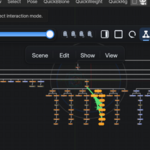
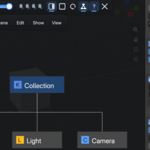
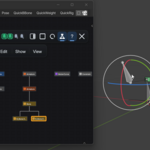
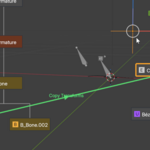
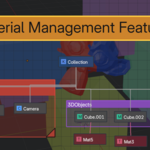
cvELD Schematic Viewは、Blenderの3D Viewにシーン階層をノードとして表示し、選択、表示切り替え、階層編集、レイアウト整理を行うアドオンです。
必要環境
- Blender 4.5以降
- Blender 5.2に対応
- Windowsを主な開発・検証環境としています
- ライセンス:GPL-3.0-or-later
インストール
- Blenderを起動します。
- Edit > Preferences > Add-onsを開きます。
- Install from Diskを選びます。
- ダウンロードしたZIPを展開せずに指定します。
- cvELD Schematic Viewを有効にします。
- 3D Viewで
Nを押し、Schematicタブが表示されることを確認します。
起動方法
- 3D View内で表示:
9またはPageDown - 専用ウィンドウ:
PageUpまたはCtrl+9 - Nパネル:3D View > Sidebar > Schematic
9はテンキーではなく、キーボード上段の数字キーです。
基本ナビゲーション
| 操作 | 既定の入力 |
|---|---|
| パン |
MMBドラッグ |
| ズーム | マウスホイール |
| ノード選択 | LMB |
| 追加選択 | Shift+LMB |
| 選択切り替え | Ctrl+LMB |
| 矩形・投げ縄選択の切り替え | F9 |
| 選択対象を表示 | F |
| 全体を表示 | A |
| ズームをリセット | R |
| 更新 | F5 |
| 終了・キャンセル | Esc |
SoftimageプリセットではS+LMBでパンし、LMB / MMBを選択ジェスチャーとして利用できます。
表示スコープ
- Scene:シーン全体を表示します。
- View Layer:現在のView Layerを基準に表示します。
- Selection:選択対象と関連階層に絞ります。
大規模シーンではView LayerまたはSelectionを使い、Filtersで種類を絞ると扱いやすくなります。
ノードと選択
選択同期が有効な間、BlenderとSchematicの選択状態は双方向に同期します。同期を無効にすると、現在のSchematic選択を保持できます。
| 操作 | ショートカット |
|---|---|
| 名前変更 | F2 |
| 複製 | Ctrl+D |
| リンク複製 | Alt+D |
| 整列 | L |
| 無効状態の切り替え | D |
| 設定された可視性の切り替え | H |
| 削除 | Delete |
| 検索 | Shift+Tab |
| Branch選択 | Alt+B |
| Tree選択 | Alt+T |
階層編集
/でParent Pickerを開始し、親にするノードをクリックして確定します。Escでキャンセルします。
-
Alt+/:親を解除 -
Alt+C:Constraintを追加 -
Alt+G:グループ化 -
Shift+Alt+G:グループ解除 -
Alt+L:ノード位置のロック切り替え -
Alt+E:すべて展開 -
Alt+Q:すべて折りたたむ -
Shift+Alt+E:深さを指定して展開 -
Alt+I:選択対象をIsolate / 解除
Boneの親変更ではBlenderのモードと選択状態が一時的に切り替わります。重要な編集の前にファイルを保存してください。
リンク表示
Parent、Constraint、Modifier、Material、Instanceのリンクを個別に表示できます。Constraint LinksはSelected OnlyまたはAlways、ConstraintとMaterialの経路はStraightまたはParallelを選択できます。
リンクをクリックすると内部選択できます。リンク上のDotはPeriodで追加、ドラッグで移動、Deleteで削除できます。
レイアウト
- 縦方向 / 横方向
- Creation、Type、Height / Width、Width / Heightによるソート
- Auto Layout
- Grid表示とSnap to Grid
-
Ctrl+R:全体を再配置 -
Shift+R:選択対象を再配置
レイアウトプリセットには、ノード位置、並び、折りたたみ、ビュー、方向、ソートなどを保存できます。
Backdrop・Sticky Note・注釈
-
B:Backdropを追加 -
N:Sticky Noteを追加 -
Period:リンクへDotを追加 -
Delete:選択した注釈要素を削除
Backdropはノードの分類、Sticky Noteはメモやチェックリストに利用できます。タイトル、色、透明度、前後関係、ノードへの固定などを設定できます。
MemoCam
-
Ctrl+1~Ctrl+4:現在のパンとズームを保存 -
1~4:保存したビューを呼び出す
設定
- Filters:表示するノード種類
- Links:リンク種類、表示条件、経路
- Layout:配置、方向、ソート、グリッド
- Layouts:名前付きレイアウトプリセット
- Appearance:アイコン、色、背景透明度、ツールバー
- View:フレーミング、MemoCam、専用ウィンドウサイズ
- Interaction:選択形状、可視性チャンネル
- Advanced:初期スコープ、アドオン設定
BoneはHide Bonesのみ可視性切り替えに対応します。Materialは可視性を持たないためHキーに対応しません。
ショートカット設定
- Modern:Blenderや一般的なノードエディターに近い操作
- Softimage:Softimageに近い操作
- User:個別に変更した設定
設定はJSONとしてExport / Importできます。起動キーはBlenderのKeymap、Schematic実行中のキーはアドオン設定から変更します。
保存とUndo
- ノード位置、折りたたみ、レイアウトプリセット、Backdrop、Sticky Note、注釈、MemoCamは
.blendに保存されます。 - ショートカットや外観はBlenderのアドオン設定に保存されます。
-
Ctrl+Z/Ctrl+YはSchematic内部のレイアウトや注釈に対応します。 - Blenderデータを変更する操作はBlenderのUndo対象です。
更新と削除
更新
-
.blendを保存し、Schematic Viewを閉じます。 - 新しいZIPをAdd-ons画面からインストールします。
- Blenderを再起動してバージョンを確認します。
削除
- Schematic Viewを閉じます。
- Add-ons画面でアドオンを無効化して削除します。
- Blenderを再起動します。
トラブルシューティング
Schematicタブが表示されない
- Blender 4.5以降であることを確認します。
- アドオンが有効か確認します。
- 3D Viewにマウスを置いて
Nを押します。 - Blenderを再起動します。
ノードが表示されない
- ScopeをSceneにします。
- 検索文字列を消し、Filtersを確認します。
- 折りたたみとIsolateを解除します。
-
F5で更新します。
表示が重い
- ScopeをView LayerまたはSelectionに絞ります。
- 不要なノード種類とリンクを非表示にします。
- Constraint LinksをSelected OnlyまたはOffにします。
- Node Previewsを無効にします。
編集操作がキャンセルされる
Library Link、Library Override、読み取り専用データ、Boneを含むArmatureの編集可否、循環階層の有無を確認してください。
診断ログ
cveld_schematic_modal_error.logcveld_schematic_draw_error.log
ログはBlenderの一時ディレクトリに保存されます。
不具合報告に必要な情報
- Blenderの完全なバージョン番号
- OSとGPU
- アドオンのバージョン
- 再現手順
- 対象データの種類
- エラーメッセージまたは診断ログ
- 可能であれば最小構成の
.blend
公開できない制作データや個人情報を公開Issueへ添付しないでください。
お問い合わせ先
- 作者:Land-Y
- X:https://x.com/cvELD_info
- ウェブサイト:https://cveld.net/
cvELD Schematic View User Documentation
cvELD Schematic View displays the Blender scene hierarchy as nodes in the 3D View. It supports selection, visibility control, hierarchy editing and visual layout management.
Requirements
- Blender 4.5 or later
- Compatible with Blender 5.2
- Windows is the primary development and verification environment
- License: GPL-3.0-or-later
Installation
- Open Edit > Preferences > Add-ons.
- Choose Install from Disk.
- Select the downloaded ZIP without extracting it.
- Enable cvELD Schematic View.
- Press
Nin the 3D View and confirm that the Schematic tab appears.
Opening Schematic View
- 3D View overlay:
9orPageDown - Dedicated window:
PageUporCtrl+9 - Sidebar: 3D View > Sidebar > Schematic
9 means the top-row number key, not Numpad 9.
Navigation
| Action | Default input |
|---|---|
| Pan |
MMB drag |
| Zoom | Mouse wheel |
| Select / Add / Toggle |
LMB / Shift+LMB / Ctrl+LMB
|
| Toggle rectangle / lasso selection | F9 |
| Frame Selection / Frame All |
F / A
|
| Reset Zoom | R |
| Refresh | F5 |
| Cancel or exit | Esc |
The Softimage preset uses S+LMB to pan and LMB / MMB as selection gestures.
Display Scope
- Scene: the entire scene.
- View Layer: the current View Layer.
- Selection: selected data and its related hierarchy.
Nodes and Selection
While selection synchronisation is enabled, Blender and Schematic selection update in both directions.
| Action | Shortcut |
|---|---|
| Rename Node | F2 |
| Duplicate / Duplicate Linked |
Ctrl+D / Alt+D
|
| Align Nodes | L |
| Toggle Disable / Visibility |
D / H
|
| Delete Selection | Delete |
| Search Nodes | Shift+Tab |
| Select Branch / Tree |
Alt+B / Alt+T
|
Hierarchy Editing
Press / to start Parent Picker, then click the target parent. Press Esc to cancel.
-
Alt+/: Clear Parent -
Alt+C: Add Constraint -
Alt+G/Shift+Alt+G: Group / Ungroup -
Alt+L: Toggle Lock -
Alt+E/Alt+Q: Expand / Collapse All -
Shift+Alt+E: Expand To Depth -
Alt+I: Isolate Selected
Links
Parent, Constraint, Modifier, Material and Instance links can be displayed independently. Constraint Links support Selected Only and Always. Constraint and Material routes support Straight and Parallel.
Click a link to select it internally. Add a Dot with Period, drag it to move it and remove it with Delete.
Layout and Annotations
-
Ctrl+R/Shift+R: Rearrange All / Selection -
B: Add Backdrop -
N: Add Sticky Note -
Period: Add Dot on Link -
Ctrl+1throughCtrl+4: store MemoCam -
1through4: recall MemoCam
The Layout panel controls orientation, sorting, Auto Layout, Grid and Snap to Grid. Layout presets store node positions, ordering, collapsed states, view, orientation and sorting.
Settings
- Filters: visible node types
- Links: link types, conditions and routing
- Layout: placement, orientation, sorting and grid
- Layouts: named layout presets
- Appearance: icons, colours, opacity and toolbar
- View: framing, MemoCam and window size
- Interaction: selection shape and visibility channel
- Advanced: initial scope and add-on preferences
Bones support only Hide Bones visibility. Materials have no visibility state.
Shortcut Presets
- Modern: controls similar to Blender and common node editors
- Softimage: Softimage-inspired controls
- User: individually customised controls
Settings can be exported and imported as JSON.
Storage and Undo
- Node positions, collapsed states, layout presets, annotations and MemoCam are stored in the
.blendfile. - Appearance and shortcuts are stored in Blender’s add-on preferences.
-
Ctrl+Z/Ctrl+Yhandle internal layout and annotation changes. - Operations that edit Blender data participate in Blender’s Undo system.
Updating and Uninstalling
Before updating, save the .blend file and close Schematic View. Install the new ZIP, restart Blender and verify the version.
To uninstall, close Schematic View, disable and remove the add-on, then restart Blender.
Troubleshooting
The Schematic tab does not appear
- Confirm that Blender 4.5 or later is installed.
- Confirm that the add-on is enabled.
- Move the pointer over a 3D View and press
N. - Restart Blender.
No nodes are displayed
- Set Scope to Scene.
- Clear search text and check Filters.
- Exit collapsed hierarchies and Isolate mode.
- Press
F5.
Display is slow
- Narrow Scope to View Layer or Selection.
- Hide unused node and link types.
- Set Constraint Links to Selected Only or Off.
- Disable Node Previews.
Editing is cancelled
Check Library Link, Library Override and read-only restrictions, Armature editability and possible hierarchy cycles.
Diagnostic logs
cveld_schematic_modal_error.logcveld_schematic_draw_error.log
Bug Reports
- Full Blender version
- Operating system and GPU
- Add-on version
- Reproduction steps
- Relevant data type
- Error message or diagnostic log
- A minimal
.blendfile when possible
Do not attach confidential production data or personal information to a public issue.
Contact
- Author: Land-Y
- X: https://x.com/cvELD_info
- Website: https://cveld.net/
Have questions about this product?
Login to message
| Blender Extension Compatible | Yes |
| Sales | 30+ |
| Published | about 2 months ago |
| Blender Version | 4.5 - 5.2 |
| Extension Type | Add-on |
| License | GPL |
Discover more products like this
schematic editor management Material SchematicView rigging Hypergraph Node collection