 Christoph Werner




CW Shader Buddy
Every texture and every material of your scene in one list — with the problems marked in red.
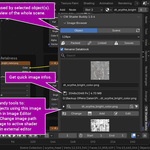
Blender scatters your images across materials, modifiers, brushes, camera backgrounds, the world and the compositor. Finding out what is actually in your file usually means clicking through node trees. CW Shader Buddy puts all of it into one sidebar panel: with thumbnails, with the objects that use it, and with one-click fixes.
Image Browser
See what you have, and where it is used.
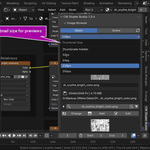
- Thumbnails from 32 to 256 px, or switched off for maximum speed
- Object or Scene: only the textures of your selection, or everything in the file
-
Usage list per image — materials, objects, world, Grease Pencil, line styles, compositor, camera backgrounds, image empties, modifiers and brushes
Click an object name and it is selected, with the matching node active. - Select all objects that share a texture with one button
- File info at a glance: resolution, file size, frame count for videos, full path
- Replace a texture everywhere it is used, or open it in the Image Editor
- Edit in Photoshop or your editor of choice — after saving, the image reloads by itself
- Image sequences: step through frames, edit a single frame, missing frames are reported
-
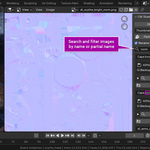
Search several terms at once — type
wood, hdrto find all wood textures and all HDRIs; even the file extension or a brush name works
Not only bitmaps
- Procedural textures used by modifiers and brushes appear in their own section — including the ones nothing uses any more
-
Brush textures get their own section too, with a warning for painted textures Blender would drop on quit
Your painting brush uses a texture that was never saved? You will see it before it is gone. - Remove All Unused clears out the images nothing references, in one step
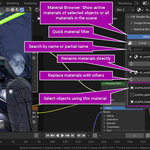
Material Browser
The same overview for your materials.
- All materials with the objects that use them
- Assign to the selection, replace everywhere, remove what nothing uses
-
Merge copies:
Wood,Wood.001andWood.002become one — but only when they are truly identical, so no settings are lost - Name clashes are pointed out instead: same name, different nodes — rename one, or mark the pair as intended and it stops asking
- Empty material slots are listed and can be removed in one go. If faces still use a slot, you are warned before anything changes
Finds the problems you did not know about
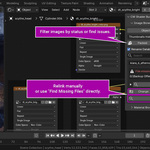
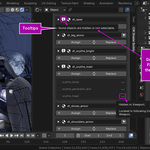
Turn on Issues and the list shows only what needs attention. A small red mark tells you there is something to look at — even while the panel is collapsed.
- Missing files, with a Find button
- Unsaved paint work that Blender would lose on quit
- Textures nothing uses any more
- Numbered copies of the same file
- Names that no longer match the file on disk — one click brings them back in line
- Node labels left over from a texture swap
Every warning carries its full text as a tooltip, so a narrow sidebar stays readable. You decide what counts as a problem: each issue type has its own checkbox in the preferences.
Batch Rename
Rename dozens of images or materials at once.
-
Find and replace, with regular expressions if you want them —
_diffuse→_albedoacross 40 textures in one step - Prefix, suffix, or a completely new name
- UPPER, lower, Title, CamelCase, or strip characters from the start or end
- Rename the files on disk as well, image sequences included, with a preview of every rename before it happens
- Node labels follow the new names automatically
Works where you work
The panel sits in the sidebar (press N) of the Shader Editor, Image Editor, UV Editor, Compositor — and in the 3D Viewport, so you can manage your textures without leaving your scene.
No Shader Editor open? Switch on one preference and the „View" button turns a free area into the editor you need — never the viewport you are working in.
Good to know
- Blender 4.5 or newer (See version compatibility)
- Works with packed, linked, video and sequence images
- Thumbnails load in the background, long lists are paged — built for scenes with hundreds of textures
