CycloToon
 JRB
JRB
CycloToon — Documentation
What This Addon Does
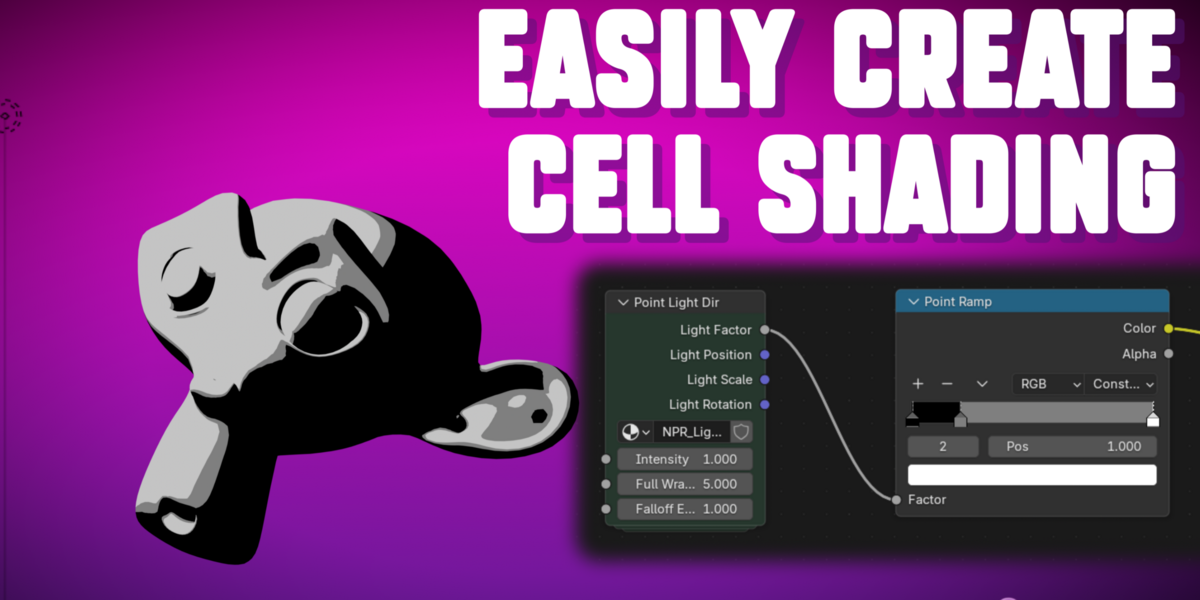
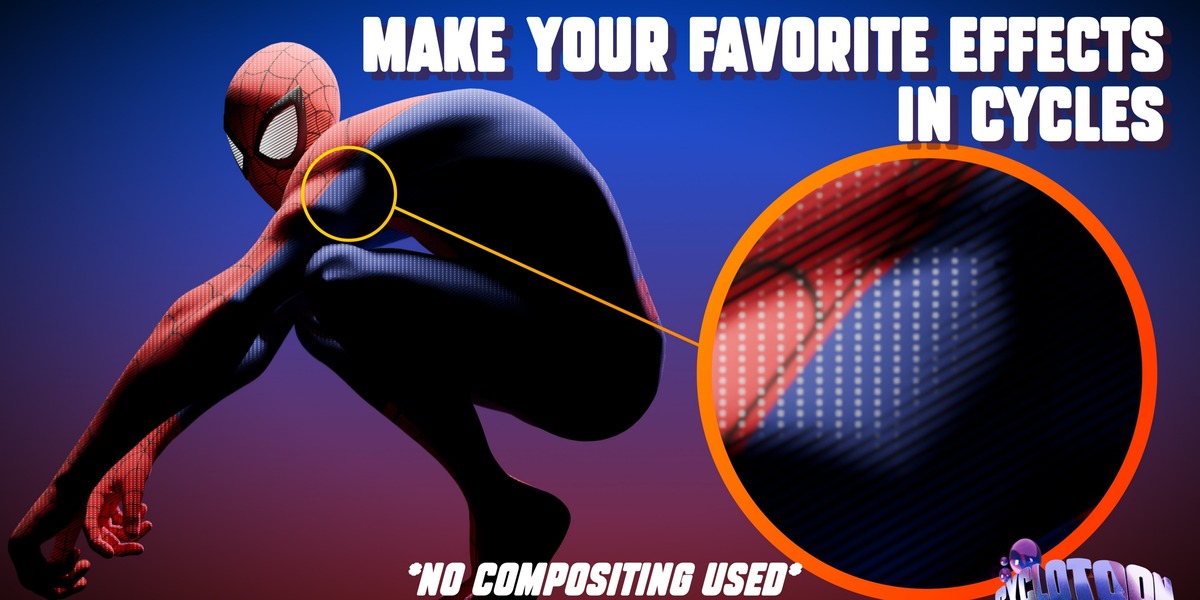
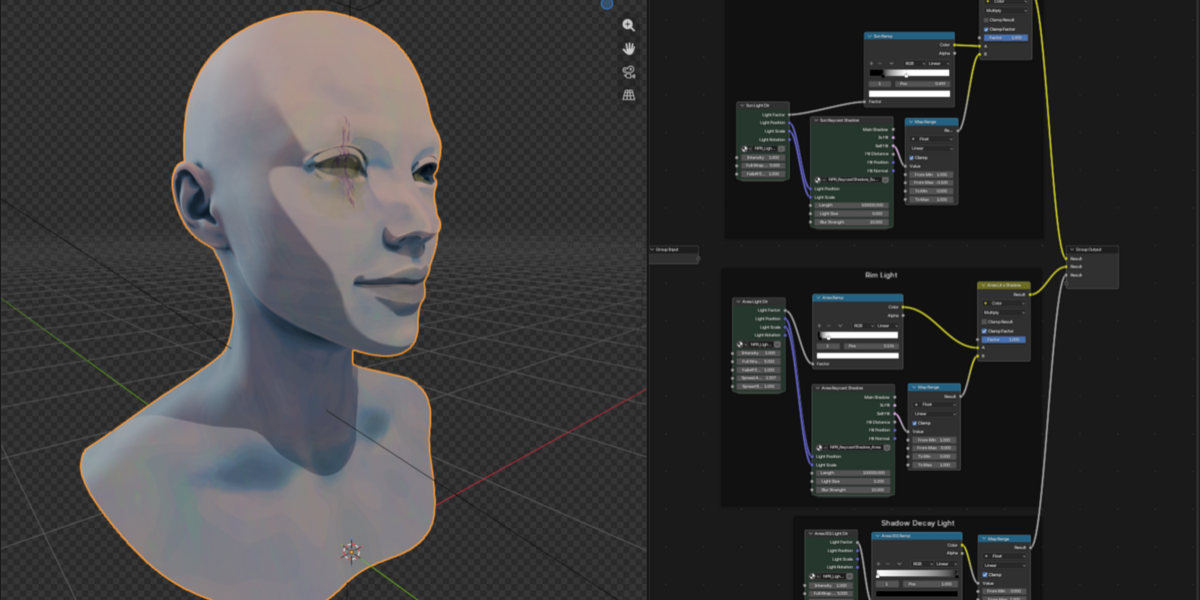
CycloToon builds a shadow-aware, physically-grounded light mask directly in the Shader Editor — the same kind of 0–1 lighting signal Eevee's Shader to RGB node gives you, built from scratch for Cycles. It reads a light's real position, brightness, and physical properties directly from Blender's own light data, so the result stays accurate as you move, animate, or resize things in your scene.
Requirements
- Blender 5.1 or newer
- Cycles (this addon relies on Cycles-specific features and isn't needed in Eevee)
- Raycast Shadow specifically requires the Shader Editor's native Raycast node, added in Blender 5.1. Everything else works on any 5.x build.
- Blender 5.3's daily builds added a new feature to bulk-remove objects from raycast visibility, so a matching panel for that is included too — see Raycast Visibility Panel below.
Installation
- Extract the
.rarfile you downloaded. - In Blender: Edit > Preferences > Add-ons > Install from Disk, select the Cyclotoon.py file.
- Enable the checkbox next to CycloToon in the add-ons list.
- Open a Shader Editor, press N to show the sidebar, and look for the Cyclotoon tab.
Quick Start
- Open the Shader Editor on the material you want to add toon lighting to.
- In the sidebar (N panel), open Cyclotoon > Light Mask > Lights.
- Under Single Light, pick a light from the Light dropdown.
- Click Build as Group Node.
- Plug the resulting node's Light Factor output into your Base Color, a Mix Shader, or wherever your toon logic lives.
- Move, rotate, or resize the light — the shading updates live.
The Panel
Location: Shader Editor > Sidebar (N) > Cyclotoon tab > Light Mask panel
Light Mask (top-level settings)
| Setting | What it does |
|---|---|
| Default Light Intensity | Starting value for the Group Node's Intensity Factor input. |
| Include Color Ramp | Auto-wires a Color Ramp to Light Factor, for instant hard-banded toon shading. |
| Include Raycast Shadow | Adds real shadow-casting using Blender's native Raycast node. Requires 5.1+. |
| ↳ Combine Into One Group | On by default. One Group Node instead of two, with collapsible panels. |
| Include AOV Output | Adds _Light / _Shadow AOV passes, registered on the current View Layer automatically. |
Lights Sub-Panel
- Position / Scale / Rotation Only — a live, driver-linked Position node, Scale node, and Rotation node for fully custom setups. (Not needed by most users.)
- Build as Group Node — the full setup for one light.
- Build Separate Groups — one Group Node per light in a chosen Collection.
The Combined Group Node
With Combine Into One Group checked, one Group Node contains both Light Direction and Raycast Shadow logic, organized into panels:
| Panel | Contains |
|---|---|
| (top level) | Light Factor, Self Shadow, Cast Shadow |
| Light Direction | Intensity Factor + type-specific sliders (below) |
| Shadow | Shadow Distance, Blur Strength/Blur Scale, Terminator Bias, Light Size where applicable |
| Extras | Hit Distance, Hit Position, Hit Normal |
Every slider has a tooltip in Blender itself — hover any input or output for a plain-language explanation.
Every Input, By Light Type
Intensity Factor (all types)
Stylistic brightness multiplier on top of the light's real Power/Exposure. Also a good place to plug in a texture or Color Ramp for gobo-style light breakup instead of a flat, uniform look.
Point Light
- Wrap Threshold — the real Object Scale value at which the lit region reaches a full 360° wrap. Higher = takes more scaling to reach full wrap (slower); lower = reaches it sooner. (Named this way specifically because "Full Wrap Scale," the old name, read backwards — bigger felt like it should mean faster, when it's the opposite.)
-
Falloff Exponent — exponent on real Object Scale; dims the light as it scales up.
0disables it,1is linear,2is quadratic. - Shadow softness is fully automatic, derived from real Object Scale — no manual Light Size slider. Blur Strength:
0= no blur,1= blur purely from Scale, higher ramps faster.
Spot Light
- Falloff Exponent — same as Point.
- Cone Widening Base — manual stand-in for the cone widening as the light gets physically closer, multiplied by real Object Scale. This is what actually controls perceived wrap speed for Spot (its own wrap-calibration equivalent to Point's Wrap Threshold is hardcoded internally — adjusting it made negligible practical difference in testing).
- Cone Angle/Blend stay live-driven from the light's real Spot Size/Blend.
- Shadow softness is automatic, same system as Point.
Sun Light
- No manual wrap slider at all — driven entirely by the light's real Angle property. The simplest of the four systems.
- Shadow softness slider is named Blur Scale (not Blur Strength) since Sun's blur has no distance term, unlike the other three.
Area Light
- Falloff Exponent — same concept as Point/Spot, applied to real Object Scale.
- Wrap-around shading and shadow blur both driven by real Object Scale, tied to the light's own closest-point-on-surface shading.
-
Blur Strength defaults to
0.6here (vs.1.0/10.0on the other types) — a different baseline calibration for this system specifically. Adjust it if that default isn't right for your scene.
Shadow Inputs (all types)
- Shadow Distance — max distance the shadow ray travels before giving up on finding an occluder.
- Terminator Bias — fixes shadow-acne on curved/low-poly geometry, using the same approach Cycles itself uses internally. Only affects grazing angles; zero effect on surfaces already facing the light.
Every Output
| Output | What it does |
|---|---|
| Light Factor | The core 0–1 lighting value. |
| Light Position | Live world-space position (synthetic for Sun, closest-surface-point for Area). Only relevant if Combine Into One Group is off. |
| Self Shadow | Visibility from the object's own geometry only. |
| Cast Shadow | Overall visibility from every occluder. |
| Hit Distance / Position / Normal | Raw Raycast node outputs. Not used internally by CycloToon, but included since they come free with the Raycast node — handy for custom setups. |
How Brightness Actually Works
-
Point/Spot/Area: real inverse-square falloff,
Power / (4·π·distance²). - Sun: uses Strength directly, no distance falloff — matching how Sun lights behave in Blender.
Change the light's real Power in the light's Object Data Properties and the shader updates automatically.
Raycast Visibility Panel
Location: Shader Editor > Sidebar (N) > Cyclotoon tab > Raycast Visibility (5.3+) panel
Blender 5.3 added a per-object Raycast visibility toggle, controlling whether an object can occlude a Raycast Shadow ray at all. Toggling this by hand on every object in a scene is tedious, so this panel lets you set it in bulk instead:
- Collection — pick a Collection; every object inside it is included.
- Individual Objects — add specific objects one at a time with the + button (useful for objects outside your chosen Collection); remove entries with –.
- Enable Raycast / Disable Raycast — sets visibility on for shadows for every object from both the Collection and the individual list at once.
This only appears on Blender 5.3 and newer, since it relies on a property that doesn't exist in earlier versions. however if you are using 5.2 or 5.1 install will still work fine you just wont be able to use this feature yet.
Tips
- Regenerate rather than hand-edit if you change a light's type — the internal math differs per type.
- Raycast Shadow reads live scene geometry — animation and deformation are handled with no baking.
- Rename lights meaningfully before enabling AOV output, since AOV names are derived from the object name.
- Building the same light twice makes two independent Group Nodes — delete old ones to keep the graph tidy.
- For Point and Spot, eyeball Object Scale against a real BSDF reference first — usually little further tuning is needed.
Known Limitations
- Area light Rectangle/Disk/Ellipse shapes aren't shape-accurate yet — all Area lights use Square-style math internally regardless of Shape setting. You can still scale an Area light non-uniformly to get rectangle-like shapes, the normal way.
- Raycast Shadow needs Blender 5.1+ for the Shader Editor's native Raycast node.
Getting Help
- Support requests: reach out through your Superhive inbox — this is what I check for the formal support period, and where I guarantee a response.
- Discord: https://discord.gg/2yfxQpvNRP — a faster, more casual spot for quick questions, troubleshooting, or just talking with other people using the addon. Also for those who want to help make this plugin better
 Included
Includes 12 months of
- Support from JRB
- Product updates
Extend this product’s Support Period +12 months: 25% of product price
Have questions before purchasing?
Login to message
| Published | about 2 months ago |
| Blender Version | 5.1 - 5.2 |
| Extension Type | N/A |
| Render Engine Used | Cycles |
| License | GPL |
Discover more products like this
CycloToon Cycles NPR Shader Cartoon Anime Cell-Look Material Utility cell-shader Cell-shading animated cell 2026addon NPR NPR shadi toon shading Cycles Toon shading