Dae Exporter | Collada Export For Blender 5.0+
 Smart King


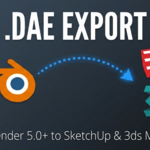
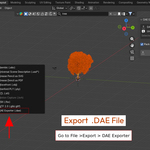
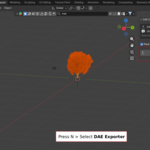
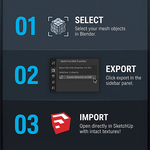
DAE Exporter Addon Documentation
1. Overview
The DAE Exporter addon restores a reliable Collada (.dae) export workflow to Blender 5.x and newer, where the official Collada exporter has been removed. It is designed for artists and technical users who still depend on .dae for tools like SketchUp, 3ds Max, BeamNG, CAD viewers, and custom engines.
The addon lives directly in the 3D Viewport's N-panel and offers a one-click "Export Selection to DAE" button, plus an option to package textures into a ZIP bundle for easy sharing.
2. Requirements
· Blender 5.0 or later (primary target; earlier versions still using the legacy Collada exporter are no longer the focus).
· Windows, macOS, or Linux using official Blender builds.
· Basic familiarity with Blender's add-on installation and object selection.
3. Installation
1. Download from Superhive: After purchasing, go to your Superhive Library and download the addon .zip file. Superhive requires products to be uploaded as compressed archives.
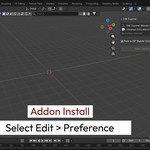
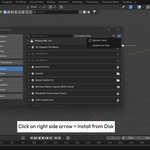
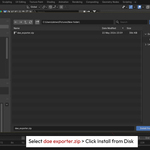
2. Install in Blender: Open Blender > Edit > Preferences > Add-ons. Click "Install...", select the downloaded .zip, and confirm. Blender will install the addon; do not unzip it manually.
3. Enable the addon: In the Add-ons list, search for "DAE Exporter" (or your addon name) and tick the checkbox to enable it. Blender remembers this across sessions.
4. Updating: When a new version is released, download the new .zip from Superhive and repeat the Install step. Blender will overwrite the previous version and keep your preferences in most cases.
4. Accessing the N-panel tools
After installation:
· Open the 3D Viewport.
· Press N to show the side panel.
· Switch to the "DAE Exporter" tab.
You will see a compact panel with the following layout: header, a short description, a "Selected:" status line, the "Pack to ZIP (Bundle Textures)" option, and the "Export Selection to DAE" button.
5. N-panel controls (field-by-field)
DAE Exporter (Blender 5.0+): Indicates that this exporter is intended for Blender 5.x and later, where the old Collada exporter is no longer included.
Universal COLLADA format compatibility: Highlights that exports are tuned for common Collada workflows (SketchUp, 3ds Max, BeamNG, general viewers) rather than a single proprietary tool.
Selected: : Shows which active object or selection is currently targeted for export. Make sure the correct mesh or group is selected in the viewport before exporting.
Pack to ZIP (Bundle Textures): When enabled, the addon exports your selection to .dae and then collects the .dae and all referenced texture files into a single ZIP. This is ideal when you need a self-contained archive for another user, another machine or a pipeline that expects a bundled asset. If disabled, only the .dae file is written and textures are expected to remain in their existing folder structure.
Export Selection to DAE: The main action button. It runs the exporter on the current selection using your configured options, writing either a plain .dae or a zipped bundle if "Pack to ZIP" is enabled. This is the fastest way to send assets out of Blender 5.x as Collada.
6. Quick start workflow
5. Prepare your scene: Select the objects you want to export and apply scale and rotation (Ctrl+A > Apply All Transforms) for predictable results in other tools.
6. Open the DAE Exporter panel: In the 3D Viewport, open the N-panel and switch to the "DAE Exporter" tab.
7. Check the "Selected" label: Confirm that the "Selected:" line shows the object (or one of the objects) you want to export.
8. Choose whether to bundle textures: Enable "Pack to ZIP (Bundle Textures)" if you want a single archive with the .dae and all textures, or leave it off if your pipeline prefers loose files.
9. Export: Click "Export Selection to DAE", choose a folder and filename in the file browser if prompted, then confirm. Import the resulting .dae (or ZIP) into your target application and verify geometry, scale and materials.
7. Export options and behavior
Internally, the addon follows principles similar to the legacy Collada exporter, but adapted for Blender 5.x and modern workflows.
Selection vs full scene: The N-panel button always focuses on the current selection, matching the "export selection" workflow many Collada users rely on (for example BeamNG or SketchUp assets).
Transforms: Transforms are applied in a safe way so that meshes do not appear rotated 90 degrees or unexpectedly scaled when imported elsewhere.
Triangulation: Where necessary, N-gons and quads are triangulated to avoid issues in tools that only accept triangles in Collada.
Materials and UVs: Materials and UV maps are exported, but Collada stores references to textures, not the textures themselves, which is why the texture-bundling ZIP option is useful.
8. Textures and ZIP bundles
Collada (.dae) references external image files rather than embedding them. With "Pack to ZIP (Bundle Textures)" enabled:
· The addon scans your selection for used image textures.
· It writes the .dae file and copies the referenced textures into a subfolder or directly into the ZIP, depending on the implementation.
· You get a single ZIP file you can hand off, ensuring the target application can locate textures relative to the .dae.
If you prefer managing textures yourself (for example in a studio asset folder), leave this option off and keep your texture paths organized manually.
9. Compatibility notes
Blender's official Collada support is now legacy and removed from Blender 5.0 onward, which has pushed many users toward external exporters for .dae-based pipelines.
Intended use cases: Workflows that still require Collada, such as SketchUp (especially where other export formats are limited), BeamNG, some CAD viewers and older engines.
Format limitations: Advanced node-based shaders, procedural materials and some modifiers do not map cleanly to Collada and will be simplified or baked.
Modern alternatives: If your target supports glTF/GLB or FBX, those are generally recommended as more modern formats, with better tooling and long-term support. Collada export from this addon is primarily for cases where .dae is still mandatory.
10. Licensing
Blender is released under the GNU GPL, and Blender Python add-ons that integrate with its API must also be GPL-compatible.
· You can use this addon freely in personal and commercial projects.
· The addon's Python code is provided under the GPL; the 3D content you create and export with it remains your property.
· The Superhive download includes the necessary license information to comply with GPL requirements.
11. Support and bug reports
If you run into issues:
10. First check: Verify your Blender version (5.x recommended) and operating system, and test with a simple scene (for example a single cube) to see if the issue is scene-specific.
11. When contacting support via your Superhive product page, include: Blender version and OS, addon version, a short description of the problem, any error messages from the Console, and a minimal .blend file plus the target application (SketchUp, BeamNG, etc.).
Have questions about this product?
Login to message
| Blender Extension Compatible | Yes |
| Sales | 10+ |
| Published | 4 months ago |
| Blender Version | 4.0 - 5.2 |
| Extension Type | Add-on |
| Render Engine Used | Cycles |
| License | GPL |
Discover more products like this
collada exporter blender 5.0 Collada export dae export blender dae dae exporter blender collada sketchup-export collada Dae blender 5 dae