 Synrg Studios



DAMTOOLS 1.8.1 · BLENDER MODELING ADD-ON BY SYNRGSTUDIO
Less menu diving. More modeling.
90+ tools for cutting, placing, mirroring, aligning, cleaning up and sending models to your slicer, all behind Shift+W. Object Mode and Edit Mode each get their own pie menu, grouped by task.
- One shortcut, two menus. Each mode gets its own pie with the tools that make sense there, plus a Most Used row with the six tools you reach for most.
- See it before you commit. Interactive tools preview the result, list their hotkeys in an on-screen card, and back out cleanly with Esc or right-click.
- Built for hard surface and print. Booleans, panels, bolts, planar cuts, Smart Apply for modifiers, and export to Bambu Studio or PrusaSlicer in one click.
Blender can do it. It just takes too many steps.
Separating loose parts means Tab, select all, P, pick an option, Tab back. Dropping a bolt onto an angled panel means snapping, rotating, nudging. None of it is hard. It's friction, many times a day. DAMTools turns those jobs into single, interactive operations that show you what they're about to do and get out of the way.
- Split by Loose Parts: one click in Object Mode. Hold Alt to center origins, Ctrl for bottom center.
- Layer Selector: pick objects hidden behind or inside others, right under the cursor.
- Apply & Origin Bottom: apply transforms and drop the origin to bottom center, ready to arrange or print.
Signature tools: see them work
Auto Bool: Select the cutters. That's it.
Object Mode · Hard Surface
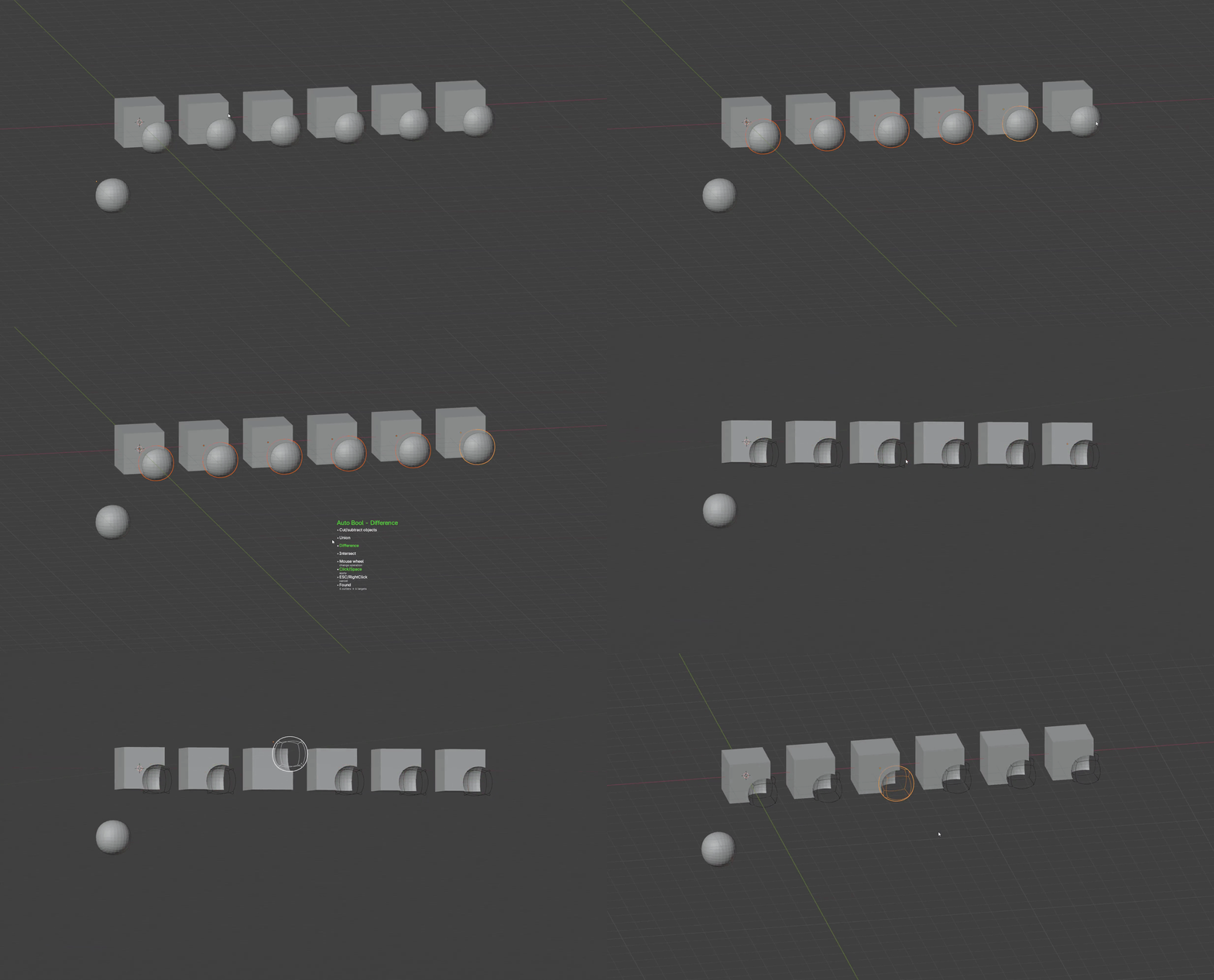
Select only your cutter objects and run Auto Bool. It finds every mesh they overlap and adds the Boolean to each one, with a live preview while you scroll between Difference, Union and Intersect. Changed your mind later? Alt+Click Auto Bool to pick an existing operation and switch it.
Controls: Wheel change operation · Click/Space apply · Alt+Click edit existing · Esc/RMB cancel
Copy To: One object, every location.
Object Mode · Transform
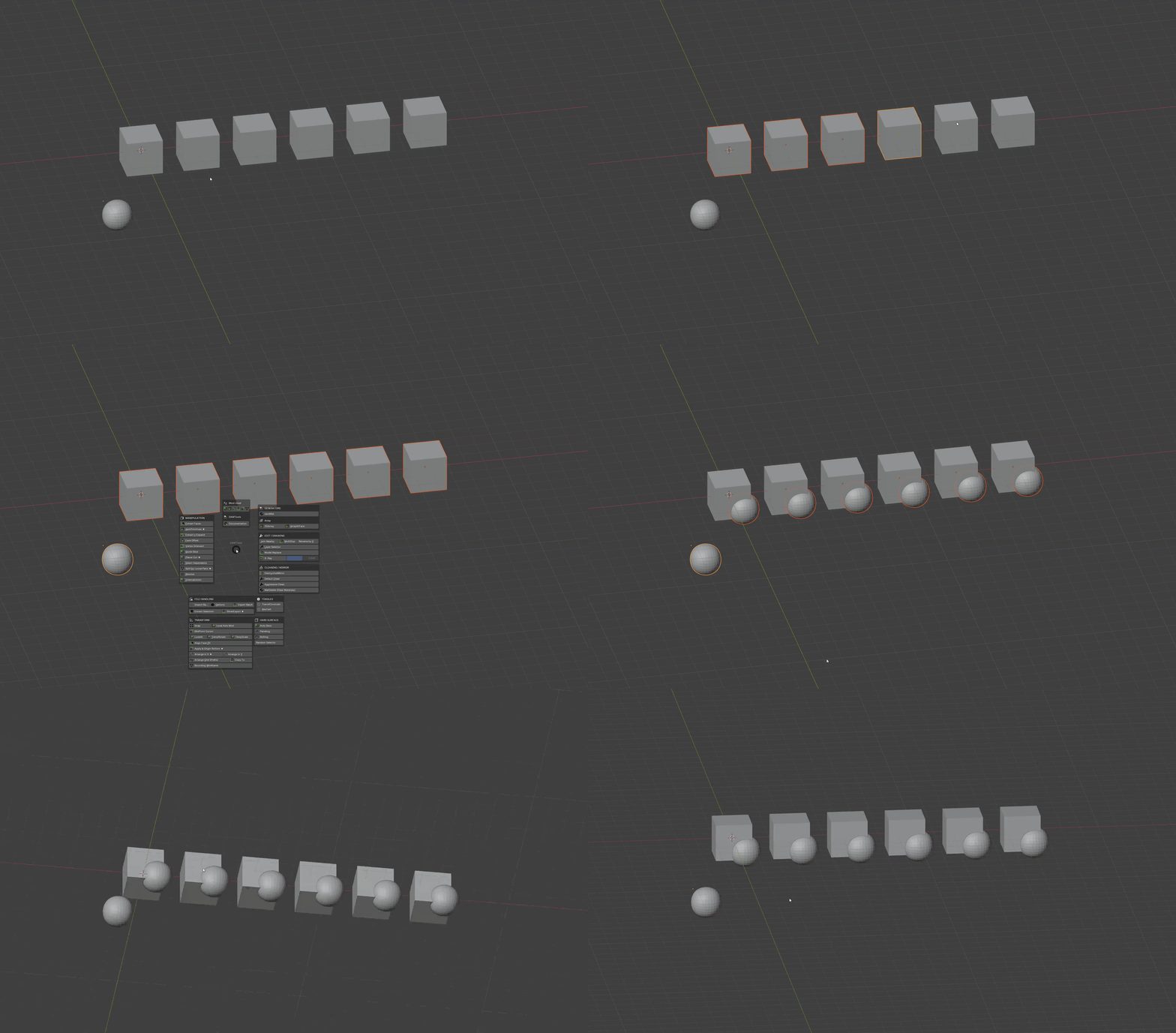
Select the target objects, then the object to copy last so it is active. Copy To drops a duplicate of it on the origin of every other selected object in a single step.
Controls: Select targets · Shift+Click object to copy, last · Copy To duplicate onto every target
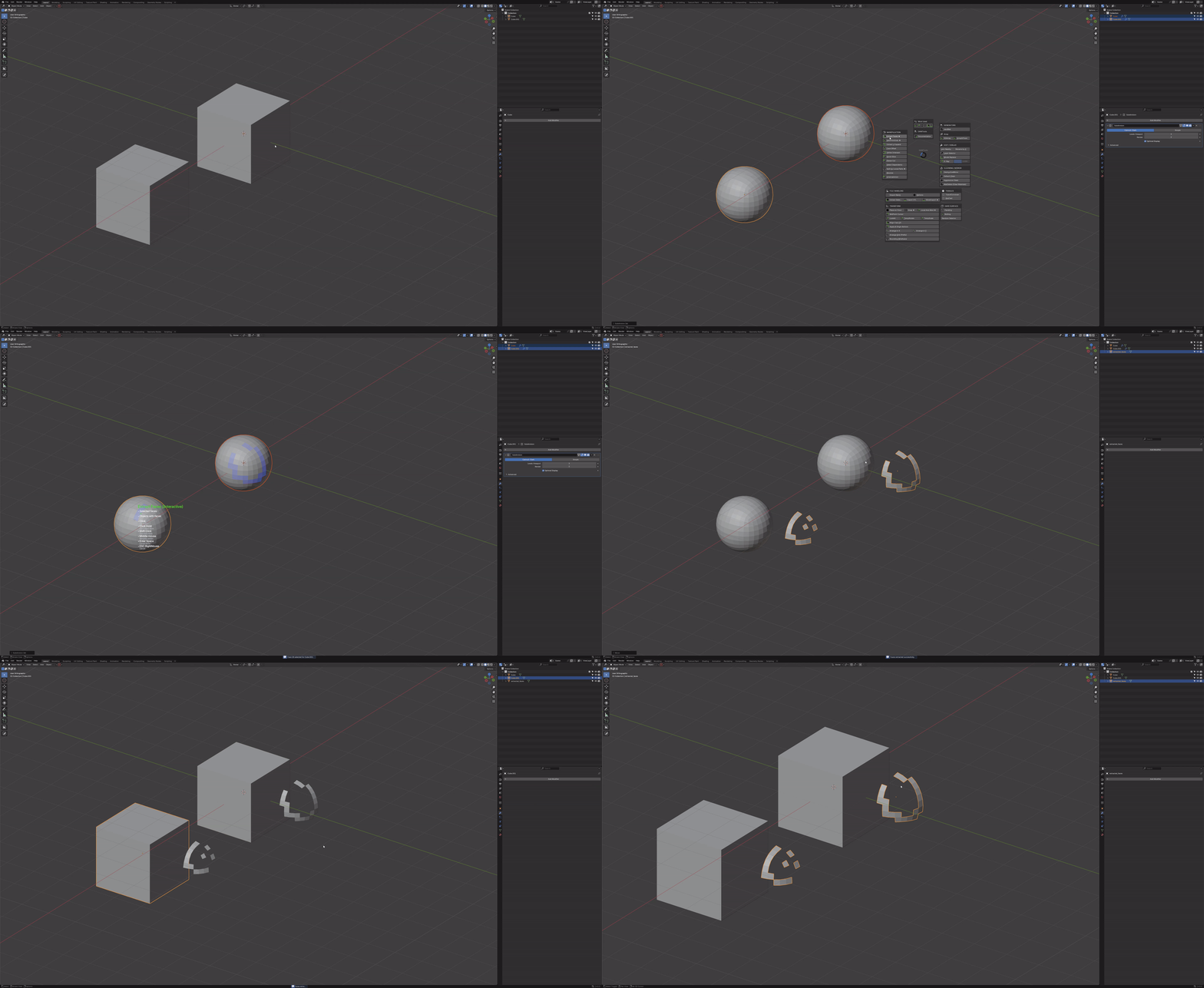
Extract Faces: Paint the faces you want out.
Object Mode · Manipulation
Click to pick a face, or hold and drag to paint a selection, across several objects and without entering Edit Mode. Press Enter and the picked faces become new objects.
Controls: Click pick · Click+Drag paint · Shift+Click add · Enter/Space extract · Esc/RMB cancel
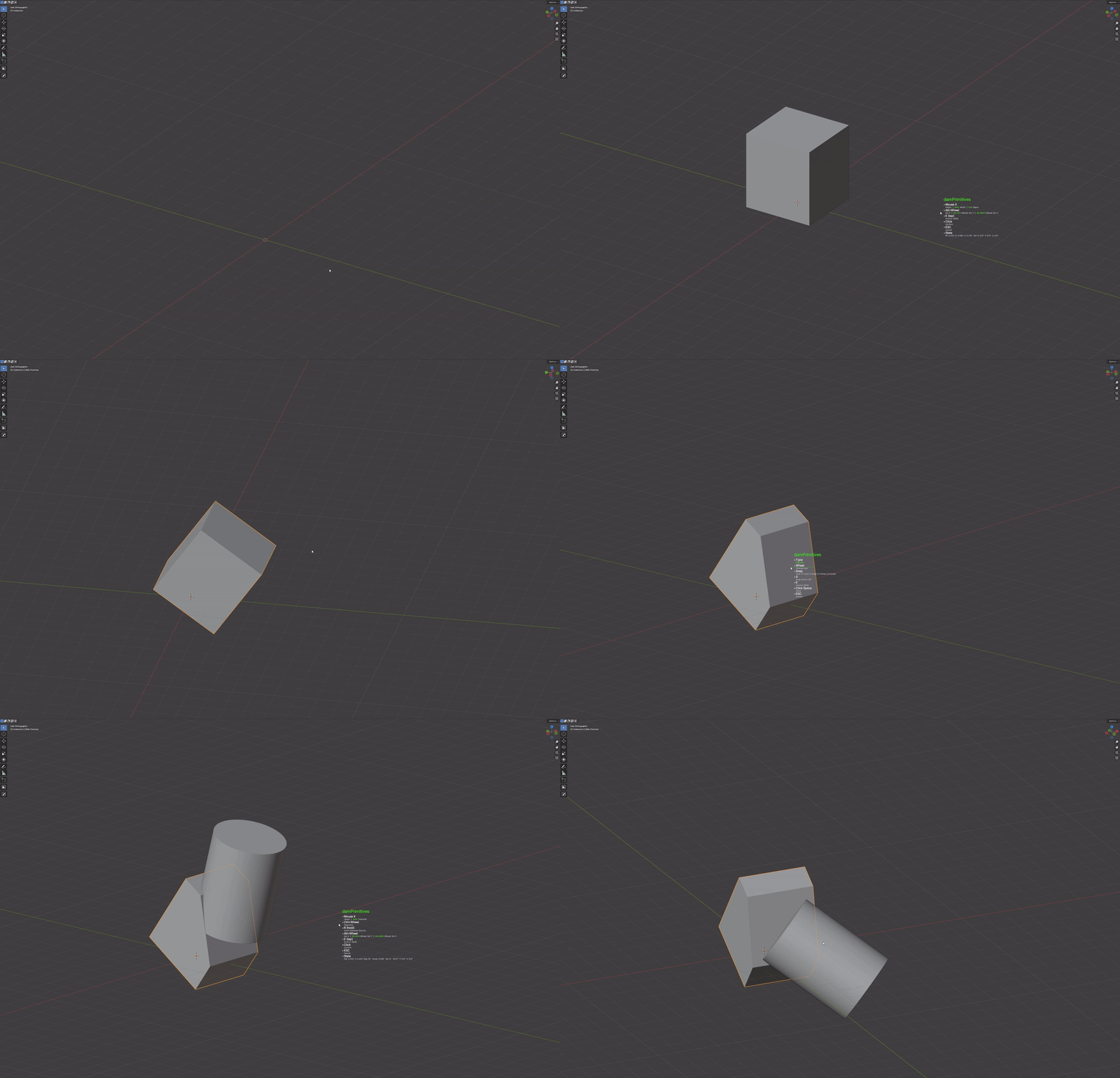
Primitives: Draw primitives where they belong.
Object Mode · Manipulation
Scroll through cube, cylinder, torus, cone, quad sphere and plane, snap to a face, edge or vertex, and click to place it. Then shape it with the mouse: Shift and Ctrl switch the dimension, Ctrl+Wheel sets segments, Alt+Wheel rotates.
Controls: Wheel type · 1/2/3 snap face/edge/vertex · E anchor · Click place, then confirm
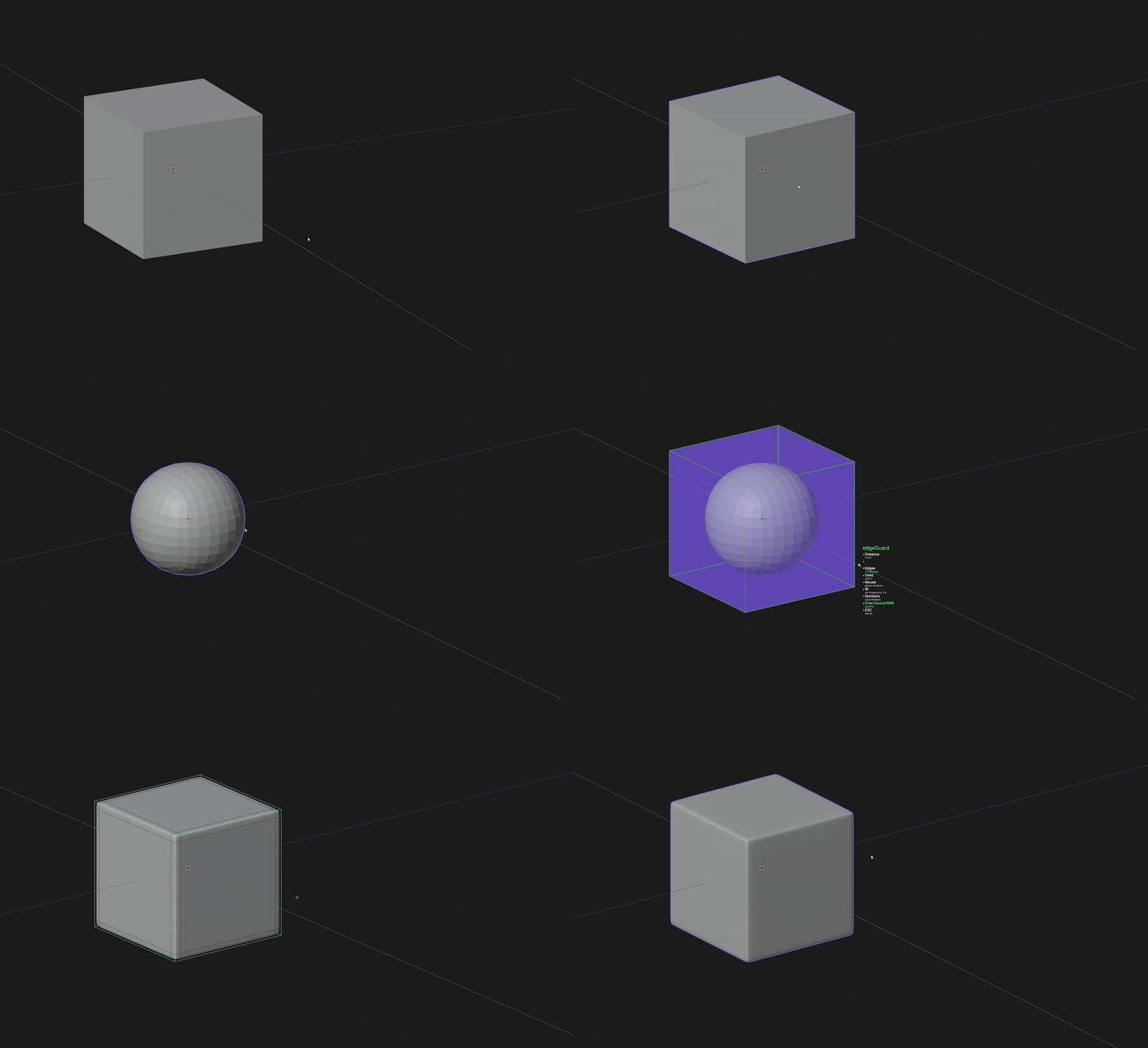
edgeGuard: Holding edges in one move.
Edit Mode · Edge
Select the edges that must stay sharp under subdivision: edgeGuard offsets new edges on both sides of every selected edge at once. Move the mouse for the distance or type an exact value.
Controls: Mouse distance · Numbers type it · W 1.0 · Enter/Space confirm
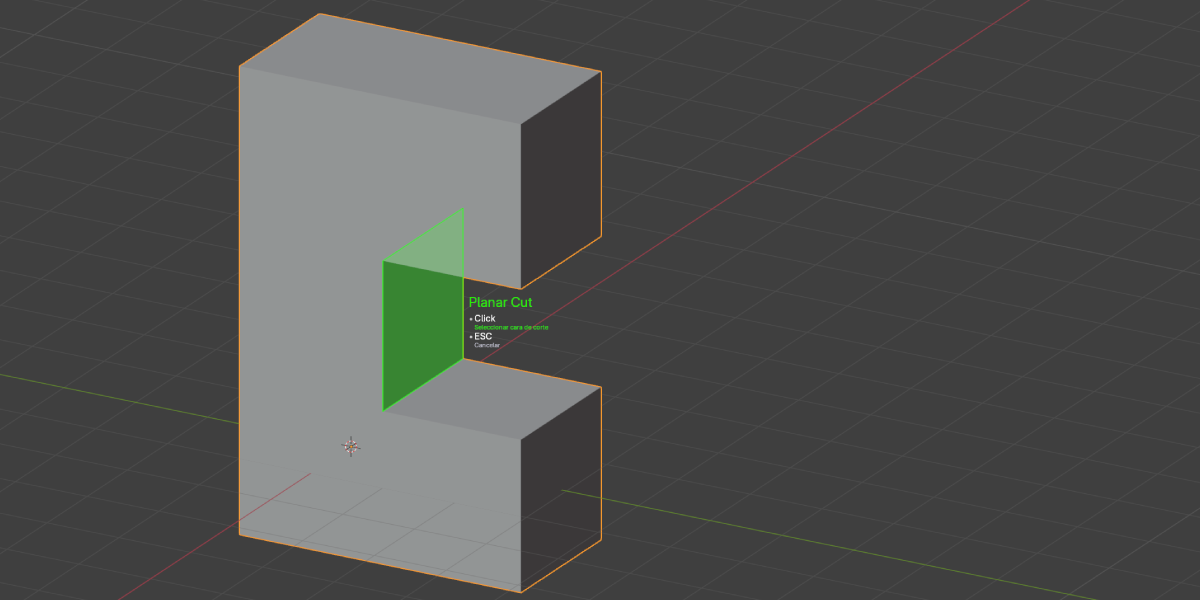
Planar Cut + Quick Slice: Cut exactly where you mean.
Object Mode · Manipulation
Planar Cut uses any face as the cutting plane, or two edges after pressing Tab; Ctrl+Click makes a knife cut that keeps the mesh connected. Quick Slice: draw a line to slice, Ctrl snaps to 45°, W flips the kept side, Q toggles live Boolean or applied cut, and Alt+Click opens the cut manager.
Controls: Tab face / two edges · Shift+Click add face · Ctrl+Click knife cut · Alt+Click slice manager
More headline tools
PlaceIn: Stamp parts onto any surface.
Object Mode · Transform
Hover any face and the selection snaps to it by its origin, aligned to the surface normal. Rotate it, sink it, flip it, and keep stamping copies without leaving the tool.
Controls: Wheel rotate 15° · Ctrl+Wheel depth · F flip · Shift+LMB stamp a copy
Mirror Studio: Mirror with handles, not modifier panels.
Object Mode · Alt+X
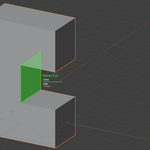
Click one of six arrows in the viewport; the side you click is the side you keep. A movable DAM Mirror Plane drives the modifier. Finish as Keep Live, Destructive Apply or Apply + Separate Objects.
Controls: Alt+X open · Click arrow mirror · W options and finish
Origin Bend: Bend around the origin. Edit it later.
Object Mode · Transform
A non-destructive bend built from native modifiers, with the object origin as the fixed point and axes picked from your view. It sits before Bevel and Weighted Normal so shading survives, and Edit Bend reopens the same setup.
Controls: Mouse X angle · X/Y/Z bend axis · L length axis · Wheel resolution
Loft + ManifoldExtrusion: Bridge and carve without cleanup.
Edit Mode · Face / Surface
Loft bridges two faces with matching vertex counts, picks the untwisted pairing and removes the caps. ManifoldExtrusion pushes planar face regions inward into cavities or through-cuts on closed meshes.
Controls: Wheel rotate loft pairing · Mouse cut depth · Ctrl snap depth
Array tools: Repeat with control.
Object Mode · Generators
CircularArray previews copies around the origin, cursor or active object and finishes live (with a movable pivot), applied or separated. ArrayAtFace builds face-aligned arrays; 3DArray adds per-axis random rotation.
Controls: Wheel count · X/Y/Z axis · P pivot · F full 360°
unBeveler / unChamfler: Take a bevel back out.
Edit Mode · Edges / Loops
Select the bevel or chamfer faces and get the sharp edge back, including multi-segment bevels, concave corners and closed rings. The preview cycles through candidates and nothing changes until you confirm.
Controls: Wheel next candidate · R reverse rails · S mark sharp
Panelizer + Bolting: Panels and bolts that print.
Edit Mode / Hard Surface
Panelizer turns faces into closed, chamfered panels with gaps, and panels cylinders radially. Bolting places evenly spaced bolts around one or more panels.
Controls: Wheel panel count · Ctrl+Wheel gap · R reroll layout
More tools at a glance
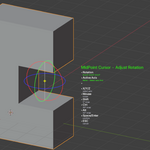
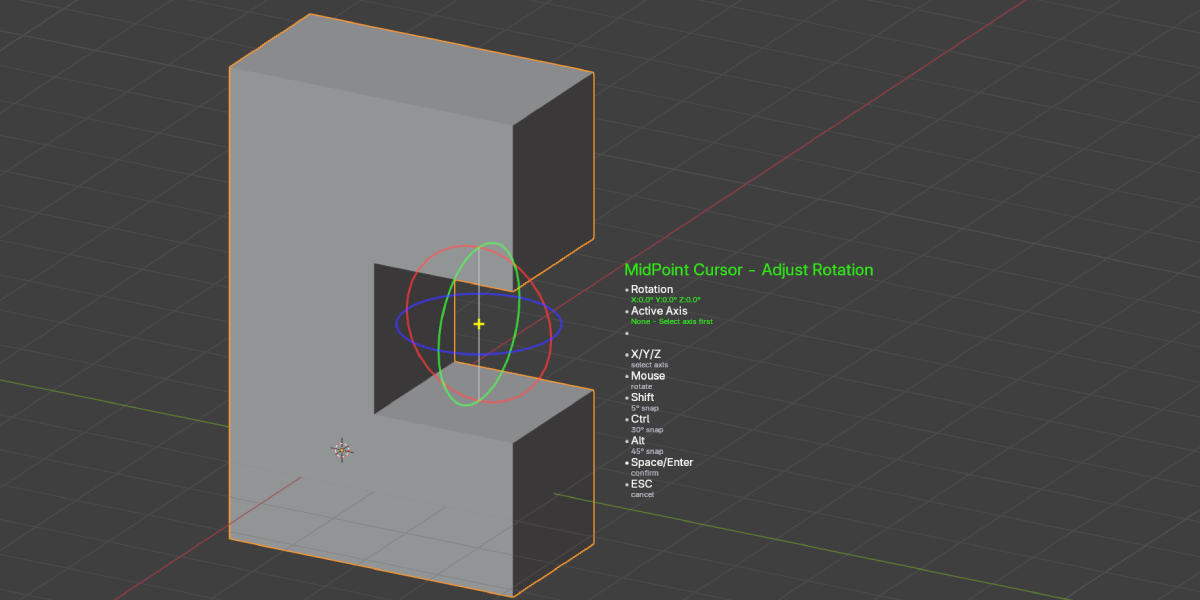
MidPoint Cursor
Drops the 3D cursor halfway between opposing faces, with interactive rotation.
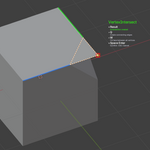
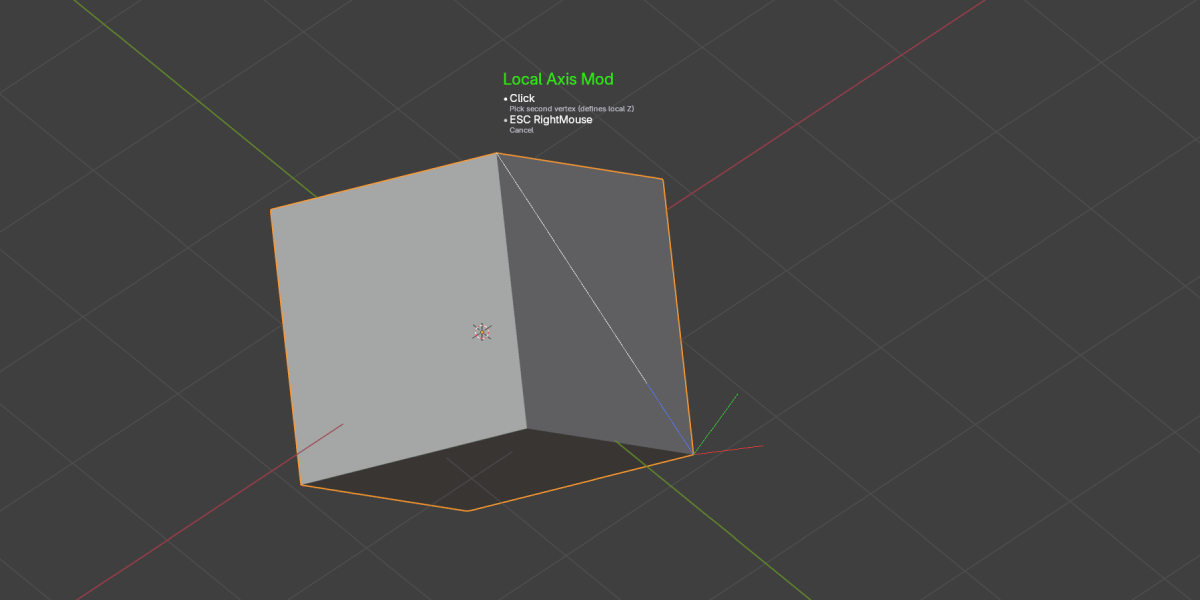
Local Axis Mod
Re-orients an object's local axes from two picked vertices.
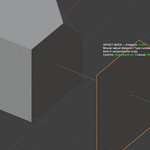
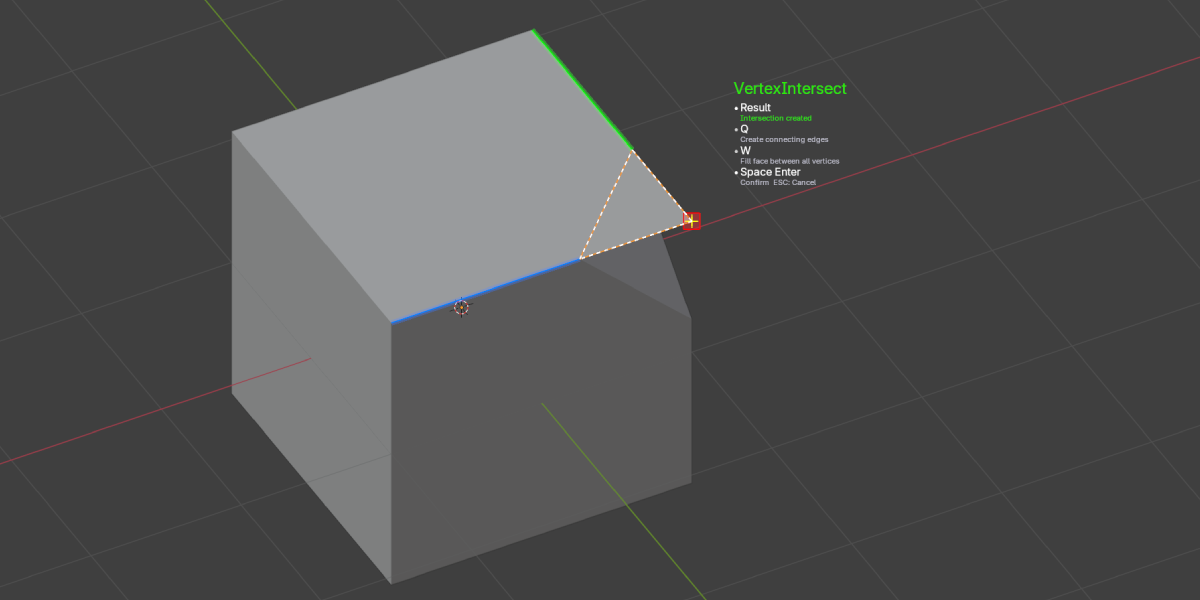
Vertex Intersect
Creates vertices where edges cross. Alt+click fills and closes, Ctrl+click works across several edges.
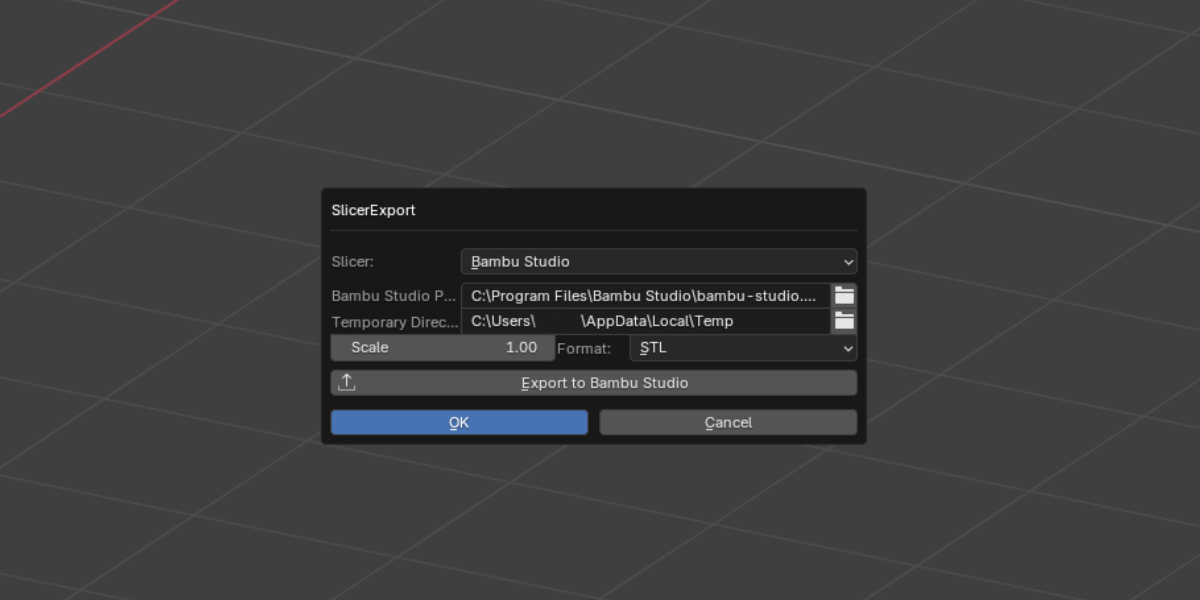
SlicerExport
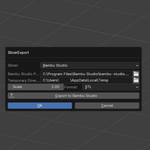
Choose Bambu Studio or PrusaSlicer, scale and STL/OBJ, and send the selection straight to your slicer.
The full toolset
Object Mode pie (59 tools)
- Manipulation: Extract Faces, damPrimitives, Extract n Expand, Face Offset, Vertex Intersect, Quick Slice, Planar Cut, Select Dependents, Split by Loose Parts, Revolve, InternalUnion
- Generators: randMat, 3DArray, ArrayAtFace, CircularArray
- Edit / Drawing: Join Nearby, MultiDup, UniqueDup, Rename by X, Layer Selector, Model Replace (Collection / Active)
- Cleaning / Mirror: Mirror Studio, DestructiveMirror, Default / Aggressive Clean, MatDelete
- File Handling: Import Batch, Export Batch, Extract Selection, SlicerExport
- Transform: Snap, Local Axis Mod, MidPoint Cursor, LookAt, TempRotate, TempScale, Scale to Ref, Origin Bend, Align Face Z0, Align to Axis, Align Faces (Axis), Apply & Origin Bottom, Arrange in X / Y, Grid Arrange, Arrange Grid (Prefix), Copy To, PlaceIn, Bounding Wireframe
- Hard Surface: Auto Bool, Paneling, Bolting, Random Selector, Collection Selector, bKnife
