Own V1? Get V2 FREE!
All V1(Beast Version) customers receive the V2 upgrade at no cost. Use Coupon dbv2forv1usersto get it for free.
Decal Beast
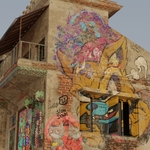
Add Realistic Graffiti & Decals to Any 3D Model in Seconds
Perfect for urban scenes, game assets, architectural visualization & character customization
| 250+ Hand Scribbles | 25+ Graffiti Fonts | 1-Click Baking | Animate Decals |
Use Coupon DB25 while Checkout to get 25% OFF
CODE: DB25 (copy manually)
Decal Beast
A one-stop solution to all your decal addon needs. It’s designed to solve all the problems that 3D artists face while adding decals to their scenes, making their workflow faster and more efficient.
Core Features
- ✓ Instantly drag and drop decals onto any mesh, it supports objects that has different materials on it.
- ✓ Drag and drop the same decal onto multiple objects at once.
- ✓ Change the color and roughness of your decals with ease.
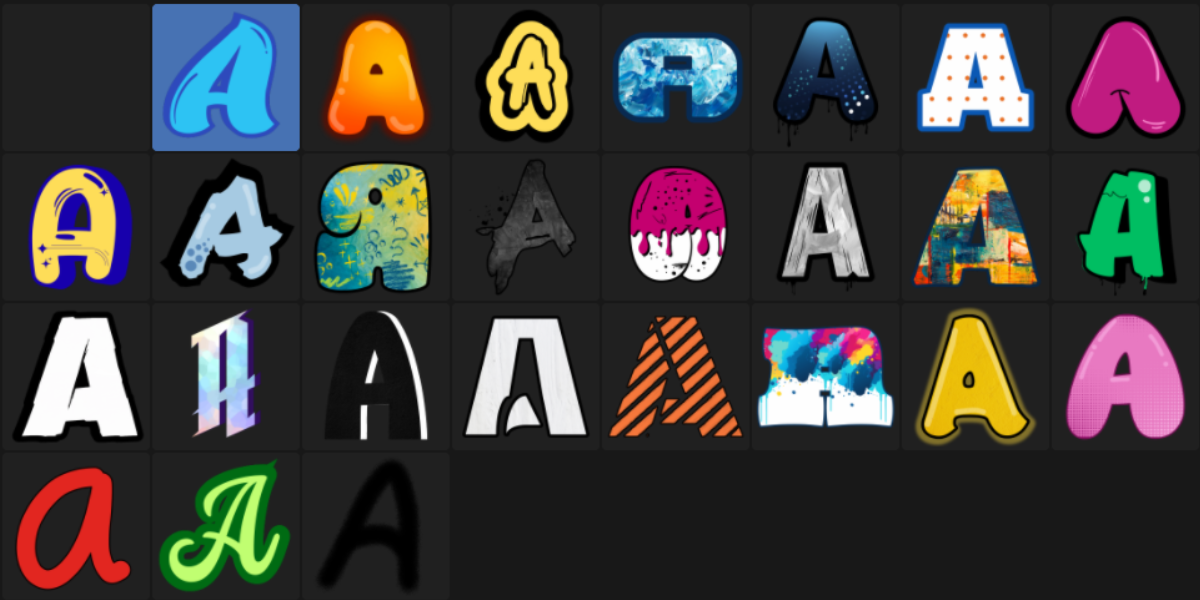
- ✓ Type your own words to create custom graffiti with a variety of unique fonts.
- ✓ Use a layer-based workflow to move decals forward or backward, just like in Photoshop.
- ✓ Slide decals on the surface of any object after placement.
- ✓ Add grunge and aging to your decals to create realistic wear and tear.
- ✓ Animate the aging and grunge effects for stunning timelapse scenes.
- ✓ Bake decals onto your mesh with one click, freeing up GPU memory.
See it in Action
Adding Decals
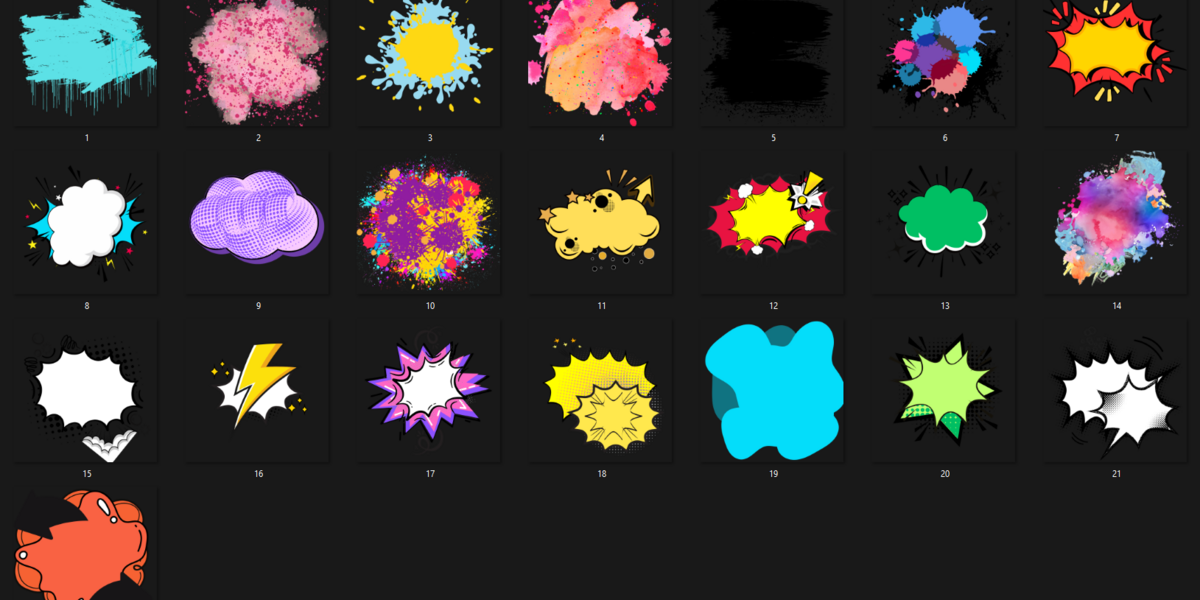
Instantly drag and drop decals onto any mesh, even if it has multiple materials. The empty cube decides where the decal is placed. You can manually move the decal on the surface or use the "slide empty" option to slide it along the object. What's even cooler is you can drag and drop the same decal onto multiple objects at once. The same empty will control the decal on all objects, a specialty of this addon.
It works on Multiple Materials
Decal Beast can work on multiple objects. In this example, the rectangle has four different materials, and the graffiti can be added seamlessly across all of them. When changing grunge or color on an empty that sits over multiple materials, the change initially affects one material; with the empty selected, click Apply to Linked to propagate those changes to the other materials. It also works on multiple objects at the same time.
Decal Layering
You can move the added decal layers up or down just by selecting the empty associated with the decal. In the UI, there is an option to move the graffiti layers to the top or bottom, just like the layering system in Photoshop. This layer-based workflow makes it non-destructive.
Change Color of the Decal
Easily modify the color of any decal directly within the UI. No matter what color your decal is, you can change it. One limitation is that for now, it can only add two colors, but future updates will implement adding more colors.
Change Roughness
The roughness of the decal can be changed. When graffiti is painted on a wall, different types of paints are used. You can increase or decrease the roughness to make it shine or appear dull. This is helpful to achieve a realistic look, as graffiti gets dull over time.
Batch Styling
Batch Styling is one of the most important features of Decal Beast. You can add Grunge, Aging, Roughness, and other settings for each decal separately, or you can select all the empties of the graffiti you want to change, and click "Apply to selected" in the Batch Styling panel. This will transfer the values and save you time.
Type Text to Make Decal
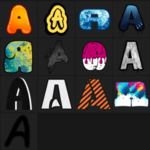
This is one of the coolest features! With Decal Beast, you can literally turn any words into graffiti with nearly 25 graffiti fonts. This is a fantastic way to create your own customized words without relying on external software like Photoshop. You can also adjust the spacing of the letters to make them overlap like original graffiti. Just like with normal decals, you can change the color of the text graffiti as well. More fonts will be added in the future.
One Click Baking
A problem with the Blender shader is that the more nodes you add, the more it uses the GPU. When it hits the maximum nodes it can handle, you cannot add more due to the memory limit. This is where the baking option comes in. With just a single click, you can bake the decals onto the image texture of the object they are added to. This makes it lightweight, and you can start adding more decals. You can repeat this process as many times as you want, adding decals, baking them, and then adding more.
Animating the Decals
This isn't all! Now for the animation part of Decal Beast. We've added decals, we've added grunge, and we've created our own decals. What now? Wouldn't it be nice if you could animate the graffiti? Graffiti wears away over time, and you can animate it. First, you have to capture the default value by clicking on the "capture default" button. Once that's done, you can change the Aging, Roughness, and other details as you wish. Then, set the number of frames, choose the interpolation mode, and click "Animate." Your animation is ready! You can integrate this into your timelapse scene, and it can be made even faster with the Batch Styling option, which allows you to change and animate all the values at once.
What’s Included
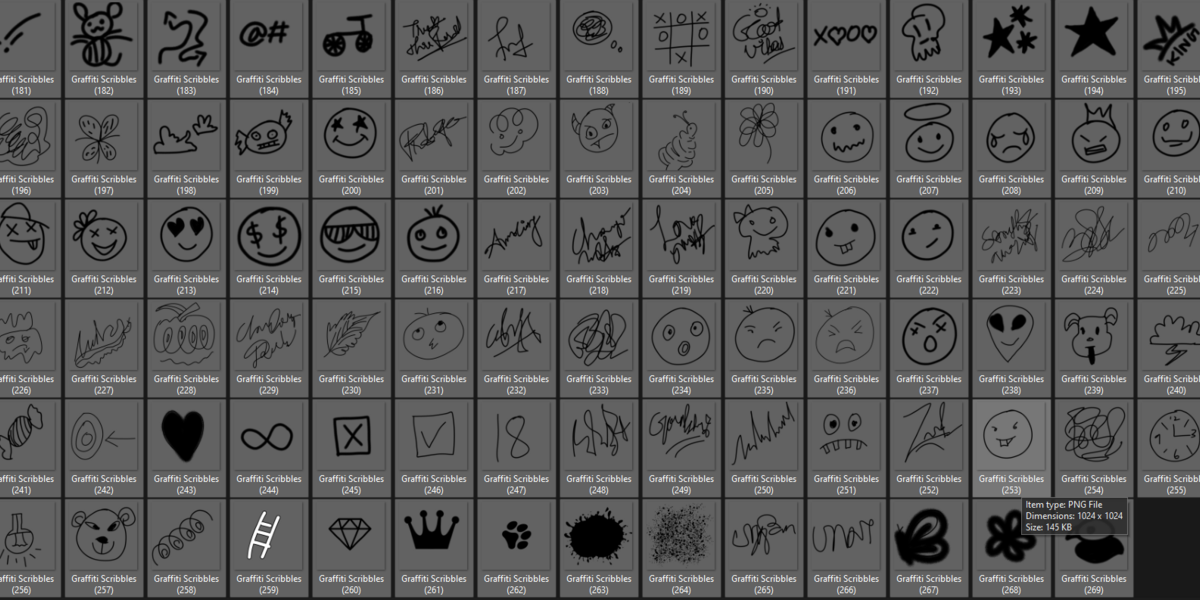
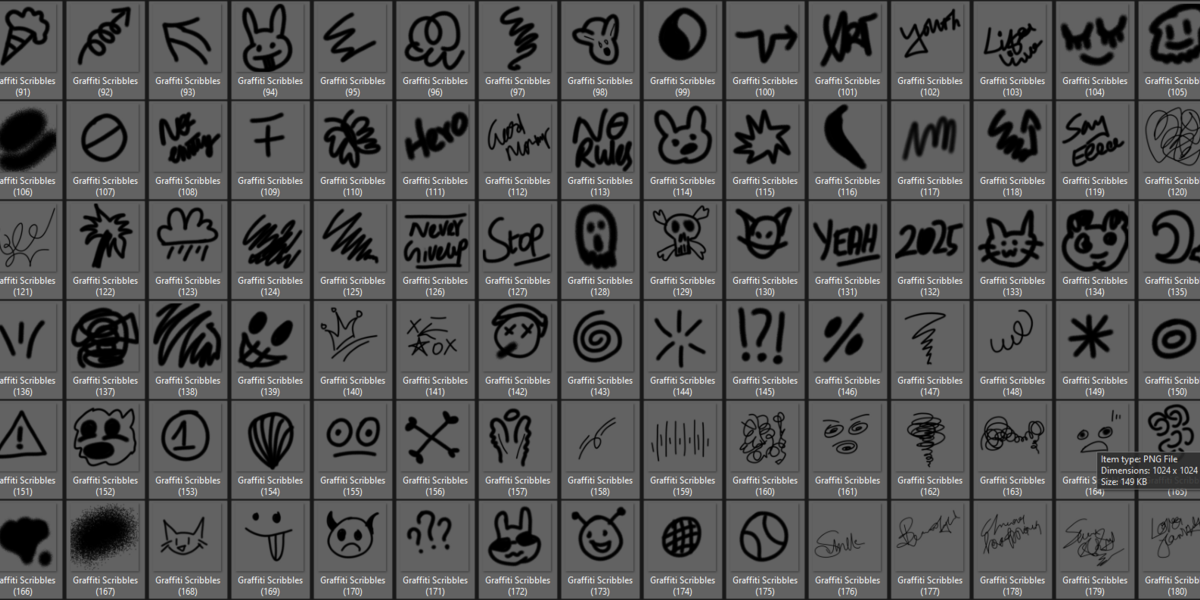
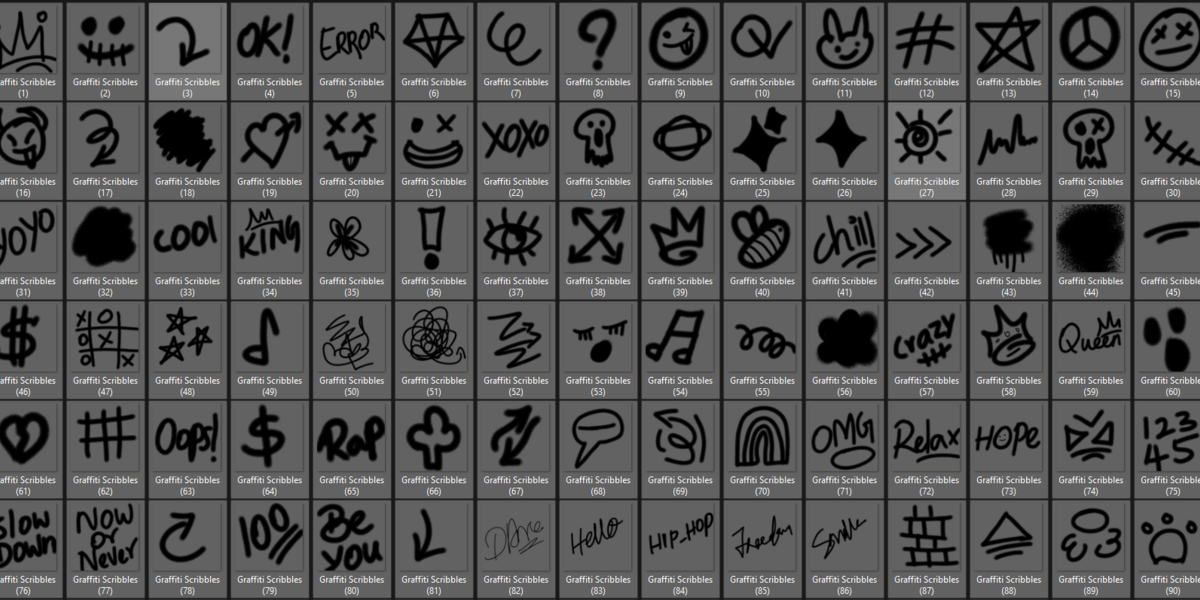
More than 250 Hand Scribbles
Tutorials & Reviews
Full Tutorial Review by Ryan King Art
How to Add your own Decals
Creating Decals and Baking Tutorial
Installation
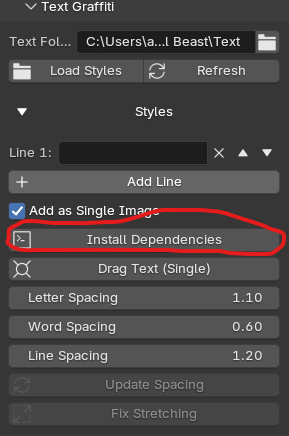
First time when you install the addon,
You will have to install Dependencies,
For the Add as Single Image Option to Work,
It Uses a Python Library,
So it needs to be Installed.
Affiliates
Feel free to reach out
Update History / Changelog
Updated V1.3 What's New
1) Supports Procedural and Custom Materials
Now it supports procedural materials, and custom materials that come with characters like Daz Studio and Character Creator.
Even if the material is grouped, it can now find it and add the decal inside the group without any issues.
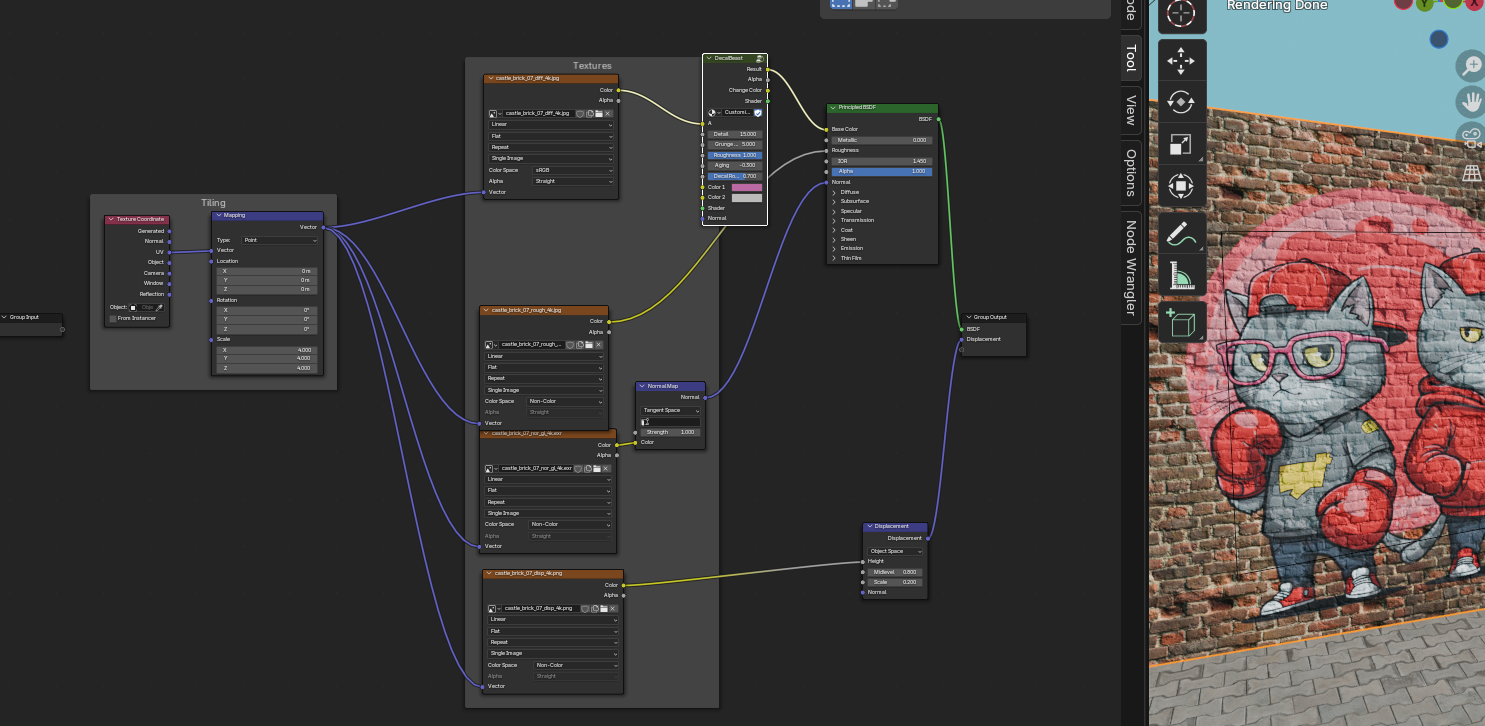
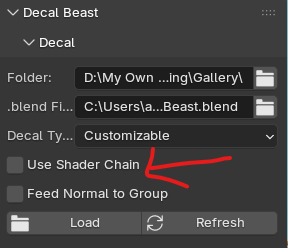
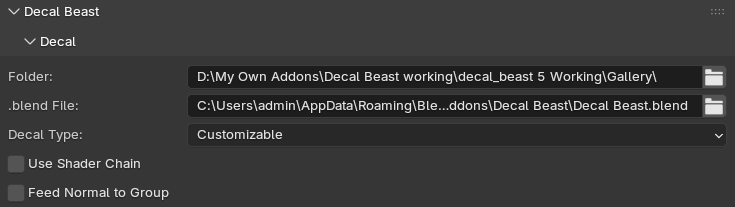
If you are using the material with image textures you can turn the Use Shader Chain and Feed Normal off; for custom character materials turn them on so it adds the decal nodegroup after the BSDF.
2) Baking Improvements
The baking feature can now bake any object even if the decal is not added — it can work as a standalone baking addon.
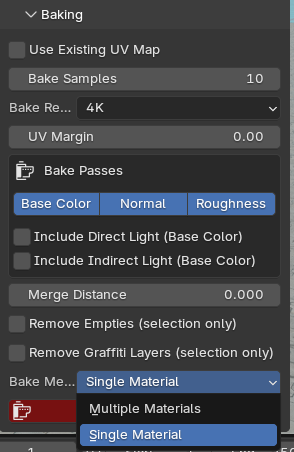
Now you can bake Diffuse, Normal and Roughness maps. Choose Multiple Materials to bake every material separately and you will have all the available material as it is, or Single Material to bake everything into one image set (Diffuse/Roughness/Normal) for faster results.
You can only bake one object at a time. Select the object you want to bake and hit Bake.
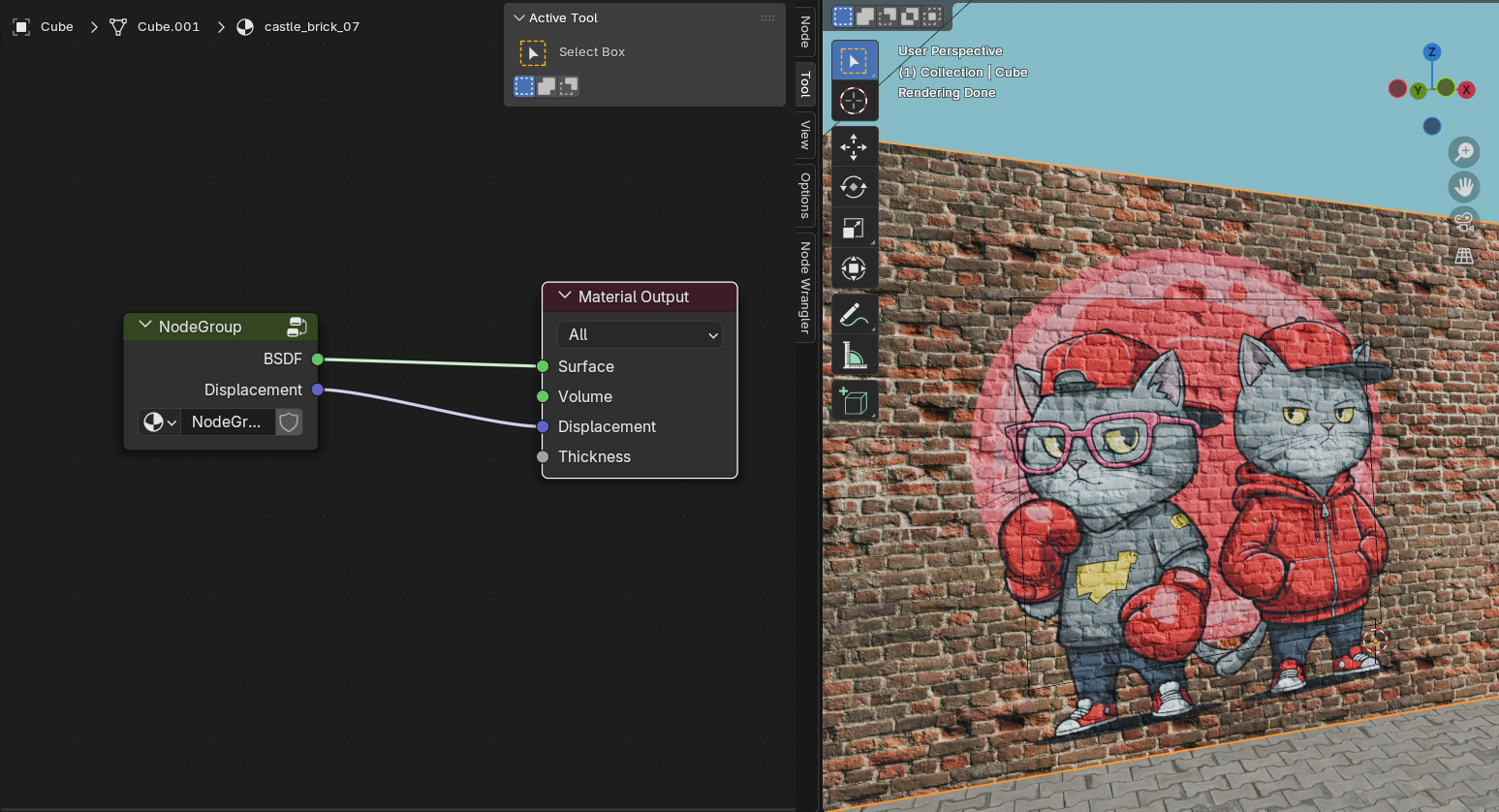
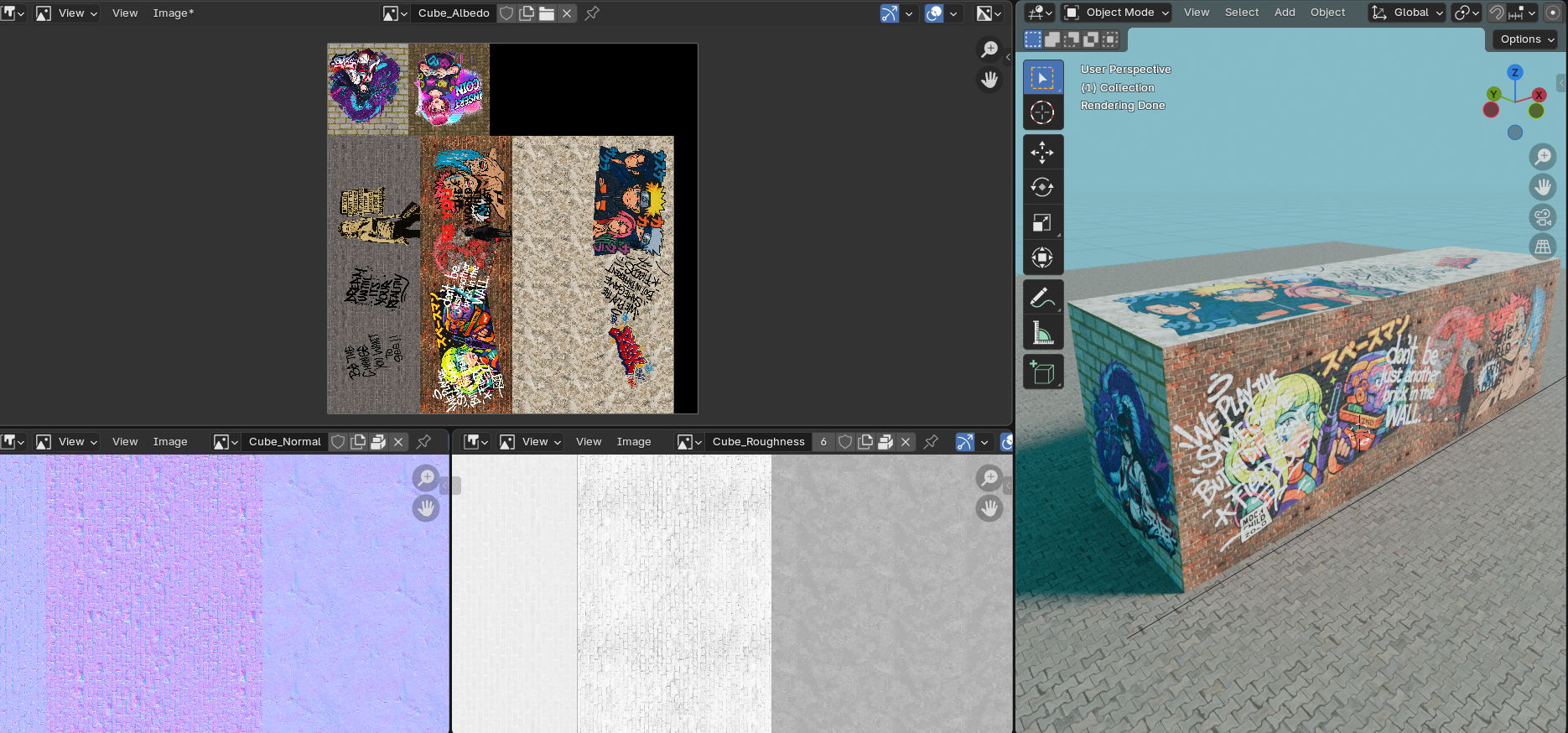
Here is how the baked image looks:
3) Folder selection improvements
The Gallery Folder Selector can now remember the selected folder until you change it. Previously you had to select it every time you opened Blender.
Updated V1.2 What's New
- Now you can add Multiline text
- Word spacing, line Spacing and Letter Spacing is Enhanced
- UI improvements now the animation tab, Baking tab, and Batch styling tab are moved to a Collapsible panel,
- Now the styling option is universal for all the decals, you can select multiple empties and batch style them or select a single empty and style it separately, this approach helped improve the UI without clogging it
 Bala
Bala