 one99addons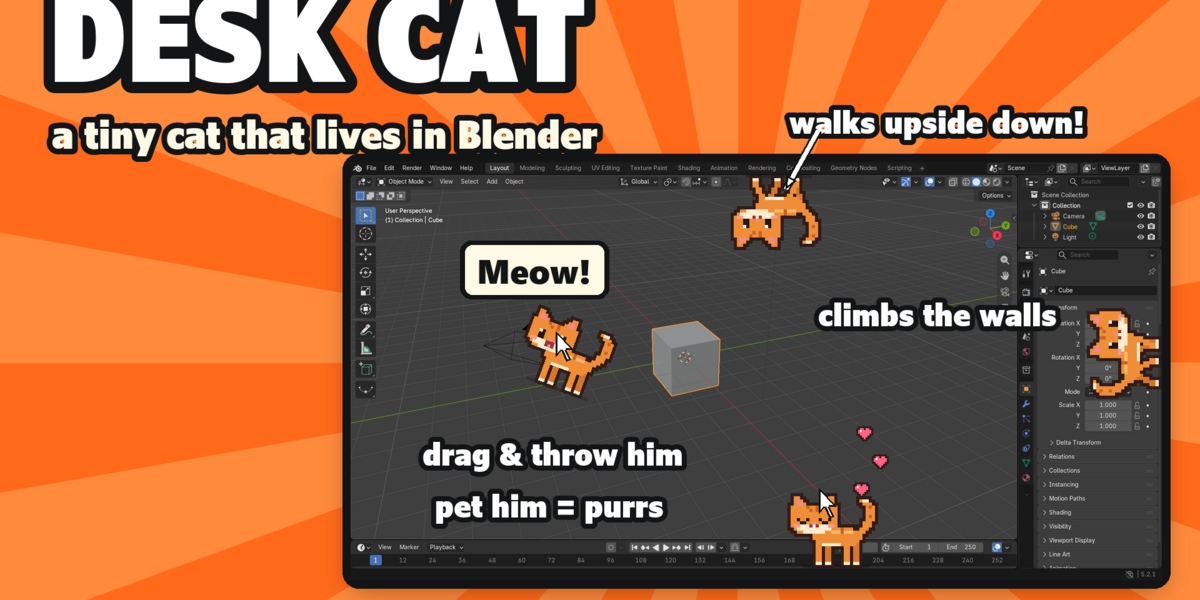




🐱 Desk Cat
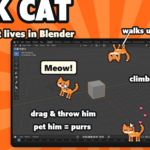
A chibi orange tabby walks around the edges of your Blender window.
Click him and he meows. Hold your mouse on him and he purrs. Throw him and he lands on his feet. Leave Blender alone and he curls up for a nap, and at 3 AM he gets the zoomies.
The problem
Blender sessions are long and the interface is all grey. A little cat makes the hours cosier, without ever getting in the way of your work.
What it does
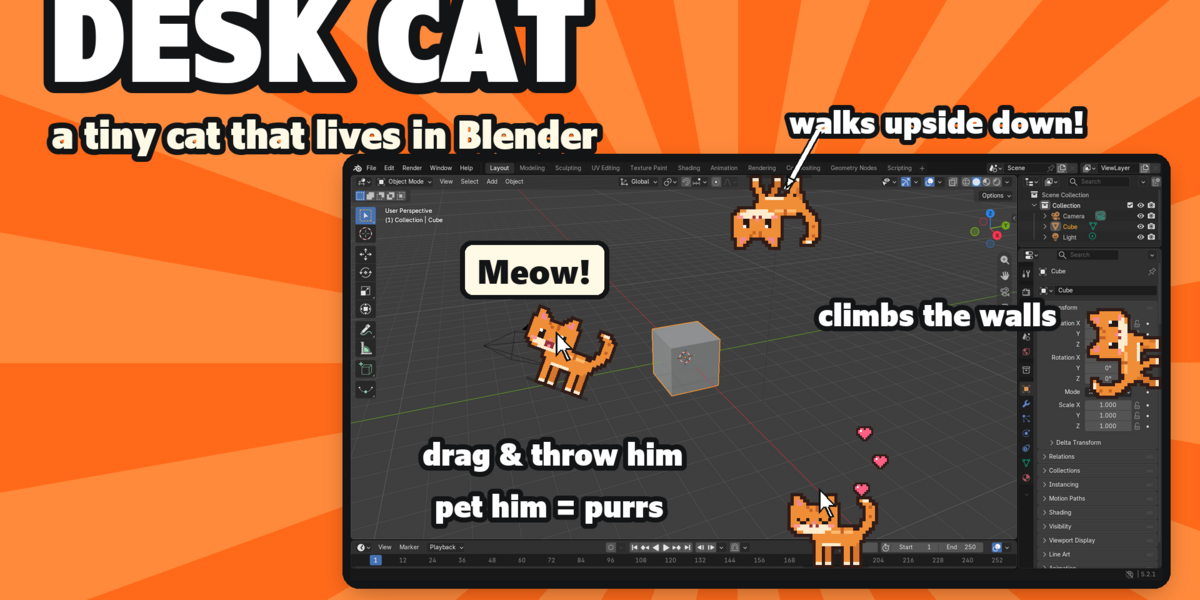
- Walks every edge. He follows the whole inside border of your window, corners included: along the bottom, up the walls and upside down across the top.
- Click = Meow! A speech bubble pops up: "Meow!", "Mrrp?", "Mew!" or "Nya~".
- Pet him. Rest your mouse on him and he purrs ("prrr") while little pixel hearts float up from his back.
- Always lands on his feet. Drag him anywhere, swing him around and let go. He falls to the nearest edge and walks on.
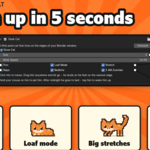
- Loaf mode and stretches. Now and then he sits down as a loaf for a while, and he has a big stretch when he gets up or wakes up.
- Naps and bedtime. Leave Blender alone for 2 minutes and he naps (z zZ zZz). After midnight he sleeps until 6 am; tap him and he wakes up with a *yawn*.
- 3 AM zoomies. Once a night, at 3 am, he wakes up by himself and runs laps around your window at 10x his walking speed, then goes back to bed.
Settings
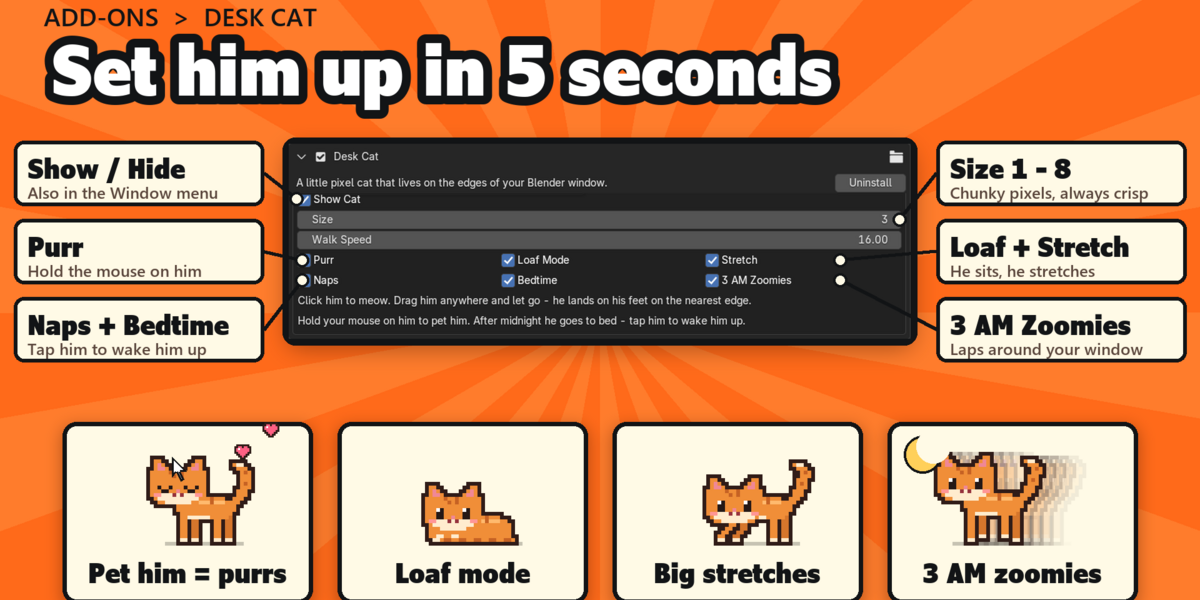
Everything is in Edit > Preferences > Add-ons > Desk Cat, and you can switch him on or off from the Window menu.
- Show Cat: on or off (also Window > Desk Cat).
- Size 1 to 8: chunky whole pixels, always crisp (default 3).
- Walk Speed: 2 to 80 sprite pixels per second (default 16), from a stroll to a sprint.
- Purr: pet him with your mouse for purrs and hearts.
- Loaf Mode: he sits down as a loaf now and then.
- Stretch: big stretch after naps and loafs.
- Naps: dozes off after 2 minutes idle.
- Bedtime: sleeps after midnight, until 6 am.
- 3 AM Zoomies: his nightly laps around the window.
Good to know
- 12 hand-made pixel frames (4-frame walk, idle, blink, meow, sleep, loaf, stretch and a heart), all made by us.
- Works on its own. No internet, no external libraries.
- Plays nicely with Desk Duck, Desk Frog, Desk Axolotl, Desk Bat and our other pixel pets (tested all together).
- Great for streams and videos, and as a gift for Blender friends.
Tips
- Throw him to the top edge and he walks upside down.
- Working late? Turn 3 AM Zoomies off if you are still in Blender at 3 am and need to focus.
- Set Size to 1 for a tiny kitten, or up to 8 for a big chonk.
Requirements and install
Blender 5.2 or newer (tested on 5.2, Windows).
- Download desk_cat_v1.0.0.zip (do not unzip it).
- In Blender: Edit > Preferences > Add-ons, open the drop-down arrow at the top right, choose Install from Disk... and pick the zip.
- Tick Desk Cat. That's it.
Limits
He lives in the first (main) Blender window. While your mouse is right over the cat, the cat gets the click (that is how you pick him up and pet him); everywhere else Blender works as usual. If you pet him over a button, Blender's tooltip may show on top of him. He is silent (no sound files) and cosmetic only: he never touches your scene or your files.
More pixel pets
Collect the whole family: Desk Frog, Desk Axolotl, Desk Bat, Pixel Sprout, Save Hamster, Timeline Snail, Undo Ghost, Desk Duck. They all live happily in the same Blender window.
Made by one99addons.