Drag to Rotate HDRI
 MNC Development
Drag to Rotate HDRI — Documentation
Requires Blender 5.2 or later.
1. In Blender, open Edit > Preferences > Get Extensions.
2. Click the dropdown arrow at the top right of the window and choose Install from Disk…
3. Select DragToRotateHDRI-1.0.0.zip. Blender asks for no permission: the add-on reads and writes nothing on disk and never accesses the network.
4. The extension installs and enables itself. There is no panel or menu to look for: its shortcut, Shift + right-drag in the 3D Viewport, is already active.
To update later, install the newer zip the same way; it replaces the previous version. Disabling or uninstalling the add-on removes its shortcut immediately. The nodes it adds to your World are standard Blender nodes, so your .blend files open and render exactly the same without it.
1. Hover a 3D Viewport and hold Shift. The status bar shows Rotate HDRI next to the right mouse button.
2. Press the right mouse button and drag sideways. As soon as the mouse has moved a few pixels, the HDRI starts turning — drag right and the environment follows to the right. Only horizontal movement counts.
3. Keep dragging while you watch the light. The viewport header shows the current angle, and the cursor wraps around the edges of the viewport, so you can keep turning as far as you like.
4. Release the right mouse button: the new rotation is kept.
A Shift + right-click without moving the mouse still places the 3D cursor, see section 6. The distance before the rotation starts is Blender's Mouse Drag Threshold, and the cursor wrap is Blender's Continuous Grab, both in Edit > Preferences > Input > Mouse.
The add-on turns the HDRI that the viewport you drag in is actually showing — the light on screen is the light you move.
| Solid, Wireframe | The World HDRI. It is not displayed in these modes, but the header shows the angle and any Material Preview or Rendered viewport updates as you drag. |
| Material Preview | The World HDRI when Scene World is on. When it is off, the built-in studio HDRI of this viewport. |
| Rendered | The same rule, with the Scene World option of Rendered mode. EEVEE and Cycles alike. |
Scene World is in the Lighting section of the Viewport Shading popover, in the viewport header. A studio HDRI rotation belongs to its viewport — it is the Rotation value shown there — so dragging in one viewport never changes another. Turn off Rotate Studio HDRI in the preferences to always rotate the World.
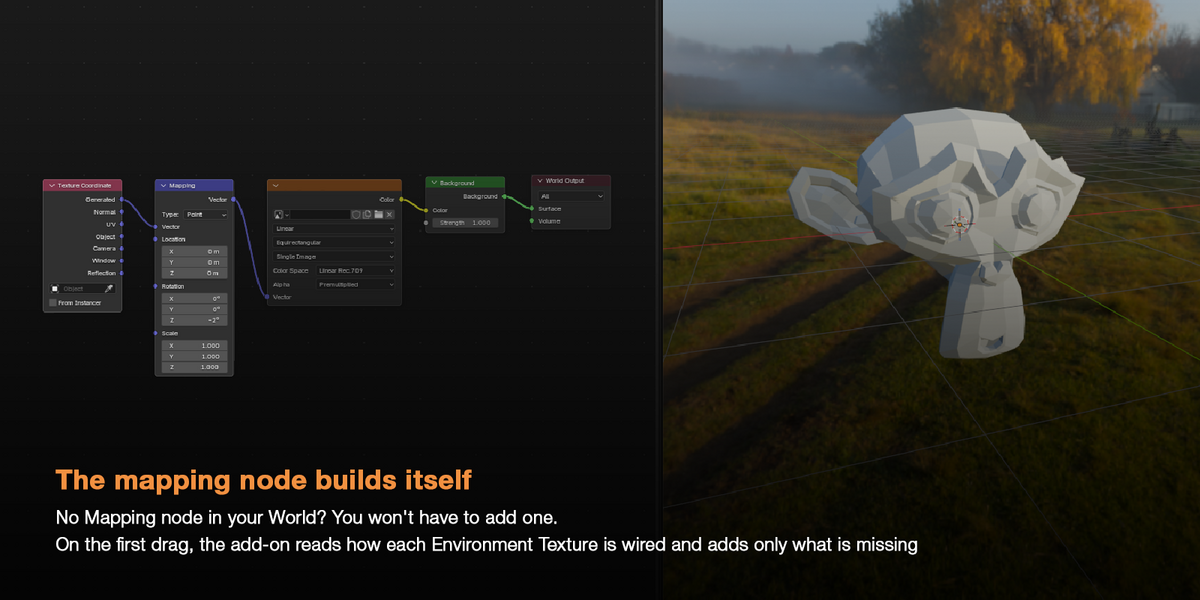
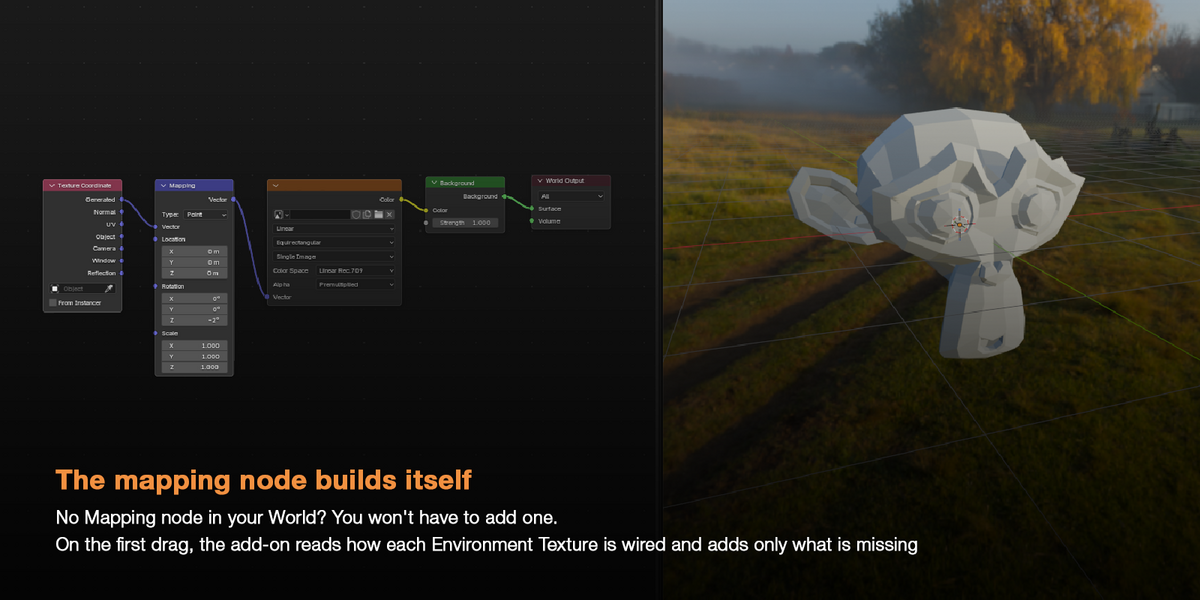
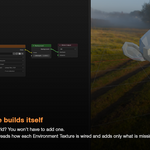
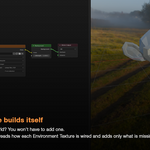
On the first drag, the add-on starts from the World Output and follows the links back to every Environment Texture that reaches it — through Mix Shaders, Light Path setups and reroutes. Each texture needs a Mapping node to turn, and the add-on only adds what is missing.
| Vector input empty | A Texture Coordinate node (Generated output) and a Mapping node are created, wired, and placed to the left of the Environment Texture. |
| Mapping node plugged in | Used as it is, even through reroutes. Its Rotation Z is the value that changes. |
| Mapping in Texture mode | Used as well. The direction is reversed, so the HDRI still follows the mouse. |
| Another node feeds the vector | A Mapping node is inserted between that node and the Environment Texture; the existing chain is kept. |
| Muted Mapping, or Rotation linked | Left untouched. A new Mapping node is inserted right after it. |
| Several Environment Textures | All turn by the same angle. Those with an empty Vector input share a single new Mapping node. |
| Inside a frame | The new nodes are added to the same frame. |
Rotation Z is kept between -180° and 180°. Environment Textures that do not reach the World Output, or that sit inside a node group, are ignored. New nodes are added unselected, with Blender's default names.
The rotation runs at the pace of Blender's own orbit — about 0.4° per pixel at the default Sensitivity, adjusted to your display scale. The status bar lists the keys you can use.
| Release the button | Confirm the rotation. Enter, Space or a left click confirm as well. |
| Ctrl | Snap to multiples of Snap Angle, 15° by default, so the angle lands on round values: 0°, 15°, 30°… Press or release it at any time during the drag. |
| Shift | Precision: the rotation slows down ten times. Available only when Shift is not part of your shortcut. |
| Esc | Cancel: the HDRI goes back to its previous angle and any node created by this drag is removed. A right-click cancels too when your shortcut uses another button. |
A modifier held to start the drag is ignored until the drag ends. With the default Shift + right-drag, Shift precision is therefore unavailable, and with a shortcut that includes Ctrl, so is snapping.
Shift + right-click is also Blender's shortcut for the 3D cursor. The add-on only takes over once the mouse moves.
| Click without moving | Blender places the 3D cursor, exactly as before. |
| Drag | The HDRI turns, and the 3D cursor stays where it was. |
| Right Click Select | With this keymap, a Shift + right-click keeps toggling the selection; only the drag rotates the HDRI. |
| Sculpt Mode | Shift + right-click keeps setting the sculpt pivot: the Sculpt keymap comes first, so the add-on does not respond there. |
Blender's Shift + right-drag, which normally slides the 3D cursor with snapping, is replaced by the rotation. To keep it — or to rotate HDRIs in Sculpt Mode — give the add-on a shortcut that Blender does not already use there. If your new shortcut also places the 3D cursor or selects, a click keeps doing that too.
Nothing changes until the mouse actually moves, and a drag of the World HDRI is recorded as a single undo step.
| Undo | Ctrl+Z after a drag restores the previous angle and removes the nodes created by that drag, in one step. |
| Adjust Last Operation | Right after a drag, open the Rotate HDRI panel at the bottom left of the viewport, or press F9. It shows the Angle added by the drag: type another value to replace it. |
| Cancel | Esc during the drag puts everything back. Nothing is recorded in the undo history. |
| Studio HDRI | Not part of the undo history, like every viewport setting: Ctrl+Z leaves its rotation as it is. |
Since a studio HDRI drag adds no undo step, Ctrl+Z right after it undoes the action you did before.
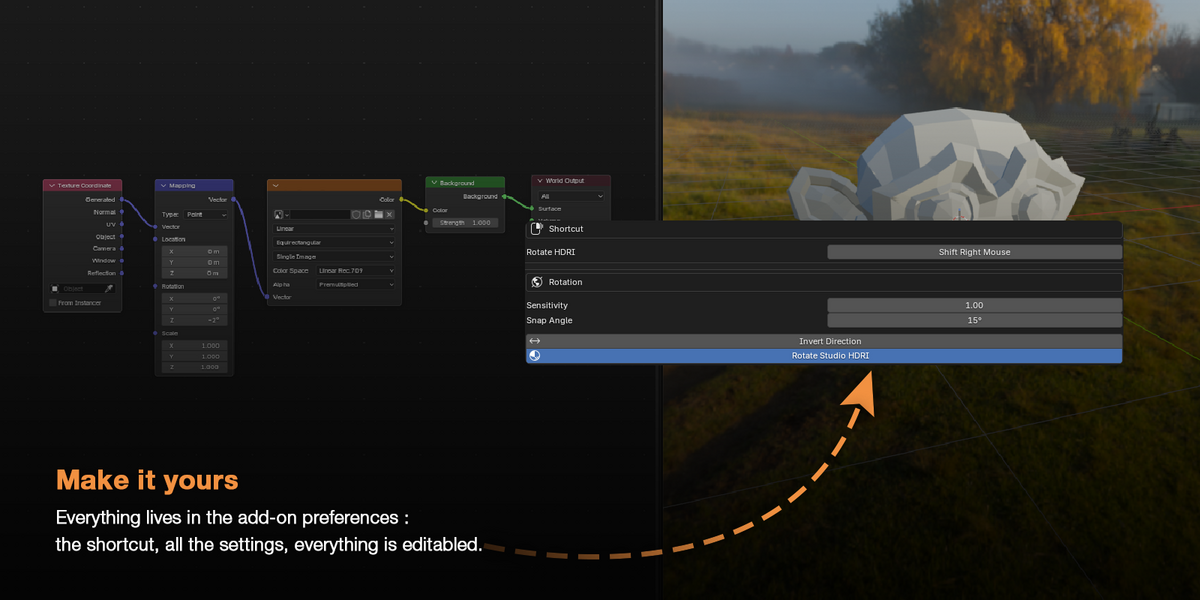
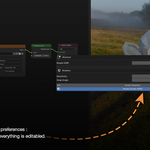
Open Edit > Preferences > Add-ons and expand Drag to Rotate HDRI. Every change applies from the next drag — no restart, no need to reopen the file.
| SHORTCUT | |
| Rotate HDRI | The shortcut, Shift + Right Mouse by default. Click the button, then press the new combination: any mouse button or keyboard key, with or without modifiers. With a keyboard key, hold it and move the mouse — no button needed. The arrow that appears next to it restores the default. |
| ROTATION | |
| Sensitivity | Rotation speed. Default 1.00, from 0.05 to 10. At 1.00 the HDRI turns about 0.4° per pixel, the pace of Blender's orbit. |
| Snap Angle | The step used while Ctrl is held. Default 15°, from 1° to 180°. |
| Invert Direction | Turn the HDRI against the mouse instead of following it. Off by default. |
| Rotate Studio HDRI | When Material Preview or Rendered shows a built-in studio HDRI instead of the World, rotate that HDRI. On by default; when off, the World is always rotated. |
The shortcut is a regular Blender keymap entry: it is saved with your preferences and also listed in Edit > Preferences > Keymap, under 3D View, as Rotate HDRI.
| Nothing happens when I drag | Check that the add-on is enabled in Edit > Preferences > Add-ons and that the mouse is over a 3D Viewport. When there is nothing to rotate, a warning in the status bar says why. In Sculpt Mode, Shift + right-click belongs to the sculpt pivot. |
| The status bar says “No Environment Texture is connected to the World Output” | No Environment Texture reaches the World Output. Add one, load your HDRI in it and connect it, or reconnect the one you have. Textures inside node groups are not detected. |
| The status bar says “The scene has no World” | Create or assign a World in the World properties. |
| The status bar says “The World is linked from a library and cannot be edited” | The World comes from another .blend file. Make it local, or create a library override, before rotating it. |
| The angle changes, but the viewport does not | In Solid or Wireframe shading the World turns but is not displayed: switch to Material Preview or Rendered. If the viewport shows a studio HDRI while Rotate Studio HDRI is off, it is the World that turns, out of sight. |
| The studio HDRI turns instead of my World | Material Preview or Rendered is showing Blender's built-in HDRI because Scene World is off. Turn it on in the Viewport Shading popover, or turn off Rotate Studio HDRI. |
| Shift + right-drag no longer moves the 3D cursor | The drag now rotates the HDRI, while a click still places the cursor. Give the add-on another shortcut to get Blender's cursor drag back. |
Drag to Rotate HDRI · Requires Blender 5.2 or later
Have questions about this product?
Login to message
| Blender Extension Compatible | Yes |
| Published | about 10 hours ago |
| Blender Version | 5.2 |
| Extension Type | Add-on |
| Render Engine Used | Cycles |
| License | GPL |