 Bookyakuno

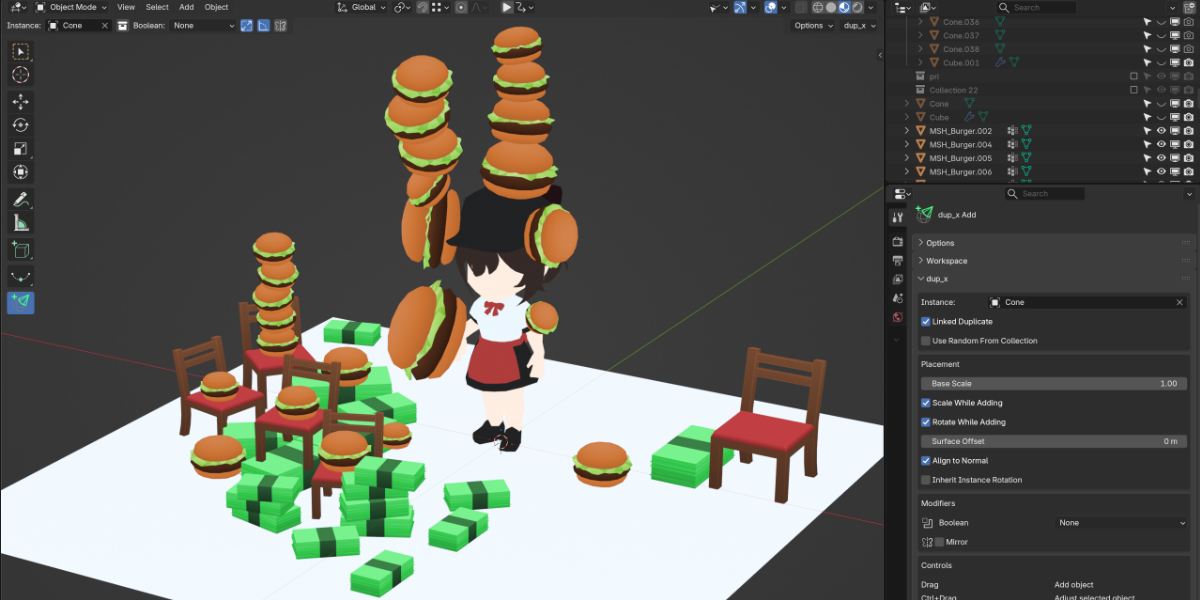
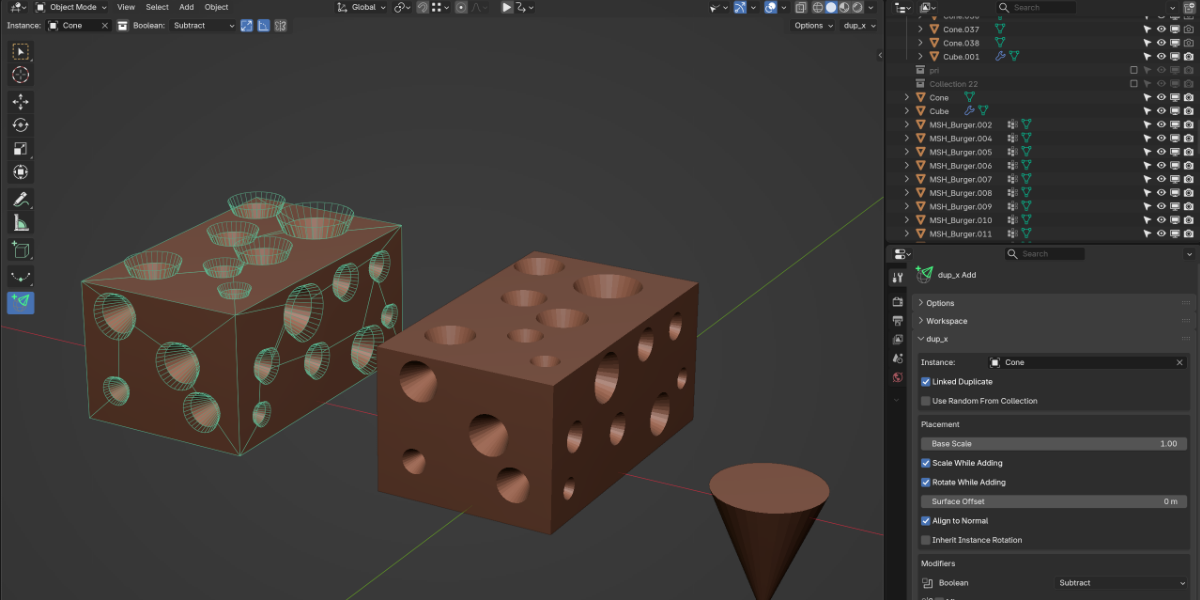
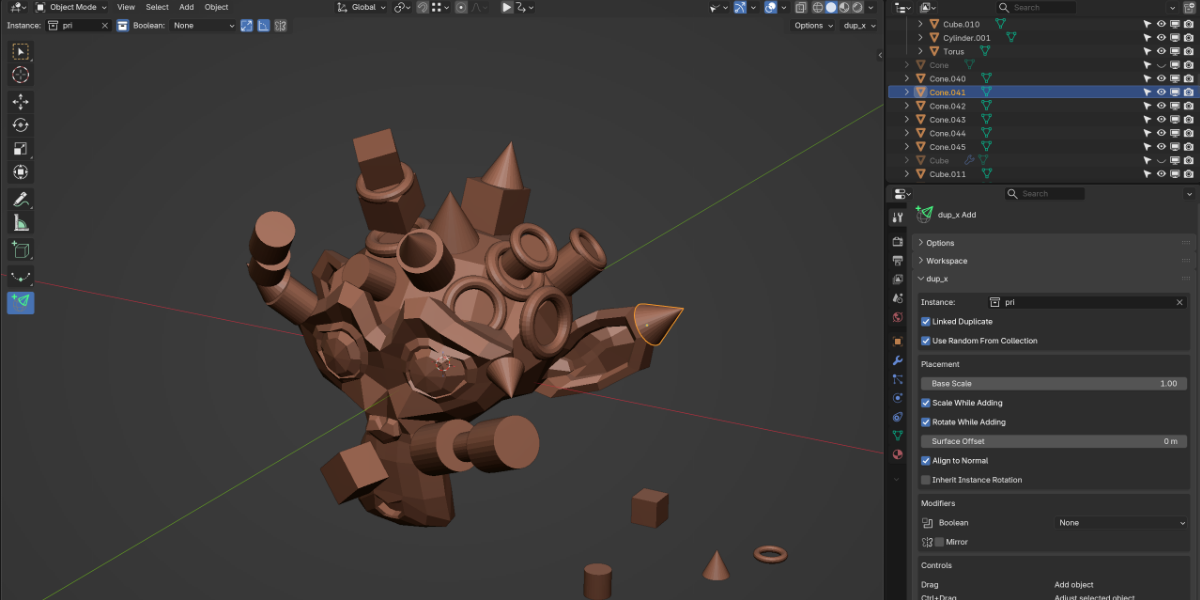


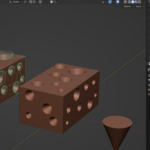
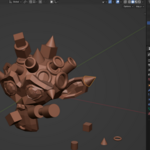
Continuously place objects by dragging them onto the mesh surface.
Simply drag to simultaneously adjust the placement, scale, and rotation of the objects.
Menu
3D View > Sidebar (T) > dup_x tool icon
Keymap
| operation | function |
|---|---|
| Drag | Add object |
| Ctrl + Drag | Adjust selected objects |
| Ctrl + Click | Select object |
| Shift | Tweak |
| C | Set an instance object |
| G + Drag | Slide local XY position |
| S + Drag | Scale only operation |
| R + Drag | Rotation only operation |
| Z + Drag | Slide in the Z direction |
| Right-click/Esc | Cancel operation |
Option
-
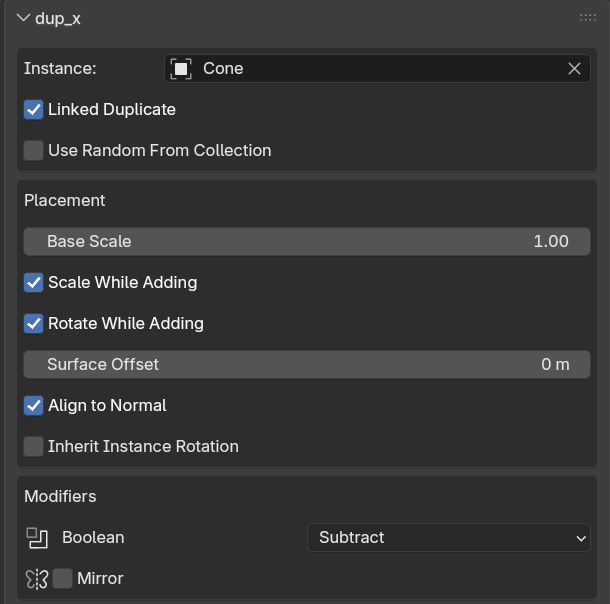
instance
The instance object to use during dragging. If not specified, the active object will be used.
-
Use randomly from the collection.
Uses objects from the specified collection as random instance sources.
-
Duplicate link
Create an instance as a linked copy.
-
Use randomly from the collection.
This will randomly use an object from the specified collection as an instance.
Placement Options
-
Basic scale
The initial scale factor for the duplicates to be placed.
If you want to allow for some leeway in making small adjustments, set it to around 0.5.
-
Adjust the scale
Adjust the scale while dragging.
-
Adjust the rotation
Adjust the rotation while dragging.
-
Surface offset
The distance to move away from the hit surface in the direction of the normal.
-
Align to normal
Align the local Z-axis of the duplicate to the hit surface normal.
-
Inherit instance rotation
Maintain the rotation of the instance object before surface alignment.
Modifier
-
Boolean
The instance to be placed will be used as the Boolean object for the hit surface object.
The created instance is added to the Cutters collection.
-
mirror
Add a mirror modifier to each instance you have placed.
By setting the Mirror Object option, you can make that object the mirror axis.
Adjustment mode
Holding down G/S/R/Z while left-dragging adjusts the transform of the active object.
The G key slides the object along the XY plane.
The Z key slides the object along its local Z axis.
Within the dup_x tool, you can switch the active selection by pressing Ctrl + click.
| operation | function |
|---|---|
| G + Drag | Slide local XY position |
| S + Drag | Scale only |
| R + Drag | Rotation only |
| Z + Drag | Slide in the Z direction. |
Add-on settings
-
Scale sensitivity
The sensitivity of the drag distance used for scaling.
-
Shift fine adjustment
The adjustment multiplier used while holding down the Shift key.