Easy Camera Matcher
 Sander Wit


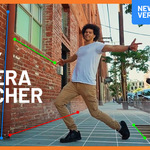
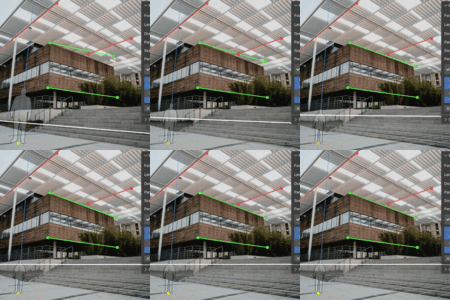
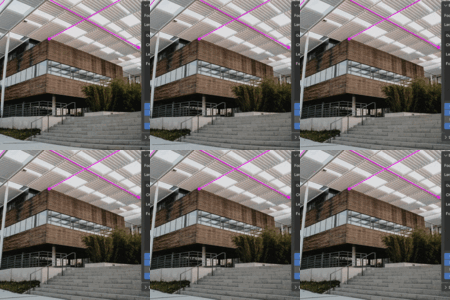
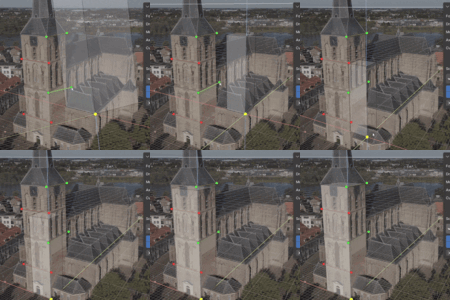
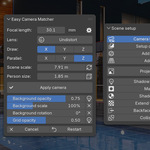
The addon has a built-in tip section that updates automatically when using the app, so hopefully you won't ever need this documentation.
Install
Just drag the zip file to your 3D viewport.
Quickstart
- Select the photo or video to which you want to match a 3D camera.
- Select the axis you'd like to match in your photo (X or Y are horizontal, Z is vertical).
- Hold ctrl and draw two lines that matches with an axis in your background.
- Now draw two lines that match the other axis.
- Move the yellow origin dot to a logical place on the floor (preferably at the corner of an object you know the size of).
- Set the scale with keyboard [S] to match the person with your photo (or select the cube icon in the addon panel, set its real world size and set the scene scale until the cube matches the object in your photo.)
Done! Click 'Apply camera' to apply the camera's location, rotation and focal length.
Interface
-
Select image or video
Press this to select the photo or video you want to match a camera to. A new camera will be created automatically. If you already have an active camera with a background photo or video, that will be used for the matching process. -
Axis - X, Y, Z (Shortcut: X, Y, Z)
Choose the axis to draw. Make sure you choose the right axis before drawing a new perspective line and have it line up with your background. -
Parallel - X, Y, Z
Choose one or two axis that are parallel in your photo. You can also draw a single line for that axis so that the rotation of that axis matches the line. -
Scene scale (Shortcut: S)
Use this to set the world scale so that your reference cube lines up with an element in your scene of which you know the size. The size represents the distance from the camera to the origin (yellow dot). -
Rotate scene (Shortcut: R)
Press the rotate icon button or shortcut R to rotate the scene orientation 90 degrees on the Z axis. This will also flip the X and Y perspective lines. -
Reference model size - (Shortcut: Shift+S)
Set the size that the person silhouette or cube represents in your scene. If for example you place the origin (the yellow dot) at a corner of a window of which you know the size, you can set the cube size to match that window.
- Click the lock to keep the box uniform in size.
- Click the arrows to rotate the box 90 degrees on the Z axis. (Shortcut: Shift+R) -
Apply camera - (Shortcut: Return)
Press this to make the camera location, rotation and focal length definitive and to disable the addon. -
Background opacity
Set the opacity of the camera background photo or video.
- Press the light icon to switch between a black or white world background. -
Grid opacity
Set the opacity of the grid floor.
- Press the light icon to switch between a black or white grid (and horizon). -
Cancel - (Shortcut: Escape)
Leave the addon without applying the camera transformation. (Your progress will not be disregarded, feel free to cancel and enable the addon later.) -
Restart
Delete all perspective lines to start over.
Viewport
- You can hold ctrl when moving the end of a line to have it snap to the end of another line or the origin.
- Hold shift while moving a dot to move it more precisely.
- You can select a line after drawing it (when in 'Lines' mode) to delete it with the delete button or flip it with the F button so that it switches to become a line representing the other axis.
Preferences
- Show tips - Enable/disable the info box in the addon panel, that shows tips on how to use the addon.
- Auto switch axis - Enable to automatically switch to the other axis after having drawn 2 lines of the first available axis.
- Keep reference cube - Disable if you want to have the reference cube deleted after applying the matched camera.
- Snap threshold - Set the distance in pixels when lines will snap to one another when moving them with ctrl.
- Slow movement speed - Set the speed of which lines will move while holding shift for more accuracy.
$10
Have questions about this product?
Login to message
| Blender Extension Compatible | Yes |
| Sales | 300+ |
| Rating | 8 ratings |
| Dev Fund Contributor | |
| Published | 9 months ago |
| Blender Version | 4.3 - 5.2 |
| Extension Type | Add-on |
| Render Engine Used | Arnold, Blender-Internal, Blender-Game-Engine, Cycles, Eevee, Freestyle, Luxrender, Mental-Ray, Octane, Vray, Yafaray |
| License | GPL |
Discover more products like this
fspy perspective camera tracking camera matching plotter VFX lens modelling visual effects scene reconstruction perspective plotter