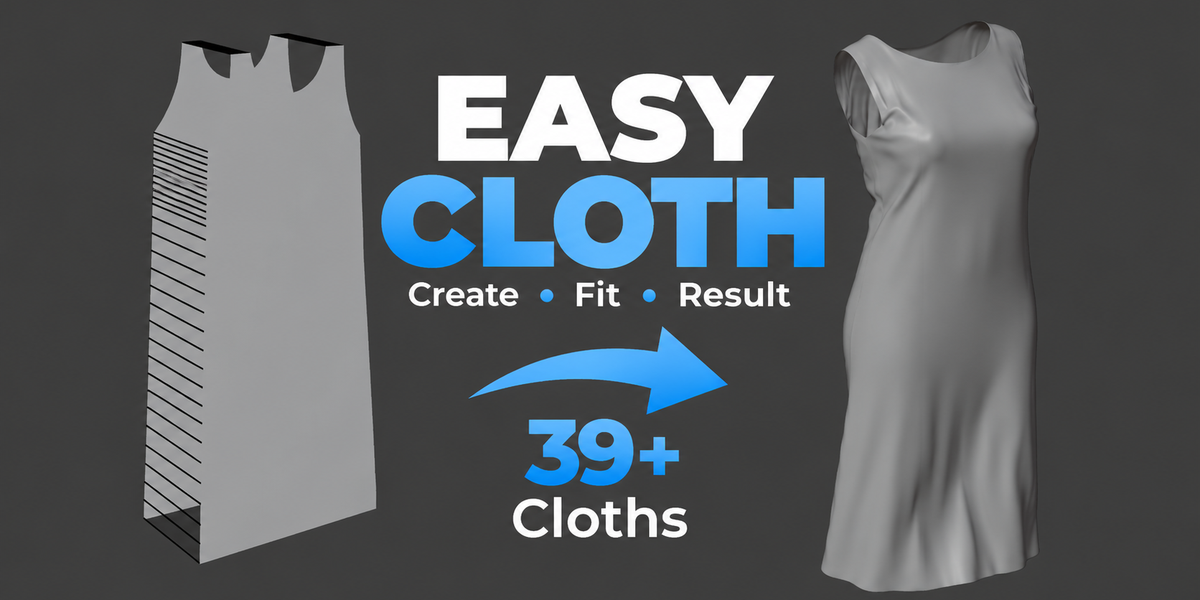
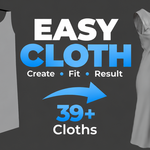
Easy Cloth: Garment Templates, Sewing and Cloth Simulation
 blenderustad
Requirements
Blender 5.2 or later. Tested on Blender 5.2.1 LTS on Windows. Other versions and platforms are not validated yet.
Installation
- Download
easy_cloth-1.0.1.zip. Do not unzip it. - In Blender go to Edit > Preferences > Add-ons > Install from Disk.
- Select the ZIP and enable Easy Cloth.
- Press N in the 3D Viewport and open the Easy Cloth tab.
- When replacing an earlier version, restart Blender.
This is a Blender extension ZIP (blender_manifest.toml included). You can also drag and drop the ZIP into Blender.
First use (quick start)
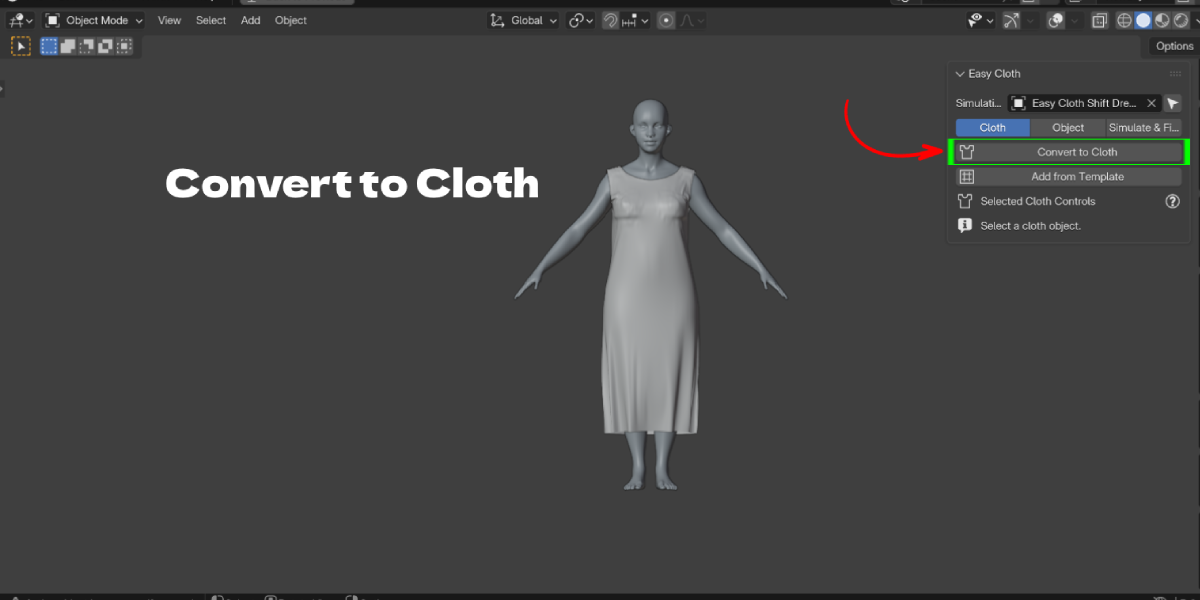
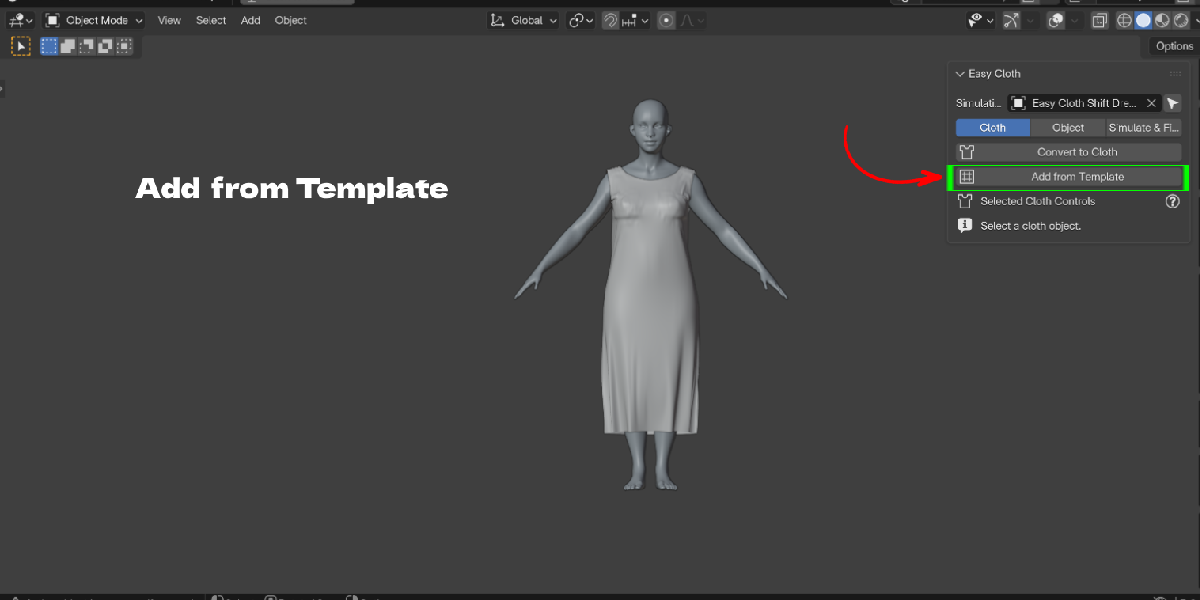
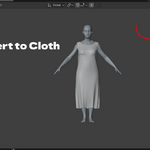
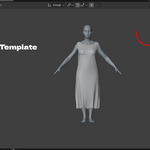
- Select your character, then in the Cloth tab click Add from Template. Pick a category and template, adjust its settings and click Add. Or select your own mesh and click Convert to Cloth.
- Open Selected Cloth Controls to choose fabric, collision, sewing, elastic bands and pins.
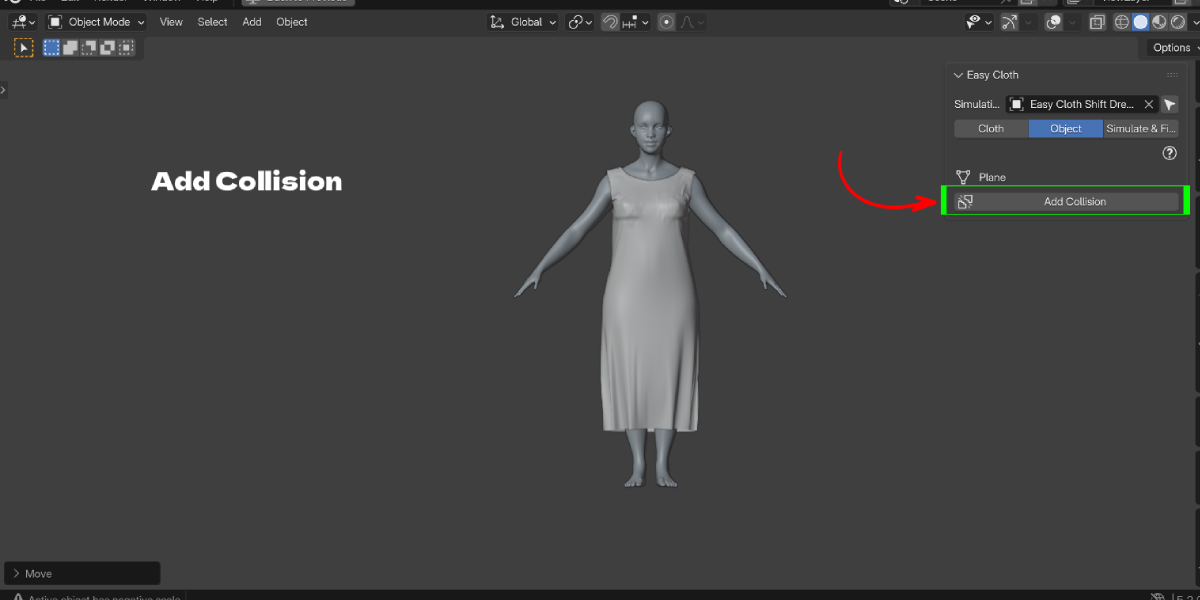
- Select the character in the Object tab and click Add Collision.
- Set Simulation Target to the garment you want to simulate.
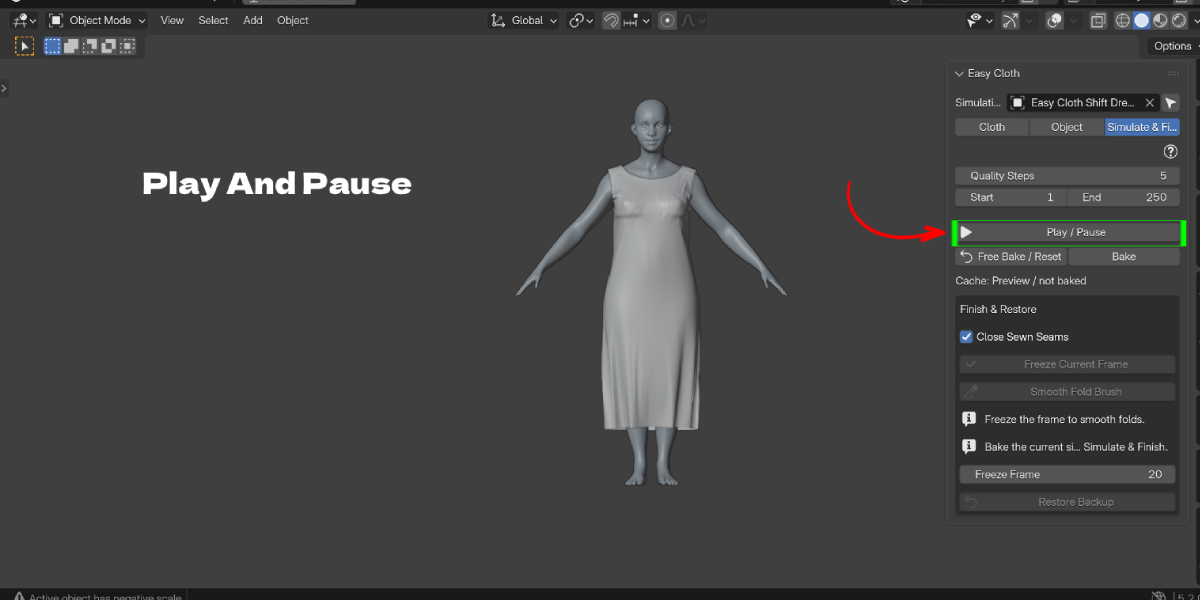
- In Simulate & Finish, press Play from the start. When it looks right, click Bake, set Freeze Frame and click Freeze Current Frame if you need a static mesh.
Panels and settings
Simulation Target: the garment that simulation and finishing act on. Cloth controls follow the selected object; Simulate & Finish follows the Simulation Target.
Cloth tab
- Convert to Cloth: adds a Cloth modifier to the active mesh with starting settings. Subdivide the mesh before converting.
- Add from Template: browser with Tops, Male, Female, Curtains & Sheets and Accessories. Auto placement uses the selected model or the only visible collider; choose 3D Cursor for exact placement.
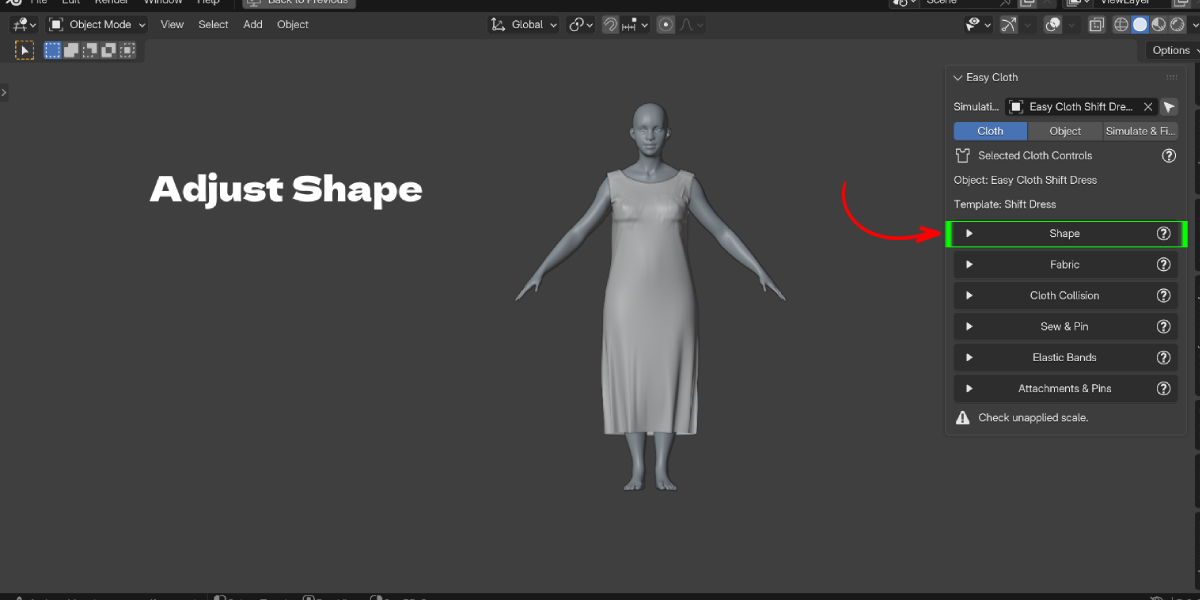
- Selected Cloth Controls, with these sections:
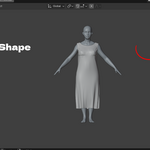
- Shape: template specific sliders (dimensions, waist, hem flare or leg openings, neckline, sleeves, skirt radii, cape shoulders, poncho opening, curtain pleats, sheet size). 1.00 is the start shape, 1.20 is 20% larger.
- Fabric: Cotton, Silk, Wool, Linen, Denim, Leather, Chiffon. Mass and Bending (0 to 50, higher values can be typed). Manual edits show as Custom.
- Cloth Collision: Self Collision and Self Margin for the selected cloth.
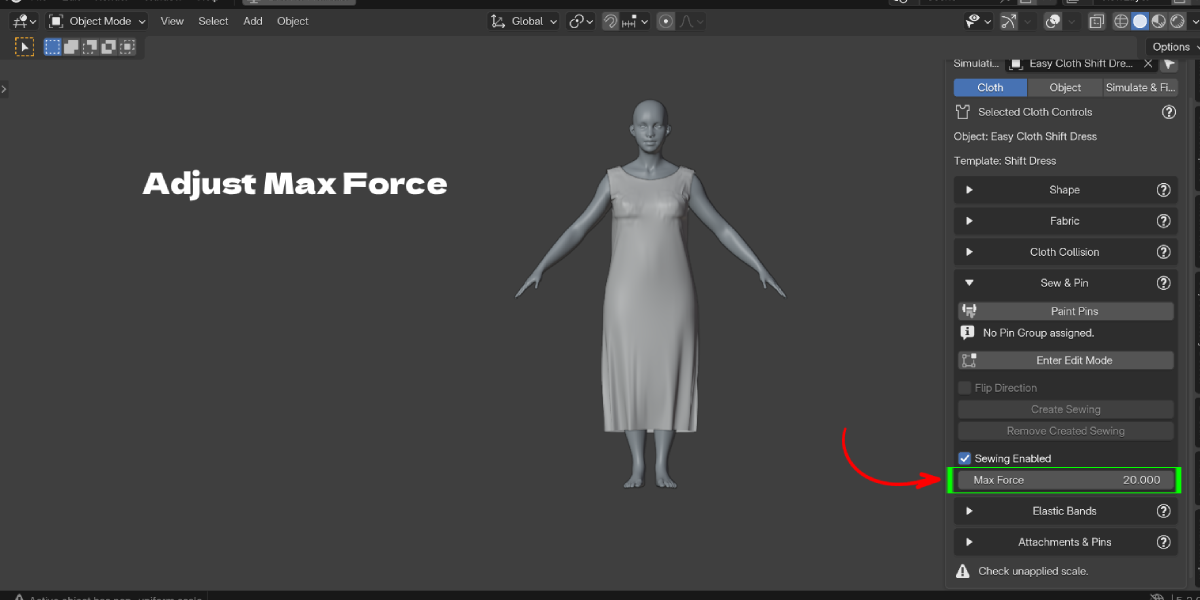
- Sew & Pin: Paint Pins, Enter Edit Mode, Create Sewing, Flip Direction, Remove Created Sewing, Sewing Enabled and Max Force.
- Elastic Bands: list of bands, add with +, remove with minus, Select Vertices, Replace from Selection, Tightness and Falloff Width.
- Attachments & Pins: Pin Selected, Unpin Selected, Select Pinned Vertices, Pin Top Edge, Release Top Edge, pin counts. Skirts show the Pinned / Elastic waistband switch.
Object tab
- Add Collision for the selected object, with Collision Quality and Cloth Margin.
Simulate & Finish tab
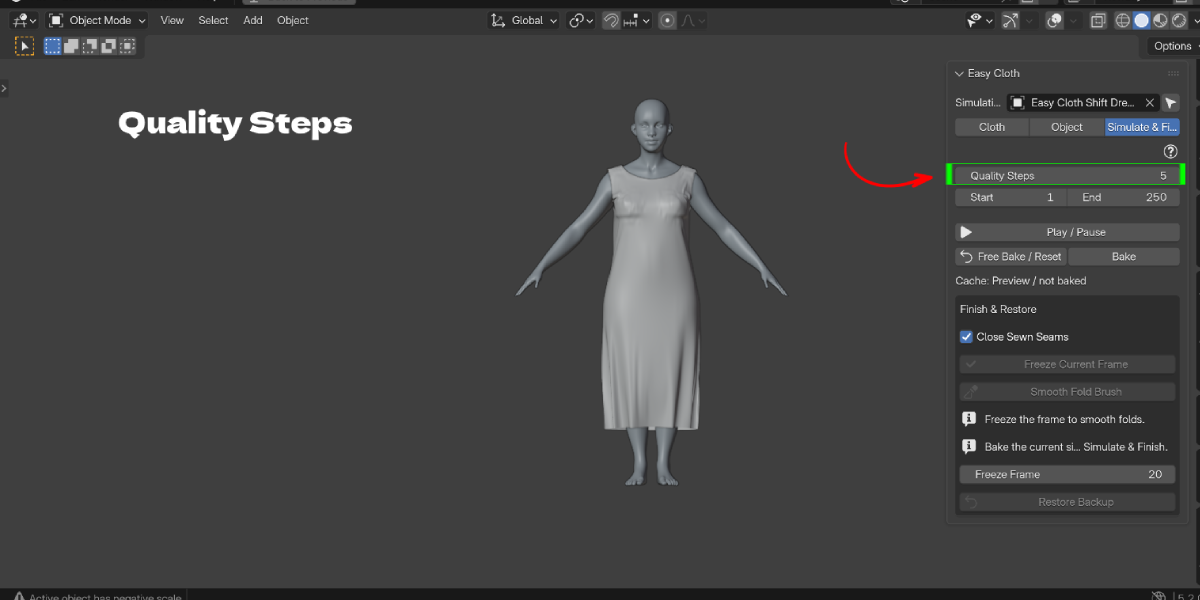
- Quality Steps, Start and End frames.
- Play / Pause, Free Bake / Reset, Bake.
- Finish & Restore: Close Sewn Seams, Freeze Frame, Freeze Current Frame, Smooth Fold Brush, Restore Backup.
Shape controls tips
Pause playback and use Object Mode. Free a bake before reshaping. Shared meshes, shape keys and changed topology disable the sliders. Sewing, pins, elastic weights and manual vertex edits are kept.
Pins and elastic bands
Weight 1 holds a vertex fully; partial weights can move. Orange selection alone is not a pin, click Pin Selected. Elastic contracts an area while it still moves; Zero Falloff Width affects only the selected vertices. After changing topology, clear invalid bands and recreate them.
Animation
For an animated character keep the baked Cloth modifier and do not freeze.
Limits
- Templates are starting patterns, not tailored garments. Auto placement works best on an upright model with the full body selected.
- Do not add a live garment as a collider. Freeze the inner garment first.
- Freeze needs a current bake, a frame inside the baked range, Cloth first in the modifier stack and no shape keys.
- Sewing, pin and elastic editing need a local single-user mesh.
- Keep each garment as a separate cloth object with its own cache.
Performance tips
- Use moderate mesh density; more vertices make the simulation slower.
- Raise Quality Steps only when cloth passes through itself or the body.
- Bake once you like the preview so playback is smooth.
Troubleshooting
- Cloth clipping through the body: add collision to the body in the Object tab, check that the cloth starts clear of the body, apply object scale and raise Cloth Margin or Quality Steps.
- Cloth sewing not working / seams pull apart: check Sewing Enabled, raise Max Force, and fit panels closer before simulating.
- Pinned vertices still move: the vertices may only be selected. Click Pin Selected and check the pin count. Partial weights still move.
- Skirt slides down: switch the waistband to Pinned, or use Elastic with more Tightness and a body collider.
- Shape sliders are greyed out: stop playback, use Object Mode, free the bake, and remove shape keys.
- Freeze button disabled: bake first, pick a frame inside the baked range and keep Cloth first in the modifier stack.
- Changes do not show: reset and replay from the start frame.
- Warning "Check unapplied scale": apply scale with Ctrl+A > Scale.
Have questions about this product?
Login to message
| Blender Extension Compatible | Yes |
| Published | about 6 hours ago |
| Blender Version | 3.3 - 5.2 |
| Extension Type | Add-on |
| Render Engine Used | Cycles, Eevee |
| License | GPL |
