Easy Cursor Snapper – One-Click Cursor & Selection Snapping
 Dani K Daniel


Easy Cursor Snapper – Quick Guide
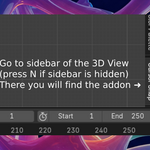
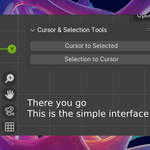
Open the panel
3D Viewport → press N → Cursor Snap tab.
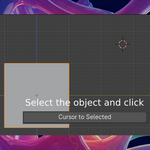
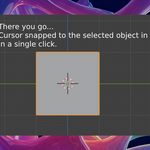
Cursor to Selected
Select one or more objects.
Click Cursor to Selected.
The 3D Cursor jumps to the center of your selection.
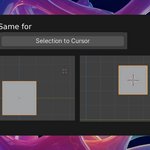
Selection to Cursor
Place the 3D Cursor where you want it (Shift + Right-Click in the viewport).
Select the object(s) to move.
Click Selection to Cursor.
Tips
Use Cursor to Selected on one object, then select another and use Selection to Cursor to stack or align objects quickly.
Set the Pivot Point to "3D Cursor" to rotate or scale around the spot you just snapped to.
Ctrl+Z undoes either action.
Troubleshooting
"No objects selected" warning: select at least one object first.
Can't find the tab: make sure the add-on is enabled in Edit → Preferences → Add-ons, then press N in the 3D Viewport.
Have questions about this product?
Login to message
| Published | over 1 year ago |
| Blender Version | 4.4, 4.3, 4.2, 4.1, 4.0, 3.6, 3.5, 3.4 |
| Extension Type | N/A |
| License | GPL |
Discover more products like this
digitalart AnimationTools 3Ddesign blender3d CreativeTools 3drender BlenderScript blenderrender blenderaddons TechTools GPLLicense SnapTools SpeedUpYourWorkflow #BlenderLife 3dart 3DWorkflow Cursor to selected OpenSource selection to cursor blendercommunity #ModelingTools WorkflowOptimization PythonCoding VisualEffects 3DEditing 3dartist cgi 3dmodeling CodingForArt FreeSoftware ProductivityTools BlenderTips DesignEfficiency